Do you have JBL headphones and want to connect them to your PC Windows 10, but it's not working? Don't worry, there are simple solutions to fix this problem. In this article, we'll show you how to check the compatibility between your devices, enable and configure Bluetooth on your PC, and troubleshoot any battery, interference, driver, or sound issues. Follow these steps and you'll be able to enjoy your music wirelessly!
Solution 1: Check the compatibility between your JBL headphones and your Windows 10 PC
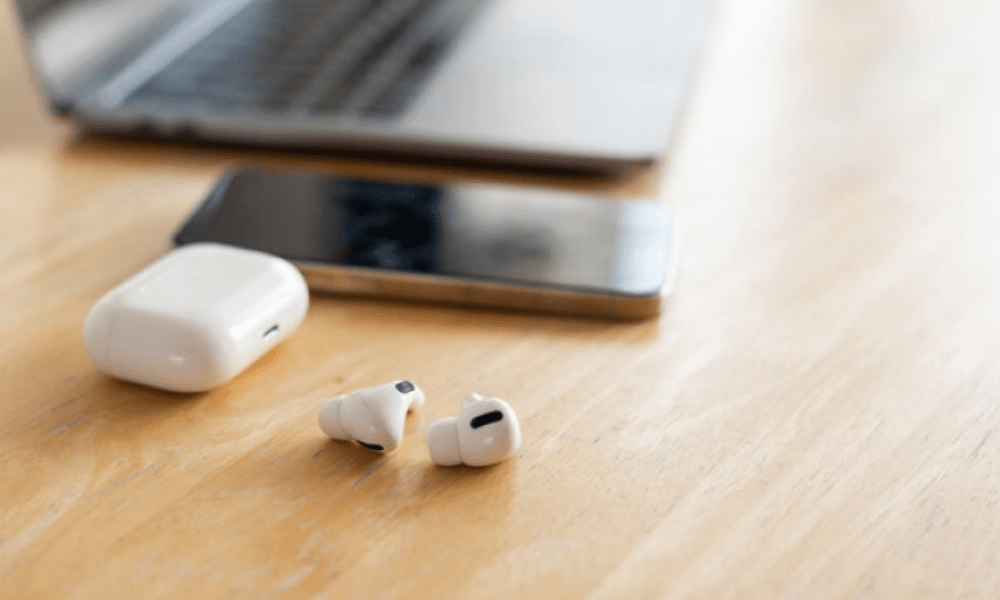
The first thing to do is check that your JBL headphones are compatible with Windows 10.To do this, go to the official JBL website and search for your headphone model. There you will find the technical specifications, user manuals, and any drivers that may be required for download.
If your JBL headphones are compatible with Windows 10, but require a specific driver, you must download and install it on your PC before connecting.
Solution 2: Enable and configure Bluetooth on your Windows 10 PC
If your JBL headphones are compatible with Windows 10 and you have installed the necessary driver, you then need to enable and configure Bluetooth on your PC. To do this, follow these steps:
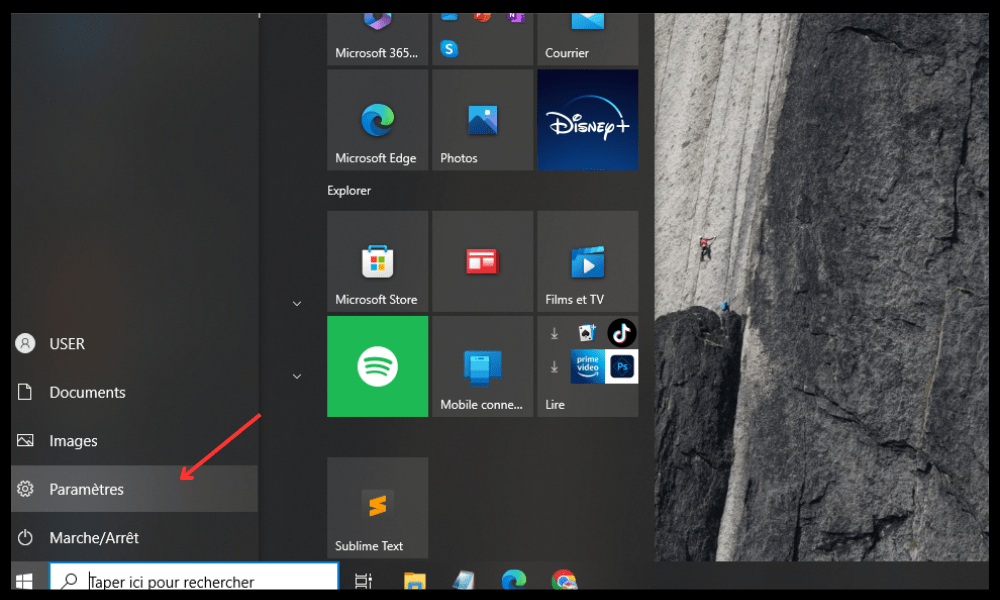
- Click on the Start menu in the bottom left corner of your screen and select Settings.
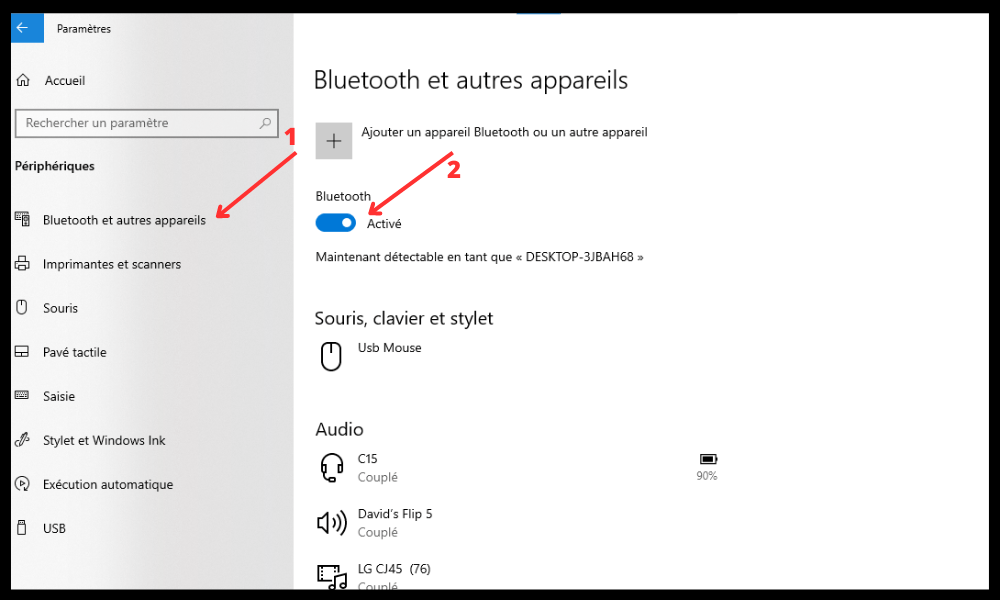
- Click on Devices, then on Bluetooth and other devices.
- Activate Bluetooth by toggling the button to the right.
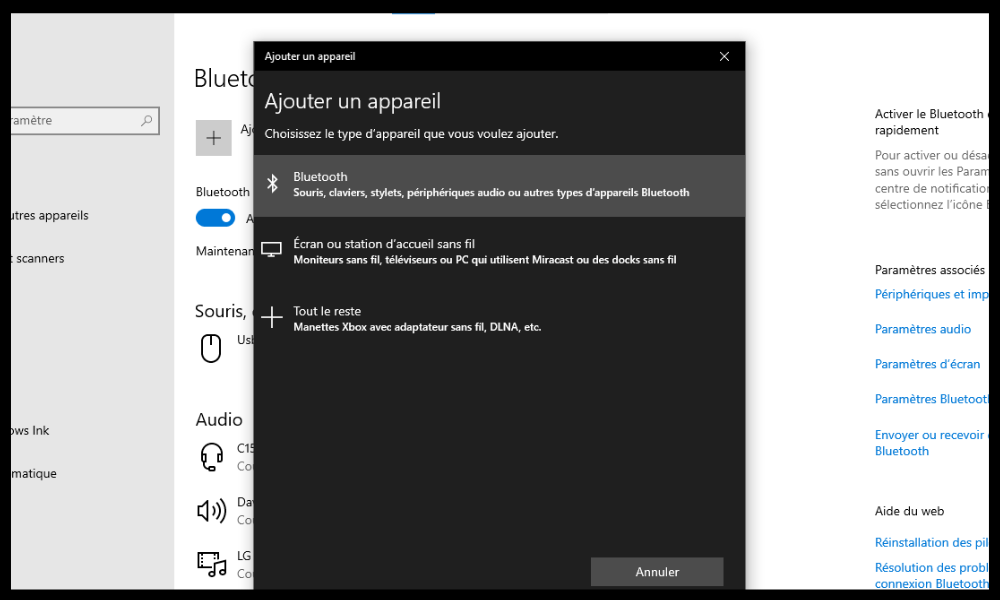
- Click on Add a Bluetooth device or other device and then on Bluetooth.
- Put your JBL headphones into pairing mode by following the instructions in the user manual.
- Select your JBL headphones from the list of available devices and click Connect.
- Wait until the connection is established and your JBL headphones appear as connected.
Solution 3: Resolve battery or interference issues
If you've followed the previous steps but the connection between your JBL headphones and your Windows 10 PC still isn't working, there may be a battery issue or interference. Here are some tips to fix it:
- Check that your JBL headphones are sufficiently charged. If not, recharge them using the supplied cable or a compatible power supply .
- Check that your JBL headphones are properly positioned on your ears. If not, adjust them for a comfortable and stable fit.
- Move away from potential sources of interference, such as microwaves, Wi-Fi routers, or other Bluetooth devices. Try reducing the distance between your JBL headphones and your Windows 10 PC.
Solution 4: Update the Bluetooth driver on your Windows 10 PC
If you're experiencing a Bluetooth issue on Windows 10—meaning the connection between your JBL headphones and your Windows 10 PC is unstable or intermittent—there might be a problem with your PC's Bluetooth driver. The driver is software that allows your PC to communicate with Bluetooth devices. It may be outdated or corrupted. To update it, follow these steps:
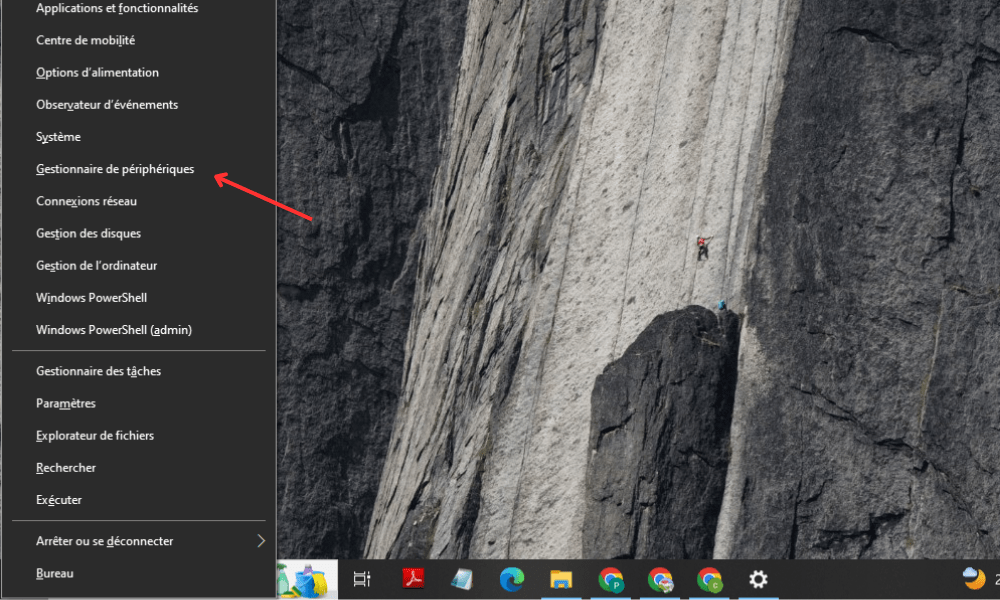
- Right-click on the Start menu in the bottom left corner of your screen and select Device Manager.
- Expand the Bluetooth category and right-click on your PC's Bluetooth device.
- Select Update driver and choose Automatically search for updated driver.
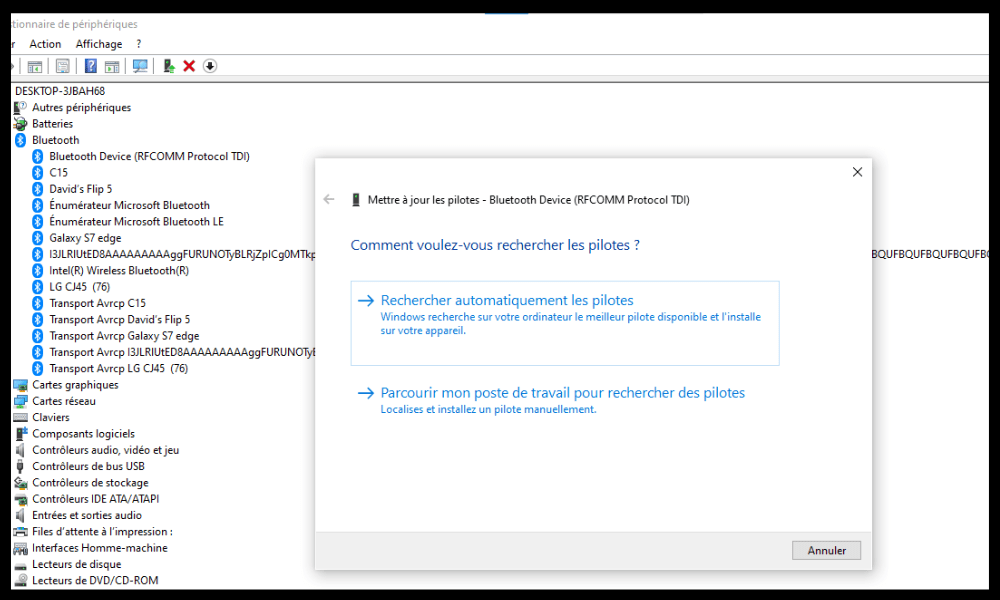
- Follow the on-screen instructions and restart your PC if necessary.
Solution 5: Disable audio enhancements on your Windows 10 PC
If the sound quality of your JBL headphones is poor , or if you hear crackling or dropouts, there may be a problem with your PC's audio enhancements. Audio enhancements are effects designed to improve your PC's sound output, but they can sometimes cause interference with Bluetooth devices. To disable them, follow these steps:
- Right-click the speaker icon in the bottom right corner of your screen and select Sound.
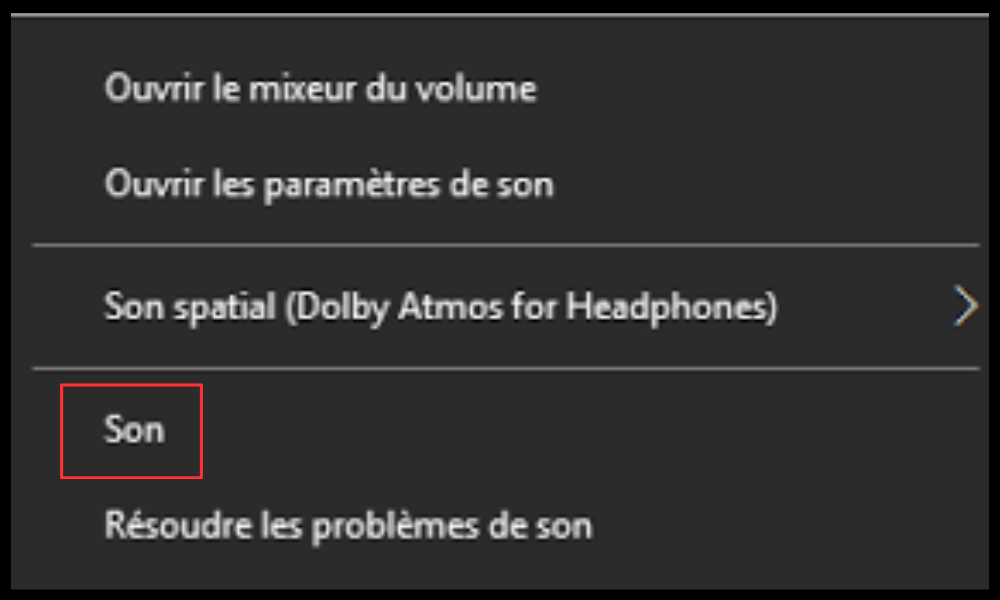
- Click on the Playback tab and right-click on your JBL headphones.
- Select Properties and click on the Enhancements tab.
- Check the box to disable all sound effects and click OK.
Solution 6: Reset your JBL headphones
If none of the previous solutions work, there may be a problem with your JBL headphones themselves. In this case, you can try resetting them to their factory settings. To do this, follow the instructions in your JBL headphones' user manual or visit the official JBL website to find the reset guide specific to your model.
Warning: Resetting your JBL headphones will erase all data and settings stored on them. You will therefore need to pair them again with your Windows 10 or other device.
FAQ
How do I connect JBL headphones via Bluetooth to a PC?
To connect JBL headphones to your PC via Bluetooth, you must follow these steps:
- Take your JBL headphones out of their charging case (make sure they are sufficiently charged).
- Search for the name of your JBL headphones in the list of Bluetooth devices available on your PC.
- Once you have found the name of your JBL headphones in the list, click on it.
- The pairing process takes a few seconds.
Check that the sound from your PC is coming through your JBL headphones. If not, go to your sound settings and select your JBL headphones as the new sound output.
What should I do if the Bluetooth connection between my PC and my JBL headphones is unstable or interrupted?
If the Bluetooth connection between your PC and your JBL headphones is unstable or interrupted, you can try these solutions:
- Update your PC's Bluetooth driver by going to Device Manager and selecting Update driver for your PC's Bluetooth device.
- Disable audio enhancements on your PC by going to sound properties and checking the box Disable all sound effects.
- Move away from potential sources of interference, such as microwaves, Wi-Fi routers, or other Bluetooth devices.
How do I reset my JBL headphones?
To reset your JBL headphones, you must follow the instructions in your JBL headphones' user manual or consult the official JBL website to find the reset guide corresponding to your model.
How do I adjust the volume on my JBL headphones?
To adjust the volume of your JBL headphones, you can use the buttons on the headphones or your PC's volume control. If you find the volume too low or too high, you can try disabling the Absolute Volume feature on your PC. To do this, you need to make a change to the registry:
Press the Windows key + R to open the Run dialog box.
- Type regedit and click OK to open the Registry Editor.
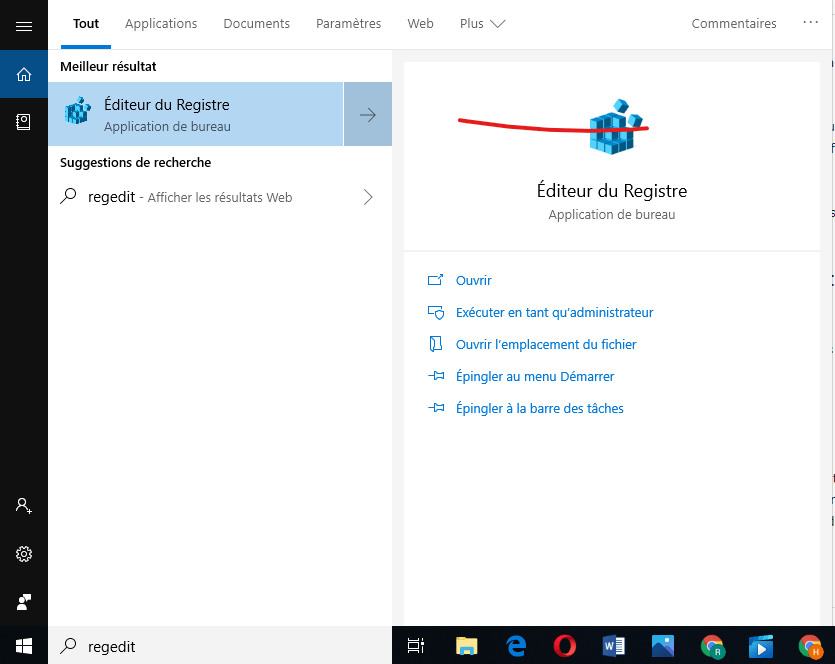
- Access the following key: HKEY_LOCAL_MACHINE\SYSTEM\ControlSet001\Control\Bluetooth\Audio\AVRCP\CT
- Right-click on an empty area and select New > DWORD (32-bit) Value.
- Name the value DisableAbsoluteVolume and double-click on it.
- Change the value from 0 to 1 and click OK.
- Restart your PC for the changes to take effect.
How do I check the battery level of my JBL headphones?
To check the battery level of your JBL headphones, you can use the LED indicator on the charging case or theJBL Headphones app if you have it installed on your smartphone. You can also check the battery level in your PC's Bluetooth settings when your headphones are connected.
How do I contact JBL customer service?
To contact JBL customer service, you can use one of the following methods:
Call +33 178429982 from Monday to Friday from 09:00 to 18:00 and from Saturday to Sunday from 10:00 to 16:00.
Send an email to customer.support@harman.com or use the online contact form.
Conclusion
We hope this article helped you connect your JBL headphones to your Windows 10 PC. If you followed our instructions, you should be able to enjoy your music wirelessly without any problems. If you still have questions or difficulties, feel free to leave us a comment or contact JBL customer support. And if you're looking to choose Bluetooth headphones that suit your needs, check out our buying guide. Happy listening!