
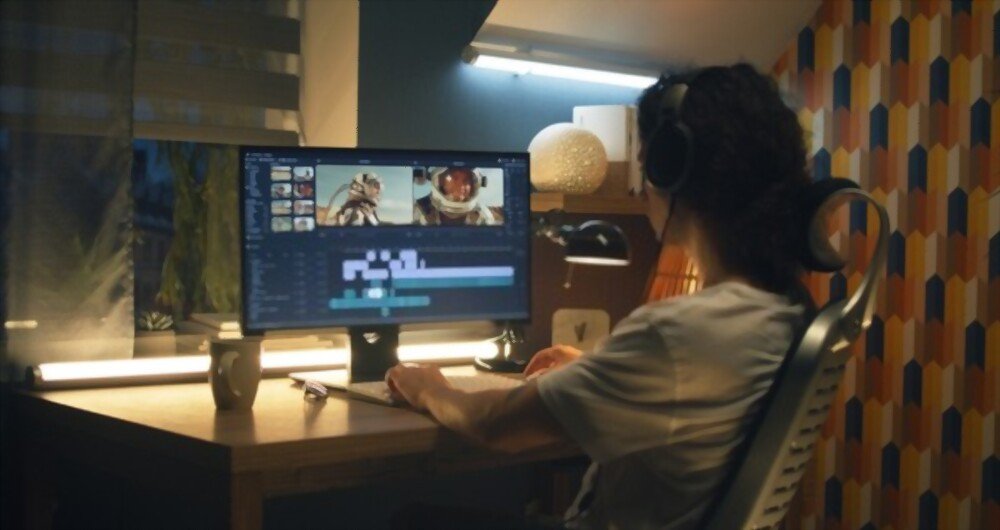
We see our wallpaper every day – some put up their family photos, some want to have abstract art, and some place a vision board.
If you've been using a simple blue wallpaper and a standard color palette, you might not realize how much customization is available with Windows . Yes, of course, Windows offers different wallpapers for OLED and LCD screens. But what if you'd like to make your PC unique and have a video wallpaper?
Now, you're probably thinking how complex and difficult this is going to be. Do you need to be a computer developer, a designer, or maybe even a hacker to create an HD video PC wallpaper?
Don't worry. In fact, it's much easier than you think. You can apply video wallpapers using various apps, including VLC. And thanks to numerous online services specializing in custom videos, such as OpenShot , Magix Movavi 's video editor – completing any task only takes a few minutes, whether you want to install it on Android , iOS, or Windows .
Today, we've decided to create a detailed guide to help you. Read on to learn how to install the live wallpaper on your PC and how to create the HD wallpaper using Movavi Video Editor – one of the best video editing programs we've seen online.
How do I set a video as my wallpaper?
If you want to know how to set a screensaver video on your Windowscomputer, there are many methods and software to achieve this.
There are alternatives to using a video as your desktop background on a WindowsPC. Instead, you can use high-quality 4K wallpapers on your PC to create a bright and colorful desktop without having to worry about battery life (for laptops) or the resource usage of constant video streaming.

You can customize your desktop however you like, even if you have a dual-monitor setup . With millions of stock photos and videos available online, you can create and personalize your Windows in minutes.
However, here are two better options for doing it:
1. Use an existing video with VLC

Not everyone familiar with the free and open-source VLC media player knows that it has a feature that allows you to use videos as a wallpaper.
VLC can play virtually any type of video, so if you're looking for ways to apply a video as a wallpaper on a Windowsdesktop, this is one of the quickest and easiest options.
However, you can only use the video temporarily as a wallpaper, and only when VLC is running. It's a great option for having a temporary video wallpaper.
To use a video as your wallpaper in VLC, perform the following actions:
- Launch the program and open your video.
- Right-click on the playback window and select Video > Set as background.
- Stop the video in the VLC player window or close VLC completely to end your video wallpaper.
2. Create a new video with Movavi Video Editor
There's nothing better than the leading app for creating movies from images that combines speed and ease of learning. If you haven't heard of Movavi yet, let us tell you all about it.

Movavi offers a wide range of multimedia programs that allow you to enjoy your videos, music, and photos on any platform and device. It provides easy-to-use software that empowers individuals to edit, enhance, and share their content.
In this regard, Movavi Video Editor proves to be the best program for creating your own videos . It allows you to create amazing videos simply using images. And no additional skills or expertise are required. Simply download Movavi Video Editor and follow the steps below:
- Add your images by selecting the files you want to use.
- Apply filters from different categories to the same image.
- Add animated transitions by pressing the button with the mountain image located above the timeline. A dialog box will appear, from which you can select the style and length of the transition.
- Include music and titles – Subtitles can be added to your movie to provide context for your photos. Simply open the Titles tab, select the desired title style, and drag it to the title track.
- Save the finished video – press Export, then choose a saving option depending on what you want to do with the video.
Movavi Video Editor – the best video editing software

Movavi Video Editor is an online video editing program that works on Windows and Mac computers. This program allows you to unleash your creativity by offering a plethora of options to make your videos stand out. It features advanced editing modules that can be used to create both short films and full-length movies.
Despite the many alternative video editors on the market, Movavi Video Editor impresses consumers with its ease of use. Anyone can use this video editor without being a computer expert. It's an excellent choice for beginners . Thanks to its advanced tools, it's also suitable for professionals.
Movavi Video Editor is a simple yet powerful video editing program that will transform your video into a work of art. It can be used to edit and convert movies, generate 3D effects, stabilize shaky footage, and add audio tracks to videos, among other things. You can use this tool to edit videos, apply special effects, and add music. This rich combination of powerful features and ease of use means you can quickly achieve the desired look. This has made it a favorite among both experienced and novice video editors.
Conclusion
After reading this article, you should be able to change your wallpaper on Windows and create a unique video for your desktop.
Try Movavi Video Editor and let us know what you think. And if you know of any other programs for turning a video into a wallpaper, feel free to share them with us in the comments section and we'll try them out and give our opinion.


