
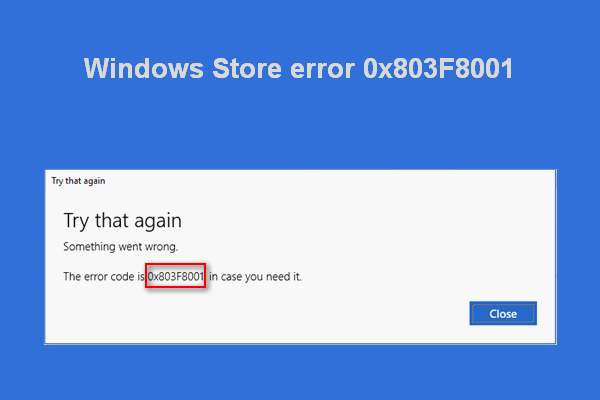
code 0x803f8001 is a problem that can occur when you try to update or download apps from the Microsoft Store . This code means that the app is not properly licensed or is not compatible with your version of Windows 10. If you encounter this problem, don't worry, there are solutions to fix it. In this article, we'll explain the possible causes of this error code and how to repair it.
What are the causes of error code 0x803f8001?
There are several reasons why error code 0x803f8001 might appear on Windows 10. Some of the most common include:
- An genuine application updates
- A corrupted or outdated Windows cache
- A location or region issue that prevents the application from recognizing your system.
- A proxy or VPN that interferes with the connection to the Microsoft Store.
- A malfunction of the Windows Store or the application in question.
How to fix error code 0x803f8001?
To fix error code 0x803f8001 on Windows 10 , you can try the following methods:
Method 1: Uninstall and reinstall the application
The first thing to do is uninstall and reinstall the problematic application. This can resolve any bugs or incompatibilities that are preventing the update or download. To do this, follow these steps:
- Right-click the application icon on the Start menu or desktop and choose Uninstall .

- Open the Microsoft Store and search for the app you want to reinstall.

- Click on Install and follow the on-screen instructions.
Method 2: Temporarily disable the antivirus
Antivirus software protects your PC from malicious threats , but it can sometimes interfere with application updates and cause error code 0x803f8001 . To check if this is the case, you can temporarily disable your antivirus software or even Windows Defender until you have finished the update or download. To do this, follow these steps:
- Open your antivirus software and access the settings.
- Look for the option to disable real-time protection or antivirus protection and click on it.
- Choose a duration for which you want to disable the antivirus, for example 15 minutes or until the next restart.
- Try updating or downloading the app from the Microsoft Store again.
Don't forget to reactivate your antivirus once you're finished.
Method 3: Reset the Windows Store cache
The Windows Store cache is a collection of temporary files that store information about apps and updates. If this cache is corrupted or outdated, it can prevent the Microsoft Store from working properly and cause error code 0x803f8001 . To reset the Windows Store , follow these steps:
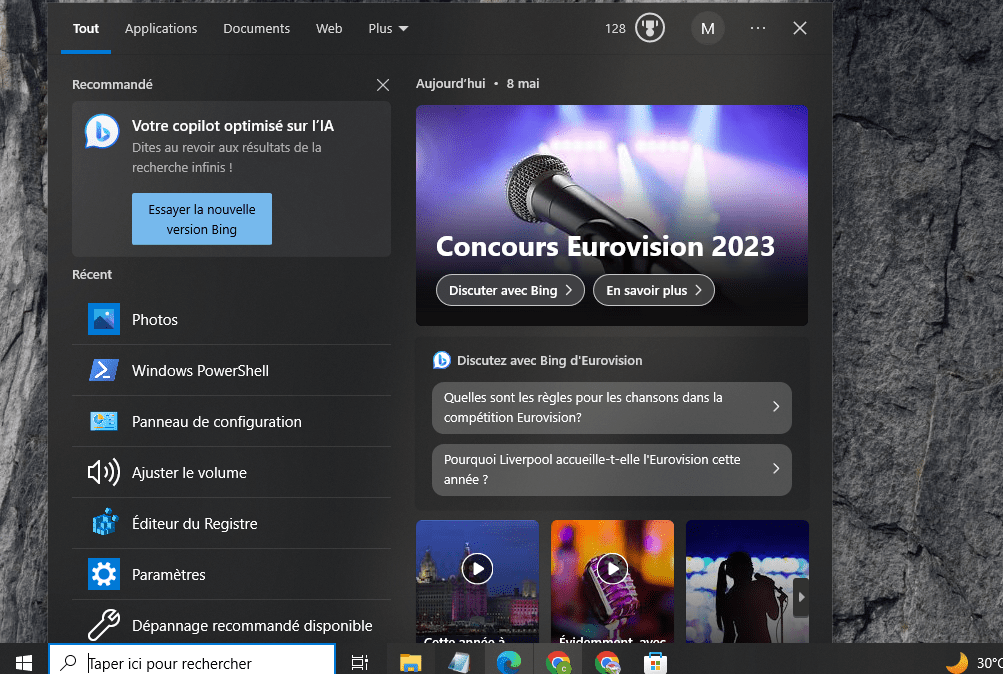
- Press Windows + Q to open the search box near the Start button or Cortana.
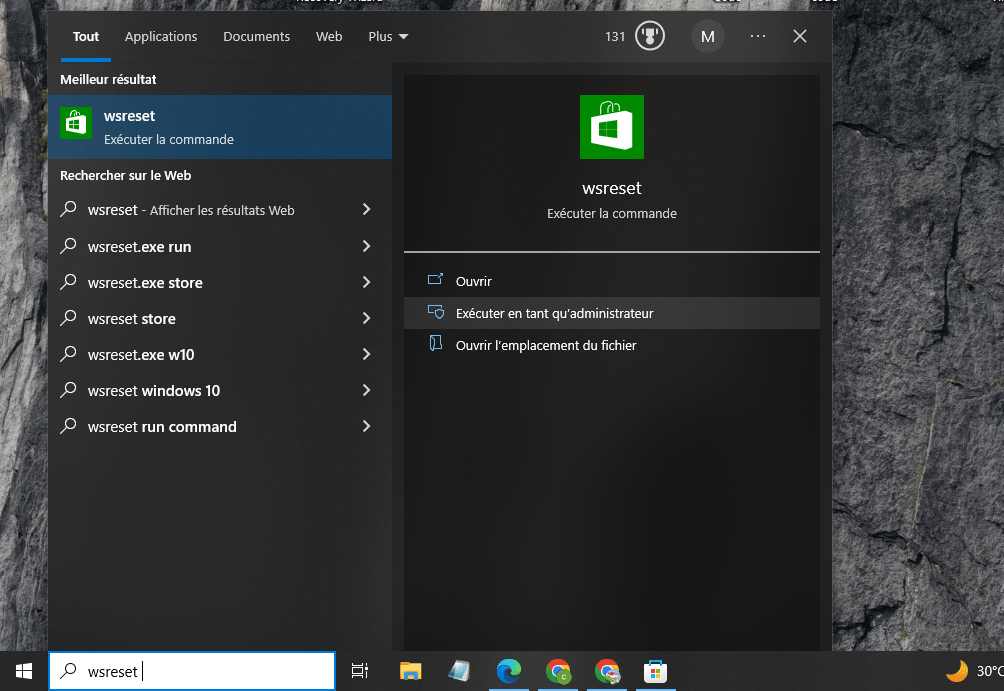
- Type wsreset and right-click on the result. Choose Run as administrator .
- A black window will open and close automatically. This means the Windows Store cache has been reset.
- Try updating or downloading the app from the Microsoft Store again.
Method 4: Re-register the Windows Store app
Windows Store app itself may PowerShell , a tool that allows you to run advanced commands on Windows 10. To do this, follow these steps:
- Press Windows + Q to open the search box near the Start button or Cortana.
- Type PowerShell and right-click on the result. Choose Run as administrator .
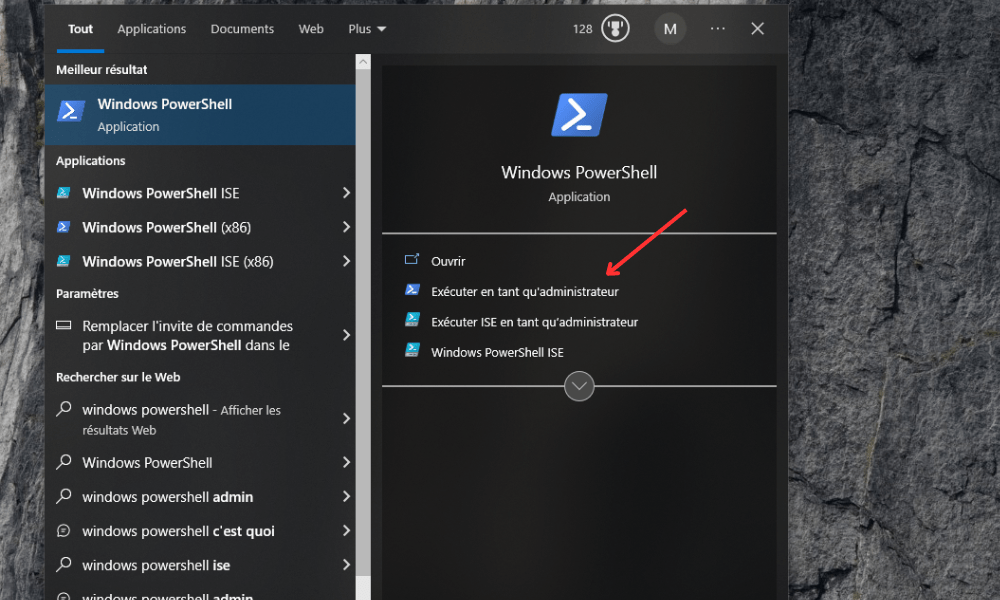
- In the PowerShell window, copy and paste the following command:
Get-AppXPackage *WindowsStore* -AllUsers | Foreach {Add-AppxPackage -DisableDevelopmentMode -Register "$($_.InstallLocation)\AppXManifest.xml"}
- Press Enter to execute the command.
- Wait for the command to finish and close the PowerShell window .
- Try updating or downloading the app from the Microsoft Store again.
Method 5: Allow apps to use your location
Some apps may need access to your location to function correctly. If you haven't allowed apps to use your location, this can cause error code 0x803f8001 . To allow apps to use your location, follow these steps:
- Click the Start and choose Settings .
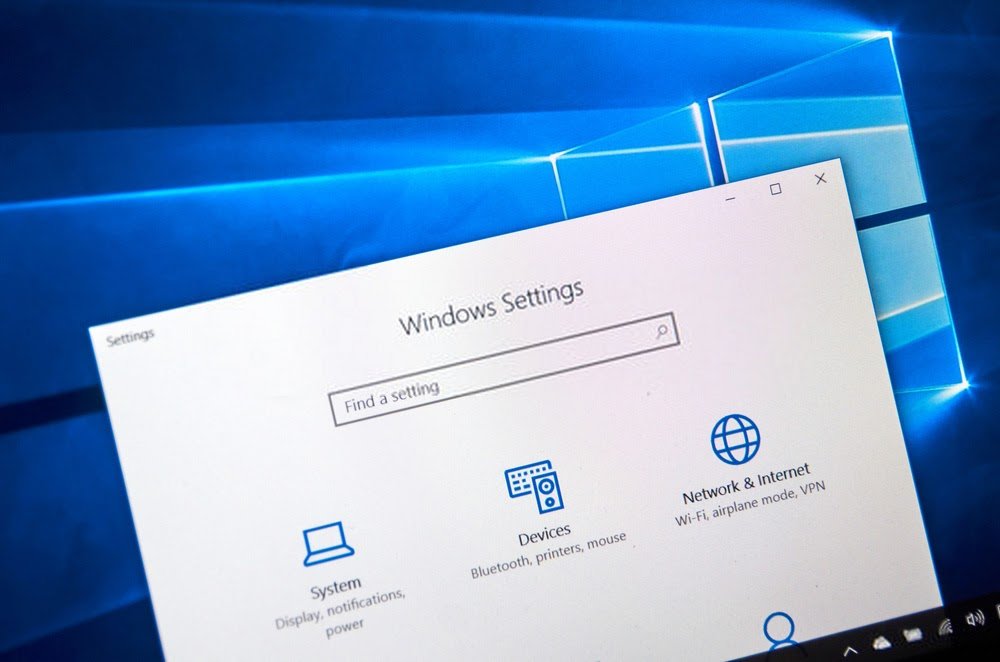
- Click on Privacy and select Location from the left menu.
- Under Allow access to location on this device , click the Edit and enable the option.
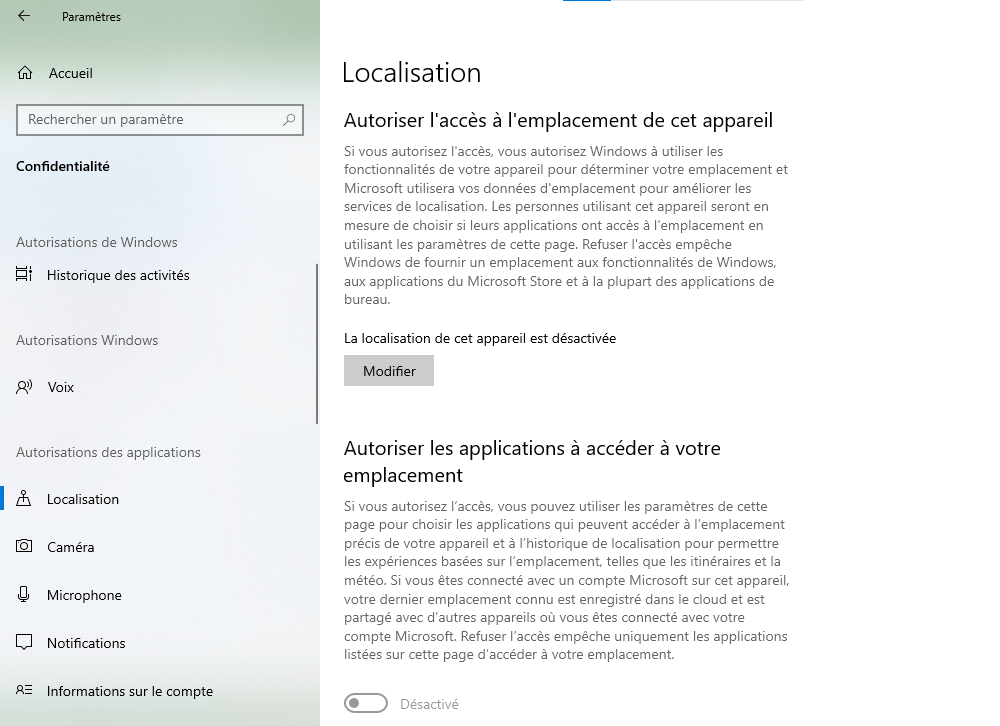
- Under Choose which apps can access your location , enable the option for the Microsoft Store and the app you want to update or download.

Method 6: Disable the proxy
A proxy is an intermediary server that allows you to hide your IP address and bypass geographical restrictions or censorship. However, a proxy can also interfere with connecting to the Microsoft Store and cause error code 0x803f8001 . To disable the proxy, follow these steps:
- In Microsoft Edge, click the menu button located in the upper right corner and select Settings .

- Access System in the left menu, then click Open your computer's proxy settings .

- Automatically detect settings and Use installation script buttons to Disabled .

Method 7: Use the DISM tool
DISM is a tool built into Windows 10 that can repair damaged or missing system files. If error code 0x803f8001 is due to system corruption, you can try using this tool to resolve it. To do so, follow these steps:
- Press Windows + Q to open the search box near the Start button or Cortana.
- Type Command Prompt and right-click on the result. Choose Run as administrator

- In the command prompt window, copy and paste the following command:
DISM /Online /Cleanup-Image /RestoreHealth
- Press Enter to execute the command.
- Wait for the command to finish and then close the command prompt window.
- Try updating or downloading the app from the Microsoft Store again.
Method 8: Reset language and region settings
Language and region settings can affect the availability and compatibility of apps on the Microsoft Store. If you have recently changed these settings or are using a version of Windows 10 that is not compatible with your country, this may cause error code 0x803f8001 . To reset your language and region settings, follow these steps:
- Click the Start and choose Settings .
- Click on Time and Language and select Region from the left menu.
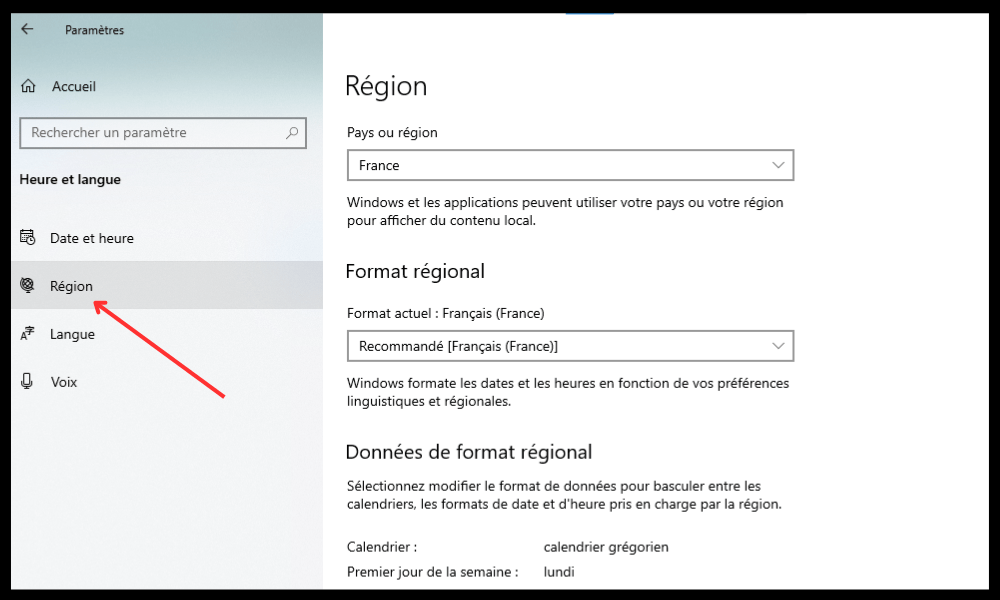
- Under Country or region , choose the country that corresponds to your version of Windows 10 and your current location.
- Under Regional Format , choose the format that corresponds to your language and preferences.
- Click on Language in the left menu and check that the displayed language is the one you want to use for Windows 10 and applications.
- If you want to change the language, click Add a language and choose the one you want from the list. Then, click on the added language and choose Set as default language .
FAQ
Here are some frequently asked questions about error code 0x803f8001 on Windows 10:
What is error code 0x803f8001?
code 0x803f8001 is a problem that can occur when you try to update or download apps from the Microsoft Store. This code means that the app is not properly licensed or is not compatible with your version of Windows 10.
How to fix error code 0x803f8001?
To fix error code 0x803f8001 on Windows 10 , you can try the following methods:
- Uninstall and reinstall the application
- Temporarily disable the antivirus
- Reset the Windows Store cache
- Re-register the Windows Store app
- Allow apps to use your location
- Disable the proxy
- Use the DISM tool
- Reset language and region settings
How to avoid error code 0x803f8001?
To avoid error code 0x803f8001 on Windows 10, you can follow these tips:
- Keep your system up to date Windows updates .
- Regularly check for app updates from the Microsoft Store and install them as soon as they are available.
- Use a reliable antivirus that is compatible with Windows 10 and temporarily disable it when updating or downloading applications.
- Clear the Windows Store cache from time to time using the wsreset tool.
- Make sure that the language and region settings match your version of Windows 10 and your current location.
- Avoid using a proxy or VPN, as this may disrupt the connection to the Microsoft Store.
- Use the DISM tool to repair damaged or missing system files.
Conclusion
code 0x803f8001 on Windows 10 is a problem that can prevent you from updating or downloading apps from the Microsoft Store. There are several possible causes for this issue, as well as several solutions. One of these involves repairing system error 5 , which can be caused by insufficient permissions or corrupted files. We hope this article has helped you understand the causes and methods for fixing error code 0x803f8001 on Windows 10. If you still have questions or comments, please let us know in the section below.


