

Are you encountering error 0x80244022 Windows update ? Don't worry, we're here to help! In this article, we'll explain what this error is and how to fix it in a few simple steps. So, ready to bring your PC back to life?
What is error 0x80244022?

Error 0x80244022 is an error code Windows update . It is usually caused by problems connecting to the Windows Update server, corrupted system files, or incorrect proxy settings. To resolve this issue, it is essential to understand the possible causes and apply the appropriate solutions.
Possible causes of error 0x80244022
- Problems connecting to the Windows Update server
- Corrupted system files
- Incorrect proxy settings
How to fix error 0x80244022?

To resolve error 0x80244022, we suggest you follow these solutions:
1. Check the internet connection

- Press the " Windows " + "R" keys to open the "Run" dialog box.
- Type "services.msc" and press "Enter".

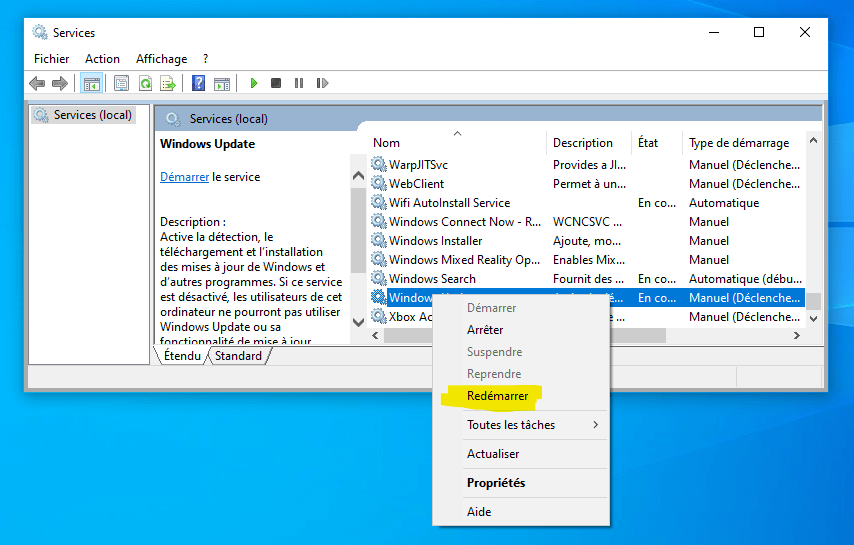
- Look for the " Windows Update" service in the list.

- Right-click on " Windows Update" and select "Restart".
You might like this article: The Broadcom BCM20702A0 driver: Understanding its role under Windows 10
Make sure your internet connection is working properly. If you're experiencing connection problems, try restarting your modem or router. You can also test your connection by accessing a different website.
2. Restart the Windows Update service
Sometimes, restarting the Windows Update service can resolve this issue. Here's how:
Clean up Windows Update temporary files
Corrupted temporary files can also cause error 0x80244022. To clean them, follow these steps:
- Open File Explorer and navigate to the folder "C:\Windows\SoftwareDistribution\Download".

- Delete all files and folders present in this folder.
- Restart your PC and try updating Windows again.
3. Check and repair corrupted system files
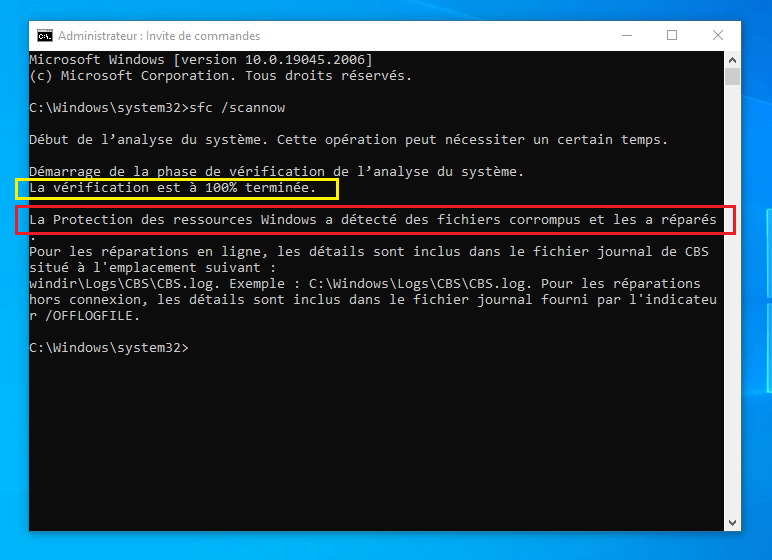
To check for and repair corrupted system files, use the "System File Checker" tool built into Windows. Follow these steps:
- Open the command prompt as an administrator. To do this, right-click on the "Start" menu and select "Command Prompt (Admin)".

- Type "sfc /scannow" and press "Enter".

- The system file checking and repair process may take some time. Please wait until it is complete and then restart your PC.

4. Check and adjust proxy settings
An incorrect proxy setting can also cause error 0x80244022. To check and adjust your proxy settings, follow these steps:
- Press the " Windows " + "I" keys to open Windows"Settings".

- Click on "Network and Internet".

- Select "Proxy" in the left pane.
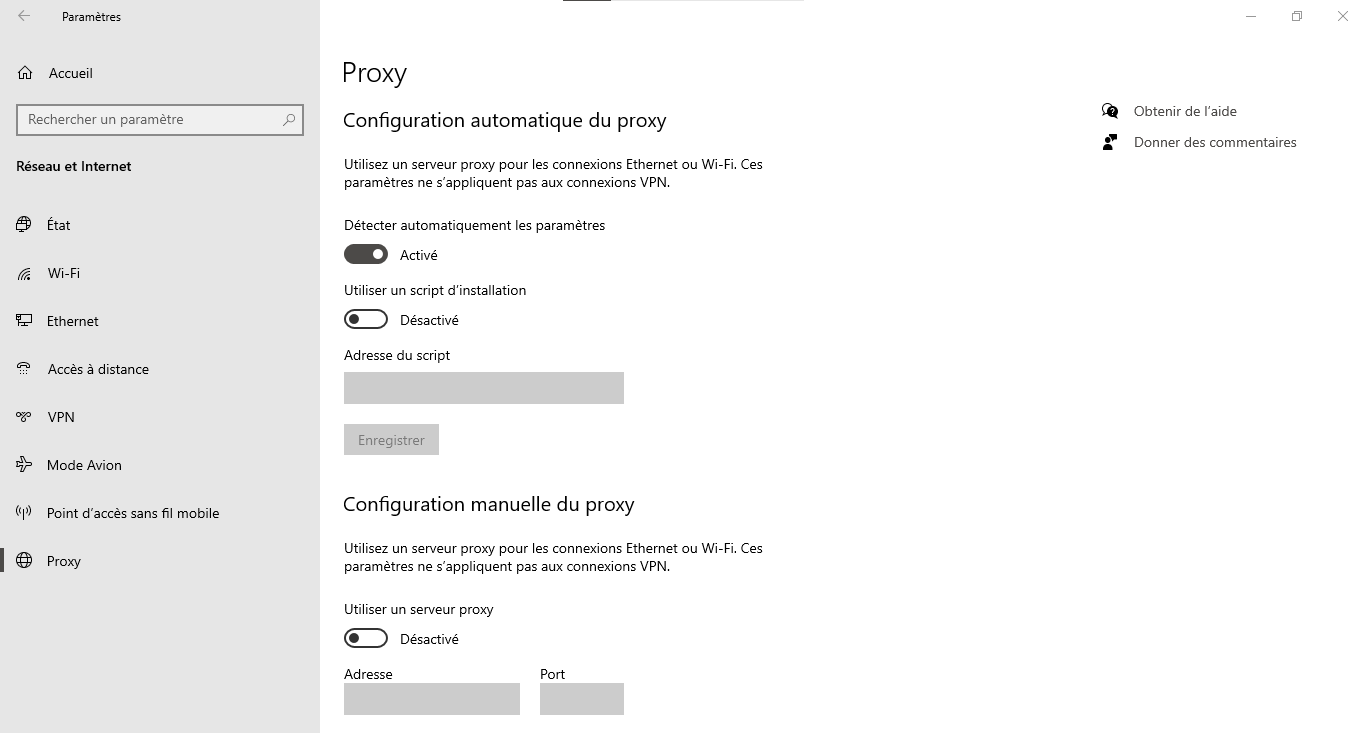
- Make sure your proxy settings are correct, or disable them if you don't need them.
Comparative table of solutions
| Solution | Benefits | Disadvantages |
|---|---|---|
| Check the internet connection | Easy to implement, can quickly solve the problem | Only works if the cause is related to the connection |
| Restart the Windows Update service | This can resolve the issue if the service is blocked | Does not resolve issues related to corrupted files or proxy settings |
| Clean up temporary files | Can resolve problems related to corrupted files | This will not work if the cause is related to the connection or proxy settings |
| Check and repair system files | Repairs corrupted system files, improves system stability | It takes time and doesn't resolve connection or proxy settings issues |
| Check and adjust proxy settings | Resolves issues related to incorrect proxy settings | This will not work if the cause is related to the connection or corrupted files |
By following these steps, you should be able to resolve error 0x80244022 and update your Windows system without any issues. Remember that keeping your system up to date is essential to ensure its security and proper functioning. So, don't hesitate to update your PC regularly.
See also: Alt + Tab key no longer working? 4 methods to fix the shortcut in Windows !
FAQ
Why do some Windows updates fail regularly?
There are several reasons why some Windows updates may fail regularly. Here are some of the most common causes:
- Hardware or software compatibility issues
- Insufficient disk space on the hard drive
- Corrupted system files
- Interference with antivirus or firewall software
- Internet connection problems
To resolve these issues, ensure your hardware and software are compatible with the update, free up disk space if necessary, check and repair corrupted system files , properly configure your antivirus or firewall, and check your internet connection.
What are the risks of not updating my Windows system?
Failing to update your Windows system presents several risks, including:
- Exposure to security flaws and vulnerabilities
- Reduced performance and system instability
- Incompatibility with new software and new application versions
- Lack of technical support for outdated versions of Windows
To minimize these risks, it is essential to keep your Windows up to date with the latest security and feature updates.
How do I schedule Windows updates to install automatically?
To schedule Windows updates to install automatically, follow these steps:
- Press the " Windows " + "I" keys to open Windows"Settings".
- Click on "Update and Security".
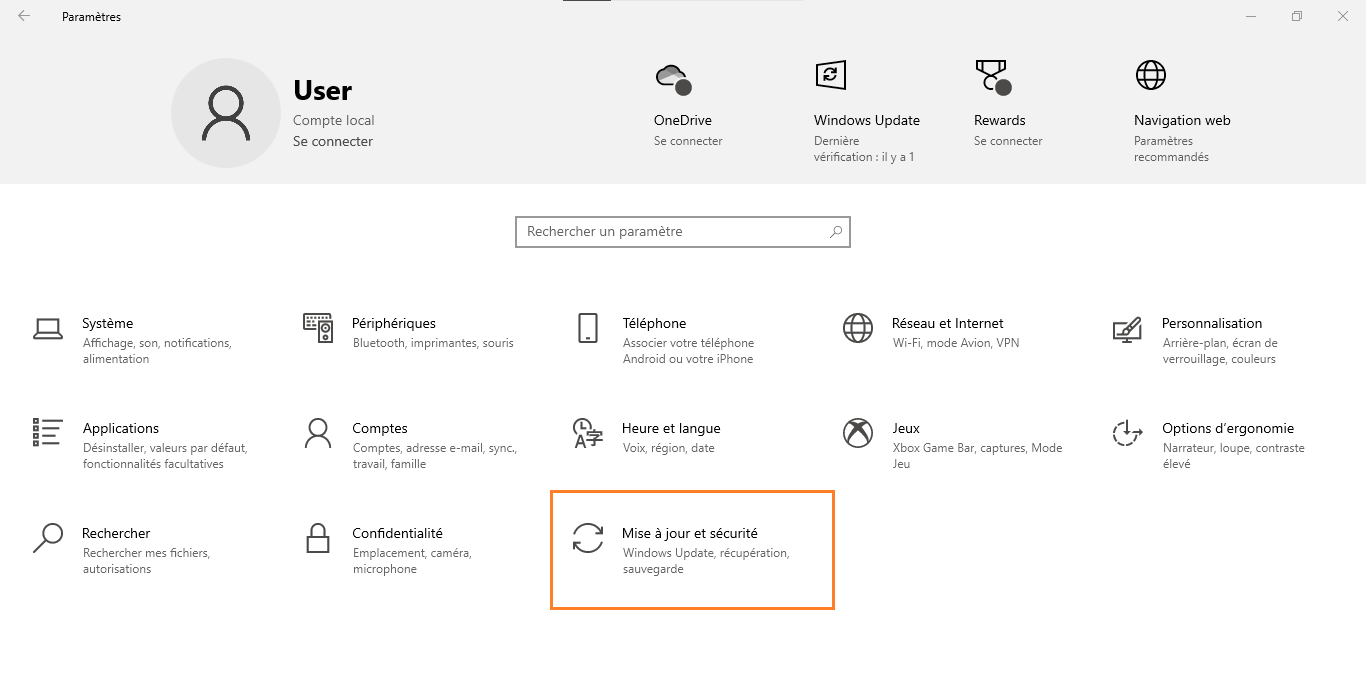
- Select " Windows Update" in the left pane.

- Click on "Advanced options".
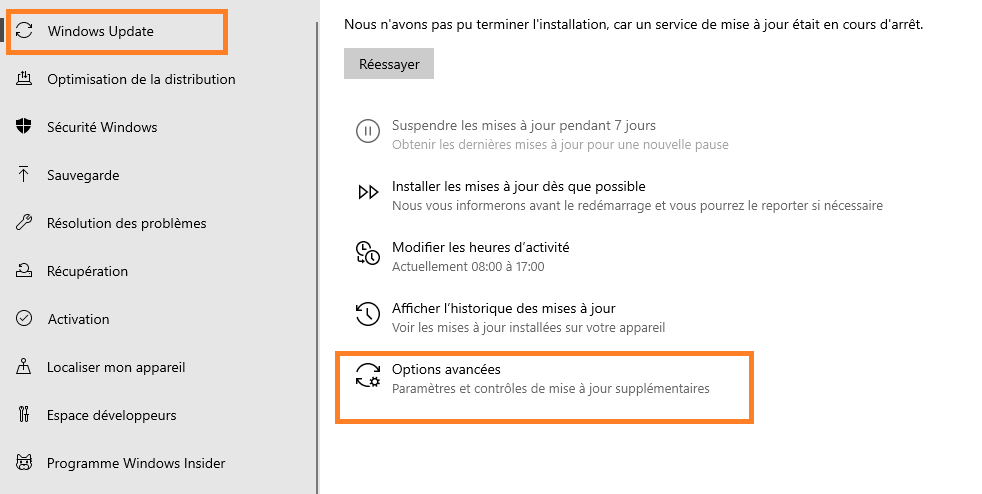
- Enable the option "We will notify you when updates are available so you can choose when to install them" or choose a specific time and day for automatic update installation.
By scheduling automatic updates, you ensure that your system remains up-to-date without having to manually check for available updates.
Is there a way to restore my system if an update causes problems?
Yes, you can use the system restore to revert to a previous state if an update causes problems. Here's how:
- Press the " Windows " + "S" keys and type "System Restore" in the search bar.
- Click on " Create a restore point ".

- Select "System Restore…" in the "System Protection" tab.

- Follow the on-screen instructions to choose a restore point prior to the problematic update and restore your system.
Note that system restore does not affect your personal documents, but it may remove applications , drivers , and updates installed after the restore point.
How can I temporarily disable Windows updates to avoid problems?
To temporarily disable Windowsupdates, follow these steps:
- Press the " Windows " + "I" keys to open Windows"Settings".
- Click on "Update and Security".
- Select " Windows Update" in the left pane.
- Click on "Advanced options".
- Activate the "Pause updates" option and choose the pause duration (up to 35 days).
Note that disabling updates can expose you to security risks . It is therefore recommended to re-enable them as soon as possible.
What are some other common errors related to Windows Update and how can they be resolved?
Here are some other common errors related to Windows Update and solutions to fix them:
- Error 0x80070002 : Check and repair corrupted system files using the utility "sfc /scannow".
- Error 0x80070422 : Ensure that the Windows Update service is running and start it if necessary.
- Error 0x80070057 Windows components using the DISM tool and the command prompt.
- Error 0x800705b4 : Temporarily disable your antivirus or firewall to check if they are interfering with updates.
For each error, conduct thorough research to understand the underlying cause and apply the appropriate solution.
How to resolve driver compatibility issues when updating Windows ?
To resolve driver compatibility issues when updating Windows, try the following steps:
- Visit your hardware manufacturer's website to search for and install the latest compatible drivers.
- Use the Windows "Device Manager" tool to automatically search for and install driver updates.
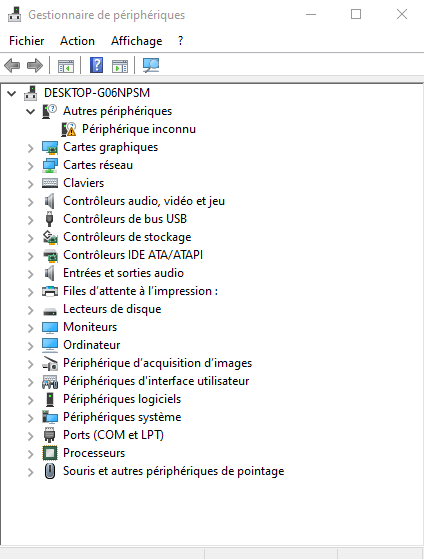
- If the problem persists, uninstall the problematic driver and restart your PC so that Windows automatically installs a compatible driver.
How do I report a problem or bug encountered during a Windows update?
To report a problem or bug encountered during a Windowsupdate, follow these steps:
- Press the " Windows " + "I" keys to open Windows"Settings".
- Click on "Privacy".

- Select "Comments and diagnostics" in the left pane.
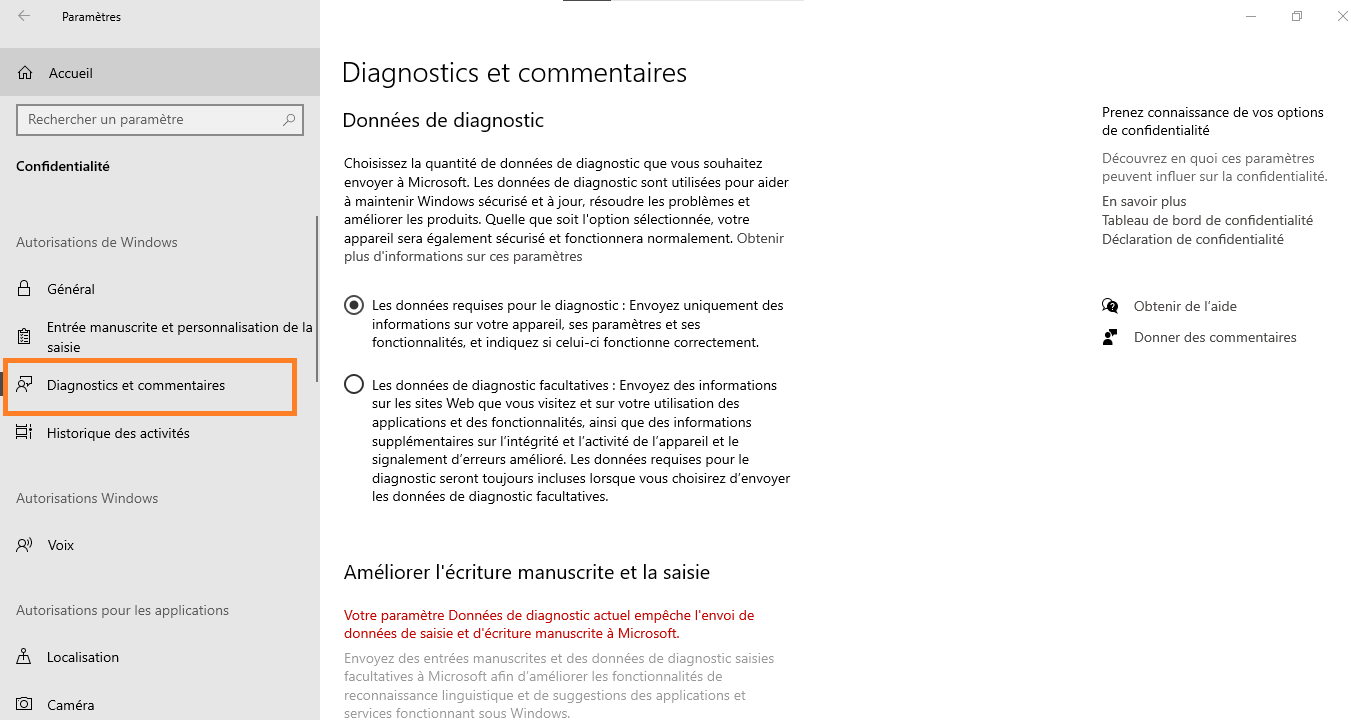
- Click on "Report a problem".
Describe the problem encountered, add screenshots if necessary, and submit the report.
Microsoft will review your report and may offer fixes in future updates.
How can I check if my antivirus or firewall is blocking Windows updates?
To check if your antivirus or firewall is blocking Windowsupdates, try the following steps:
- Temporarily disable your antivirus or firewall and try the update again. If the update works, it's a sign that your antivirus or firewall is interfering with Windowsupdates.
- Check your antivirus or firewall settings to ensure they are not interfering with Windowsupdates.
- Add Windows Update services to your antivirus or firewall's exception list to avoid future blockages.
Make sure to reactivate your antivirus or firewall after checking their impact on Windowsupdates.
What third-party tools are recommended for resolving Windows Update issues?
Here are some recommended third-party tools to resolve Windows Update issues:
- WSUS Offline Update Windows updates without going through the Windows Update service.
- Reset Windows Update Agent Windows components .
- Windows Update Troubleshooter : This troubleshooting tool automatically detects and fixes problems related to Windows Update.
These tools can be useful for resolving persistent Windows Update problems that built-in Windows solutions fail to fix.
Conclusion
Windows issues can be tricky, but by understanding common errors and using proven solutions , you can ensure your system stays up-to-date and secure. Feel free to use the recommended third-party tools and report any issues to Microsoft to help improve future updates.
This might interest you: How to delete a page on Google Docs?


