
The error "An administrator has prevented you from running this application" can appear on Windows 10 when you try to open certain system or third-party programs. In this article, we'll show you how to fix this error and run the applications you want without any problems.
Identify the cause of the problem
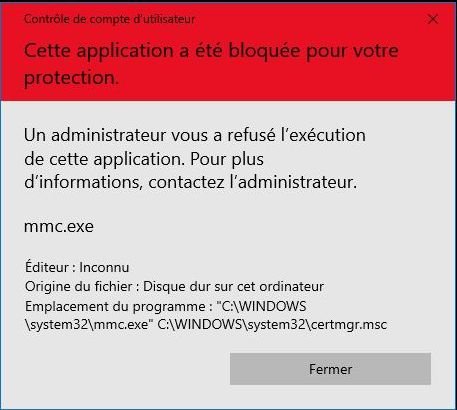
To effectively resolve this issue, it's crucial to identify its cause. Here are some common reasons why you might encounter this error message:
- Problems related to security settings
- User Account Control (UAC) is too restrictive
- Problems with the application itself
- Software conflicts
Solution 1: Check the security settings
It's possible your system is blocking the application due to overly strict security settings . To check this, follow these steps:
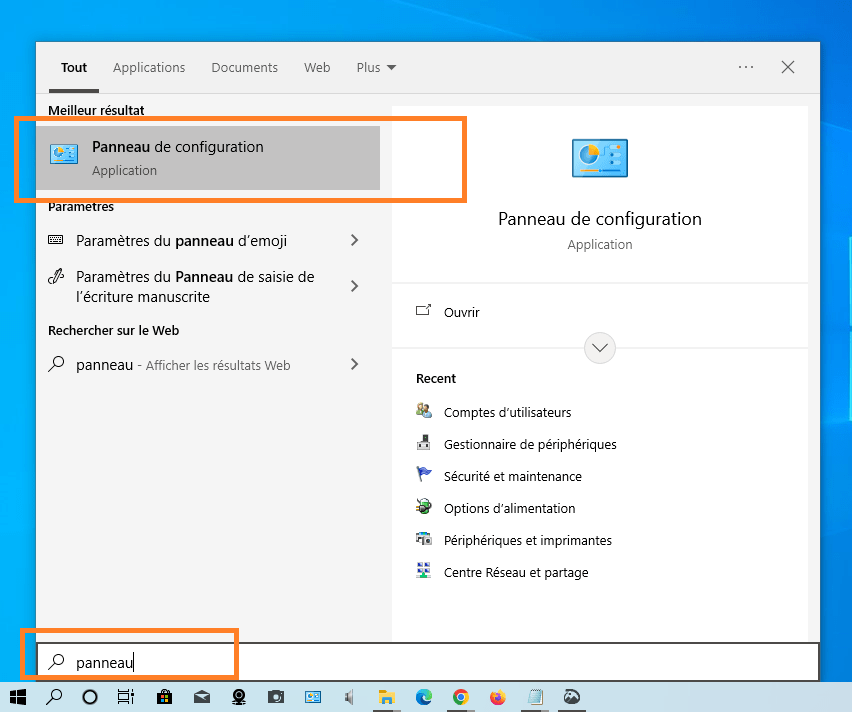
- Open the Control Panel.
- Go to System and security > Security and maintenance.
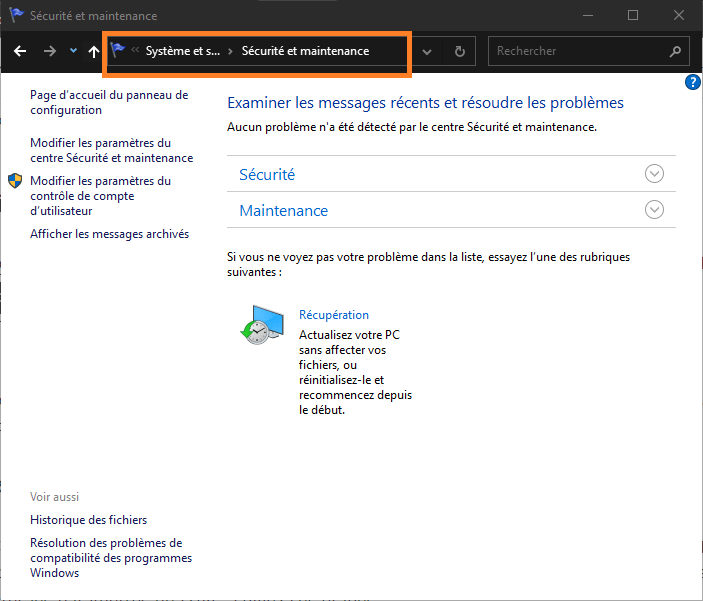
- Click the "Edit security settings" link to access your system's security settings.
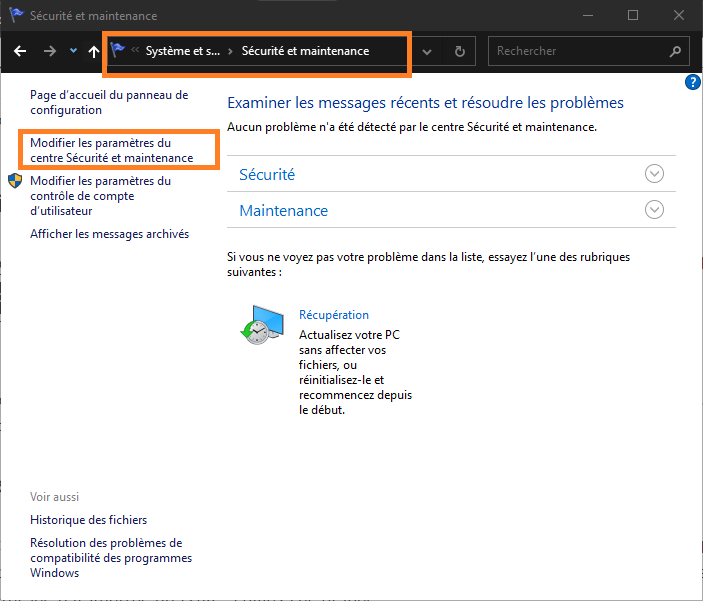
- Make sure the settings are correct and that the applications are not blocked unnecessarily.
You might like this article: The Broadcom BCM20702A0 driver: Understanding its role under Windows 10
Solution 2: Adjust User Account Control (UAC) settings
User Account Control (UAC) is a Windows 10 security mechanism that prevents applications from making significant changes without user permission. However, setting UAC too restrictively can cause problems. To adjust your UAC settings, follow these steps:
- Open the Control Panel.
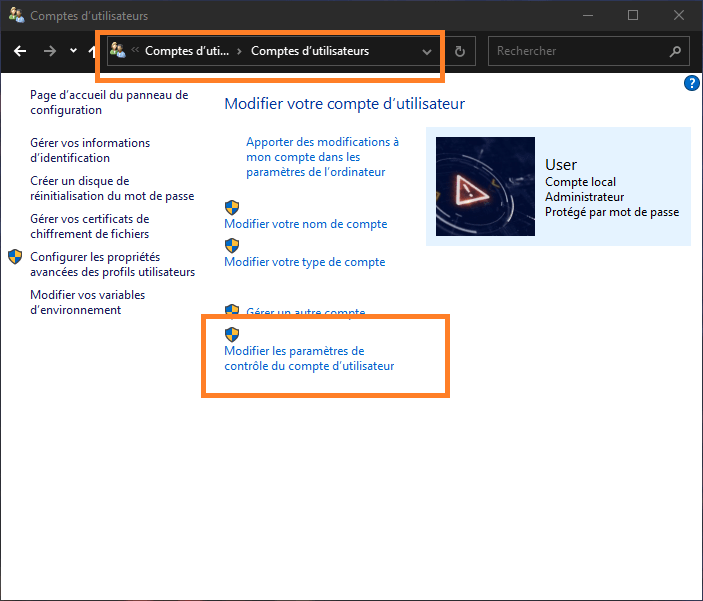
- Go to User Accounts > User Accounts.
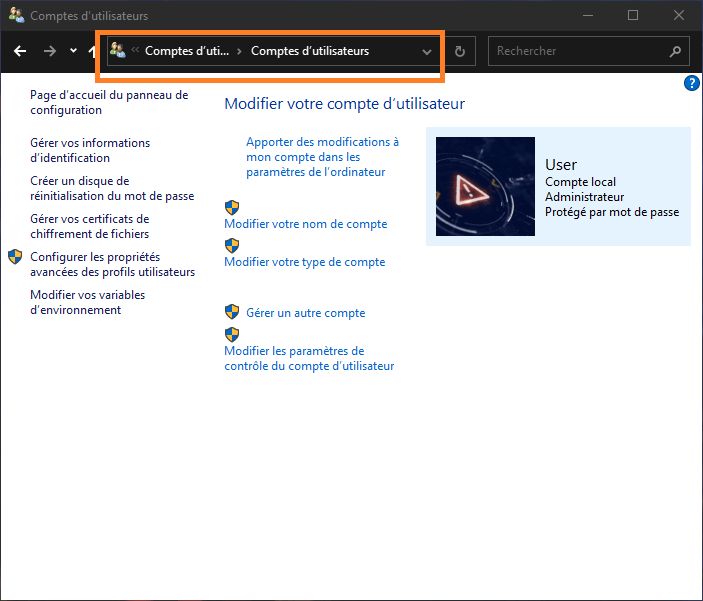
- Click on "Edit User Account Control settings".
- Adjust the slider to change the level of UAC notification and control.
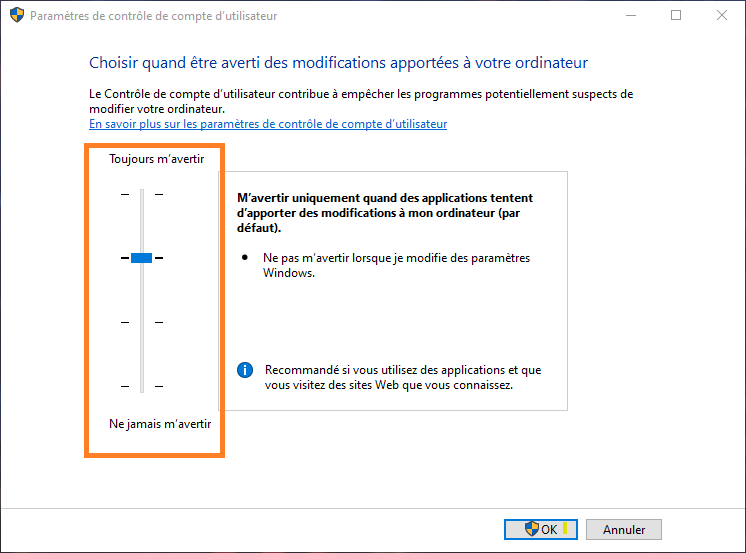
- Restart your computer and try running the application again.
Solution 3: Run the application as administrator
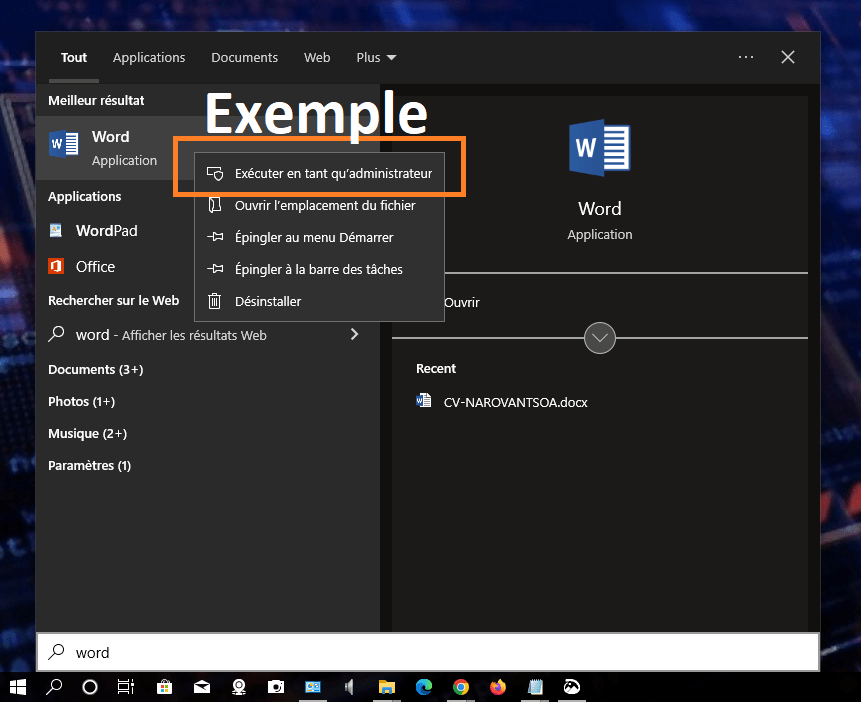
The application may require administrator privileges to function correctly. To run the application as an administrator, follow these steps:
- Right-click on the application icon.
- Select "Run as administrator" from the context menu.
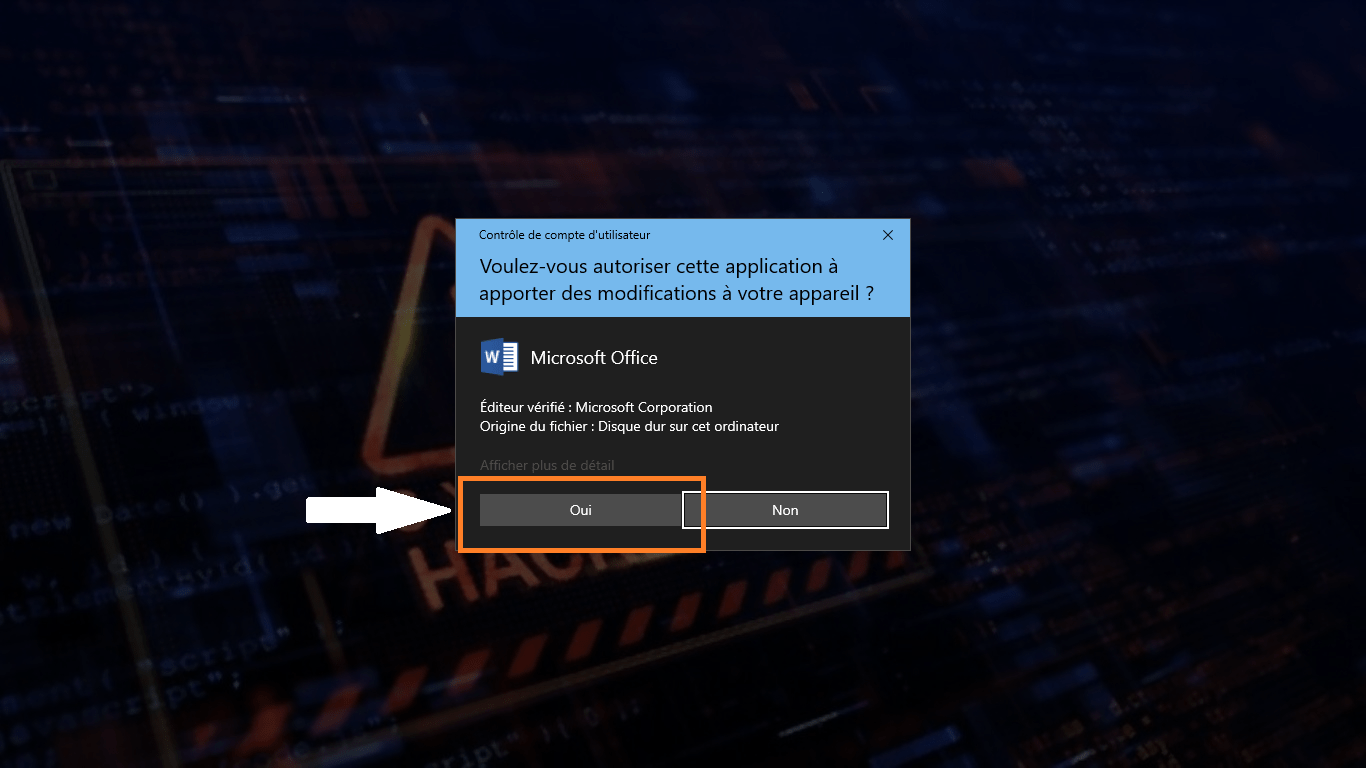
- Confirm the action by clicking "Yes" in the UAC window that appears.
Read: How to remove the “Activate Windows ” watermark from your screen?
Solution 4: Check for software conflicts
Sometimes, other software can interfere with the application you are trying to run. To check for software conflicts, follow these steps:
- Restart your computer in safe mode by pressing the F8 key during startup.
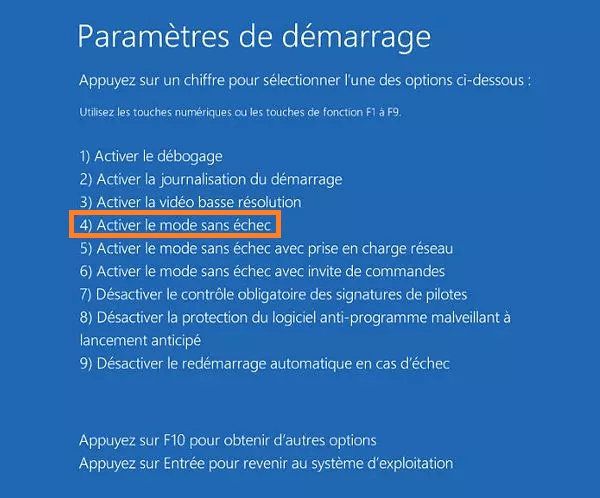
- Try running the application in safe mode to see if it works correctly.
- If the application works, it means there is a software conflict. You will need to identify the conflicting software and uninstall or update it.
Solution 5: Reinstall or update the application
The application itself may be experiencing problems. To resolve this, you can try reinstalling or updating the application. Follow these steps:
- Uninstall the application using the Control Panel or a third-party uninstallation utility. (Example shown in image)
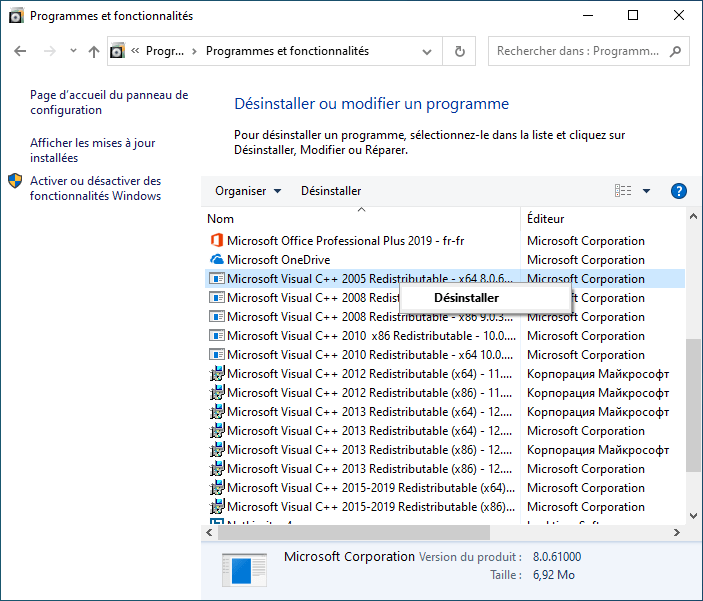
- Restart your computer.
- Search for the latest version of the application on the developer's official website and install it.
- Try running the application to see if the problem is resolved.
Comparative table of solutions
| Solution | Benefits | Disadvantages |
|---|---|---|
| Check the security settings | Can quickly resolve the issue if the settings are incorrect | No major drawbacks |
| Adjust UAC settings | May allow the application to function correctly | May reduce system security if UAC is disabled |
| Run as administrator | This may resolve the issue if the application requires administrator permissions | May allow the application to make significant changes to the system |
| Check for software conflicts | Can identify conflicting software and resolve them | It can be tedious and may require uninstalling or updating other software |
| Reinstall or update the application | Can resolve problems related to the application itself | Requires downloading and reinstalling the application |
FAQ
How to temporarily disable User Account Control (UAC) on Windows 10?
Temporarily disabling User Account Control (UAC) can be useful if you need to make changes to your system that require administrator privileges. Here's how:
- Open the Control Panel by searching for "Control Panel" in the Windowssearch bar.
- Go to "User Accounts" > "User Accounts" > "Edit User Account Control settings".
- Move the slider down to "Never notify me".
- Click "OK" to confirm the changes and restart your computer.
Note that disabling UAC reduces your system's security. Remember to re-enable UAC once you have completed the necessary changes.
What is the difference between an administrator account and a standard user account on Windows 10?
On Windows 10, there are two main types of accounts: administrator accounts and standard user accounts. Here are some key differences between the two:
- Administrator accounts: These accounts have all the necessary permissions to make significant changes to the system, install software, add or remove user accounts, and modify security settings.
- Standard user accounts: These accounts have limited permissions and cannot make significant changes to the system. Standard user accounts can use applications, but they cannot install or uninstall software without administrator permission.
In general, it is recommended to use a standard user account for daily tasks in order to minimize security risks.
How do I create an administrator account on Windows 10?
To create an administrator account on Windows 10, follow these steps:
- Press the " Windows + X" keys and select "Control Panel" from the menu that appears.
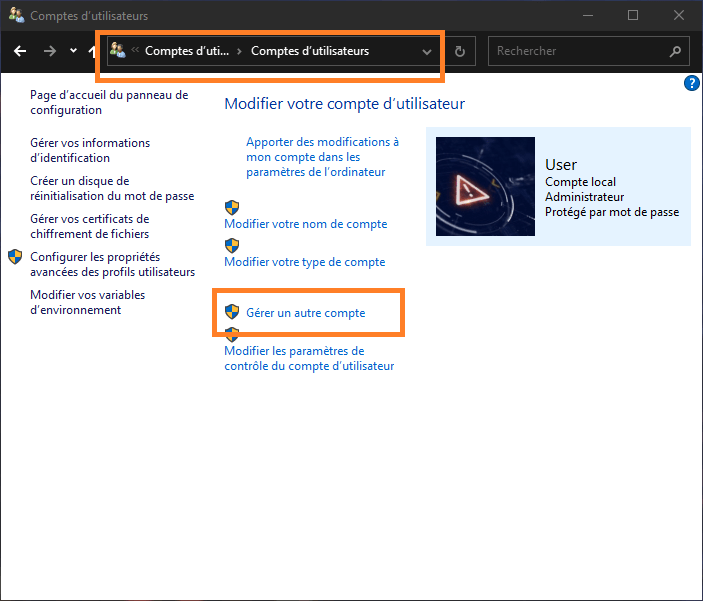
- Go to "User Accounts" > "Manage another account".
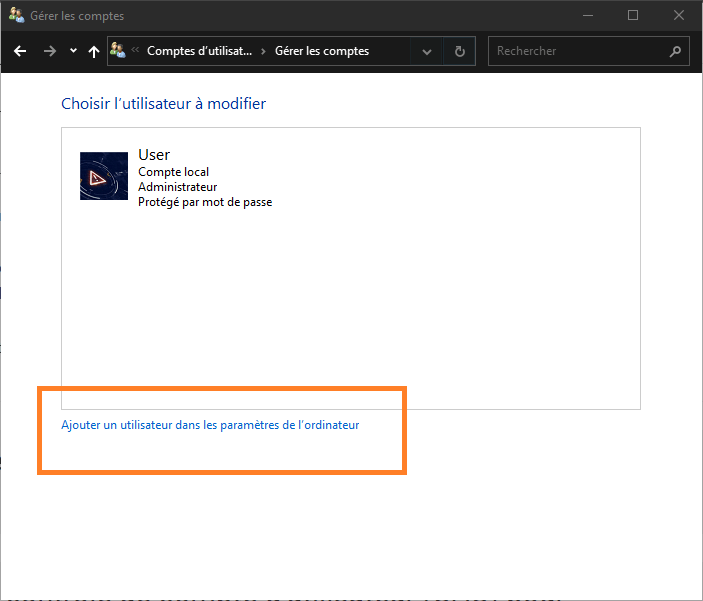
- Click on "Add a new user" and fill in the required information.
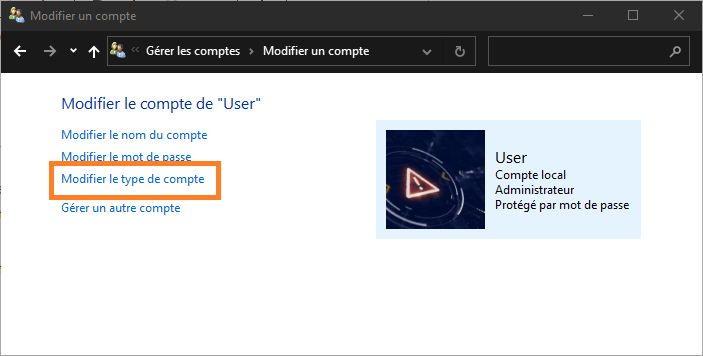
- Once the account is created, select it and click on "Edit account type".
- Choose "Administrator" and click on "Change account type".
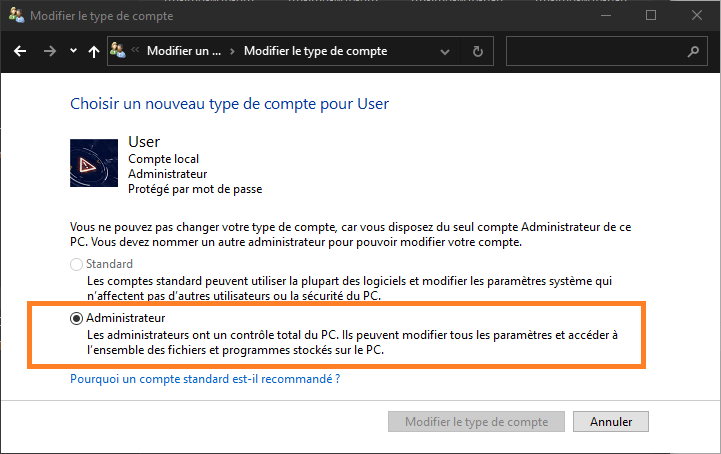
The new account is now an administrator account.
How to resolve the error "You need administrator privileges to delete this folder"?
If you encounter this error when trying to delete a folder, here's how to resolve it:
- Right-click on the folder you want to delete and select "Properties".
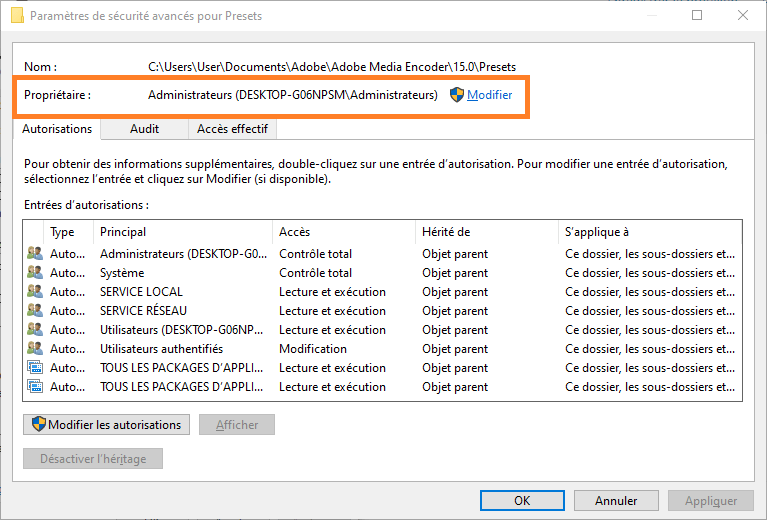
- Go to the "Security" tab and click on "Advanced".
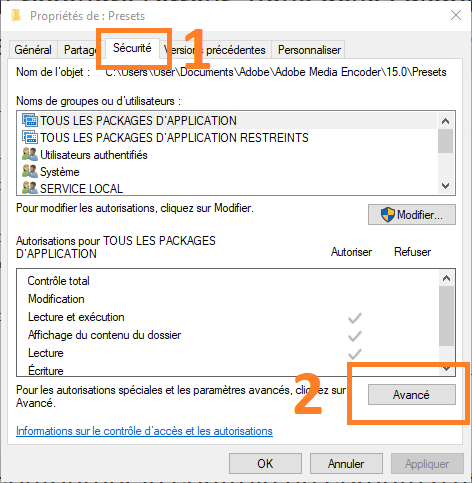
- Make sure your user account is the owner of the folder. If it isn't, click "Edit" and select your account, then click "Apply" and "OK".
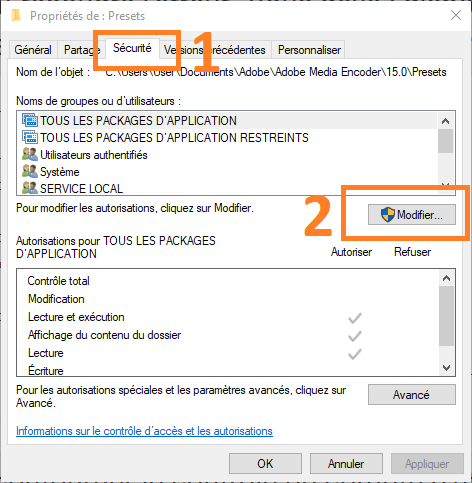
- Go back to the "Security" tab and click "Edit".
- Make sure your account has "Full Control" permission and click "OK".
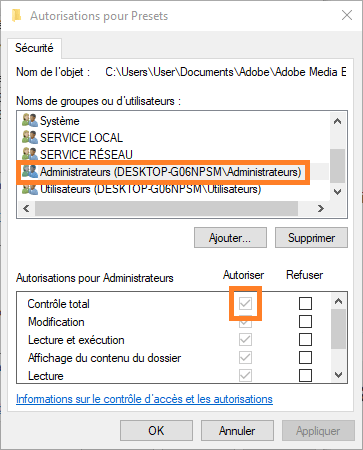
You should now be able to delete the folder without error.
Is it possible to bypass User Account Control (UAC) for certain specific applications?
Yes, it is possible to bypass User Account Control (UAC) for some applications. Here's how:
- Right-click on the application shortcut and select "Properties".
- Go to the "Compatibility" tab and check the box "Run this program as an administrator".
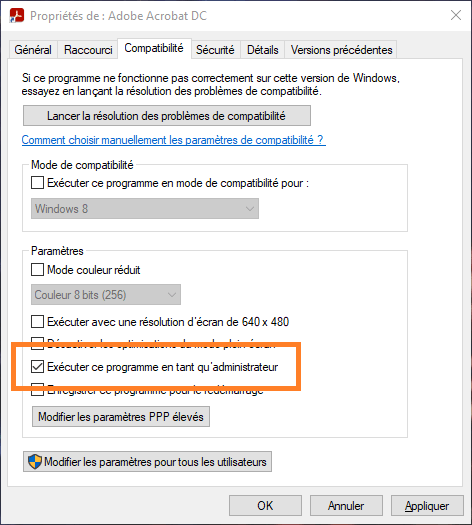
- Click "OK" to save the changes.
The application should now run without triggering User Account Control (UAC). Note that this method is not recommended for applications that do not require administrator privileges, as it may expose your system to security risks.
How do I reset the password for an administrator account on Windows 10?
If you have forgotten the password for an administrator account on Windows 10, here's how to reset it:
- Restart your computer and press the F8 key to access advanced startup options.
- Select "Safe Mode with Command Prompt" and press "Enter".
- At the command prompt, type "net user" to display the list of user accounts.
- Type "net user username new_password" replacing "username" with the administrator account name and "new_password" with the desired new password.
- Press "Enter" to reset the password.
Restart your computer and you should be able to log in with the new password.
Conclusion
By following the answers to these frequently asked questions, you should be able to better understand and manage issues related to administrator accounts and User Account Control (UAC) on Windows 10. Remember that your system security is important, and it's recommended to use a standard user account for everyday tasks and reserve administrator accounts for significant system changes. By taking the necessary precautions, you can ensure your computer's security and stability while still enjoying its features. If you encounter other problems or have further questions, feel free to consult other online resources or seek assistance from IT experts. Good luck managing your accounts and resolving permission issues on Windows 10.


