

Error 0x800701e3 is an error code that can appear when a data transfer fails between a hard drive and another device, such as a USB flash drive, SD card, or external hard drive. This message means that the request failed due to a fatal hardware error, which could indicate a problem with the USB cable, the USB connection, the computer hardware, bad sectors on the disk, or a failure of the disk itself.
This error can prevent you from copying , moving , or saving important files and cause data loss . Fortunately, there are solutions to fix this problem and recover lost data. In this article, we'll show you how to fix error 0x800701e3 in Windows 10/8.1/7 using five different methods.

Method 1: Use the verification disk
The disk checker is a built-in Windows tool that detects and repairs file system errors and bad sectors on the disk. To use this tool, follow these steps:
- Open the command prompt as an administrator. To do this, you can type cmd in the Start menu search box, then right-click on Command Prompt and choose Run as administrator.
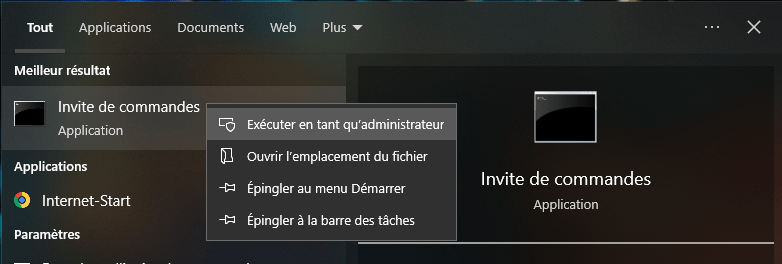
- Type the following command in the command prompt and press Enter:
chkdsk<Lettre du lecteur> /f /r /x /b
- Replace<Lettre du lecteur> by the letter of the reader that encounters the error 0x800701e3, for example E:.

- The /f /r /x /b parameters mean respectively: correct file system errors, scan for bad sectors and attempt to recover them, unmount the drive before starting the process, and re-evaluate bad clusters on the volume.
- If the drive is being used by another process, you will see a message asking if you want to schedule the disk check for the next system restart. Type Y to accept and restart your computer.
Method 2: Use System Restore
System Restore is a Windows that allows you to revert to a previous system state where everything was working correctly. If error 0x800701e3 or error code 0x8007000d appeared after installing or modifying software or a driver, you can try this method to undo the changes and resolve the issue. 0x8007000d is an error code that can occur during Windows or when updating via Windows Update. To use System Restore, follow these steps:
- Type sysdm.cpl in the Start menu search box and press Enter.

- Select the System Protection tab and then click the System Restore button.
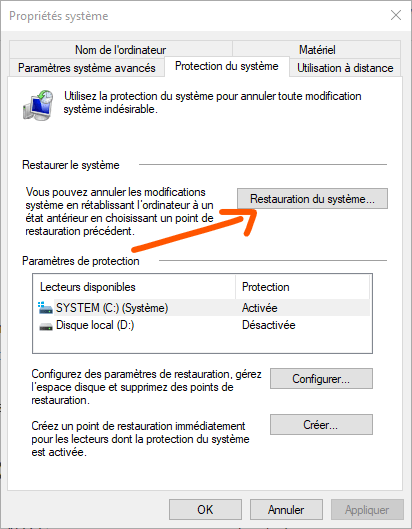
- This will open a new window where you will need to choose your system restore point. You can select the most recent point or an earlier one, depending on when the 0x800701e3 error started occurring.
- After selecting the desired system restore point, follow the on-screen instructions to restore your computer.
Method 3: Format the destination drive
If the destination drive is formatted as FAT32, you can format it as NTFS to copy large files to it. However, this method will erase all data on the drive, so be sure to back it up before proceeding. To format the destination drive as NTFS, follow these steps:
- Open File Explorer and locate the drive that is encountering error 0x800701e3.
- Right-click on the drive and select Format from the context menu.
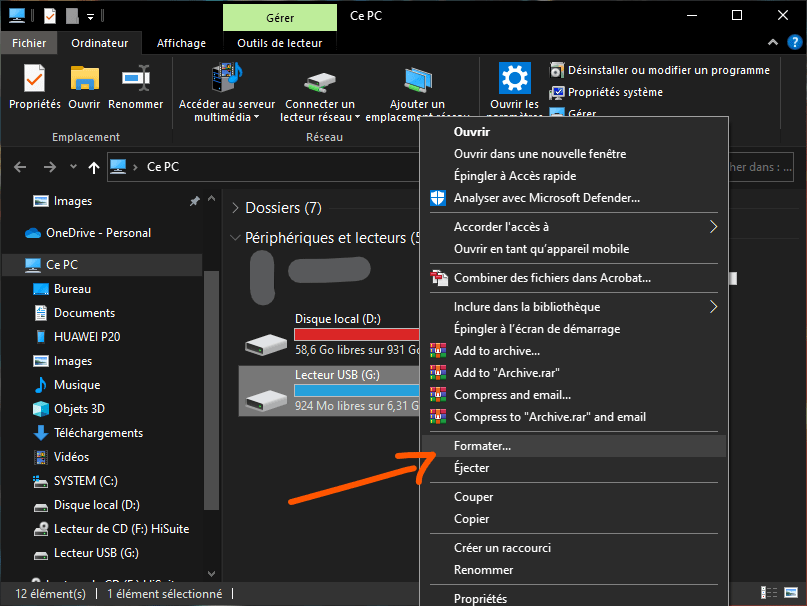
- This will open a new window where you will need to choose the file system, volume name, and disk size.
- For the file system, select NTFS from the drop-down menu.

- You can also check the Quick Format box if you want to speed up the process, but this will not check for bad sectors on the disk.
- Next, click Start to begin formatting the drive.
Method 4: Check the SMART attributes
SMART (Self-Monitoring, Analysis and Reporting Technology) is a technology that allows you to monitor the health and performance of a hard drive or SSD. If your drive shows signs of hardware failure, you can use software that can read the SMART attributes and tell you if your drive is in good condition or needs to be replaced. Several free programs can do this, such as CrystalDiskInfo, HDDScan, or Hard Disk Sentinel. To check your drive's SMART attributes, follow these steps:
- Download and install software that can read the SMART attributes of your disk.
- Launch the software and select the disk you want to analyze.
- The software will display SMART information about your disk, such as temperature, number of operating hours, number of errors or bad sectors, etc.
- If your hard drive shows abnormal values or warnings, it means it is damaged or about to fail. In this case, you should back up your data and replace your hard drive with a new one.
Comparative table of FAT32 and NTFS file systems
| Criteria | FAT32 | NTFS |
| Maximum volume size | 2 TB | 256 To |
| Maximum file size | 4GB | 16 EiB |
| Data transfer speed | Slower | Faster |
| Data security | Less secure | More secure |
| File compression | Not supported | Supported |
| Compatibility with operating systems | More compatible | Less compatible |
FAQ
What is error 0x800701e3?
Error 0x800701e3 is an error code that can appear when a data transfer fails between a hard drive and another device, such as a USB flash drive, SD card, or external hard drive. This message means that the request failed due to a fatal hardware error, which could indicate a problem with the USB cable, the USB connection, the computer hardware, bad sectors on the disk, or a failure of the disk itself.
How to fix error 0x800701e3?
To fix error 0x800701e3, you can use the following methods:
- Use the verification disk to detect and repair file system errors and bad sectors on the disk.
- Use system restore to revert to a previous system state where everything was working correctly.
- Format the destination drive as NTFS to be able to copy large files to it.
- Check the disk's SMART attributes to monitor its health and performance.
How to recover data lost due to error 0x800701e3?
If you have lost data due to error 0x800701e3, you can try to recover it using data recovery software. Several free and paid programs can scan your hard drive and attempt to restore deleted or damaged files. For example, you can use EaseUS Data Recovery Wizard, Recuva, or Stellar Data Recovery. To use data recovery software, follow these steps:
- Download and install the software of your choice on your computer.
- Launch the software and select the disk that contains the lost data.
- Click the Scan or Analyze button to start the process of searching for recoverable files.
- Once the scan is complete, you will see a list of the files found. You can preview the files and select the ones you want to recover.
- Click the Recover or Restore button to save the files to another safe location.
How to avoid error 0x800701e3?
To avoid error 0x800701e3, you can take the following preventative measures:
- Regularly check the health and performance of your disk using software that can read SMART attributes.
- Replace your USB cable or SD adapter if you notice that they are damaged or faulty.
- Ensure your USB connection is stable and correct when transferring data between your drive and another device.
- Back up your important data to another storage medium or to a cloud service to avoid data loss in case of error or failure.
Conclusion
Error 0x800701e3 is an error code that can appear when a data transfer fails between a hard drive and another device. This error can be caused by a problem with the USB cable, the USB connection, the computer hardware, bad sectors on the disk, or a failure of the disk itself. Sometimes, this error can also be related to error 0x80244022 Windows update . To resolve these issues and recover lost data, you can use the following methods:
- Use the verification disk to detect and repair file system errors and bad sectors on the disk.
- Use system restore to revert to a previous system state where everything was working correctly.
- Format the destination drive as NTFS to be able to copy large files to it.
- Check the disk's SMART attributes to monitor its health and performance.
We hope this article helped you fix error 0x800701e3 in Windows. If you have any questions or suggestions, please leave a comment.


