
XPS files are a digital document format created by Microsoft to compete with PDF . They preserve the formatting and appearance of a document regardless of the software or device used to view or print it. However, unlike PDFs, XPS files are not widely used and are not supported by most applications or web browsers. So, how do you open XPS files on Windows 10 ? The simplest solution is to use the XPS Viewer, a built-in Windows 10 application that allows you to read and print XPS files . In this article, we'll explain how to install and use the XPS Viewer on Windows 10 , as well as other possible alternatives .
What is the XPS viewer?
The XPS Viewer is an optional feature of Windows 10. It allows you to open, view, and print XPS files without needing third-party software. The XPS Viewer offers a simple and intuitive interface, with options to zoom, rotate, search for text, and digitally sign documents. It can also convert XPS files to PDF or images.
How do I install the XPS viewer on Windows 10?
To install the XPS viewer on Windows 10 , you must follow these steps:
- Settings application with the keyboard shortcut Win+I .
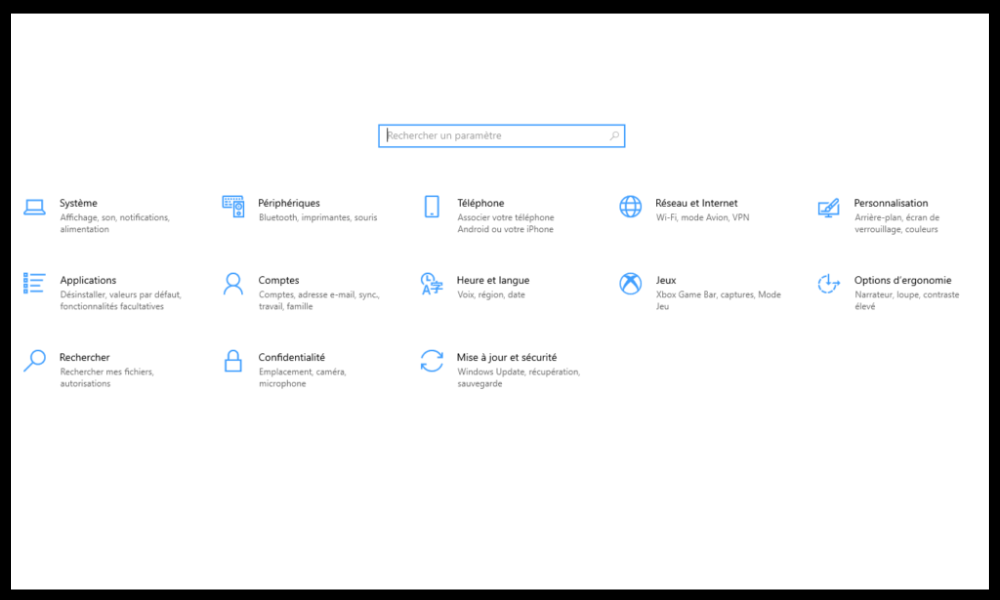
- Go to Applications .
- Applications and Features tab .
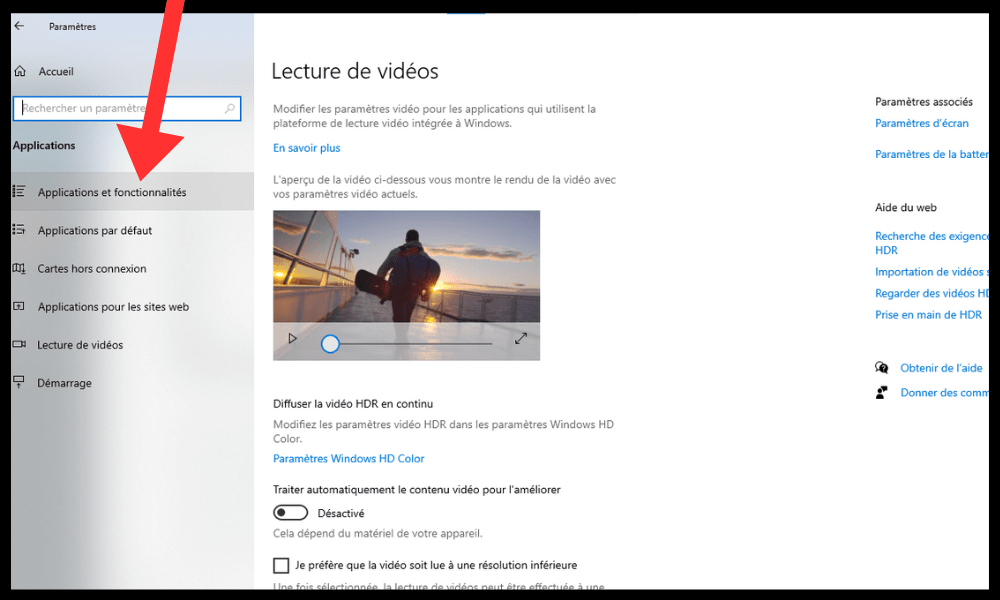
- Click on or Optional Features .
- Click on Add a feature.
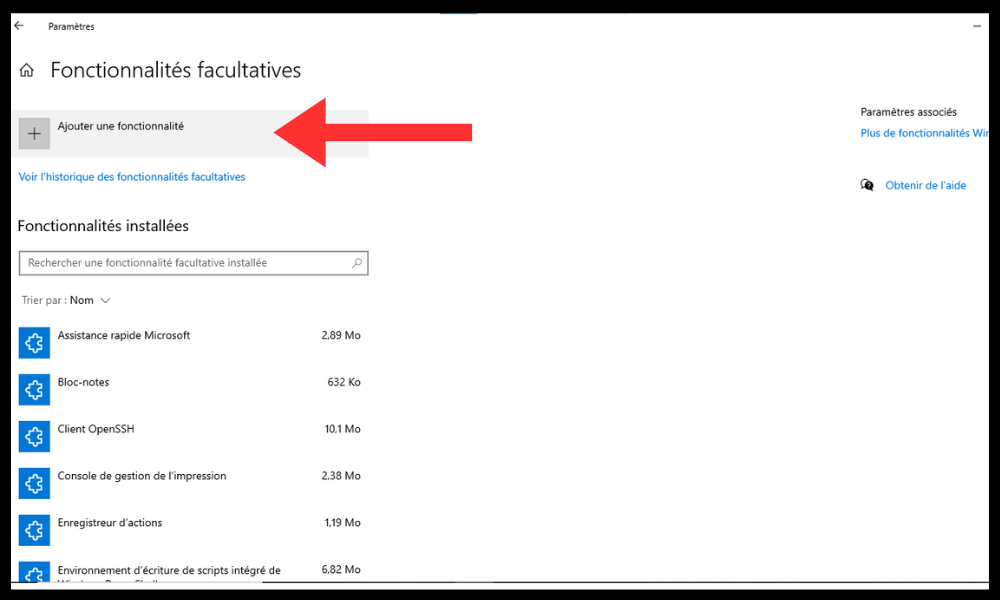
- Select the XPS viewer from the list.
- Click on Install (installation takes some time).
You can also install the XPS viewer from the command prompt in administrator mode. To do this, follow these steps:
- Click Start , type cmd, right-click Command Prompt in the top part of the Start and choose Run as administrator from the context menu.
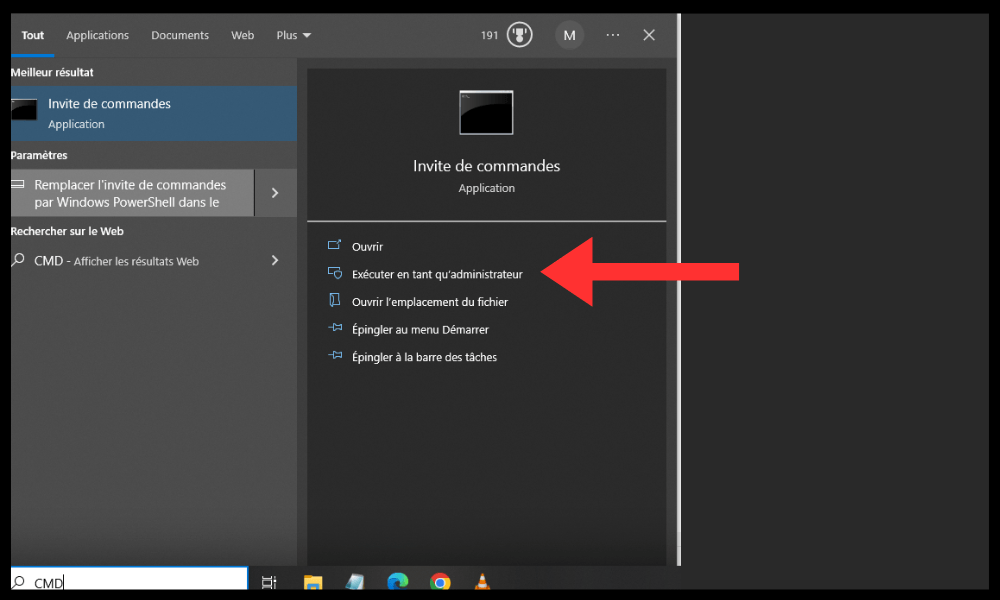
- Type this command into the command prompt and press Enter to execute it:
dism /online /add-capability /capabilityname:XPS.Viewer~~~~0.0.1.0
- Wait until the operation is successfully completed.
How do I use the XPS viewer on Windows 10?
Once you have installed the XPS viewer on Windows 10 , you can use it to open XPS files in two ways:
- Double-clicking an XPS file in File Explorer will open it in the default XPS viewer.
- By right-clicking on an XPS file and selecting Open with > XPS Viewer .
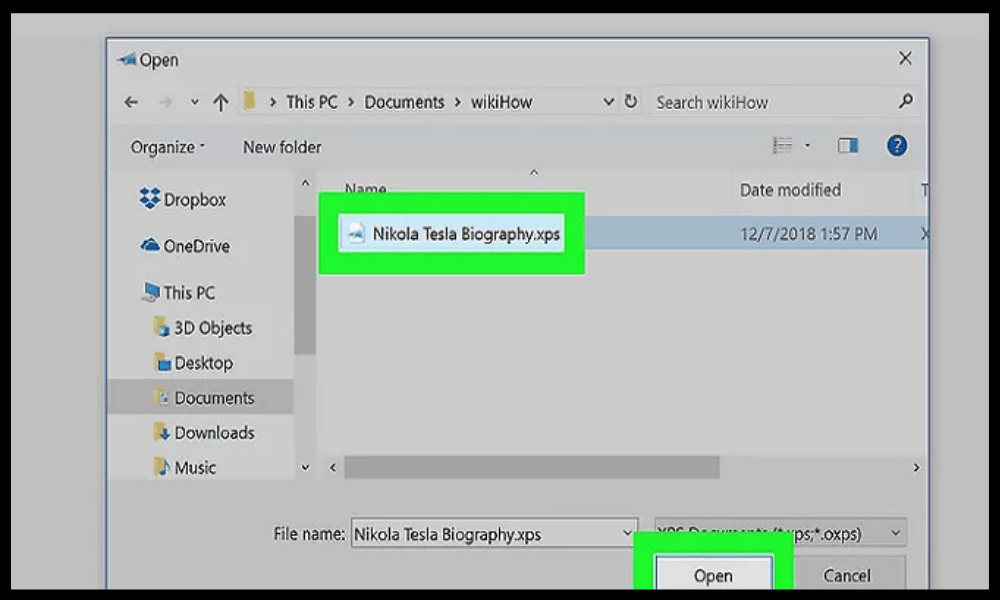
In the XPS viewer, you can use the toolbar buttons to perform various actions:
- Zoom in or out using the + and – buttons or with the mouse wheel.
- Rotate the document using the Rotate button.
- Search for text using the Search .
- Print the document using the Print .
- Digitally sign the document using the Signature .
- Convert the document to PDF or image using the Save As button.
What are the alternatives to the XPS viewer on Windows 10?
If you don't want to install the XPS viewer on Windows 10, or if you're looking for other ways to open XPS files, you can try these alternatives:
- Use a third-party PDF reader that supports the XPS format, such as Sumatra PDF Reader, a free and lightweight program that can read XPS, PDF, and other file formats. You can download it from this link: https://www.sumatrapdfreader.org/download-free-pdf-viewer.html
- Use Google Drive , an online storage service that can display XPS files in a web browser. Simply upload the XPS file to Google Drive and double-click it to open. You can access Google Drive from this link: https://drive.google.com
- Use an online converter that can transform XPS files into PDF or other formats, such as Online2PDF, a free and easy-to-use tool that can convert XPS files to PDF, Word, Excel, PowerPoint, or image. You can use it from this link: https://online2pdf.com/convert-xps-to-pdf
FAQ
What is an XPS file?
An XPS file is a file that contains a digital document in the XML Paper Specification (XPS) format , a format created by Microsoft to compete with the PDF format . An XPS file preserves the formatting and appearance of a document regardless of the software or device used to view or print it.
How do I create an XPS file?
To create an XPS file , you need software capable of saving in this format. Microsoft Office can all be saved in XPS format , as well as some other Windows "Save option and select the XPS file type.
How do I edit an XPS file?
To edit an XPS file , you need software capable of editing this format. There aren't many programs that can edit XPS files, but you can try these options:
- Use Microsoft Word , which can open and edit XPS files , but may alter the document formatting.
- Use NiXPS Edit , a paid software that can edit XPS files without loss of quality.
- Use an online converter that can transform XPS files into PDF or other editable formats.
How do I remove the XPS viewer from Windows 10?
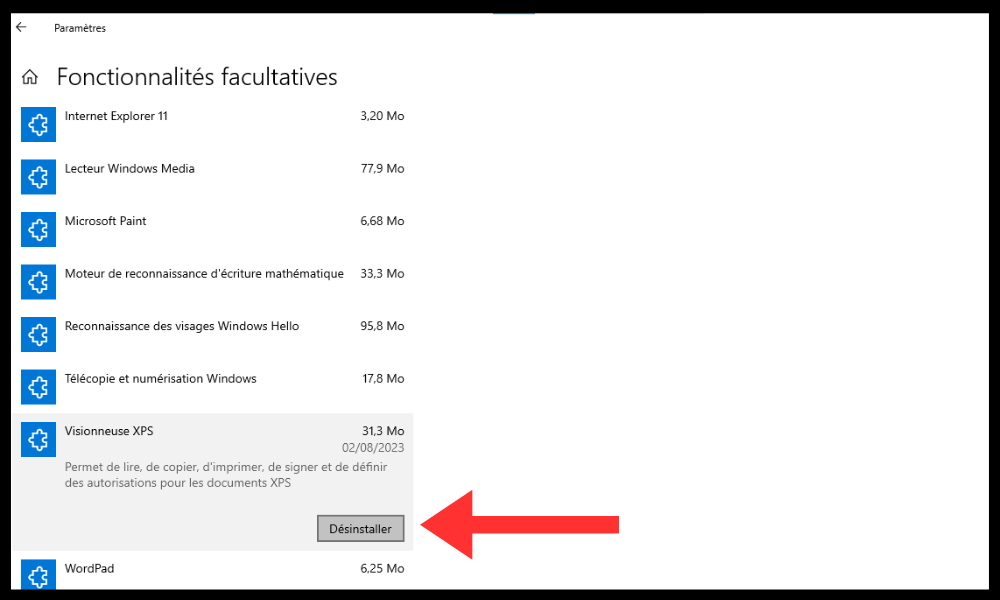
If you wish to uninstall the XPS viewer from Windows 10, you must follow these steps:
- Settings application using the keyboard shortcut Win+I.
- Go to Applications .
- Applications and Features tab
- Click on Optional Features.
- Select the XPS viewer from the list.
- Click on Uninstall .
You can also uninstall the XPS viewer from the command prompt in administrator mode . To do this, follow these steps:
- Click Start , type cmd , right-click Command Prompt in the top part of the Start menu and choose Run as administrator from the context menu.
- Type this command into the command prompt and press Enter to execute it:
dism /online /remove-capability /capabilityname:XPS.Viewer~~~~0.0.1.0
- Wait until the operation is successfully completed.
What are the advantages and disadvantages of the XPS format?
The XPS format has advantages and disadvantages compared to PDF or other digital document formats. Here are some of the main ones:
- Benefits :
- The XPS format is lighter and faster than the PDF format, which allows for smaller file sizes and improved performance.
- The XPS format is more secure than the PDF format , because it does not allow scripts or viruses to be embedded in documents.
- The XPS format is more faithful than the PDF format, as it preserves the quality and resolution of images and fonts.
- Disadvantages :
- The XPS format is less popular and less compatible than the PDF format, which limits the options for viewing and sharing documents.
- The XPS format is less flexible and less functional than the PDF format, making it more difficult to modify and annotate documents.
- The XPS format is less universal than the PDF format , which poses compatibility problems with operating systems other than Windows or non-Microsoft applications.
Conclusion
XPS files are a digital document format similar to PDF, but less popular and less compatible. To open XPS files on Windows 10, the easiest solution is to use the XPS Viewer Windows application that allows you to read and print XPS files . You can install the XPS Viewer from Settings or the Command Prompt. You can also use other alternatives, such as a third-party PDF reader, Google Drive, or an online converter.
We hope this article was helpful and that you learned how to install and use the XPS viewer on Windows 10. If you have any questions or comments, please let us know in the section below.


