

Windows XP is an operating system that has left its mark on computer history. Released in 2001, it was used by millions of users for over a decade. Today, it is no longer supported by Microsoft, which means it no longer receives security updates or compatibility with newer software.
However, some users still need Windows XP to run older applications or games that don't work, or don't work well, on newer versions of Windows. If you're one of these nostalgic users, know that there's a solution to emulate Windows XP on Windows 11, Microsoft's latest operating system.

What is emulation?
Emulation is the process of running an operating system or software on a different operating system or hardware than the one for which it was designed. For example, you can emulate a console video game on your PC, or emulate an Android smartphone on your computer.
Emulation relies on the use of software called an emulator, which simulates the behavior of the target operating system or hardware. The emulator creates a kind of virtual machine, in which you can install and run the operating system or software you want to emulate.

How to run Windows XP on Windows 11?
To emulate Windows XP on Windows 11, you have several options:
- Use the Windows 11 compatibility assistant
- Use the virtualization built into Windows 11
- Use third-party virtualization software
Use the Windows 11 compatibility assistant
The first option is to use the compatibility assistant built into Windows 11. This tool allows you to run a program or game designed for an older version of Windows in compatibility mode. It's a quick and easy solution that doesn't require installing an emulator or a copy of Windows XP.

To use the compatibility assistant, follow these steps:
- Right-click on the program or game you want to run in compatibility mode.
- Click on Properties.
- Open the Compatibility tab.
- Check the box "Run this program in compatibility mode" and select Windows XP from the drop-down list.
- If the program or game requires a specific resolution or color mode, check the corresponding boxes.
- Click OK to confirm the changes.
You can now launch the program or game in Windows XP compatibility mode. Note that this option does not guarantee that the program or game will function correctly, depending on its complexity and compatibility with Windows 11.
Use the virtualization built into Windows 11
The second option is to use the virtualization feature built into Windows 11. Virtualization allows your PC to emulate another operating system, such as Windows XP, in a virtual machine. This lets you install and run Windows XP on Windows 11, as if you had a second computer.
To use the virtualization feature built into Windows 11, you need a PC compatible with virtualization technology (Intel VT-x or AMD-V) and you must enable it in BIOS or UEFI. You also need a Windows XP ISO image and a valid product key.
To enable virtualization on Windows 11, follow these steps:
- Save your work and close all open applications.
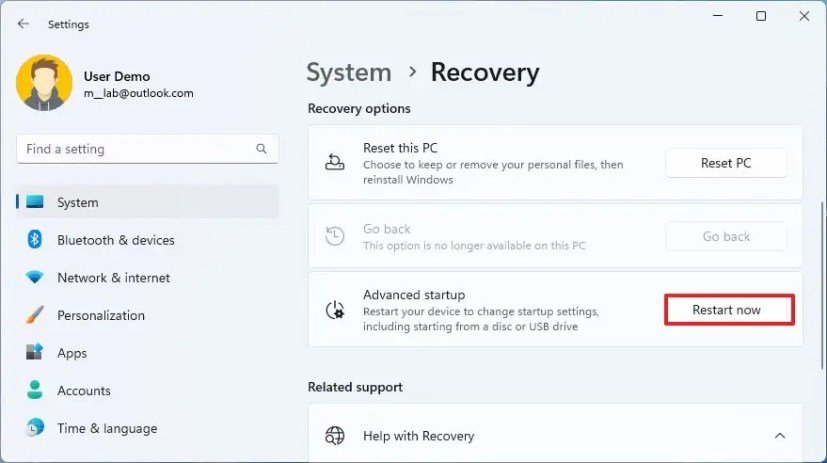
- Select Start > Settings > System > Recovery > Advanced startup, and then select Restart now.
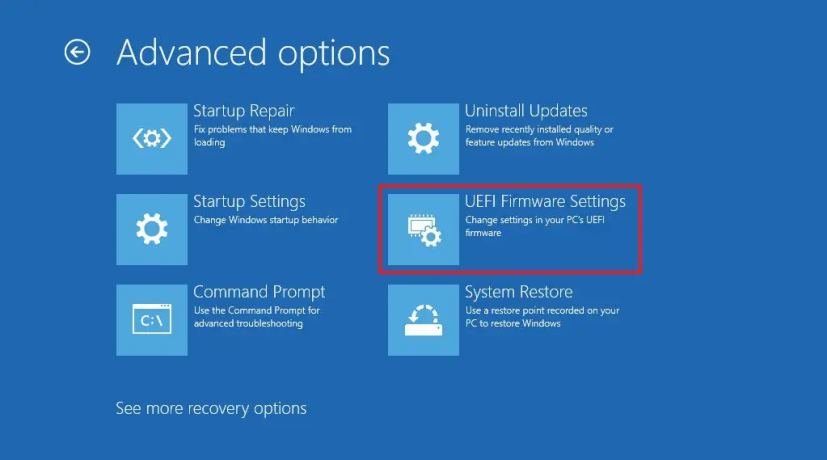
- Once your PC has restarted, you will see a screen that displays "Choose an option". Select Troubleshoot > Advanced options > UEFI settings > Restart.
- Your PC will restart again and you will be in the UEFI utility. At this stage, you can see the UEFI, also known as the BIOS, on your PC.
- Look for the option to enable virtualization, which may be found under different names depending on your PC manufacturer (e.g., Intel Virtualization Technology, AMD-V, SVM Mode, etc.).
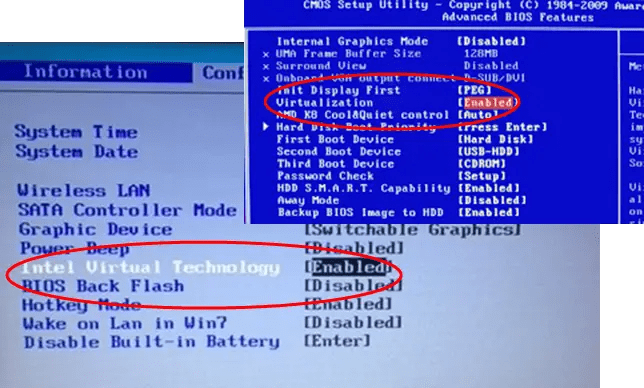
- Enable the virtualization option and save the changes.
- Your PC restarts normally under Windows 11.
To create a virtual machine with Windows XP on Windows 11, follow these steps:
- Download and install Hyper-V Manager software, which is a free tool from Microsoft for managing virtual machines.
- Open Hyper-V Manager and click New > Virtual Machine in the Action menu.
- Follow the wizard to create a new virtual machine. Give it a name, choose a generation (preferably the first), allocate an amount of RAM and hard drive space, and select the Windows XP ISO image as the installation source.
- Once the virtual machine is created, click on it in the left pane and click on Start in the Action menu.
- The virtual machine will start and begin the Windows XP installation. Follow the on-screen instructions to install Windows XP as you would on a physical computer.
- Once Windows XP is installed, you can use it as you see fit within the virtual machine. You can also install Hyper-V integration tools to improve the virtual machine's performance and compatibility.

Note that this option requires significant hardware resources to ensure proper Windows XP emulation. You must also comply with Microsoft's terms of use to operate Windows XP.
Use third-party virtualization software
The third option is to use third-party virtualization software, such as VirtualBox or VMware Workstation. These programs also allow you to create and run virtual machines with different operating systems, including Windows XP. They often offer more features and flexibility than Hyper-V Manager.
However, they can also encounter technical problems, such as the VirtualBox error E_FAIL (0x80004005) on Windows . This error can prevent a virtual machine from starting or installing and requires a specific solution.
To use third-party virtualization software, you also need a PC that supports virtualization technology and must enable it in your PC's BIOS or UEFI. You also need a Windows XP ISO image and a valid product key.

To create a virtual machine with Windows XP on Windows 11 using VirtualBox, follow these steps:
- Download and install VirtualBox, a free and open-source software that allows you to create and manage virtual machines.
To create a virtual machine with Windows XP on Windows 11 using VirtualBox, follow these steps:
- Download and install the VirtualBox software, which is available on the official website: https://www.virtualbox.org/wiki/Downloads
- Open VirtualBox and click the New button to create a new virtual machine.
- Give your virtual machine a name, for example Windows XP, and choose Windows XP (32-bit) as the type and version. Click Next.
- Allocate an amount of RAM to your virtual machine, based on your needs and available resources. For example, you can choose 1024 MB. Click Next.
- Choose to create a virtual hard drive now and click Create.
- Select the VDI (VirtualBox Disk Image) format and click Next.
- Select Dynamically allocated and click Next.
- Choose the size of the virtual hard drive, for example 10 GB, and click Create.
- Click on the Settings button for your virtual machine and go to the Storage section.
- Click on the disc-shaped icon with a plus sign and choose Select a virtual optical disc file.
- Select the Windows XP ISO image you downloaded and click Open. Click OK to confirm the settings.
- Click the Start button to launch your virtual machine. You should see the Windows XP installation screen.
- Follow the on-screen instructions to install Windows XP as you would on a real computer. You may need to press a key to boot from the CD-ROM, accept the license agreement, choose a partition and file system, enter a product key, etc.
- Once Windows XP is installed, you can use it as you wish within the virtual machine. You can also install the VirtualBox Guest Additions to improve the virtual machine's performance and compatibility.

To install the VirtualBox Guest Additions, follow these steps:
- In the Windows XP virtual machine menu, click on Devices, then on Insert Guest Additions CD image.
- Click the Next button in the VirtualBox Guest Additions installation window.
- Leave the default installation location and click Next.
- Click the Install button to begin installing the VirtualBox Guest Additions.
- Restart your virtual machine when the installation is complete.
Note that this option also requires significant hardware resources to ensure proper Windows XP emulation. You must also comply with Microsoft's terms of use to run Windows XP.
What are the advantages and disadvantages of emulation?
Emulation offers several advantages:
- It allows you to run operating systems or software that are no longer supported or compatible with your current hardware or operating system.
- It allows you to test operating systems or software without actually having to install them on your computer.
- It allows you to enjoy features or performance superior to those of the original operating system or software.
Emulation also has some drawbacks:
- It often requires a powerful hardware configuration to ensure smooth gameplay and good graphics quality.
- It can lead to compatibility, stability or security problems, depending on the quality of the emulator and the operating system or software being emulated.
- It can pose legal problems if you do not have the rights to use the operating system or the emulated software.
Conclusion
This article showed you how to emulate Windows XP on Windows 11, using three possible options:
- The Windows 11 compatibility assistant
- Virtualization integrated into Windows 11
- A third-party virtualization software
Each of these options has its advantages and disadvantages, depending on your needs and preferences. Emulation allows you to run older applications or games that are no longer supported or compatible with newer versions of Windows. It also lets you enjoy a nostalgic yet powerful operating system.
However, emulation often requires powerful hardware and can lead to compatibility, stability, or security issues. It can also raise legal concerns if you do not have the rights to use the emulated operating system or software.
We hope this article was helpful and that you were able to emulate Windows XP on Windows 11. If you have any questions or comments, please feel free to leave them below.


