

The SysMain service host , formerly known as Superfetch , is a Windows service designed to optimize system performance by preloading frequently used applications into memory. However, this service can sometimes cause high CPU or disk usage , leading to slowdowns, freezes, or overheating of your computer. In this article, we'll explain how to resolve this issue and restore your PC to proper working order.
What are the causes of the high CPU or disk usage problem by the SysMain service host?

There are several possible causes that can lead to high CPU or disk usage by the SysMain service host , such as:
- A driver or software incompatibility
- A corruption of the file system or registry
- Malware or a virus
- A misconfiguration of the SysMain service
- An Windows update
How can I verify if the SysMain service host is responsible for the high CPU or disk usage problem?
To verify if the SysMain service host is responsible for the high CPU or disk usage issue, you can follow these steps:
- Open Task Manager by pressing Ctrl + Alt + Delete and clicking on Task Manager.
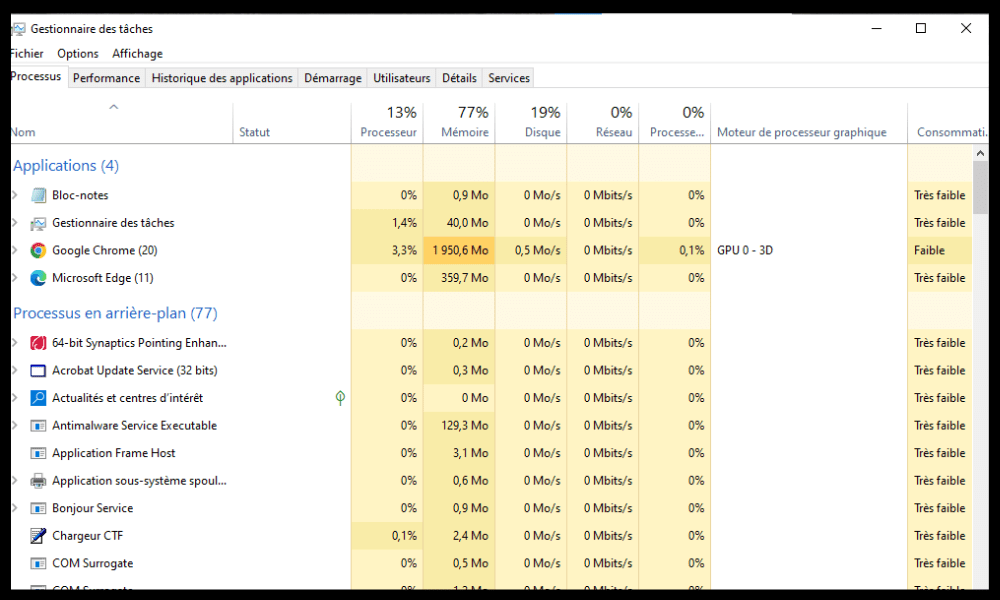
- In the Processes tab, sort the processes by CPU or disk usage by clicking on the corresponding columns.
- Look for the process named Service Host: SysMain and check its CPU or disk usage percentage. If this percentage is abnormally high (greater than 50%), there is a good chance that this process is causing the problem.
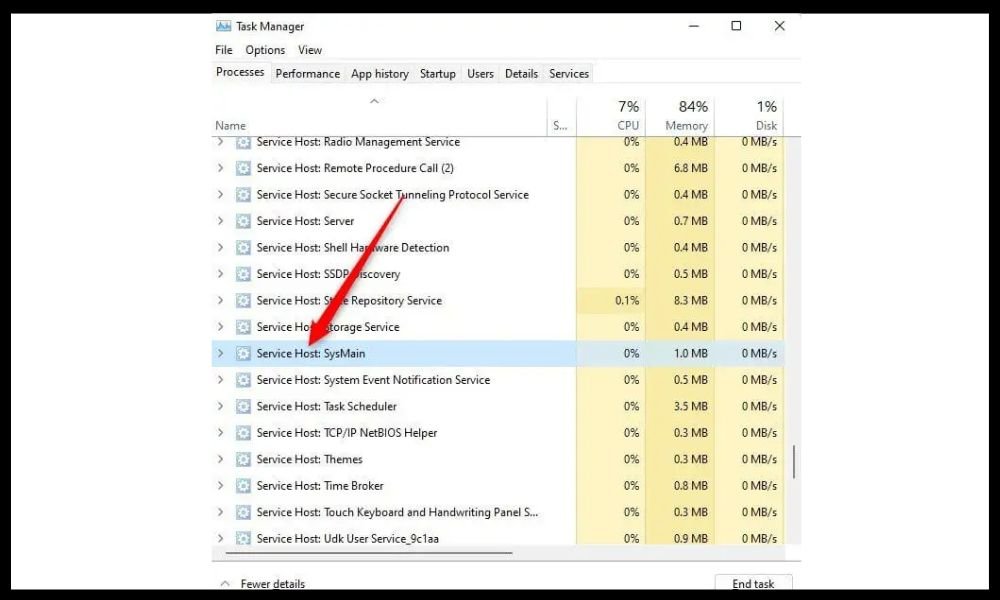
How to resolve the issue of high CPU or disk usage by the SysMain service host?
There are several possible solutions to resolve the issue of high CPU or disk usage by the SysMain service host , depending on the cause of the problem. Here are some of the most common methods:
Method 1: Restart the computer
The first thing to do is restart your computer, which can sometimes resolve temporary issues related to the SysMain service. To restart your computer , click the Start button, then the Power button, and choose Restart.
Method 2: Use SFC analysis
The System File Checker (SFC) scan is a built-in Windows tool that allows you to check for and repair corrupted or missing system files. To use this tool, follow these steps:
- Open a command prompt as an administrator by pressing the Windows + X keys and choosing Command Prompt (admin) or Windows PowerShell (admin).
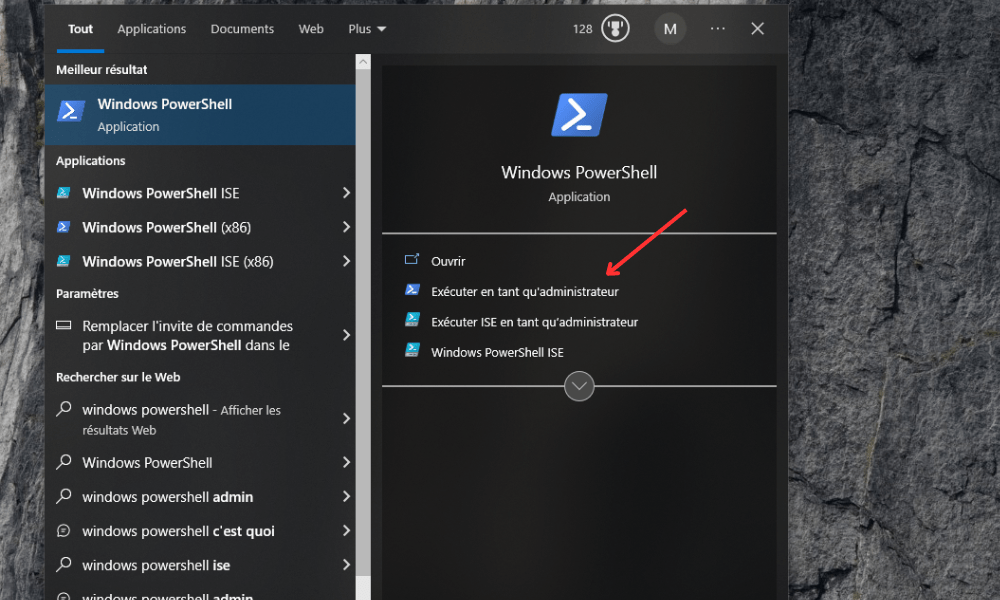
- Type the command sfc /scannow and press Enter.
- Wait for the analysis to finish (this may take several minutes) and follow the on-screen instructions if any errors are detected.
Method 3: Disable the background intelligent transfer service
The Background Intelligent Transfer Service (BITS) is a Windows that allows file transfers using unused bandwidth. This service can sometimes conflict with the SysMain service and cause high CPU or disk usage. To disable this service, follow these steps:
- Start menu and type services.msc in the search bar, then click OK .
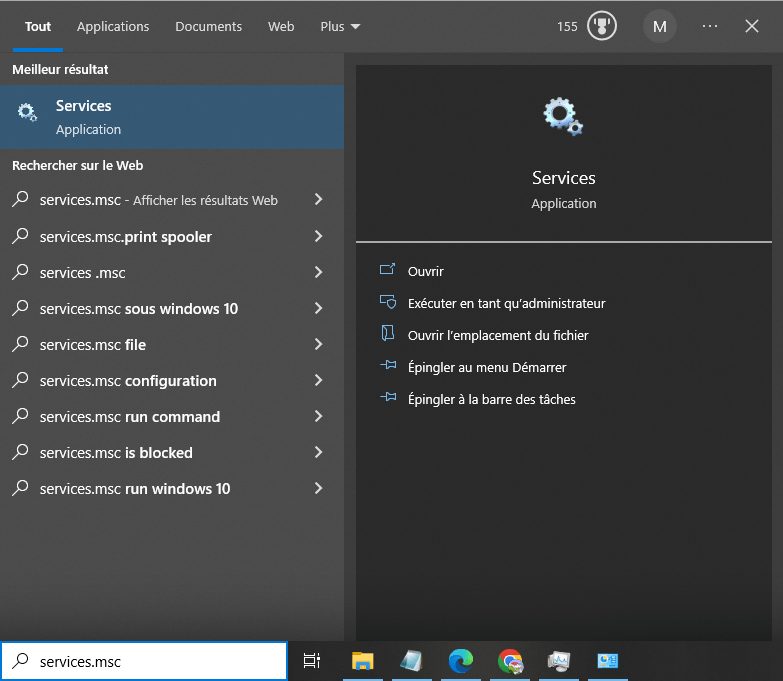
- Look for the Background Intelligent Transfer Service in the list, then right-click on it and choose Properties .
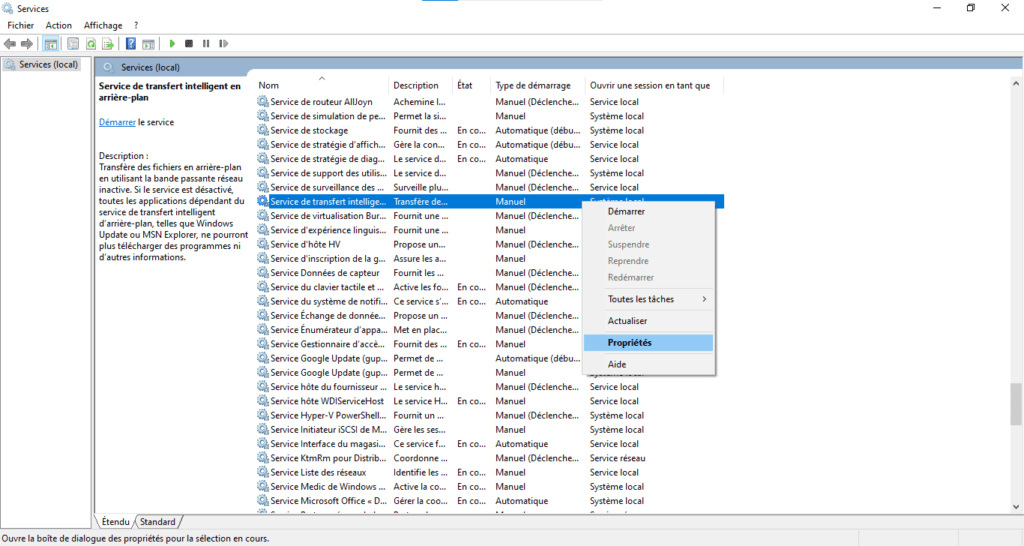
- On the General tab, click the Stop button, and then set the startup type to Disabled. Click OK to save the changes.

Method 4: Scan for malware and viruses
It's possible your computer is infected with malware or a virus that uses the SysMain service to consume system resources. To detect and remove these threats, you need to use reliable and up-to-date antivirus software. You can use the antivirus built into Windows , Windows Defender , or another antivirus program of your choice. To use Windows Defender, follow these steps:
- Start menu and type Windows security in the search bar, then click on Windows Security .
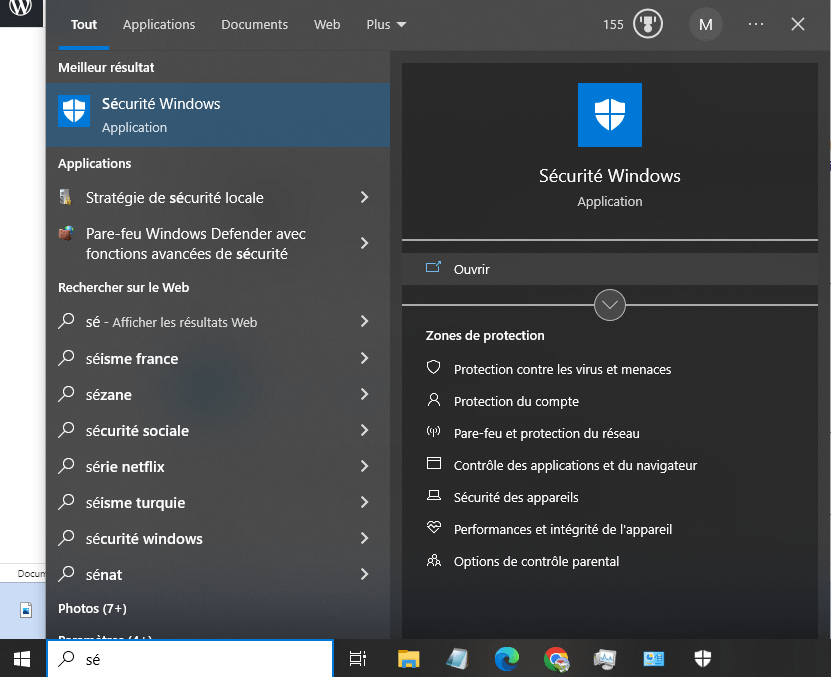
- Click on Virus & threat protection, then on Scan options.
- Choose an analysis option (e.g., Full Analysis) and click Analyze Now.

- Wait for the scan to finish and follow the on-screen instructions if any threats are detected.
Method 5: Disable the host service: SysMain service via the service manager
If none of the previous methods work, you can try completely disabling the host service: SysMain Service via the Services Manager . This should stop the high CPU or disk usage issue, but it may also affect your system's performance. To disable this service , follow these steps:
- Open the Start menu and type services.msc in the search bar, then click OK.
- Look for the SysMain or SuperFetch service ( depending on the version of Windows you are using ) in the list, then right-click on it and choose Properties .
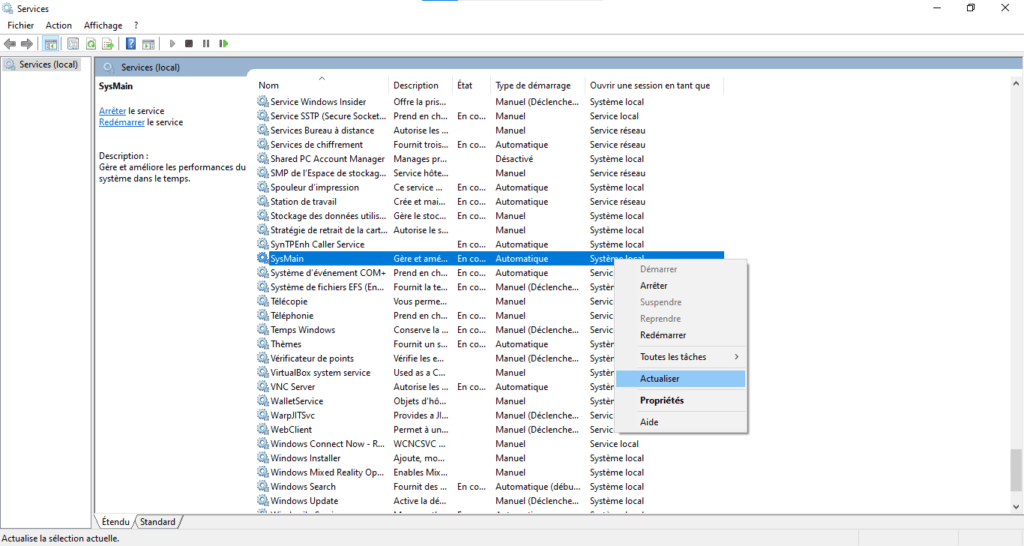
- On the General tab, click the Stop button, and then set the startup type to Disabled . Click OK to save the changes.
How to reactivate the host service: SysMain service if necessary?
If you wish to re-enable the SysMain service to benefit from its system optimization advantages, you can follow the same steps as for disabling it, but choose Automatic instead of Disabled . You may also need to restart your computer for the changes to take effect.
FAQ
Here are some frequently asked questions from users regarding the host service: SysMain service and its high CPU or disk usage .
What is the difference between SysMain and SuperFetch?
SysMain and SuperFetch are two different names for the same Windows , which aims to optimize system performance by preloading frequently used applications into memory. Windows 10 version 1809 update
Is SysMain necessary?
SysMain is not an Windows 10 to function , but it can improve system performance by reducing application load times. However, it can also cause high CPU or disk usage in some cases. Therefore, you can choose to enable or disable it as needed.
How can I prevent SysMain from restarting automatically?
If you disabled the SysMain service through the Services Manager, it shouldn't restart automatically unless you manually re-enable it. However, if you used another method to disable the service, such as the Command Prompt or the Registry Editor, the service might restart automatically Windows update or computer restart. To prevent this, you can change the SysMain service's startup type to Disabled through the Services Manager, as explained in Method 5.
How can I tell if SysMain is working correctly?
If SysMain is functioning correctly, it should improve your system's performance by reducing the loading times of frequently used applications. You can verify that SysMain is working correctly by monitoring the CPU or disk usage of the host service: SysMain Service in Task Manager . If the usage is low or moderate (less than 50%), it means the service is working correctly and is not negatively impacting your system's performance. If the usage is high (greater than 50%), it means the service is experiencing a problem and should be disabled or repaired.
What are the advantages and disadvantages of SysMain?
The advantages of SysMain are:
- It speeds up Windows startup by preloading the necessary files into memory.
- It reduces application loading times by preloading frequently used applications into memory.
- It adapts to your usage habits and preloads applications according to the time of day or day of the week.
The disadvantages of SysMain are:
- It can cause high CPU usage, such as in the AppX deployment service , or disk usage in some cases, leading to slowdowns, freezes, or overheating of the computer.
- It can conflict with other services or software and cause errors or incompatibilities.
- It can consume a lot of memory space and reduce the lifespan of the hard drive.
Conclusion
The SysMain service host is a Windows that aims to optimize system performance by preloading frequently used applications into memory. However, this service can sometimes cause high CPU or disk usage, leading to slowdowns, freezes, or overheating of the computer. Another Windows that can impact system performance is the .NET Runtime Optimization Service , which precompiles .NET code to speed up its execution. We hope this article has been helpful and that you have been able to improve your system's performance using our tips.


