

A hidden feature of Windows 10, God Mode, also known as " God Mode ," grants you access to almost all system settings, most of which are normally hidden. Instead of fiddling around to find a single option, activating God Mode is the best way to get what you need in record time. Want to activate it now? It's simple and easy; all you need is the right code and the right method…
God Mode Windows 10: a massive invention from Microsoft Corporation

Like all recent operating systems , Windows 10 is packed with a wide array of features and tweaks. There are so many, in fact, that it can sometimes be difficult to keep track of them all. For your information, Windows is essentially the result of several developments initiated by different teams. And with multiple teams comes a multitude of design ideas.
Each of these teams tried to contribute in their own way, adding their own piece to the puzzle. Since the settings didn't follow the same logic, this sometimes led to inconsistencies. Of course, with a little searching, you'll eventually find the parameters you're looking for. However, you'll need patience and perseverance.
This is precisely why Microsoft Corporation created " God Mode ." Contrary to what one might imagine, "God Mode Windows " first appeared in the Windows 7 operating system. Unfortunately, it didn't provide any "magical powers" to fix anything with a wave of a wand. The idea was there, but the implementation was lacking.
It was only after the advent of Windows 10 that God mode truly revealed its full potential.
God Mode Windows : What is its actual purpose on Windows 10?

Primarily designed for those who use Windows in an advanced way, "God Mode" refers to a hidden folder in Windows that allows you to quickly access a set of convenient settings in one place.
It is also known as: “ Windows Master Control Panel ” and contains a variety of links that allow you to open a series of management tools, thus facilitating modification of the operating system.
Contrary to popular belief, Windows God Mode doesn't invent or unlock any new features. It simply gives you direct access to dozens of Windows 10 settings, some of which are considered "advanced.".
In fact, there's no doubt that it's precisely because of this " advanced " nature that Microsoft keeps this mode hidden from everyone. However, there's no risk in using " God Mode ," especially when you have quick access to the basic settings.
Obviously, this saves time and avoids having to navigate through numerous settings windows. As always, just avoid modifying functions you don't understand…
God Mode Windows : how to activate it on Windows 10?
If you wish to use God Mode on Windows 10, we suggest you watch this video which explains the procedure to follow.
You watched the video, but you're still confused? Do you want an easier, less complex, and highly effective method that works every time? Here's what you need to do
Create a new special folder on your computer's desktop
To access God Mode and all its functions , you must create a new folder dedicated solely to this purpose. To do so, follow these steps:
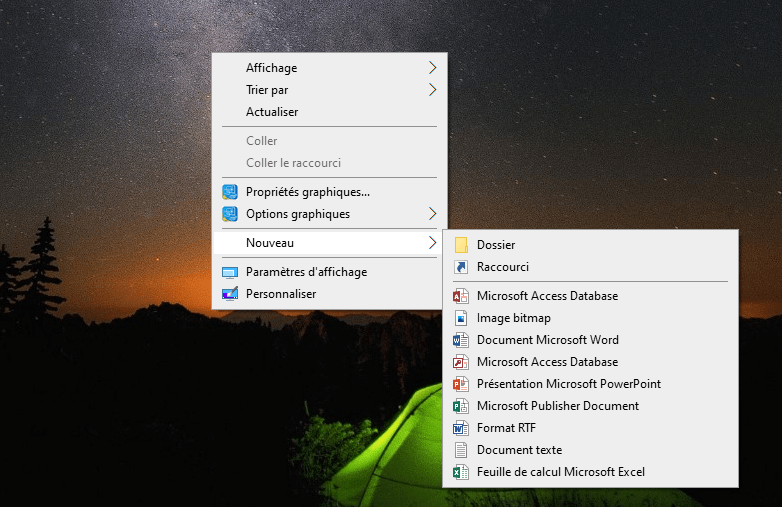
Step 1: Right-click on any empty area of the Windows 10 desktop , then select " New folder " from the menu that appears.
Step 2: Next, tap on the folder name, then rename it by copying this message exactly: << GodMode.{ED7BA470-8E54-465E-825C-99712043E01C} >>. To get the desired results and avoid typing errors, we strongly advise you to use copy and paste .
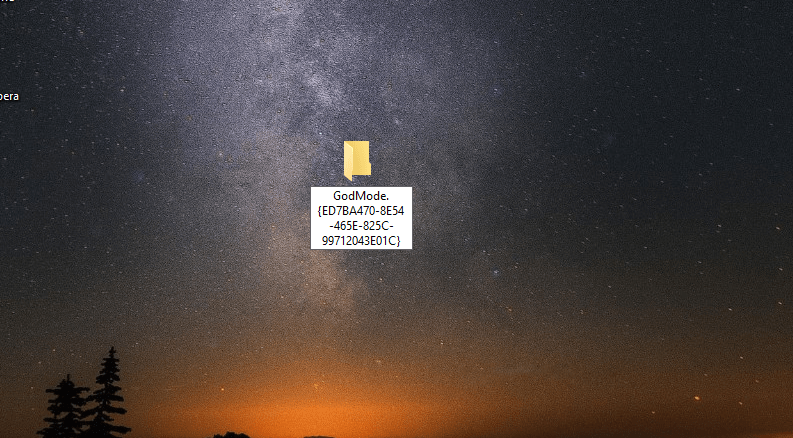
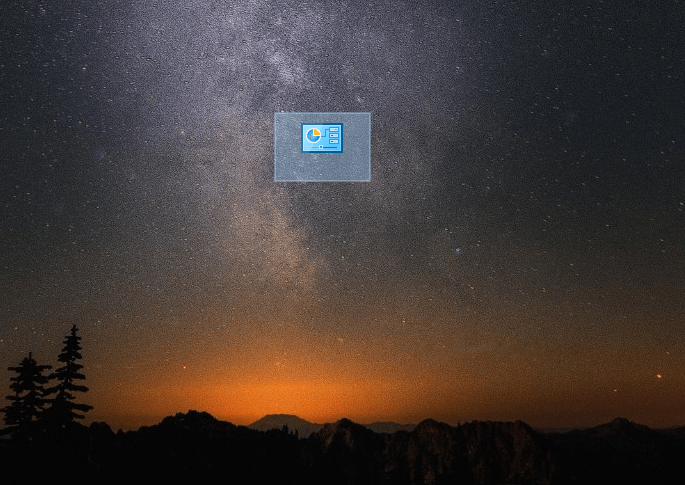
Note: If you successfully completed the previous step, you will see that the folder icon will change shape, display " GodMode Windows folder is ready!
Good to know: After performing any operation on your computer, have you noticed that it no longer starts up correctly? We suggest you check out our article which shows you how to restart Windows 10 in safe mode .
Before we continue, we would like to share some very important information with you.
Remember that you can create the “God Mode” folder anywhere . The choice is yours! In our instructions, we chose to place it on the Desktop for practical reasons: it's immediately visible and easily accessible from there . Unfortunately, it's not possible to pin it to the taskbar for permanent access.
We created our God Mode Windowsfolder, but we haven't actually activated it yet.
How do I access and activate God Mode?
There are many ways to access God Mode. Here's one of the simplest, fastest, and most effective methods to achieve it.
One simple step: After creating your folder, double-click on it and wait. You will then see all the Windows 10 settings scroll before your eyes, from power supply management to display, user accounts, history, and storage. Everything is there!
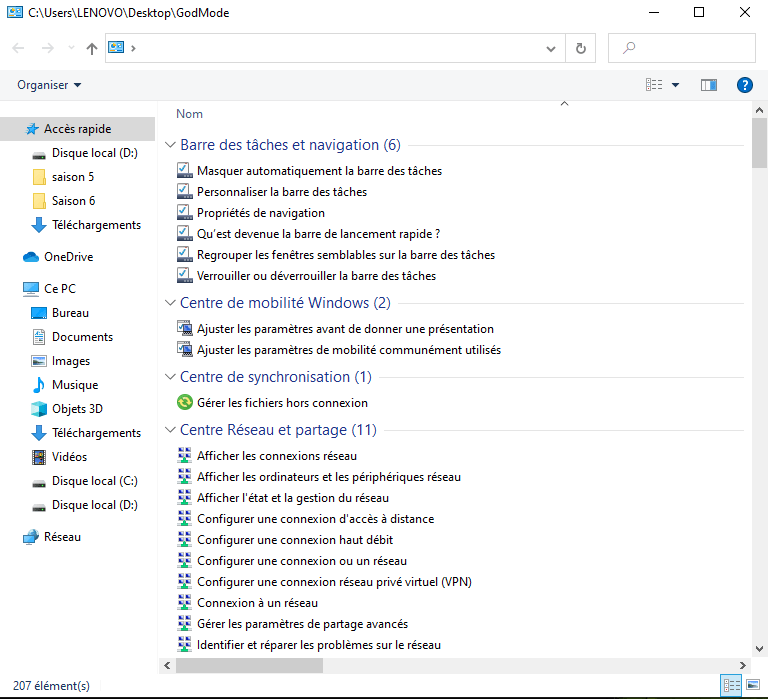
“God Mode” is by far the most efficient way to access all Windows 10 settings, whether hidden or not, with one click, i.e. very quickly.
If you frequently use some of these settings, you can quickly add shortcuts to your desktop.
How is this possible? Well, simply right-click on the “ God Mode Windows ” folder and choose the “ Create shortcut ” option.


