

Are you using Windows and want to learn how to use the command line ? Have you heard of the `echo` command, but don't know what it's for or how to use it? Don't worry, in this article, you'll discover what the `echo` command is, how to use it to display messages or modify echo parameters , and which special characters you need to know to escape reserved symbols.
Quick video tutorial on the "echo" command , a few things to understand:
What is the echo command?
The `echo` command is an instruction you can type in a black window called the Command Prompt. This window allows you to communicate with your computer by giving it written commands. The `echo` command is used to display words or phrases in this window. For example, if you type: `echo Bonjour`, you will see the word 'Bonjour' appear in the window.
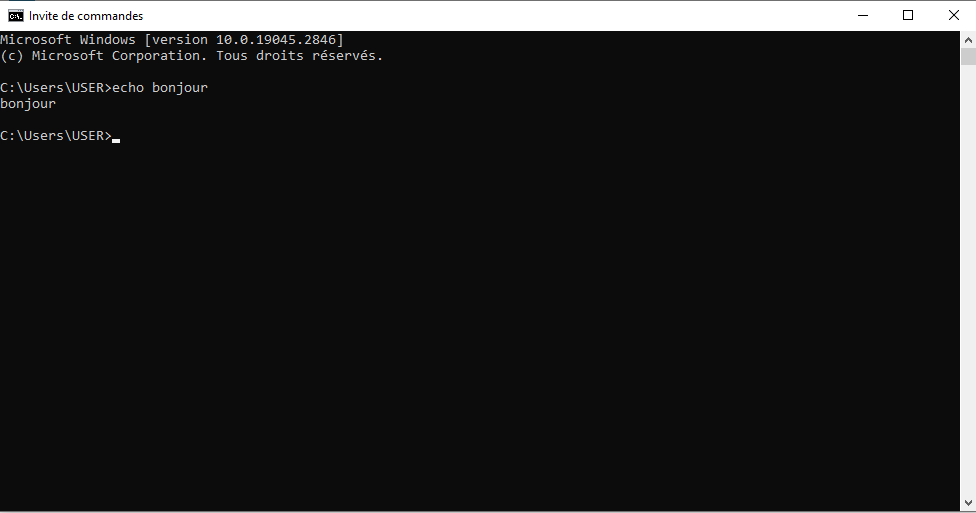
Command echo, on the other hand, is an option that displays the commands you type in the window before they are executed. For example, if you type: `dir`, you will see the word `dir` followed by a list of the files and folders in the current directory.

Command echo is enabled by default , but you can disable it if you want to hide the commands you write in a special file called a batch file . A batch file is a file that contains several commands in sequence and can be executed automatically .
The syntax for the echo command is as follows:
echo [<message> ]
echo [on | off]
The first parameter, `<message> ` , specifies the text to display on the screen. The second parameter, `[on | off]`, enables or disables the command echo functionality. If you use the `echo` command without parameters, it displays the current echo setting (on or off).
This article might interest you: Ctrl + Z: What is the purpose of this surprising keyboard shortcut?
How do I use the echo command to display messages?
The `echo` command is especially useful when echo is disabled . To display a multi-line message without displaying commands, you can include multiple `echo` commands.
Good morning,
This is an example
multi-line message.
Bye.
You can use the following batch processing file:
@echo off
echo Hello,
echo This is an example
multiline message echo.
Goodbye.
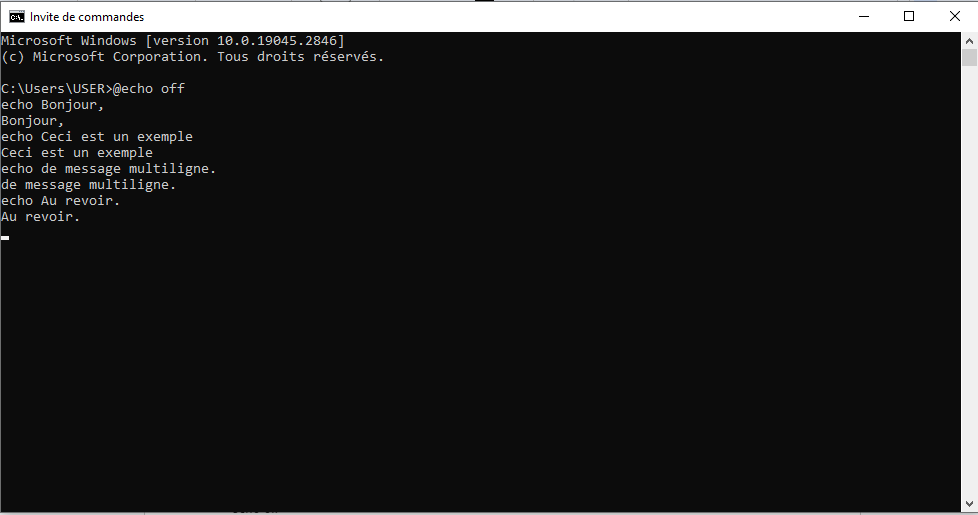
The @ symbol before the first command prevents that particular command from being echoed . If you want to display a blank line on the screen , you can use the `echo` command without a space before the period. Otherwise, the period will appear instead of a blank line.

How do I use the echo command to modify the echo parameter?
If you want to enable or disable command echo , you can use the `echo on` or `echo off` . For example, if you want to disable command echo at the command prompt, type:
echo off

Once echo is disabled, the command prompt will not appear in the Command Prompt window. To display the command prompt again, type:
echo on
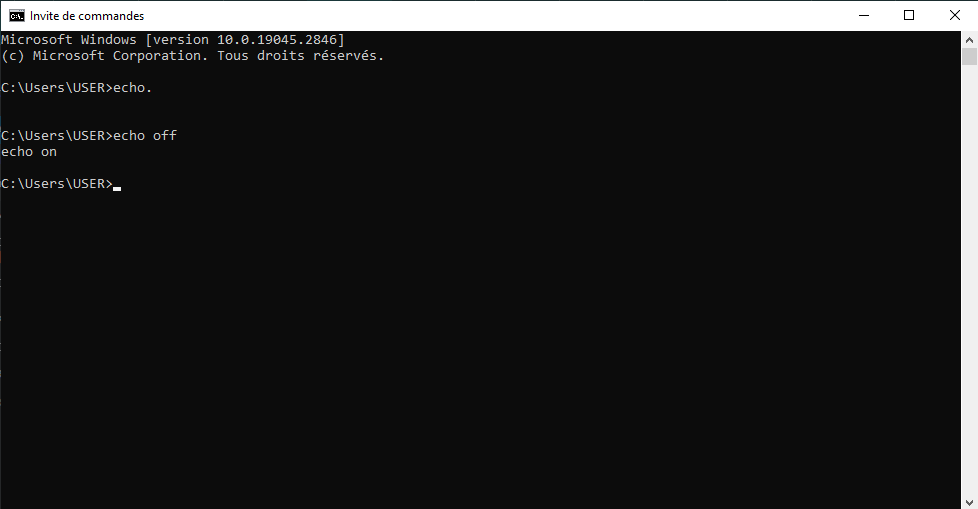
If you want to prevent all commands in a batch file from being echoed , include the `echo off` command at the beginning of the file. For example, if you want to run the following commands without displaying them on the screen:
director
break
cls
You can use the following batch processing file:
@echo off
director
break
cls
What special characters do I need to know to use the echo command?
Certain characters have a special meaning for the Windows shell and cannot be used directly in the echo command. These are the following characters:
- <
- >
- |
- &
- ^
These characters are used to redirect the output of a command , create a pipeline between two commands , execute two commands simultaneously , or escape a special character . To display these characters with the `echo` command , you must use an escape character before them. The escape character is the ^ symbol. For example, to display the following message:
- A>B | C&D ^ E
You must type the following command:
- echo A-^>B ^| C^&D ^^ E
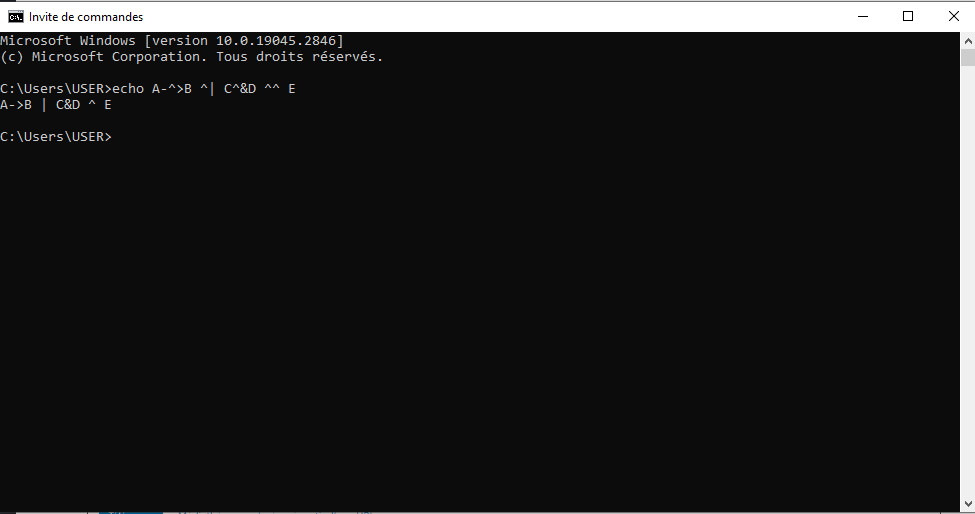
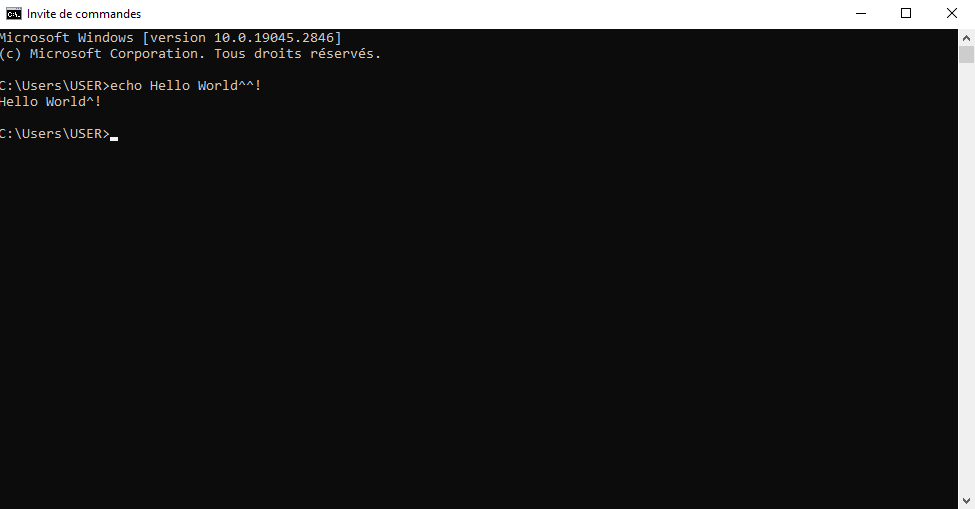
Note that you must type two ^ symbols to display a single ^ symbol. Similarly, if you want to display an exclamation mark (!), you must use double quotation marks and a ^ symbol before the exclamation mark. For example, to display the following message:
- Hello World!
You must type the following command:
- echo "Hello World^!"
You can also use two ^ symbols without needing double quotes. For example:
- echo Hello World^^!
FAQ about the echo command
Here are some frequently asked questions about the echo command and their answers.
How do I use the echo command to redirect the output to a file?
If you want to save the output of the `echo` command to a file, you can use the `>` symbol to redirect the output to a file. For example, if you want to create an XML file with the `echo` command, you can type:
- echo ^<?xml version= »1.0″ encoding= »utf-8″ ?^> > myfile.xml
The > symbol creates a new file or overwrites the contents of an existing file. If you want to add content to an existing file, you can use the >> symbol instead. For example, if you want to add a line to the previous XML file, you can type:
- echo<root> >> myfile.xml
How do I use the echo command to display environment variables?
If you want to display the values of environment variables using the `echo` command , you must use the `%` symbol around the variable name. For example, if you want to display the current user's name , you can type:
- echo %USERNAME%
If you want to display all the names and values of the environment variables, you can type:
- set
How do I use the echo command to display the time and date?
If you want to display the time and date using the echo command, you can use the %TIME% and %DATE% environment variables. For example, if you want to display the current time and date, you can type:
- echo It is %TIME% on %DATE%

You can also use the time and date commands to display or change the system time and date .
How do I use the echo command to display a message without a line break?
If you want to display a message with the `echo` command without moving to the next line, you can use the `/n` option. For example, if you want to display two messages on the same line, you can type: `echo /n Hello` `echo /n the world`

How do I use the echo command to display special characters?
If you want to display special characters with the echo command, such as quotation marks, angle brackets, or the redirection symbol, you must precede them with the ^ symbol to escape them. For example, if you want to display the text " Hello > World", you can type: echo ^“Hello ^> World^”
Conclusion
The `echo` command is useful for displaying messages on the screen or command's echo parameter create simple text files or manipulate environment variables . To use the `echo` command correctly , you need to know which special characters to escape with the ^ symbol . We hope this article has helped you better understand the `echo cmd` command and its applications.


