

Are you frustrated because you can't open the Windows ? Don't panic! In this comprehensive guide, we present seven effective methods to fix this common problem. Whether you're a beginner or an expert, our simplified yet detailed explanations will help you understand the technical aspects and quickly regain access to your terminal .
Method 1: Restart your computer
Before looking for complex solutions, try the simplest method: restarting your computer . A restart often resolves temporary problems that prevent the Windows .

Method 2: Use the command prompt in administrator mode

Sometimes, opening the terminal requires administrator privileges. To do this, right-click on the Start menu, then choose "Command Prompt (Admin)" or " Windows PowerShell (Admin)" depending on your version of Windows.
Method 3: Check the integrity of system files
Corrupted system files can prevent the terminal from opening. Here's how to check and repair these files: Step 1 : Open the command prompt as administrator (see Method 2).
Step 2 : Type the following command and press Enter: sfc /scannow
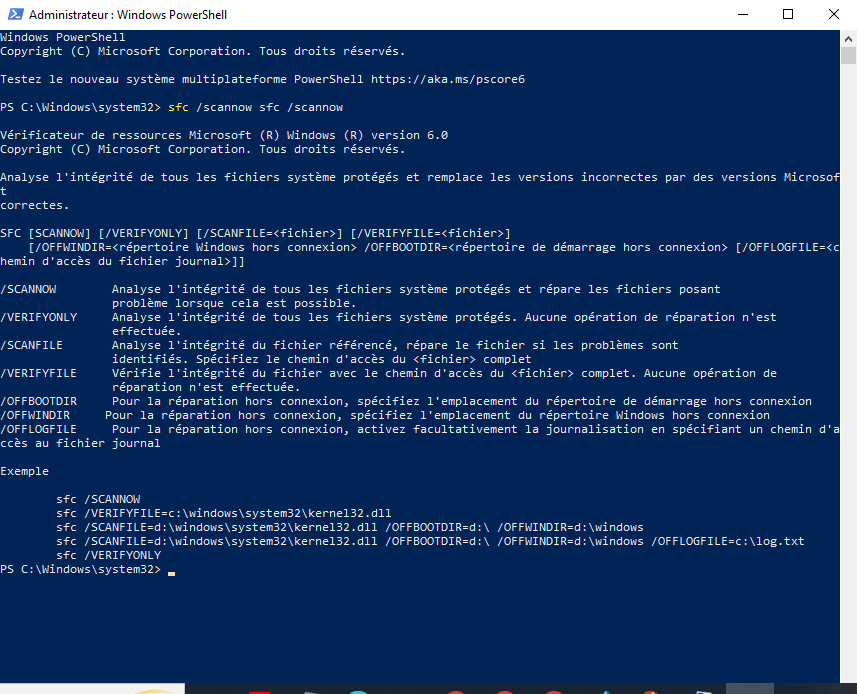
Please wait while the system files are analyzed and repaired.
Method 4: Reset terminal settings
Incorrect terminal configuration can cause opening problems. To reset the settings, follow these steps
Step 1: Press Win + R to open the Run dialog box. Type %LOCALAPPDATA%\Packages\Microsoft.Windows Windows \LocalState and press Enter.
settings.json file to force the creation of a new file with default settings when opening the terminal.

Method 5: Update Windows

Make sure your operating system is up to date by checking for available updates. To do this, go to "Settings" > "Update & Security" > " Windows Update" and click on "Check for updates".
This article might interest you: UsoClient.exe in Windows 10: Should it be disabled?
Method 6: Reinstall Windows Terminal
If the previous methods did not work, you can reinstall WindowsTerminal. To do this, follow these steps:
Step 1: Open "Settings" > "Apps" > "Apps & features".
Step 2: Find " Windows Terminal" and click "Uninstall". Windows
Terminal from the Microsoft Store.

Method 7: Create a new user profile
The problem opening the terminal may be due to a corrupted user profile. In this case, create a new profile and check if the terminal works correctly
Step 1: Open “Settings” > “Accounts” > “Family & other users”.

Step 2: Click on "Add another user to this PC" and follow the instructions to create a new user account.
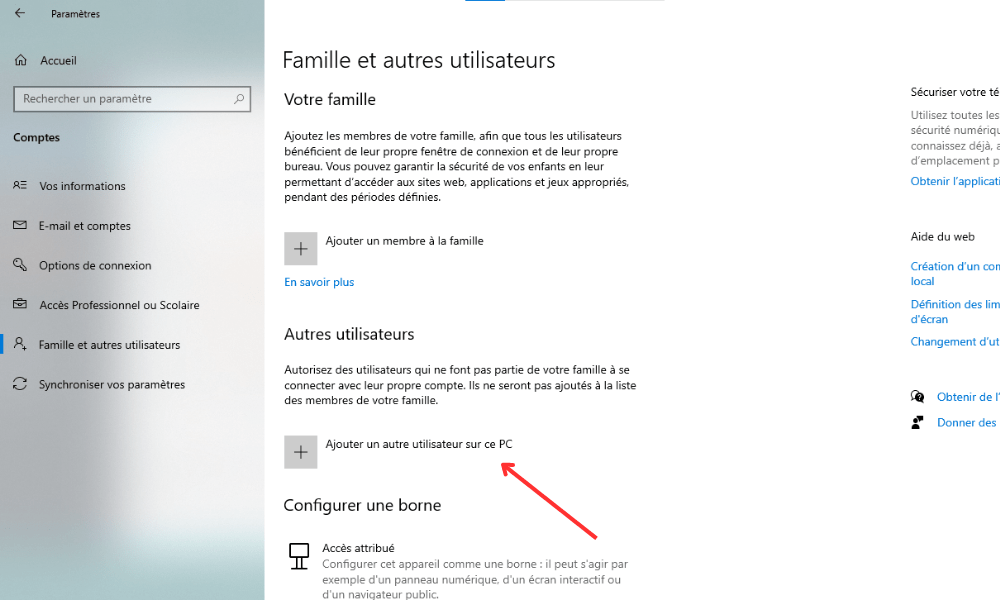
Step 3: Log in with this new account and check if the terminal opens correctly.
To make it easier to understand the different methods, here is a simplified comparison table:
| Method | Steps |
|---|---|
| 1. Restart the computer | Simply restart the computer |
| 2. Use the command prompt in administrator mode | Right-click on the Start menu, then choose the admin option |
| 3. Verify the integrity of system files | Run the command sfc /scannow |
| 4. Reset terminal settings | settings.json file |
| 5. Update Windows | Check for updates via Settings |
| 6. Reinstall Windows Terminal | Uninstall and reinstall the terminal from the Microsoft Store |
| 7. Create a new user profile | Add a new user account and test the terminal |
There you have it! You now have seven foolproof methods to resolve Windowsterminal opening problems. Feel free to try these solutions and share your experience with others encountering similar difficulties.
FAQ
How do I open the Windows terminal using a keyboard shortcut?
To quickly open the Windows terminal, you can use a keyboard shortcut. Here are the steps to follow:
Step 1: Press the Win + X .
Step 2: In the context menu that appears, select " Windows PowerShell" or "Command Prompt" depending on your version of Windows.
Step 3: Note that you can also open the Windows by using the Win + S Windows search , then typing " PowerShell " or " cmd " and pressing Enter.
- Other useful shortcuts:
Ctrl + C: interrupt the current command.Ctrl + V: paste text into the terminal.Ctrl + Z: send a stop signal to the current command.Ctrl + L: clear the terminal screen.
What is the difference between the command prompt and the Windows terminal?

The command prompt (CMD) has been the default command interpreter for Windows since Windows NT. It allows you to execute commands and batch scripts. In contrast, the Windows terminal is a modern application that combines several command-line environments, such as PowerShell, CMD, and the Windows Subsystem for Linux (WSL).
- Main differences:
- The Windows terminal supports tabs for working on multiple sessions in parallel.
- PowerShell, included in the Windowsterminal, is more powerful and flexible than the command prompt.
- The Windows terminal allows the use of Linux commands with WSL.
- The Windows terminal offers advanced customization (colors, fonts, transparency, etc.).
Can the appearance of the Windows terminal be customized?
Yes, it is possible to customize the appearance of the Windowsterminal. To do so, follow the steps below: Open the Windowsterminal. Click on the down arrow icon located in the upper right corner of the window, and then select "Settings". In the settings window, you can customize the appearance by changing the available options, such as colors, fonts, text size, transparency, and backgrounds.
- Tips:
- Use pre-defined themes for a professional look.
- Customize keyboard shortcuts for improved ease of use.
- Activate transparency for an interesting aesthetic effect.
How do I add tabs in the Windows terminal to work on multiple sessions at the same time?
The Windows Terminal allows you to open multiple tabs to facilitate working on several sessions simultaneously. To add a new tab, follow these steps: Open the WindowsTerminal. Click the down arrow icon located in the upper right corner of the window. Select the desired command-line environment (PowerShell, CMD, WSL, etc.) to open a new tab.
- Keyboard shortcuts:
Ctrl + T: open a new tab with the default environment.Ctrl + W: close the active tab.Ctrl + Tab: navigate between open tabs.
Are there any alternatives to the Windows terminal for managing command lines?
Yes, there are several alternatives to the Windows terminal for managing command lines. Here are some of the most popular options:
- ConEmu
- cmder
- Hyper
- Terminus
- MobaXterm
These alternatives offer additional features, such as advanced customization, multi-platform support, and plugins.
How do I run PowerShell scripts in the Windows terminal?
To run PowerShell scripts in the Windowsterminal, follow these steps:
- Open the Windows terminal and select the PowerShell tab.
- Navigate to the directory containing the script using the
`cd`. Type the following command to run the script:`.\script_name.ps1`
Note that, by default, PowerShell script execution is disabled for security reasons. To allow script execution, open PowerShell as an administrator and run the following command: Set-ExecutionPolicy RemoteSigned
How to use the Windows terminal to access remote systems via SSH?
The Windows terminal allows access to remote systems via SSH using the built-in OpenSSH tool. Here's how:
- Open the Windows terminal and select the tab of your choice (PowerShell, CMD, etc.).
- Type the following command to establish an SSH connection:
ssh user@server_ip_address - Enter the remote user password when prompted.
How do I configure and use keyboard shortcuts in the Windows terminal?
To configure and use keyboard shortcuts in the Windowsterminal, proceed as follows:
- Open the Windowsterminal.
- Click on the downward arrow icon, located in the upper right corner of the window, and then select "Settings".
- In the settings window, look for the "Actions" section under "Keyboard shortcuts".
- You can customize existing keyboard shortcuts or add new ones by clicking the "+" button.
How to resolve compatibility issues between the Windows terminal and certain command-line applications?
To resolve compatibility issues between the Windows terminal and certain command-line applications, you can try the following solutions:
- Update the Windows terminal and the relevant application.
- Check the compatibility settings of the command-line application and the Windowsterminal.
- Search for solutions specific to the problem encountered on the forums and support sites of the application in question.
How can I use Linux commands in the Windows terminal with WSL (Windows Subsystem for Linux)?
- To use Linux commands in the Windows terminal with WSL, follow the steps below:
- Install WSL by following the official Microsoft instructions.
- Install a Linux distribution of your choice from the Microsoft Store (for example Ubuntu, Debian, Fedora, etc.).
- Open the Windows terminal and click the down arrow icon to open a new tab.
- Select the installed Linux distribution to launch a WSL session.
- You can now use Linux commands in the Windowsterminal.
Conclusion
The Windows terminal is a powerful tool that offers many features to facilitate working with command lines. By knowing the answers to these frequently asked questions, you can take full advantage of the capabilities offered by the Windows and resolve common problems you might encounter.


