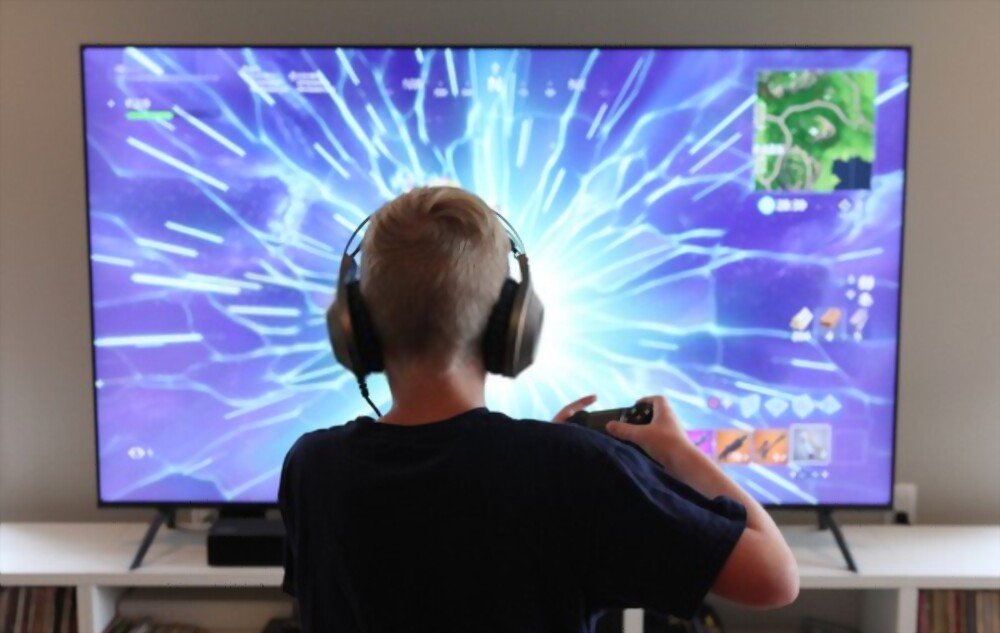
You own a PS4 and are passionate about video games. You love spending hours playing your favorite games, whether solo or online with friends. But lately, you've been experiencing a very frustrating problem: your PS4 keeps shutting down on its own, for no apparent reason. What can you do in this situation? What are the possible causes of this malfunction? How can you prevent and fix it? That's what we'll explore in this article.
What are the possible causes of a PS4 shutting down by itself?

There are several possible reasons why your PS4 might be shutting down on its own. Here are the most common:
- Overheating
- The power supply problem
- The software problem
- The hardware problem
You might like this article: The Best and Fastest DNS Settings for PS4!
How to fix the problem of a PS4 that keeps turning itself off?
Depending on the cause of the problem, there are different solutions to fix the issue of a PS4 shutting down on its own. Here are the main ones:
- If the problem is due to overheating: the first thing to do is check that your PS4 is well ventilated and not exposed to a direct heat source.
Next, you can clean any dust that has accumulated on the air vents and the fan with a soft cloth or a vacuum cleaner. If the problem persists, you can replace the thermal paste located between the processor and the heatsink, or replace the fan or cooling system if they are faulty.
- If the problem is due to thepower supply : the first thing to do is check that your powerpower supply is properly plugged in and not damaged.
Next, you can try a different wall outlet or use a surge protector to protect your PS4 from power fluctuations. If the problem persists, you can replace thepower supply console's internal
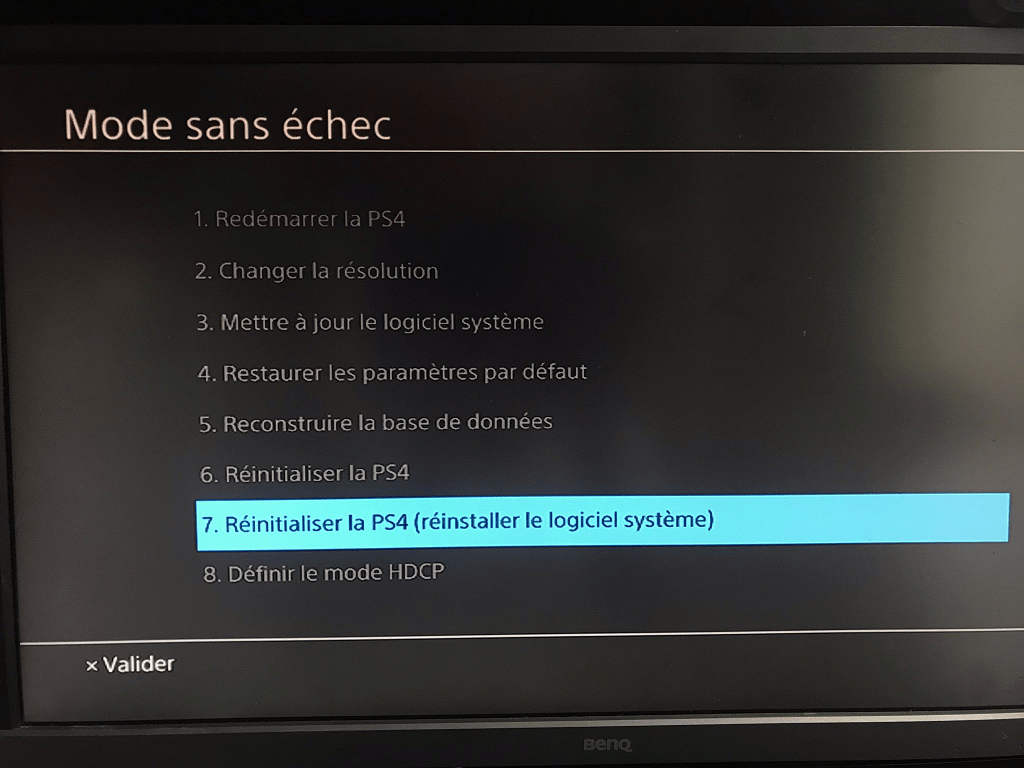
- If the problem is software-related: the first thing to do is restart your PS4 in Safe Mode and select the "Rebuild Database" option. This will repair any errors or corruption in the system or hard drive. Next, you can check that your PS4 is up to date and that your applications are properly installed. If the problem persists, you can restore your PS4 to its default settings or reset it by erasing all data. Be aware that this last option will delete all your files and settings, so be sure to back up your data first.
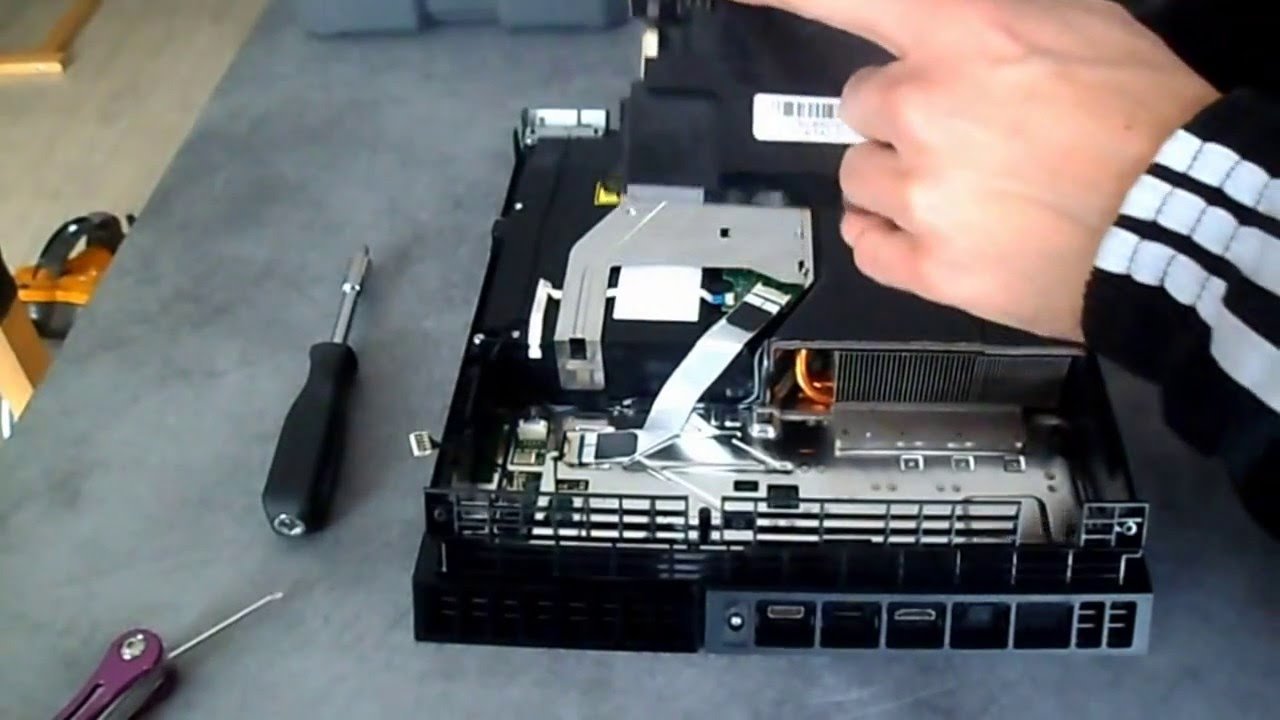
- If the problem is hardware-related: the first thing to do is check that your PS4 hasn't suffered any physical damage, such as being bumped or dropped. Next, you can carefully open your PS4 and check that the internal components are properly connected and show no signs of damage. If the problem persists, you can contact Sony customer service or a professional repair technician to have your PS4 diagnosed and repaired.
Also read: PS4 vs PS4 Pro: which one to choose for your living room?
How to prevent the problem of a PS4 turning itself off?
To prevent your PS4 from turning off by itself, there are a few simple steps you can take:
- Ensure your PS4 is well ventilated: place it in a well-ventilated area, away from heat sources and objects that could obstruct the air vents. Also, avoid placing it on a soft surface such as a carpet or cushion, which can impede airflow.
- Clean your PS4 regularly: dust the air vents and fan with a soft cloth or vacuum cleaner. Replace the thermal paste if it is dry or cracked. Replace the fan or cooling system if they are noisy or inefficient.

- Protect your PS4 from power surges: use a surge protector to plug in your PS4 and avoid unexpected power outages. Unplug your PS4 if you are not using it for an extended period or during a thunderstorm.
- Update your PS4: Regularly check that your PS4 has the latest system software version and that your applications are properly installed. This helps prevent bugs and software errors.
- Back up your data: consider making a copy of your files and settings on an external storage device, such as a USB drive or hard drive. This will allow you to recover them in case of a problem.
Good to know : If you have a PlayStation 5 and are experiencing the same problem, we invite you to read our article: PS5 shuts down by itself ! What to do?
FAQ
Here are some frequently asked questions you might have about the problem of a PS4 that shuts down by itself:
How can I tell if my PS4 is shutting down due to overheating?
If your PS4 shuts down due to overheating, you may notice some warning signs, such as unusual fan noise, excessive heat to the touch, or a warning message on the screen. If you observe these signs, immediately turn off your PS4 and let it cool down for at least 30 minutes before turning it back on.
How can I tell if my PS4 is shutting down because of the power supply ?
If your PS4 shuts down due to a power supply issue, you might notice the blue or white power light flashing briefly before turning off completely. You might also hear a click or beep as the console shuts down. If you observe these signs, check that your power supply cable is properly connected and undamaged. If the problem persists, you can try a different wall outlet or replace the console's internal power supply .
How can I tell if my PS4 is shutting down due to a software problem?
If your PS4 shuts down due to a software issue, you might notice the console freezes or displays a black or blue screen before turning off. You may also experience performance problems, such as slowdowns or glitches. If you notice these signs, restart your PS4 in Safe Mode and select the "Rebuild Database" option. If the problem persists, you can restore your PS4 to its factory settings or reset it by erasing all data.
How can I tell if my PS4 is shutting down due to a hardware problem?
If your PS4 shuts down due to a hardware problem, you might notice that the console doesn't turn on at all or that it shuts down randomly without any warning. You might also find that some internal components are damaged, such as the hard drive or optical drive. If you notice these signs, contact Sony customer service or a professional repair technician to have your PS4 diagnosed and repaired.
Conclusion
A PS4 that shuts down on its own is a very annoying problem that can ruin your gaming experience. Fortunately, there are solutions to fix this problem depending on its cause. We hope this article has been helpful and that you've been able to enjoy playing with your PS4 again. Feel free to leave us a comment if you have any questions or suggestions.