Since its official release in November 2017, the game Star Wars Battlefront II has regularly attracted new players.
There are several game systems: campaign, multiplayer and Arcade.
It is the latter that will particularly interest us.
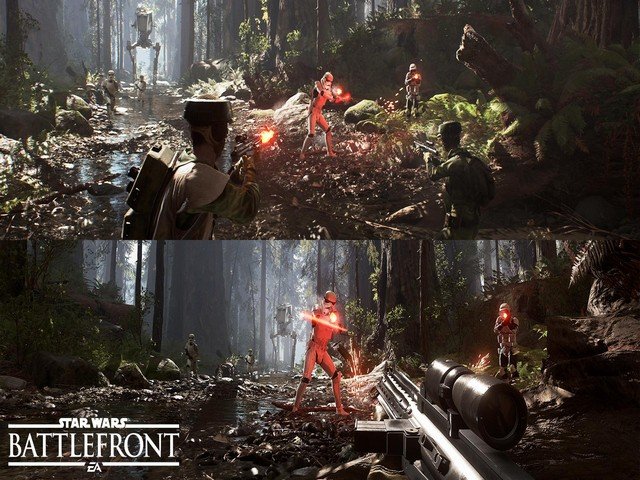
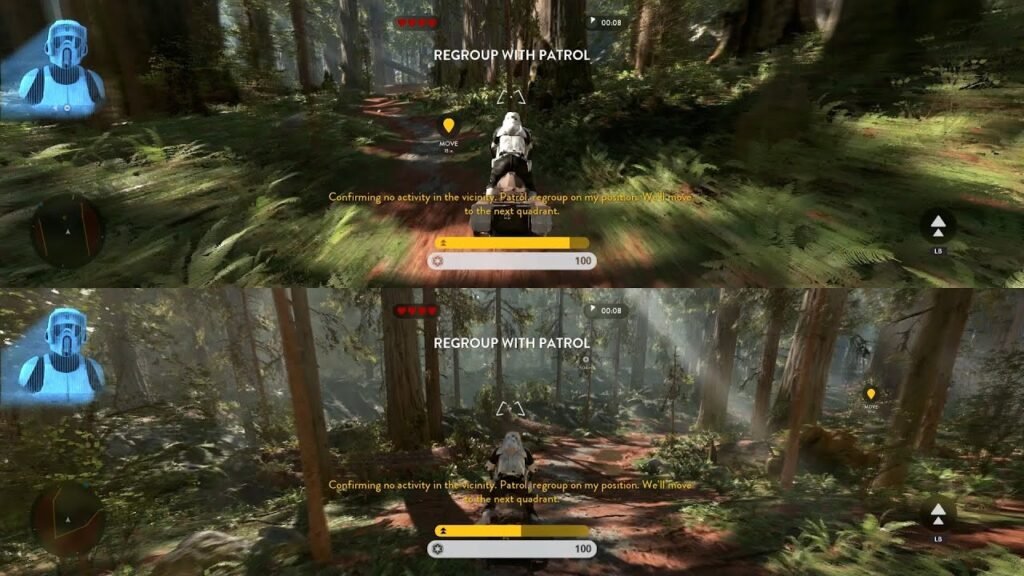
Indeed, in Arcade mode, it's possible to split the screen in two . In this configuration, the screen is divided into two equal halves. This way, each player can see their own character's progress independently of the other.
If you're in a hurry to play Battlefront 2 on split screen, here's a tutorial video to watch!
If you're a fan of split-screen co-op games: Here are the best games on CONSOLE!

But why play this game in split-screen? That's what we'll see in the rest of our article.
Four Reasons to Play Battlefront II in Split-Screen
" Split screen " is a feature that is not often found in video games today.
You can decide to switch to split screen to test this new feature. After all, we quickly tire of the routine. So why not try something different?
Another reason to split your screen in two might be that it's better to play on an ultrawide monitor . If you have an ultrawide screen, the effect of the animations can be stunning! You don't always see the small details on a "normal" screen. But, with a large enough screen, each player feels immersed in their own world.
Furthermore, if you have a curved screen , for example, it replicates the panoramic effect of cinema screens. The player feels like they're part of the game. With this setup, the excitement is guaranteed!
If you add 4K to all these options , a resolution of approximately 8 million pixels provides significantly higher image quality. 4K, or Ultra HD, is essentially four times the resolution of HD.
But how do you set up split-screen? New players often spend a lot of time trying to find this option and end up getting discouraged. We'll go through it together, step by step, to see how to do it.
How to split your screen?
To enable split-screen in Battlefront II, you must play on a Playstation or Xbox console.
- Step 1: Go to the "Play" tab
- Step 2: Choose "Single Player"
- Step 3: Click on "Arcade"
- Step 4: You can choose between "Co-op" and "Against". In "Against" mode, you can customize many elements, including available troops and team sizes.
In "Co-op" mode, you will play as a team with the second player, not against them. We choose "Co-op" mode.
- Step 5: Click on "Custom Arcade". You can customize the elements.
- Step 6: Then, click on “Play as > Free for all”.
A screen appears:
"CUSTOM ARCADE" Are you sure you want to play in Arcade Mode with these settings?
- Step 7: Click [OK] After confirmation, another message appears:
Please connect another controller for the second player and press "PLAY" to continue.
- Step 8: After validation, the previous message reappears:
"CUSTOM ARCADE" Are you sure you want to play in Arcade Mode with these settings?
- Step 9: Each choose your character, then click on "START".
- Step 10: You can now see the Battlefront 2 game in split-screen mode. The first player appears in the top half of the screen.
The second player appears in the second half of the screen, at the bottom.
To connect the second player's controller, simply press the PS button on the second controller, then press X in the game to connect it.
Please note that with split-screen, you can only play locally . You won't be able to go online. It remains to be seen if this feature will be added to the game later. Another advantage of playing locally (offline) is the opportunity to gain experience by playing against bots. Since new players regularly join, you'll be more experienced when you return to online play.
Bonus: A tip to know to fully enjoy this feature
To play Battlefront II with a split screen, you will need to use wired controllers. Wireless controllers do not work in split-screen mode.
Conclusion
In conclusion, with this tutorial , all you have to do is get started and test this feature like hundreds of gamers around the world…