
Have you lost your Philips TV remote or is it no longer working? Are you experiencing a problem with your Philips TV and want to reset it? Don't panic, there are solutions to reset your Philips TV without a remote. In this article, we'll explain how to do it depending on your Philips TV model.
Why reset a Philips TV without a remote control?
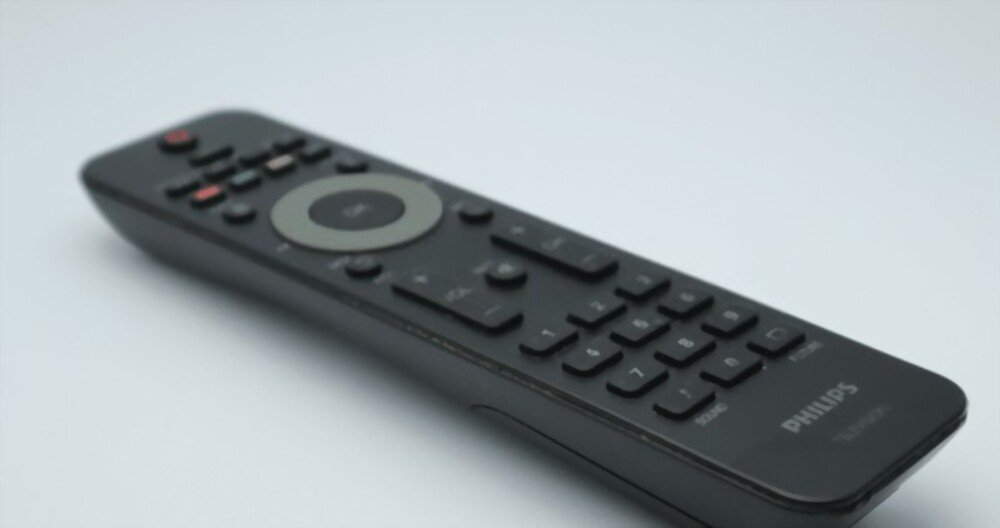
There are several reasons why you might need to reset a Philips TV without a remote control. Some of these reasons are:
- You have misplaced your Philips TV remote control or it is not working properly.
- You cannot access your Philips TV menu with the remote control.
- You want to sell or give away your Philips TV and you want to erase your personal data.
- You want to restore your Philips TV to its original condition.
How to reset a Philips TV with Android TV without a remote control?
If your Philips TV is equipped with the Android TV system, you can reset it without a remote control by following these steps:
- Unplug the power supply cord from the electrical outlet.
- On the back of your Philips TV, you should find a small joystick that allows you to turn it on and navigate the TV's user interface without a remote control. Push the joystick down and hold it down. Be careful not to press OK + down.
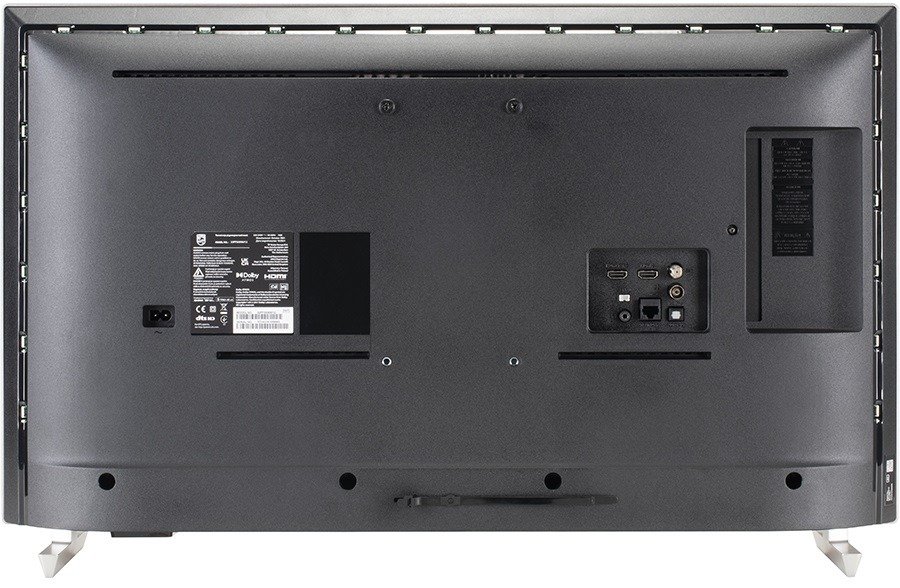
- Reconnect the power supply cable while holding the joystick down until you see the recovery mode screen.
- Using the joystick, navigate down until “Wipe data/factory reset” is highlighted. Then press and hold the “OK” button to confirm.

- Select “Yes” to confirm the reset of your Philips TV.
- Wait for the process to finish, then select “Reboot system now” to restart your Philips TV.
How to reset a Philips TV without Android TV and without a remote control?
If your Philips TV is not running Android TV, you can reset it without a remote control by following these steps:
- On the back of your Philips TV, you should find a small joystick that allows you to turn it on and navigate the TV's user interface without a remote control. Press the "Home" button to access the main menu.
- Select the “TV Settings” menu using the joystick, then press “OK”.
- Select “General settings”, then “Factory settings” or “Reinstall TV”.

- Enter your PIN. The default code is 8888 or 4725 if you have never changed it.
- Follow the on-screen instructions to reset your Philips TV.
How do I reset a Philips TV without a button?
If your Philips TV doesn't have a physical button, you can try resetting it by unplugging the power supply cord for 10 seconds and then plugging it back in. This may resolve some minor issues. If that doesn't work, you'll need a remote control to access the reset menu.
How do I retrieve the PIN code for my Philips TV?

If you have forgotten your Philips TV PIN, you can change it by pressing the "Home" button on the joystick, then selecting "TV Settings" > "Security" > "Change PIN". You will then need to enter the default PIN, which is 8888 or 4725 depending on the model, and then choose a new PIN.
How do I back up my Philips TV data before resetting it?
If your Philips TV runs on Android TV, you can back up your data to a Google account or the cloud by going to “Settings” > “Accounts and sync” > “Backup and reset”. This will allow you to restore your data after the reset. If your Philips TV does not run on Android TV, you can back up your data to a USB flash drive or external hard drive by going to “TV settings” > “Storage and reset” > “Backup and restore”.
Comparative table of methods to reset a Philips TV without a remote control
| Method | Benefits | Disadvantages |
| Reset with Android TV | Faster and simpler | Erase all personal data |
| Reset without Android TV | Allows you to store certain personal data | Longer and more complex |
| Buttonless Reset | Does not require a remote control or joystick | Does not work for all problems |
FAQ
Here are some frequently asked questions about resetting a Philips TV without a remote control:
What is resetting a Philips TV?
Resetting a Philips TV restores it to its factory settings. This can resolve certain issues such as:
- Applications that crash or close unexpectedly
- A slow or freezing startup system
- An image that freezes or is delayed
- Settings that no longer suit you
Resetting a Philips TV erases all personal data you have saved on your television, such as channels, favorites, apps, accounts, etc. It is therefore advisable to back up this data before proceeding with the reset.
How do I reset my Philips TV remote control?
If your Philips TV remote control has stopped working, you can try resetting it by removing the batteries, pressing all the buttons for 10 seconds, and then putting the batteries back in.
How do I reset a Philips TV without a screen?
If your Philips TV isn't displaying a picture, you can try resetting it by pressing the "Home" button on the joystick, then counting how many times you need to push the joystick down to reach the "TV Settings" menu. Then, follow the steps described above to reset your Philips TV without a remote control.
How can I find out the year my Philips TV was manufactured?
You can find out the year your Philips TV was manufactured by looking at the serial number, located on the back of the TV. The 5th and 6th characters indicate the model year. For example, if the serial number is YN1A1309352853, this means the TV was manufactured in 2013.
What are the advantages and disadvantages of resetting a Philips TV?
The advantages of resetting a Philips TV are:
- It helps to resolve certain technical or performance problems
- It allows you to restore the TV to its original state
- It allows you to protect your personal data in the event of a sale or donation
- The disadvantages of resetting a Philips TV are:
- It erases all personal data stored on the TV
- It requires reconfiguring the TV after the reset
- It can be difficult to do without a remote control
Conclusion
Now you know how to reset a Philips TV without a remote. But did you know you can also stream Netflix to your TV using a smartphone ? It's very simple and convenient if you want to enjoy your favorite series and movies on the big screen. We hope this article was helpful and that you were able to solve your problem. If you have any questions or comments, please feel free to leave them below.


