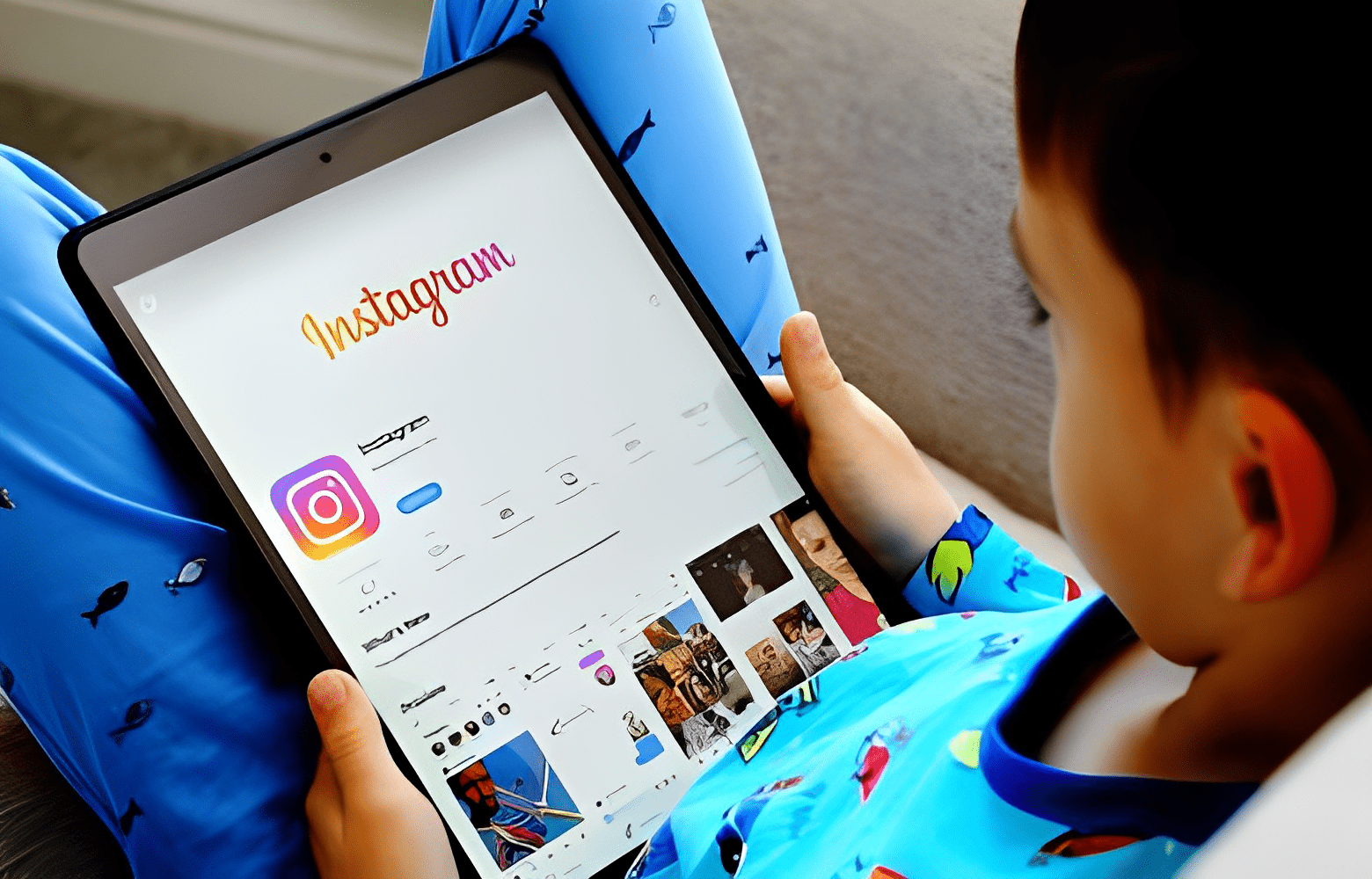
Instagram is one of the most popular social networks in the world, with over 2 billion monthly active users. Among them are many children and teenagers who share their photos and videos with their friends, idols, or communities.
But Instagram is not without risks for younger users , who can be exposed to inappropriate content, cyberbullying, cyber predators, or body image issues.
How can you protect your child from the dangers of Instagram with parental control software? Here are some tips and tricks to ensure their online safety.
What are the dangers of Instagram for children?

Instagram is an app that allows users to share images and videos, but also to edit, filter, and enhance them. While this can be a way to express creativity, it can also create a distortion between reality and the image one projects.
Children can be influenced by the perfect images of influencers, celebrities, or their peers, and develop insecurities or eating disorders. They may also compare themselves to others and feel inferior or excluded.
Instagram is also a place where harassment can occur, in the form of mean comments, mockery, threats, or blackmail. Children can be victims or witnesses of these attacks, which can have serious consequences for their mental health and self-esteem.
They can also be targeted by malicious individuals seeking personal information, intimate photos, or dates. These cyber predators may pose as friends or admirers, manipulating children to lure them into traps.
How to use parental control software for Instagram?
If Instagram's security settings are not enough for you, you can also use spy software as a parental control tool to monitor your child's use of Instagram .
There are many software programs of this type on the market, but we are going to talk about Spygate , which is one of the most efficient and easiest to use.
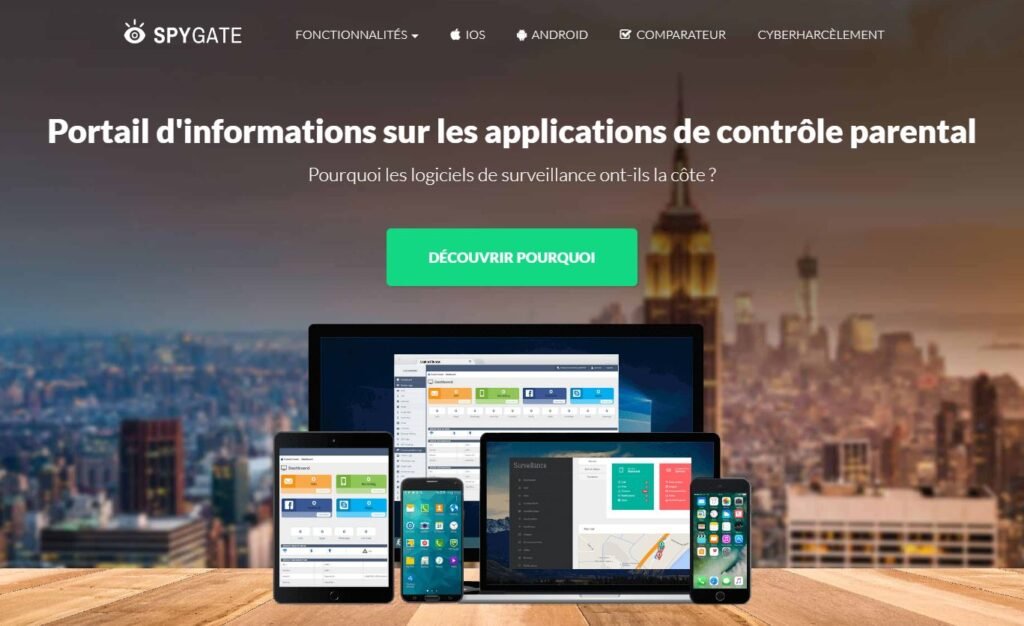
Spygate is an application that installs on your child's phone and allows you to access all their Instagram activity from an online dashboard. With Spygate for Instagram , you can:
- See your child's posts, stories, messages and comments, as well as those of the people they follow or who follow them.
- See the photos and videos he sends or receives, even if they are deleted.
- See the hashtags, places, and profiles he searches for or views.
- See how much time he spends on Instagram, and set limits or time slots.
- Receive alerts in case of suspicious content, dangerous keywords or unknown contacts.
Spygate is discreet software that is invisible on your child's phone and does not slow it down. It is compatible with all operating systems and respects your child's privacy by collecting only the data necessary for their protection. Spygate is also legal software, provided certain rules are followed, such as informing your child about its installation and obtaining their consent if they are of legal age.
How do I activate parental controls on Instagram?
Enable parental controls on Instagram
This allows parents to receive notifications about the time their children spend on Instagram, the accounts they follow or that follow them, the reports they make or receive, and to set usage limits.
To do this, go to the account settings, then to Parental Supervision, and send an invitation to the child, who must accept it. Note that only one parent can supervise a minor's account .
Use Instagram's security settings
Instagram also offers a few options to make your child's account safer. Here are the main ones:
- Making the account private : this allows you to choose who can see your child's posts and to reject follow requests from unknown people. To do this, go to account settings, then Privacy, and activate the Private account option.
- Disabling comments helps prevent unwanted or hurtful messages. To do this, go to your child's account settings, then Privacy, and choose who can comment on their posts. You can also disable comments for a specific post by tapping the three dots in the top right corner, then Advanced settings, and selecting the Disable comments option.
- Blocking or reporting users : This helps get rid of people who harass or bother your child. To do this, go to the user's profile, tap the three dots in the top right corner, and choose Block or Report. You can also restrict a user, which means their comments will only be visible to them, and their messages will be sent to a separate inbox. To do this, tap and hold on a comment, or swipe the message to the left, and choose Restrict.
- Filter comments : This allows you to hide offensive or inappropriate comments. To do this, go to your account settings, then Privacy, and enable the Filter spam comments option. You can also add custom keywords, which will be automatically hidden.
These articles might interest you: