YouTube Vanced is an Android app that lets you watch YouTube videos without ads , with additional features like picture-in-picture, the ability to choose your default video quality , blocking sponsored segments, and the return of the dislike . However, this app can sometimes stop working following a YouTube update or a Google strike. In this article, we'll explain how to fix a malfunctioning YouTube Vanced and how to prevent this problem from happening again .
What are the causes of the YouTube Vanced malfunction?
There are several reasons why YouTube Vanced might not work properly. Here are the main ones:
An update to the YouTube API
This is the interface that allows YouTube Vanced to communicate with the YouTube server. If YouTube changes its API, YouTube Vanced may no longer be compatible and display errors or messages such as “ Content not available ”.
A formal notice from Google
This is a legal action aimed at stopping illegal or harmful activity . Google , which owns YouTube, can send a cease and desist letter to the YouTube Vanced team demanding that they stop distributing their application, which violates YouTube's terms of service and causes it to lose advertising revenue.
A problem with MicroG
This component allows YouTube Vanced to connect to a Google account and access features like subscriptions, history, and playlists . If MicroG is not installed correctly or is outdated, YouTube Vanced may fail to connect or may disconnect randomly .
How to fix YouTube Vanced which is no longer working?
Depending on the cause of the malfunction, there are several solutions to fix a non-functional YouTube Vanced. Here are the most common ones:
Update YouTube Vanced
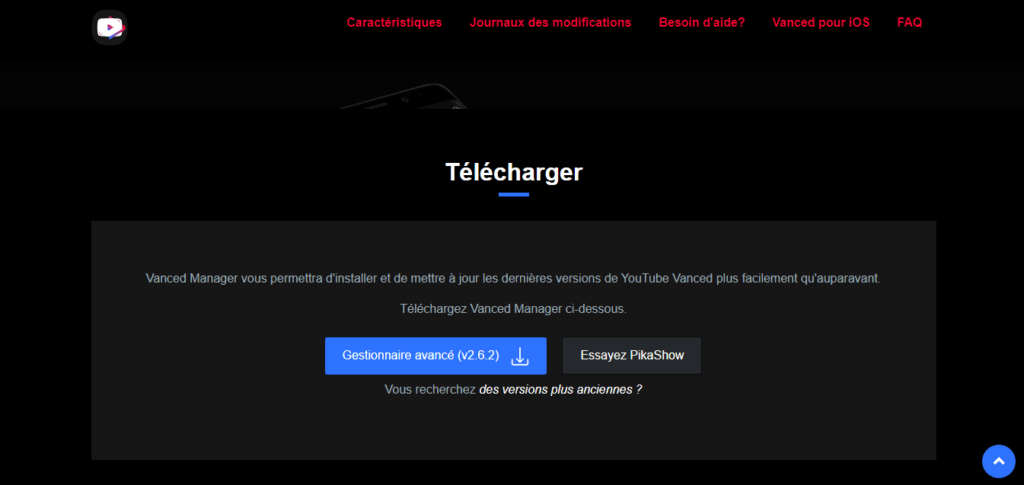
YouTube API update , you should check if a new version of YouTube Vanced is available and download it from the official website or the Vanced Manager app . You should also update MicroG if necessary.
Disable Google and Chrome services
If the problem stems from a Google cease and desist order, you should try to bypass the block by temporarily disabling Google services and Chrome on your Android device . To do this, go to Settings – Apps – Google Services and tap Stop and disable. Then, disable Google Chrome and clear its cache . Next, try logging into YouTube Vanced, and then re-enable Google services and Chrome.
Enable Protobuf spoof and VP9 Codec
If the problem stems from unavailable content , try enabling these two options in YouTube Vanced's advanced settings. To do this, launch YouTube Vanced vv18.02.33 and go to Settings – Advanced Settings – Video , then enable Protobuf spoof and VP9 Codec. Next, click Restart in the confirmation dialog box.
How to prevent YouTube Vanced from stopping working?
![Download YouTube Vanced APK for your Android smartphone [Discontinued]](https://static1.xdaimages.com/wordpress/wp-content/uploads/2019/06/YouTube-Vanced-New.png)
To prevent YouTube Vanced from malfunctioning in the future, a few precautions should be taken:
- Do not update the official YouTube app : you should avoid installing automatic or manual updates of the official YouTube app on your Android device, as they may make YouTube Vanced incompatible or ineffective.
- Do not use the same Google account on YouTube and YouTube Vanced : you should avoid using the same Google account to sign in to YouTube and YouTube Vanced, as this may attract Google's attention and lead to account suspension or deletion.
- Don't overuse YouTube Vanced : use YouTube Vanced in moderation and respect content creators by not systematically blocking ads or sponsored segments. You must also respect copyright and not illegally download or share videos.
See also this article if you encounter a bug on YouTube Vanced : YouTube Vanced: “The following content is not available”
YouTube Pro: An alternative to YouTube Vanced!
YouTube Pro is a modified version of YouTube Vanced that offers additional features, such as video downloading, background playback, dark mode, ad blocking, and much more.
If you want to enjoy these benefits without paying for a YouTube Premium subscription, you can download YouTube Pro for free on your Android device. YouTube Pro is compatible with most Android versions and doesn't require rooting your phone.
Simply follow the easy steps outlined on the official YouTube Pro website and you'll have access to all the features of YouTube Vanced and more. YouTube Pro is a safe and reliable application that lets you watch your favorite videos without interruptions or limitations.
FAQ
What is YouTube Vanced?

YouTube Vanced is an Android application that allows you to watch YouTube videos without ads , with additional features such as Picture-in-Picture , choice of default video quality, blocking of sponsored segments or the return of the “ Dislike ” counter.
Is YouTube Vanced legal?
No, YouTube Vanced is not legal , as it violates YouTube's terms of service and causes the company to lose advertising revenue. Google can send a cease and desist letter to the YouTube Vanced team demanding that they stop distributing their application.
Is YouTube Vanced safe?
Yes, YouTube Vanced is safe if downloaded from the official website or the Vanced Manager app. Avoid unofficial sources, as they may contain viruses or malware.
How to install YouTube Vanced?
To install YouTube Vanced, you need to download the Vanced Manager app from the official website or the Play Store . Then, launch the app and choose the version of YouTube Vanced you want to install ( black, white, or pink ). You also need to install MicroG to sign in with a Google account.
How do I log in to YouTube Vanced?
To connect to YouTube Vanced, you need to install MicroG from the Vanced Manager application. Then launch YouTube Vanced and click on the profile icon in the top right corner. Next, select Add Account and follow the instructions.
How do I uninstall YouTube Vanced?
To uninstall YouTube Vanced , go to Settings – Applications – YouTube Vanced and click Uninstall . You should also uninstall MicroG if you no longer wish to use it.
How do I enable Picture-in-Picture on YouTube Vanced?
To enable Picture-in-Picture on YouTube Vanced , go to Settings – Advanced Settings – Video and activate Picture-in-Picture . Then, watch a video and press the Home button to minimize it to a corner of the screen.
How do I choose the default video quality on YouTube Vanced?
To choose the default video quality on YouTube Vanced , you need to go to Settings – Advanced settings – Video and choose the desired resolution in Default video quality (Wi-Fi) or Default video quality (mobile data).
How to block sponsored segments on YouTube Vanced?
To block sponsored segments on YouTube Vanced , go to Settings – Advanced Settings – Video and enable SponsorBlock . Then choose your desired blocking level (all segments, only intros/outros, or only non-musical segments).
Conclusion
YouTube Vanced is an Android application that allows you to enjoy YouTube ad-free and with additional features. However, it may stop working following a YouTube update , a Google cease and desist order , or a problem with MicroG. To fix YouTube Vanced when it stops working, you need to update the application, disable Google services and Chrome, or enable Protobuf spoofing and the VP9 codec . To prevent YouTube Vanced from malfunctioning in the future, avoid updating the official YouTube application , using a different Google account for both YouTube and YouTube Vanced, and avoid overusing YouTube Vanced.