Telegram is an instant messaging app that lets you communicate with friends, family, or colleagues securely and easily. You can send messages, photos, videos, files, stickers, GIFs , and even make voice or video calls. But did you know you can also use Telegram on your computer ?
Whether you want to continue a conversation, check your messages without taking out your smartphone, or enjoy a larger screen, there are several ways to connect to the web version of Telegram on a PC. In this article, we'll explain how to do it step by step.
Use the official Telegram client for PC

The first method to connect to the web version of Telegram on a PC is to use the official Telegram client for PC. This is a program that you can download and install on your computer, and it allows you to access all of Telegram's features. Here's how to do it:
- Go to the website telegram.org, then click on " Telegram for PC/Mac/Linux ".
- Download Telegram by clicking on "Get Telegram for macOS/Windows/Linux", then install the program on your computer.
- Open Telegram. The login window appears.
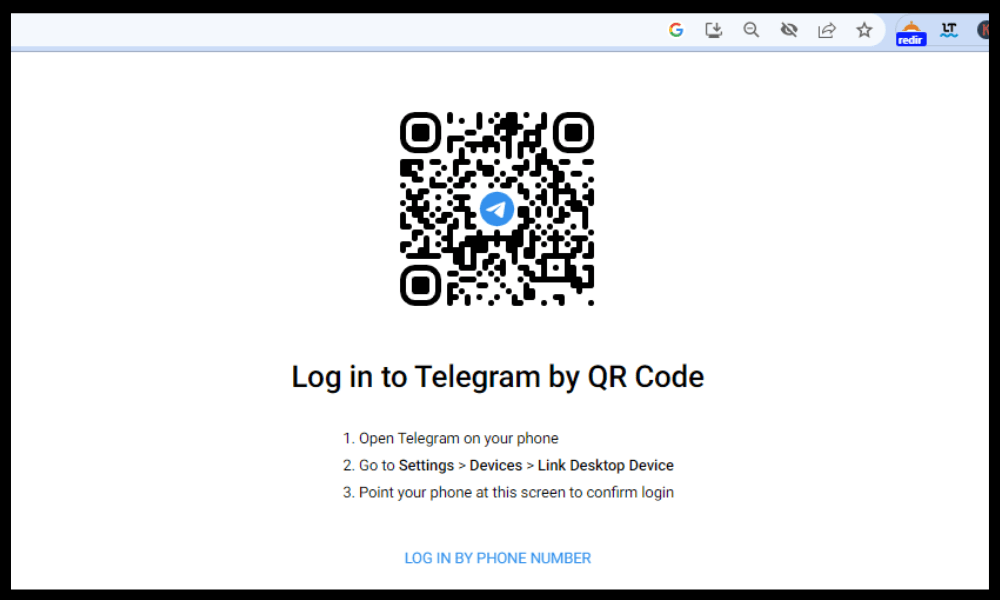
There are two options: enter your phone number, then the code you received either by SMS or directly in Telegram on your smartphone. Alternatively, you can log in via QR codeoption Log in via QR code and follow the instructions using your smartphone.
And there you have it! You are now connected to the web version of Telegram on your PC. You can check your messages, send files, create groups, etc.
Use the Telegram web version in your browser

The second method for accessing the web version of Telegram on a PC is to use the Telegram web browser. This is a web page that allows you toaccess your Telegram account without needing to install anything. Here's how:
- Go to web.telegram.org in your browser.
- Enter your phone number, then the secret code received by SMS or in your Telegram app on your smartphone.
And there you have it! You are now connected to the web version of Telegram on your PC. You can view your messages, send files, create groups, etc.
Which method should I choose?

The two methods we just presented have their advantages and disadvantages. The official Telegram client for PC offers a better user experience, greater speed, and better synchronization with your smartphone. However, it requires prior download and installation, and it takes up space on your hard drive. The web version of Telegram in your browser is more convenient and lighter, as it requires no download or installation. On the other hand, it is less fluid and less feature-rich than the official client.
It's up to you to choose the method that best suits your needs and preferences.
Some tips for using Telegram effectively on PC
Whether you opt for the official client or the web version of Telegram on PC, here are some tips for using this application effectively on your computer:
- Remember to log out of your Telegram account if you're using a public or shared computer. If you don't, anyone using the machine will be able to read your messages.
- Take advantage of keyboard shortcuts to save time and increase efficiency. For example, you can use Ctrl + F to search for a message, Ctrl + N to create a new chat, Ctrl + M to open the menu, and Ctrl + Z to undo the last action.
- Customize the appearance of Telegram by changing the theme, font size, notifications, etc. To do this, click on the three horizontal lines in the top left corner of the page, then choose " Settings ".
- Discover Telegram's advanced features, such as bots, channels, polls, animated stickers, and more. Visit telegram.org or the telegram.org/blog for details.
FAQ
What is the difference between Telegram and Telegram Web?
Telegram is an instant messaging application that you can install on your smartphone or computer. Telegram Web is a web page that allows you toaccess your Telegram account without needing to install anything.
How do I connect to Telegram Web with an iPhone?

To connect to Telegram Web with an iPhone, follow the same steps as for connecting to Telegram Web with a PC. Go to web.telegram.org, enter your phone number, and then enter the code received via SMS or in the Telegram app on your iPhone.
How do I delete my Telegram account?
To delete your Telegram account, go to my.telegram.org, log in with your phone number, and then click on " Delete Account ". Be aware that this action is irreversible and will delete all your messages, contacts, and groups.
How to recover your Telegram password?
If you have enabled two-factor authentication on Telegram, you had to choose a password to secure your account. If you have forgotten it, you can retrieve it by clicking on " Forgot your password? " when logging in. You will then receive a link by email to reset your password.
How do I block someone on Telegram?
To block someone on Telegram, open the chat with that person, click on their name at the top of the page, and then click on " Block user ". You will no longer receive their messages or calls.
Conclusion
You now know how to easily connect to the web version of Telegram on a PC. Whether using the official client or the web version in your browser, you can enjoy this instant messaging application on your computer. If you also want to integrate WhatsApp into your website, you can check out our article on how to do it in a few simple steps. Feel free to share this article with your friends who use Telegram and would like to know how to connect to the web version on a PC.