
Snapchat is an instant messaging app that lets you share ephemeral photos and videos with your friends. To fully enjoy this app, you need to grant access to your smartphone's camera. But how do you do that?
Part 1: Why allow camera access on Snapchat?
In this first part , we'll explain why it's important to allow camera access on Snapchat. We'll show you the Snapchat features that require the camera.
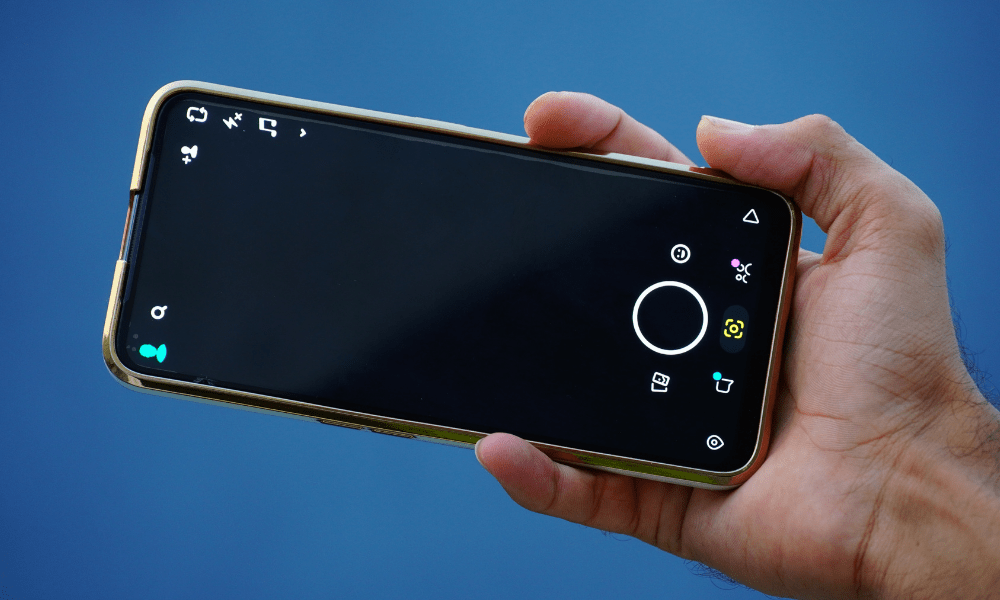
Snapchat features that require the camera
Snapchat is an application that relies primarily on the use of the camera. Here are the main Snapchat features that require the camera:
- Snaps are photos and videos that you can send to your friends or groups of contacts. Snaps are ephemeral, meaning they disappear after a few seconds once opened by the recipient. You can also add text, stickers, emojis, or drawings to your snaps to personalize them.
- Stories : These are posts visible for 24 hours to all your friends or to the public, depending on your privacy settings. Stories are made up of several snaps that you can combine to tell a story. You can also use filters and lenses to make your stories more engaging.
- Filters and lenses : these are fun, personalized effects you can apply to your snaps or stories. Filters change the color, brightness, or contrast of your photos and videos. Lenses change the appearance of your face or your surroundings, adding things like cat ears, sunglasses, or flames. You can also create your own filters and lenses using the Lens Studio tool.
- Video chats : These are live conversations with your friends, which can be one-on-one or group chats. You can see and hear the people you're talking to, and also send them messages, stickers, emojis, or drawings. You can also use filters and lenses during video chats for fun.
This article might interest you : How to remove someone from your best friends list on Snapchat?
Part 2: How to allow camera access on Snapchat?
In this second part , we'll explain how to grant camera access on Snapchat. We'll walk you through the steps depending on your smartphone model, as well as alternative solutions if you encounter any problems.
Steps to allow camera access on Snapchat depending on the type of smartphone
Granting camera access on Snapchat depends on your smartphone's operating system. Here are the steps to follow depending on whether you have an iPhone or an Android:
On iPhone
You need to access Snapchat's settings and activate the camera. To do this, follow these steps:
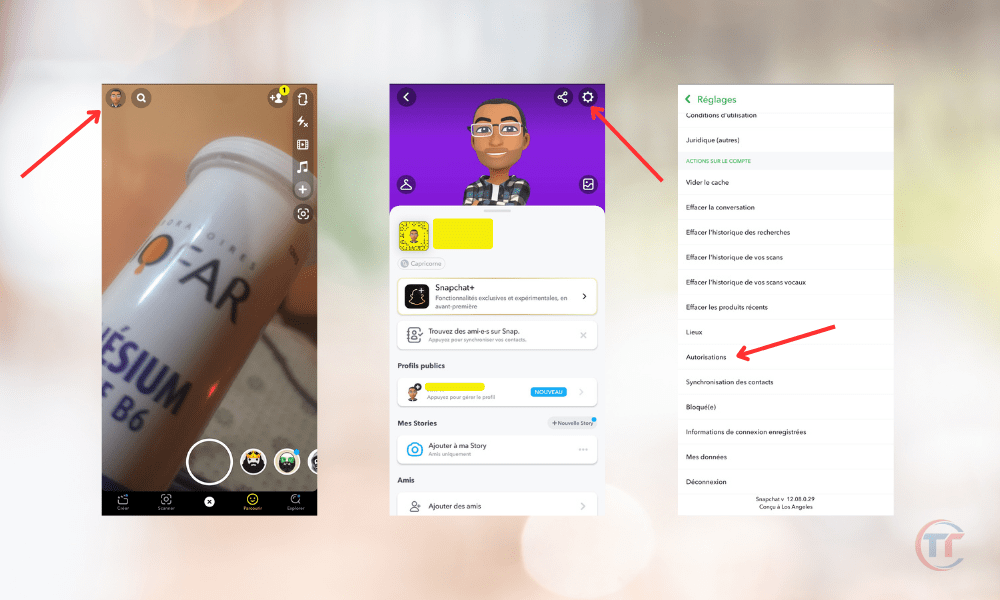
- Open the Snapchat app and tap the profile icon in the top left corner of the screen.
- Tap the gear icon in the top right corner of the screen to access Snapchat settings
- Scroll down and tap “ Permissions ”.
- Tap “ Camera ” and activate the button next to “ Snapchat ”.
- You can also access your iPhone settings, tap “ Privacy ”, then “ Camera ” and turn on the switch next to “ Snapchat ”.
On Android
You need to access your phone's settings and allow the camera for Snapchat. To do this, follow these steps:
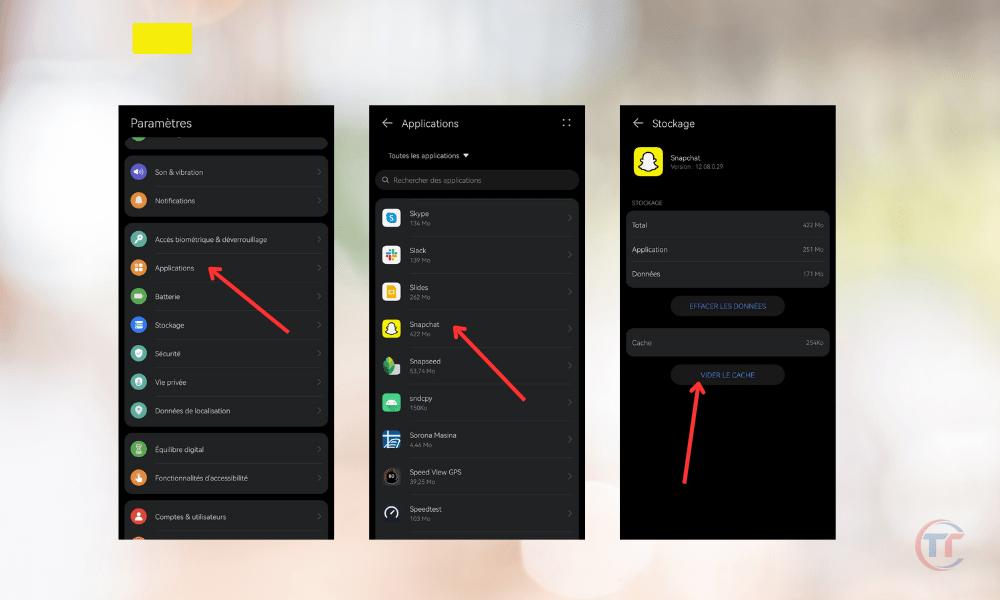
- Open your phone's settings and tap on “ Applications ”.
- Search for and tap on “ Snapchat ” in the list of applications.
- Tap “ Permissions ” and turn on the switch next to “ Camera ”.
- You can also open the Snapchat app, tap the profile icon in the top left corner of the screen, tap the gear icon in the top right corner of the screen, tap “ Permissions ” and turn on the switch next to “ Camera ”.
Alternative solutions for allowing camera access on Snapchat from within the app
If you didn't grant camera access on Snapchat when you first used the app, you can do so from within the app itself. Here are some alternative solutions you can use:
- Press theprofile icon and access permissions :
- Open the Snapchat
- Tap the profile icon in the top left corner of the screen
- Tap the gear icon in the top right corner of the screen
- Click on “ Permissions ”
- Activate the button next to “ Camera ”.
This method works for both iPhones and Android devices.
- Press the lozenge who requests access to the camera and follows the instructions:
- Open the Snapchat
- Tap the small icon that appears in the center of the screen and says “ Tap to allow camera access .”
Follow the on-screen instructions to grant camera access on Snapchat.
This method works for both iPhones and Android devices.
Tips for resolving potential camera access issues on Snapchat
If you've granted camera access on Snapchat but are having trouble taking or sending snaps, using filters and lenses, or participating in video chats, here are a few tips you can try:
- Restart the phone : You can turn your phone off and on again, which may resolve some bugs or malfunctions in the application.
- Clear Snapchat cache You can delete temporary data stored by the application, which can free up space and improve performance. To do this:
- Open the Snapchat app, tap the profile icon in the top left corner of the screen, tap the gear icon in the top right corner of the screen, tap “ Clear cache ” and confirm.
- Update Snapchat : You can check if a new version of the app is available, which may fix bugs or include improvements. To do this, go to your smartphone's app store (App Store for iPhone, Google Play for Android), search for Snapchat, and tap " Update " if the option is available.
- Reinstalling Snapchat : You can uninstall and reinstall the app, which may resolve some persistent issues. To do this, press and hold the Snapchat icon on your smartphone's home screen, tap " Delete " or " Uninstall ," then go to your smartphone's app store, search for Snapchat, and tap " Install ."
- Check your internet connection : You can check if your smartphone is properly connected to the internet, which is necessary to use Snapchat. To do this, turn airplane mode on and then off, or switch between Wi-Fi and mobile data.
Part 3: How to optimize camera usage on Snapchat?
In this third part, we'll give you some tips to optimize your use of the camera on Snapchat. We'll show you tricks for taking better photos and videos, managing the shutter sound, and respecting privacy and security on Snapchat.
Tips for taking better photos and videos on Snapchat
Snapchat allows you to take high-quality photos and videos, provided you follow a few basic rules. Here are the tips we recommend you follow:
- Choosing the right capture mode : Snapchat offers several capture modes, depending on the format you want for your photos and videos. You can choose between portrait mode, landscape mode, square mode, circular mode, etc. To change modes, tap the arrow icon in the bottom right corner of the screen and select your preferred mode.

- Adjust brightness, contrast, saturation, etc .: Snapchat lets you modify the settings of your photos and videos to make them clearer, more contrasted, more saturated, etc. To do this, tap the paintbrush icon in the top right corner of the screen and use the sliders to adjust the settings of your choice.
- Use the zoom, flash, timer, and more : Snapchat offers handy tools to enhance your photos and videos. You can zoom in or out by pinching the screen or using the slider at the bottom. Tap the lightning bolt icon in the top left corner of the screen to add light to your photos and videos. Tap the timer icon in the bottom left corner of the screen to take photos and videos remotely.
- Experiment with the different filters and lenses available : Snapchat offers a wide range of filters and lenses, allowing you to change the look of your photos and videos. You can access filters by swiping left or right and choosing the one you like. You can access lenses by long-pressing the screen and choosing the one that appeals to you. You can also create your own filters and lenses using the Lens Studio tool.
- Add text, stickers, emojis, drawings, and more : Snapchat lets you add decorative or informative elements to your photos and videos. You can add text by tapping the T icon in the top right corner of the screen and writing whatever you want. You can add stickers, emojis, or drawings by tapping the square icon in the top right corner of the screen and choosing the ones you like. You can also use the pencil tool by tapping the pencil icon in the top right corner of the screen and drawing whatever you want.
If you're new to Snapchat , follow our tips like : Snapchat friend request from unknown users: What to do?