
Do you need to share your phone's internet connection with your computer or tablet, but the mobile hotspot isn't working? Don't know why or how to fix it?
In this article, we will explain the possible causes of its malfunction, how to check it and how to resolve it.
What are the possible causes of the mobile access point malfunction?
Several factors can affect the proper functioning of a mobile access point. Here are the most common:
- Internet connection problems
- Exceeding the data quota
- The internet service provider's block
- Mobile access point configuration problems
- Incorrect Access Point Name (APN) settings
Solutions for repairing the mobile access point
Once the possible cause of the mobile access point malfunction has been identified, the appropriate solution must be applied to repair it. Here are some general and specific solutions that can be tried:
1. Restart the smartphone and the mobile hotspot
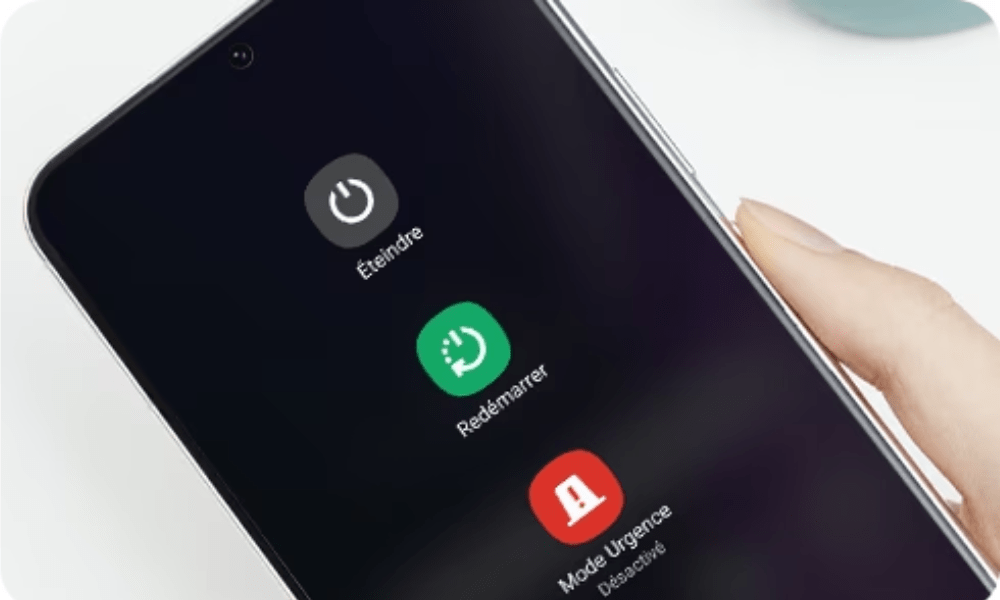
The first thing to do when your mobile hotspot isn't working is to restart both your smartphone and the mobile hotspot device. This can resolve many issues, as it allows you to:
- Clear the cache
- Close background applications
- Reset network settings
- Correct any errors
To restart the smartphone and mobile hotspot, simply turn them off and on again, or restart them by pressing the appropriate button.
2. Check the phone and network settings
The first thing to do is to check that your mobile hotspot settings are correct and match those provided by your service provider. You may have unintentionally changed these settings, or your service provider may have made changes to the network. To check your mobile hotspot settings, follow these steps:
- Access your phone's settings and select " Network and internet " or " Connections ".
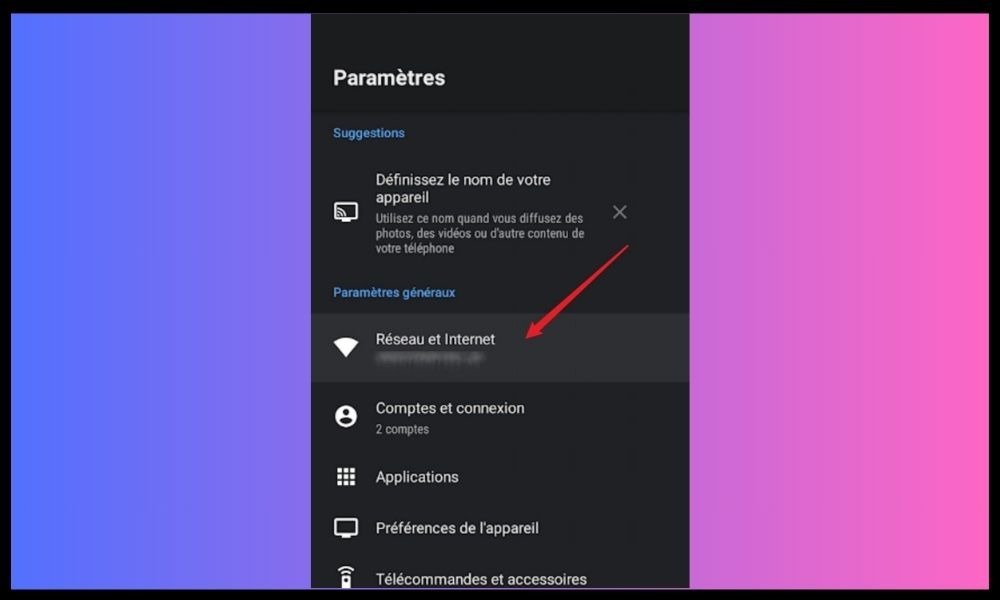
- Select “ Mobile Hotspot and Tethering ” or “ Connection Sharing ”.
- Select “ Configure mobile hotspot ” or “ Access point settings ”.
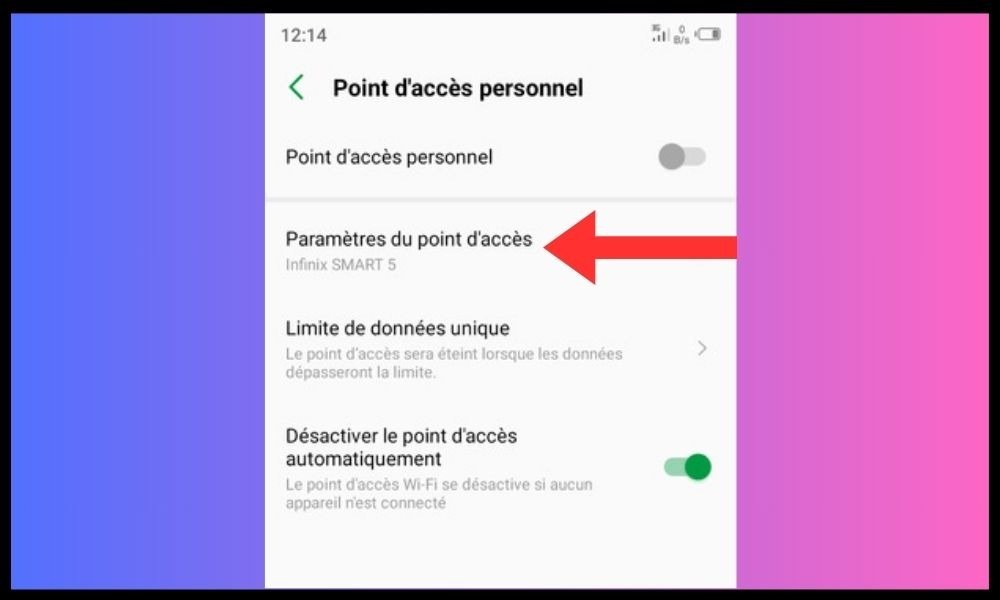
- Verify that the name, password, security type, and APN (Access Point Name) are correct and match those provided by your service provider. If you do not know this information, contact your service provider or consult their website.
- Save the changes and activate the mobile hotspot.
3. Activate mobile data and check your plan
To use the mobile hotspot, you must have mobile data enabled on your phone and have a sufficient data plan to cover your usage. Otherwise, you may not be able to establish a connection or may experience interruptions or slowdowns. To enable mobile data and check your data plan, follow these steps:
- Access your phone's settings and select " Network and internet " or " Connections ".
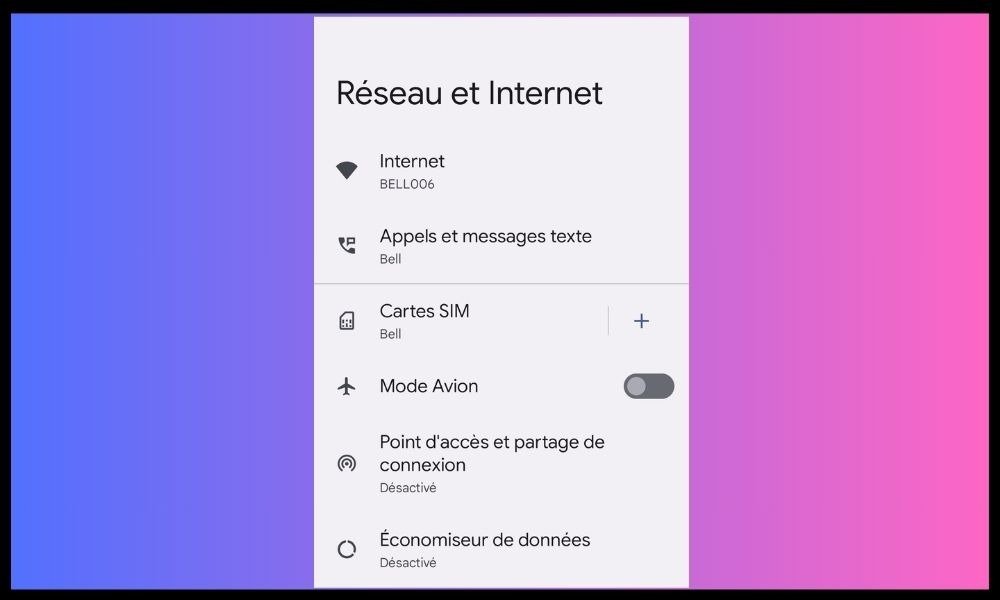
- Select “ Mobile data ” or “ Data usage ”.
- Mobile data ” or “ Cellular data ” option
- Check that you have a sufficient data plan to use the mobile hotspot. You can view your usage on the screen or on your operator's website.
- If you have reached your plan limit, you can top up your credit or subscribe to a plan better suited to your needs.
If your connection is slow or unstable, this can affect the operation of your access point. You may also have reached your mobile data limit, which reduces your connection speed or blocks it completely. In this case, you should contact your mobile operator to increase your limit or top up your credit.
4. Turn off airplane mode and Bluetooth
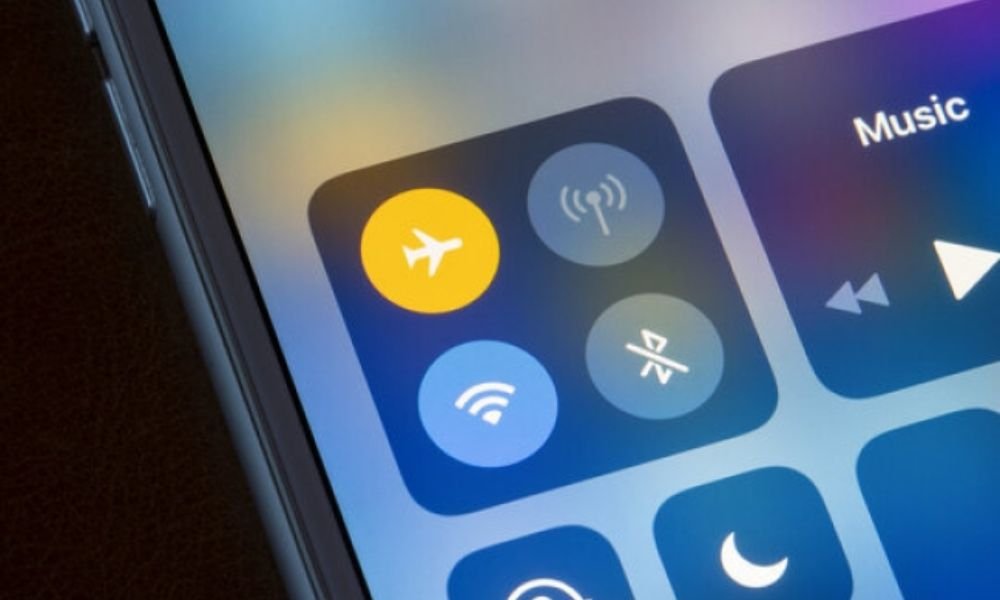
Airplane mode and Bluetooth are two options that can interfere with the mobile hotspot and prevent devices from connecting. Therefore, you must disable them before using the mobile hotspot. To disable airplane mode and Bluetooth, follow these steps:
- Access your phone's notification center or quick control panel by swiping down from the top of the screen.
- Airplane mode ” or “ Airplane mode option by pressing the corresponding icon.
- Bluetooth option by pressing the corresponding icon.
- Check that the mobile hotspot is still enabled.
5. Turn off battery saver mode
Battery saver mode is a feature that reduces your phone's power consumption by limiting certain background activities. Normally, this shouldn't affect the functionality of the mobile hotspot, but there might be a bug preventing the connection. To disable battery saver mode, follow these steps:
- Settings app on your phone.
- Press Battery .
- Tap Battery Saver .
- Press Turn off now .
6. Turn off data saver mode
Data saver mode is a feature that reduces mobile data consumption by preventing certain apps from using data in the background. This can interfere with the transmission of the mobile hotspot signal, so it's advisable to disable data saver mode. To disable data saver mode , follow these steps:
- Settings app on your phone.
- Tap Network & Internet .
- Tap Data Saver .

- Use data saver option .
7. Change the Wi-Fi settings on the device that is connecting
Sometimes, the mobile hotspot doesn't work because of the Wi-Fi settings on the connecting device. You then need to change these settings to be compatible with the mobile hotspot. Here's how:
Check your Wi-Fi settings
- Go to the Wi-Fi settings on the device that is connecting.
- Properties " or " Change options option for Wi-Fi.
- Check that the following settings are correct:
- The Wi-Fi mode : it must be the same as that of the mobile access point (802.11a, 802.11b, etc.)
- The Wi-Fi channel : it must be the same as that of the mobile access point.
- The internet (TCP/IP) : it must be configured to automatically obtain an IP address and a DNS server
- The firewall : it must be disabled or configured to allow the connection to the mobile access point.
Change your Wi-Fi settings
- If the settings are not correct, they must be changed by following the instructions of the manufacturer of the device being connected or the access provider.
- Restart the device that is connecting and verify that the connection to the mobile access point is established.
8. Disable the automatic access point shutdown function
Another possible cause of the problem is the automatic hotspot turn-off feature, a recently introduced Android option. This feature saves your phone's battery by turning off the hotspot when no device is connected to it for a certain period. However, it can also cause the hotspot to disconnect unexpectedly if you're not using it constantly or if your phone goes into sleep mode.
To avoid this inconvenience, you can disable this option by following these steps:
- Go to your phone's settings
- Select Network and Internet .
- Select Access Point and Connection Sharing .
- Select Wi-Fi access point .
- Select Advanced > Disable access point automatically .
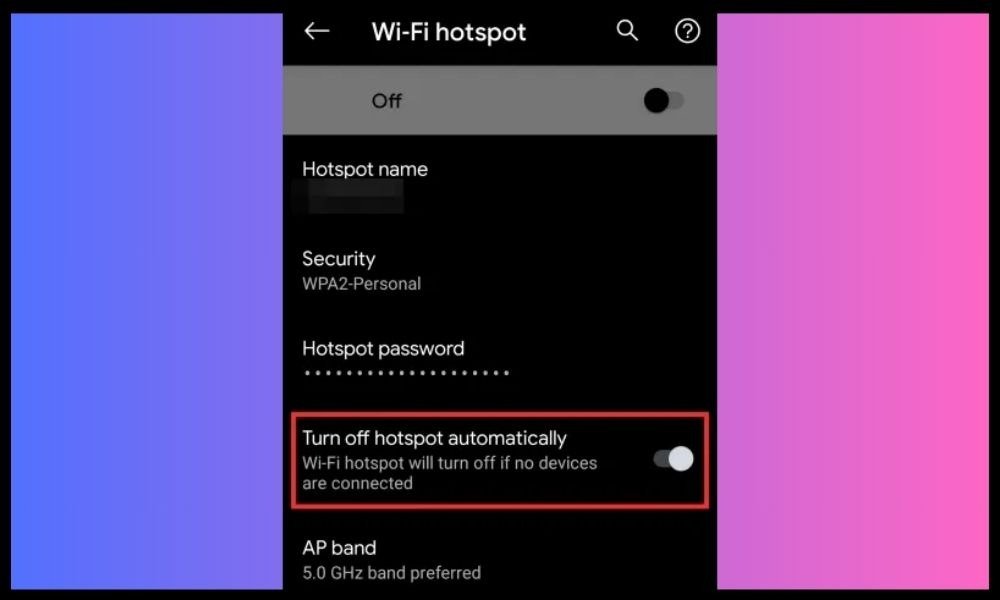
- Choose Never or according to your preferences.
What are the alternatives to a mobile hotspot?
If you are unable to use the mobile hotspot or are looking for other ways to share your phone's internet connection, you can try these alternatives:
Use a USB cable to share the connection
A quick and easy alternative to using a mobile hotspot is to share your internet connection with a USB cable. Simply connect your phone to your computer with a USB cable and enable the " USB tethering " option in your phone's mobile hotspot settings. This will allow your computer to use your phone's internet connection without needing Wi-Fi.
Use a portable Wi-Fi router or a 4G dongle
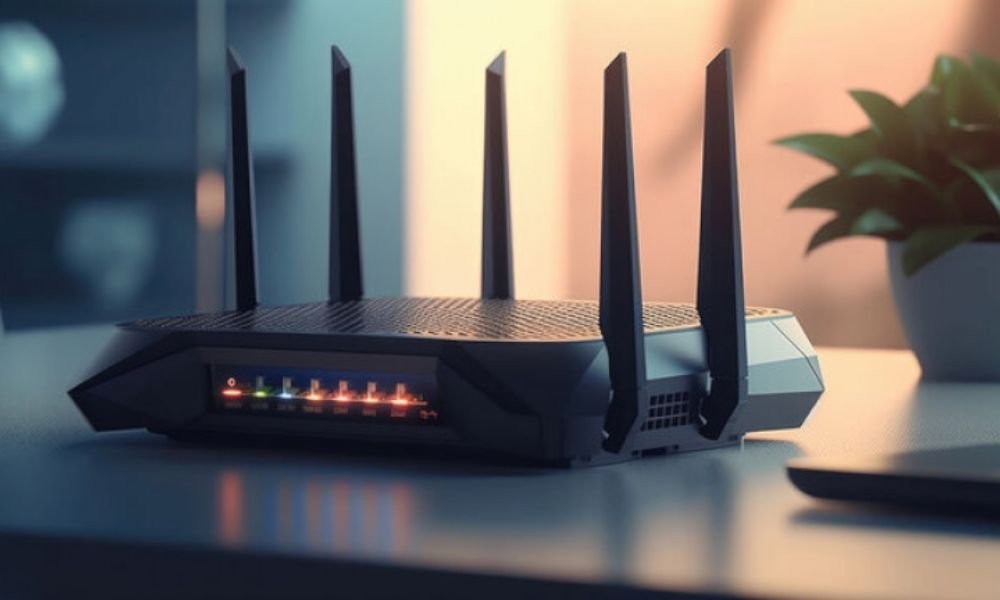
Another option besides a mobile hotspot is to use a portable Wi-Fi router or a 4G dongle. These devices allow you to create a Wi-Fi network using a SIM card or 4G dongle that you insert into them.
You can then connect multiple devices to this Wi-Fi network and enjoy a wireless internet connection . You can buy these devices in specialty stores or online.
Use a VPN service or proxy to bypass network restrictions
A final alternative to using a mobile hotspot is to use a VPN or proxy to bypass network restrictions . If your carrier or country limits the use of mobile hotspots, you can change your IP address and access all the websites and services you want.
To do this, you need to install software or an application on your phone and connected devices, such as [ NordVPN ] or [ Tor Browser ]. These services allow you to mask your identity and location on the internet.
FAQ
What are the advantages and disadvantages of using a mobile hotspot?
| Benefits | Disadvantages |
|---|---|
| Internet access on various devices without a router or modem | Mobile data plan consumption |
| Control over the number and type of connected devices | Reduced battery life |
| Backup solution in case of Wi-Fi network failure | Compatibility, security, or performance issues |
How do I enable and disable the mobile hotspot on my device?
The procedure for enabling and disabling the mobile hotspot may vary depending on the model and brand of your device, as well as the operating system you are using. Here are the general steps for Android and iOS :
For Android :
- Go to your device's Settings, then to the Network & Internet section.
- Tap on Access Point and Connection Sharing, then on Wi-Fi Hotspot .
- Activate the switch at the top of the screen to enable the mobile hotspot.
- You can change the name, password and security of your mobile hotspot by tapping Configure Wi-Fi hotspot.
- To disable the mobile hotspot, turn off the switch at the top of the screen.
For iOS :
- Go to Settings , then to the Connection Sharing section.

- Activate the switch at the top of the screen to enable connection sharing.
- You can change your connection sharing password by pressing Wi-Fi Password.
- To disable connection sharing , turn off the switch at the top of the screen.
How to limit the data and battery consumption of the mobile access point?
To limit the data and battery consumption of the mobile access point, you can adopt some best practices:
- Activate the mobile hotspot only when you need it and deactivate it when you are not using it.
- Limit the number and duration of connections to the mobile hotspot . You can set a maximum number of allowed connections in the mobile hotspot settings.
- Avoid bandwidth-intensive activities such as video streaming or downloading large files. If you want to watch online videos, opt for the web download format , which offers good image quality while using less data. You can also reduce the quality of videos or images to save data.
- Use an app or widget that lets you track your data and battery usage in real time. You can also set up an alert or limit that notifies you when you reach a defined threshold.
- external power supply source wall outlet or portable battery, when using the mobile hotspot.
How to improve the performance and stability of the mobile access point?
To improve the performance and stability of your mobile access point, you can try the following tips:
- Choose an optimal location for your smartphone. Place it in an open area, near a window or cell tower, and away from sources of interference, such as household appliances, microwaves, or cordless phones.
- Change the mobile hotspot's frequency band . You can choose between the 2.4 GHz band or the 5 GHz band in the mobile hotspot settings. The 2.4 GHz band offers better range but slower speed, while the 5 GHz band offers better speed but shorter range. You can test both bands and choose the one that works best for you.
- Update your smartphone's software . You can check if your smartphone has the latest operating system version or security patches in your phone's settings. An update can improve the compatibility and performance of the mobile hotspot.


