

Having trouble with your phone? Can't open web links from your apps or messages? Don't panic, there are solutions to fix this bug. Here's how!
What are the possible causes of the problem?
There are several reasons why your phone might no longer open internet links. Here are the most common:
- A connection problem
- A browser problem
- An application problem
- A security problem
How can the problem be solved easily and quickly?
If you have identified the cause of the problem, you can try the following solutions to resolve it:
Solution 1 : If the problem is with your connection, try reconnecting to the internet by changing networks, restarting your phone, or resetting your network settings.
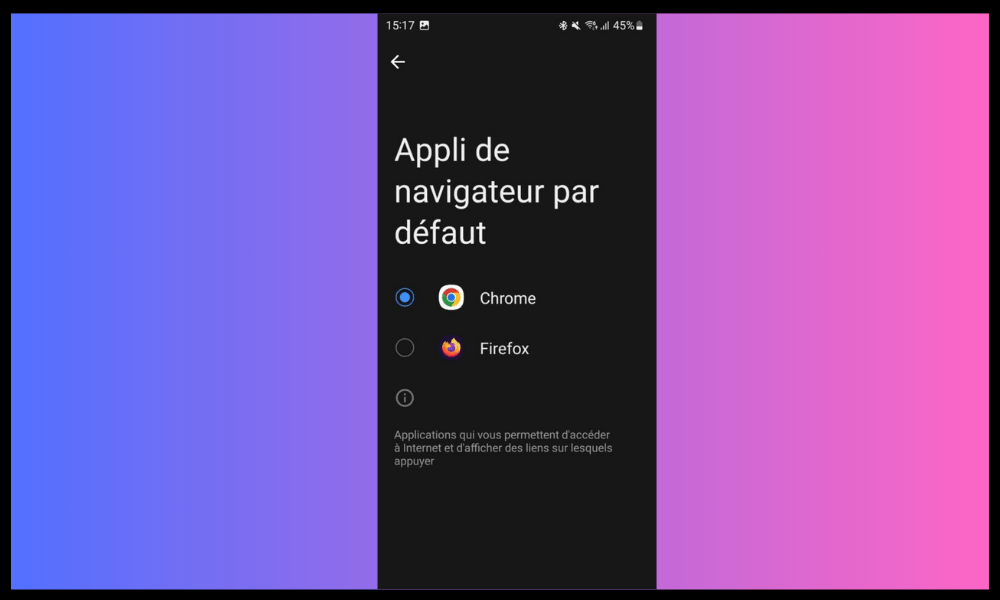
Solution 2 : If the problem is with your browser, try changing your phone's default browser by following these steps:
- Open your phone's settings

- Tap on Applications
- Tap the three-dot icon in the top right corner
- Tap Default apps
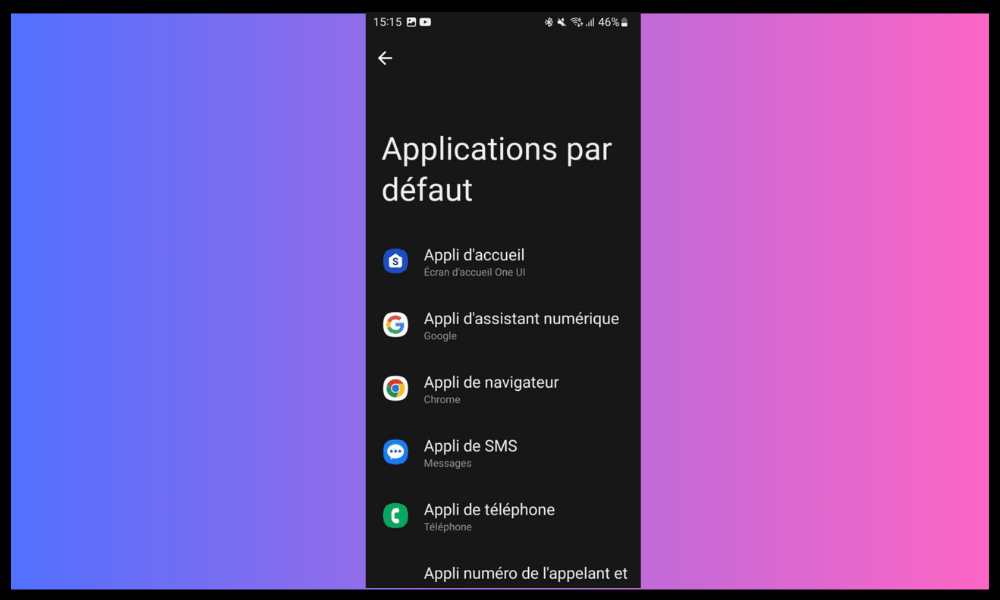
- Tap on Web Browser
- Choose the browser you want to use
Solution 3 : If the problem originates from an application, try updating it by following these steps:
- Open the Play Store or theApp Store depending on your operating system.
- Tap the three horizontal lines icon in the top left corner
- Tap My apps and games or Updates
- Find the problematic app and tap Update
How to solve the problem of internet links not opening with an Android application?
If none of the previous solutions work, the problem may stem specifically from an Android application that is refusing to open internet links. In that case, here are some additional methods you can try:
Method 1: Switch between Wi-Fi and mobile data connection modes
The problem may be related to the connection method you are using to access the internet. For example, the Wi-Fi signal may be too weak or unstable, or mobile data may be limited or blocked.
In this case, you can try switching between Wi-Fi and mobile data connections, which may improve signal quality and internet link loading speed.
To switch between Wi-Fi and mobile data connections, you can follow these steps:
- Open the notification panel by swiping your finger from the top to the bottom of the screen.
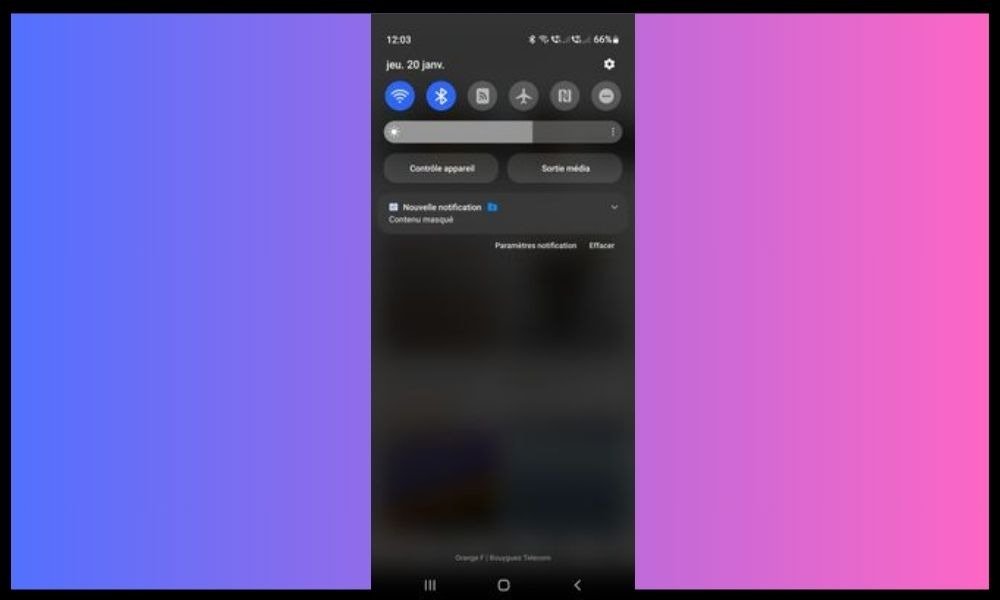
- Tap theWi-Fi or mobile data icon to turn it on or off depending on the mode you want to use.
- Wait for your phone to connect to the chosen network
Method 2: Restore default internet settings
It's possible that your phone's internet settings have been changed by an app or a virus, preventing internet links from opening. In this case, you can try restoring your default internet settings, which will restore the basic functionality of your web browser and apps.
To restore your default internet settings, you can follow these steps:
- Open your phone's settings
- Press System
- Press Advanced Options
- Tap Reset options
- Tap Reset Wi-Fi, mobile and Bluetooth settings
- Tap Reset settings
Warning: This operation will erase all saved Wi-Fi networks, mobile data, and Bluetooth devices associated with your phone. You will therefore need to reconfigure after the reset.
Method 3: Restart your device
The problem might be due to a simple, temporary glitch on your phone, which can be resolved by restarting it. Restarting clears your phone's cache, closes background apps, and restarts the operating system. This may be enough to restore proper internet connectivity.
To restart your device, you can follow these steps:
- Press and hold the power supply button for a few seconds
- Press Shut Down or Restart depending on the available option.
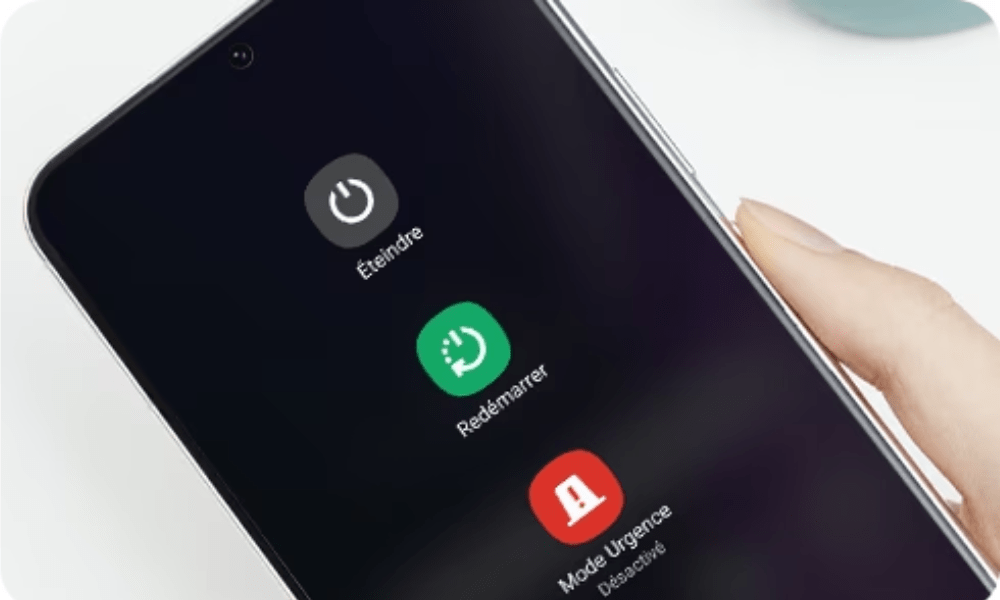
- Wait until your phone has completely turned off
- Press and hold the buttonpower supply again until your phone turns back on.
How can I tell if the problem is with my connection, my browser, my application, or my security?
You can perform some simple tests to identify the source of the problem. For example, you can try opening a web link with a different application, a different browser, a different connection method, or a different phone.
If the link opens correctly, it means the problem is with the element you changed. Otherwise, it means the problem is with a different element.
How do I switch applications to open an internet link?
If you want to use a different application than the one that opens automatically when you click on an internet link, you can long press the link and choose " Open with " from the menu that appears.
You will then see a list of applications compatible with the type of link you want to open. You can choose your preferred one and check "Always use this application" if you want to set it as the default application for this type of link.
How do I update an application that won't open internet links?

To update an application that won't open internet links, you need to go to the Play Store or the App Store depending on your operating system and tap the three horizontal lines icon in the top left corner.
Next, tap on My apps & games or Updates and find the app that's having the problem. If an update is available, you'll see an Update button that you can tap to start the process. It's recommended to update your apps regularly to get the latest improvements and bug fixes.
How do I uninstall and reinstall an application that won't open internet links?
If you accidentally deleted an app that won't open internet links, you can easily restore it to your phone. Simply long-press the app icon on your home screen and select Uninstall from the menu that appears.
Next, you need to go to the Play Store orApp Store, depending on your operating system, and search for the name of the app you want to reinstall. You will then see an Install that you can tap to download and reinstall the app on your phone.


