

Using mobile data can quickly become expensive, especially if you have a limited plan. Fortunately, Android offers a feature called “ Data Saver ” that can help you reduce your data consumption . In this article, we'll explain how to use this feature to save your mobile data .
What is a data saver?

The data saver on Android reduces mobile or Wi-Fi data usage by limiting background app activity. You can also generate a Wi-Fi QR code for faster login without entering long passwords. It compresses images and videos and blocks unwanted ads. This feature is useful for saving on your mobile data plan, extending battery life, or speeding up web page loading when your connection is slow.
PS QR Wi-Fi access is a handy trick when friends or colleagues drop by.
How do I activate the data saving function on Android?
To activate the data saving feature on Android, you must follow these steps:
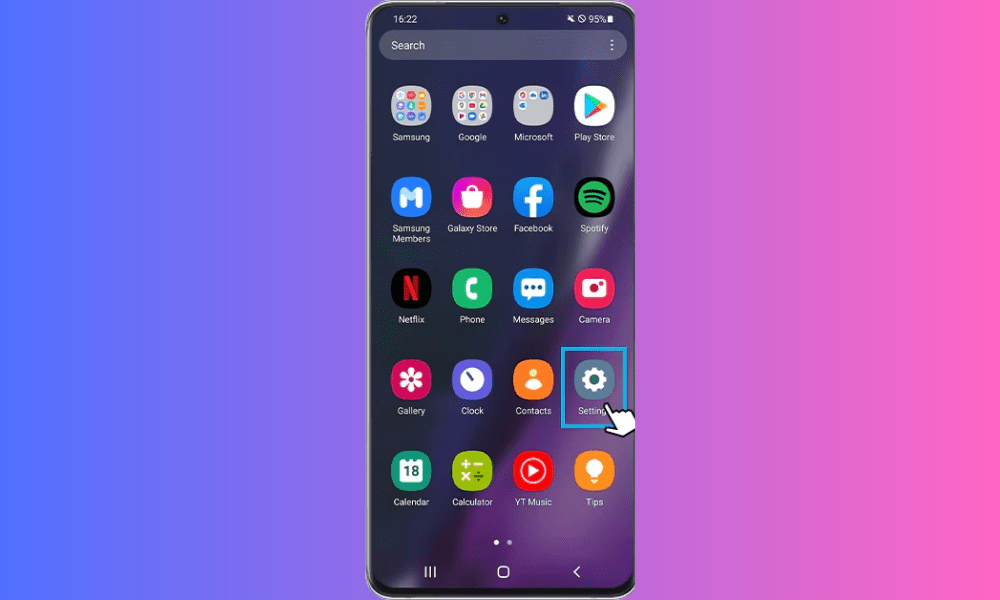
- Open your Android device's settings.
- Tap Network & Internet, then tap Data Usage.
- Turn on the Data Saver button.

You can also enable data saving from the notification bar by tapping the corresponding icon. If you don't see this icon, you can add it by tapping the Edit button in the notification bar.
How to customize the data saving function on Android?
The data saving feature on Android allows you to customize certain settings to suit your needs. For example, you can:
- Choose which apps can use data in the background when data saver is enabled. To do this, go to your device's settings, tap Network & Internet, then Data usage, and finally Data saver. Next, tap Background data access and select the apps you want to allow or block.
- Choose a web browser that uses a data-saving feature. Some browsers, like Chrome or Opera, have their own built-in data-saving mode that compresses images and videos before displaying them. To activate this mode, open your chosen browser, go to its settings, and look for the Data Saver option.
- Choose the compression level for images and videos. Some browsers, like Opera or Samsung Internet, let you choose the image and video quality level you want to display. The lower the level, the more data you save, but the lower the quality. To choose the compression level, open your browser, go to its settings, and look for the Image Quality or Video Quality option.
What are the advantages and disadvantages of the data saving function on Android?
The data saving feature on Android has several advantages and disadvantages that you should be aware of before using it. Here is a non-exhaustive list:
Benefits
- You reduce your mobile or Wi-Fi data consumption, which can save you money on your mobile plan or internet bill.
- You extend the life of your battery, because your device uses less power to load web pages and run background applications.
- You speed up the loading of web pages because they are smaller and less resource-intensive.
- You avoid unwanted advertisements, which can slow down your browsing and consume your data.
Disadvantages
- You lose display quality because images and videos are compressed and may appear blurry or pixelated.
- You lose functionality, as some applications may not work properly or update when the data saving function is enabled.
- You lose security, because some websites may not be accessible or may not display their secure content correctly when the data saving function is enabled.
How do I allow exceptions for the data saver?
You may want to allow certain apps to use mobile data even when data saver is enabled. For example, you might want to continue receiving notifications for emails or messages, even when you're not actively using those apps.
To allow exceptions for the data saver, follow these steps:
- Open your device's settings
- Tap Connections .
- Tap Data Usage .
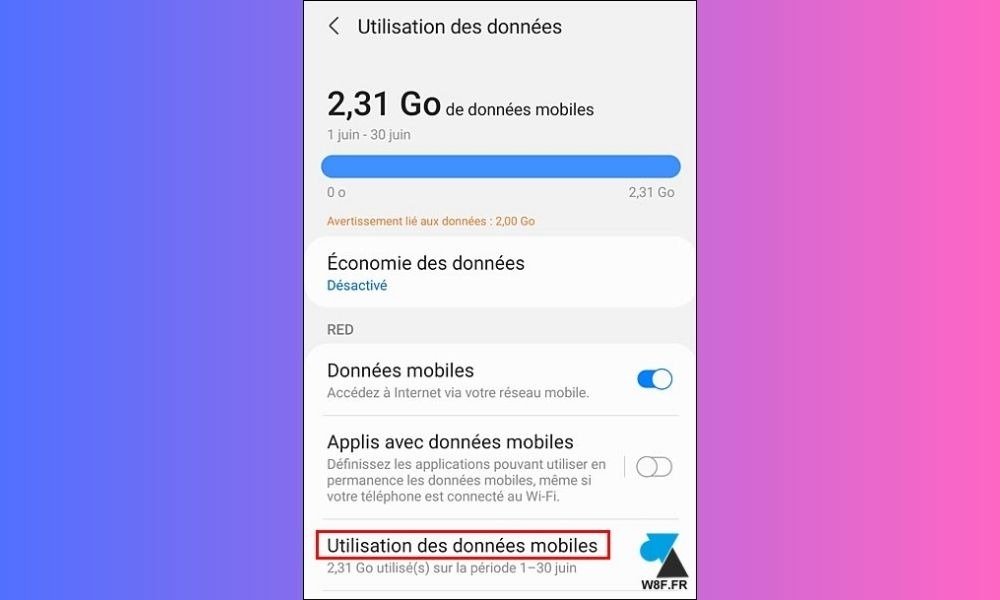
- Tap Data Saver .
- Tap Allow app when data saver is on .
- Select the applications for which you want to allow data usage by sliding the button to the right.
Once you have selected the apps for which you want to allow data usage, those apps will be able to use mobile data even when data saver is enabled.
Conclusion
The data saving feature on Android is a useful option for reducing your mobile or Wi-Fi data usage, but it also has drawbacks that can affect your browsing experience. Therefore, it's important to configure it properly according to your needs and disable it when you don't need it
FAQ
How can I find out how much data I've saved thanks to the data saving function?
To find out how much data you've saved using the data saving feature, you can go to your device's settings and select "Data usage" . There you'll be able to see how much data each app is using and compare it to your usual usage.
How do I disable the data saving function on Android?
To disable the data saving feature on Android , open your device's settings, tap " Connections ", then " Data usage ". Next, tap " Data saver Data saver option .
How do I know if data saving is enabled on my Android device?
To check if data saving is enabled on your Android device, open your device's settings, tap " Connections ", then " Data usage ". Next, tap " Data saver Data saver option is enabled.
Does the data saver prevent all applications from using data in the background?
No, the data saver doesn't prevent all apps from using data in the background. You can allow exceptions for specific apps by following the steps in the " How to allow exceptions for the data saver " section of this article.
Does the data saver affect internet speed?
No, the data saver doesn't directly affect internet speed . However, if you allow exceptions for certain apps, those apps will still be able to use data in the background , which can affect internet speed.
Does the data saver affect the quality of streaming videos?
No, the data saver doesn't directly affect the quality of streaming videos . However, if you allow exceptions for certain apps, those apps will still be able to use data in the background, which can impact the quality of streaming videos . For example, if you watch a web video (dl) , you'll use more data than with a standard-definition video.
Does the data saver affect the quality of video calls?
No, the data saver doesn't directly affect the quality of video calls. However, if you allow exceptions for certain apps, those apps may continue to use data in the background , which can impact video call quality.
Does the data saver affect the quality of online games?

No, the data saver does not directly affect the quality of online games.
Does the data saver affect the sound quality during a phone call?
No, data saver does not directly affect sound quality during a phone call. Phone calls generally use the cellular network rather than mobile data.
Does the data saver affect sound quality when streaming music?
No, the data saver doesn't directly affect sound quality when streaming music. However, if you allow exceptions for certain apps, those apps may continue to use data in the background, which could impact sound quality when streaming music.
Does the data saver affect image quality when browsing social media?
No, the data saver doesn't directly affect image quality when browsing social media. However, if you allow exceptions for certain apps , those apps may continue to use data in the background, which could affect image quality while browsing social media.
Does the data saver affect image quality when browsing websites?
No, the data saver does not directly affect image quality when browsing websites .
Conclusion
Data saver is a useful feature that can help you reduce your mobile data usage and avoid extra charges. By following the steps outlined in this article, you can easily enable this feature and allow exceptions for certain apps if needed .


