
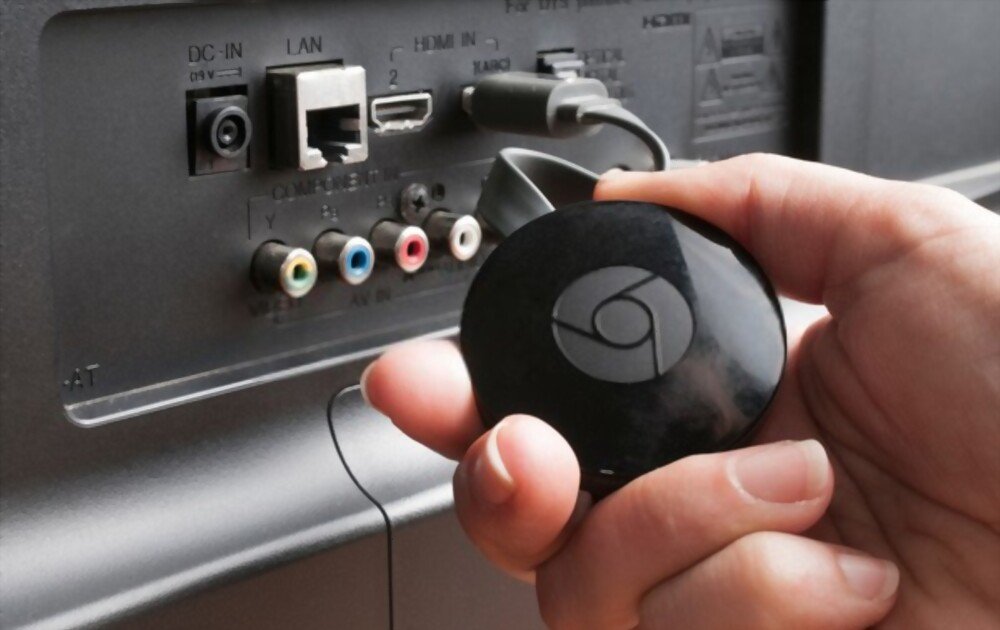
Chromecast is a device that lets you stream multimedia content to your TV from your smartphone, tablet, or computer. Simply plug the HDMI dongle into your TV and connect it to your Wi-Fi network to enjoy your favorite apps on the big screen.
But what if you don't have Wi-Fi at home or want to use Chromecast on the go? Is it possible to use Chromecast without Wi-Fi? The answer is yes! There are several ways to enjoy Chromecast without needing a dedicated Wi-Fi connection. In this article, we'll explain how to use Chromecast without Wi-Fi using:
- Chromecast guest mode
- A local network without internet
- A mobile hotspot
- A travel router
Chromecast guest mode
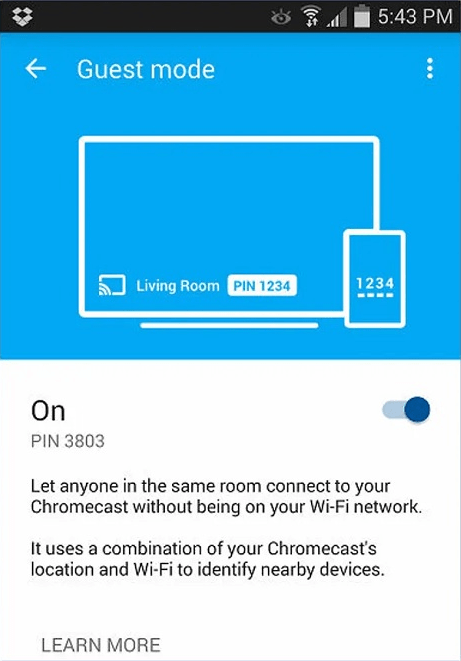
Chromecast Guest Mode is a feature that lets friends and family stream content to your Chromecast without needing to connect to your Wi-Fi network. Their smartphone or tablet simply needs to be Chromecast-compatible and they need to be near your device. To enable Chromecast Guest Mode, follow these steps:
- Open the Google Home app on your smartphone or tablet
- Select the Chromecast you want to use
- Tap the settings icon in the top right corner
- Activate the “Guest Mode” option
- A 4-digit PIN code will be displayed on your TV screen

To use Chromecast guest mode, your guests must:
- Open a Chromecast-compatible app on their smartphone or tablet
- Tap the streaming icon
- Select “Chromecast guest”
- Enter the PIN code displayed on your TV screen
And there you have it! Your guests can now stream content to your Chromecast without needing to connect to your Wi-Fi network. Chromecast Guest Mode uses ultrasonic technology to detect nearby devices. If this technology doesn't work, you can also scan the QR code displayed on your TV screen with your smartphone or tablet camera.
A local network without internet
Another way to use Chromecast without Wi-Fi is to create a local network without internet access. This is a wireless network that allows you to connect multiple devices without using a router or modem. To create a local network without internet access, you need a laptop or smartphone with a built-in Wi-Fi card that can act as an access point. Here's how:
- On your laptop, open the Network and Sharing Center
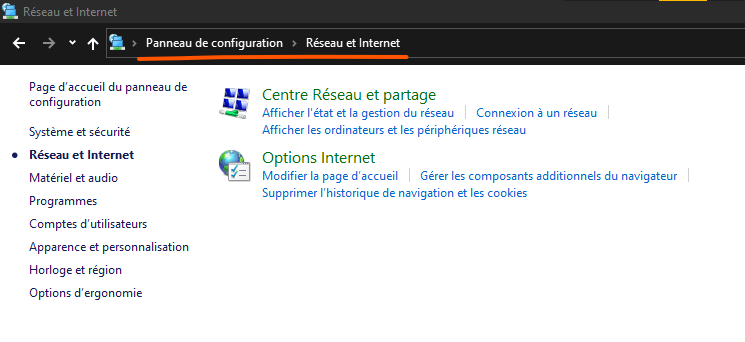
- Click on “Set up a new connection or network”

- Select “Configure a wireless ad hoc network”
- Give your network a name and choose a security level
- Click “Next” and note the security key
- On your smartphone or tablet, turn on Wi-Fi and search for the name of the network you just created
- Connect to the network by entering the security key
- On your laptop, open the Google Home app

- Select the Chromecast you want to use
- Click on “Edit” and choose the name of the network you just created
- Click on “Save”
You have now created a local network without internet access, allowing you to connect your Chromecast to your laptop, smartphone, or tablet. This lets you stream content stored locally on these devices, such as photos, videos, or music. You cannot access apps that require an internet connection, like Netflix or YouTube.
A mobile hotspot
If you have a sufficient mobile data plan, you can use your smartphone as a mobile hotspot to connect your Chromecast to the internet. This involves sharing your smartphone's 3G, 4G, or 5G connection with other devices via Wi-Fi. To use your smartphone as a mobile hotspot, follow these steps:
- On your smartphone, open the settings
- Tap on “Connections” or “Network and Internet”

- Tap on “Mobile Hotspot and Tethering” or “Connection Sharing”
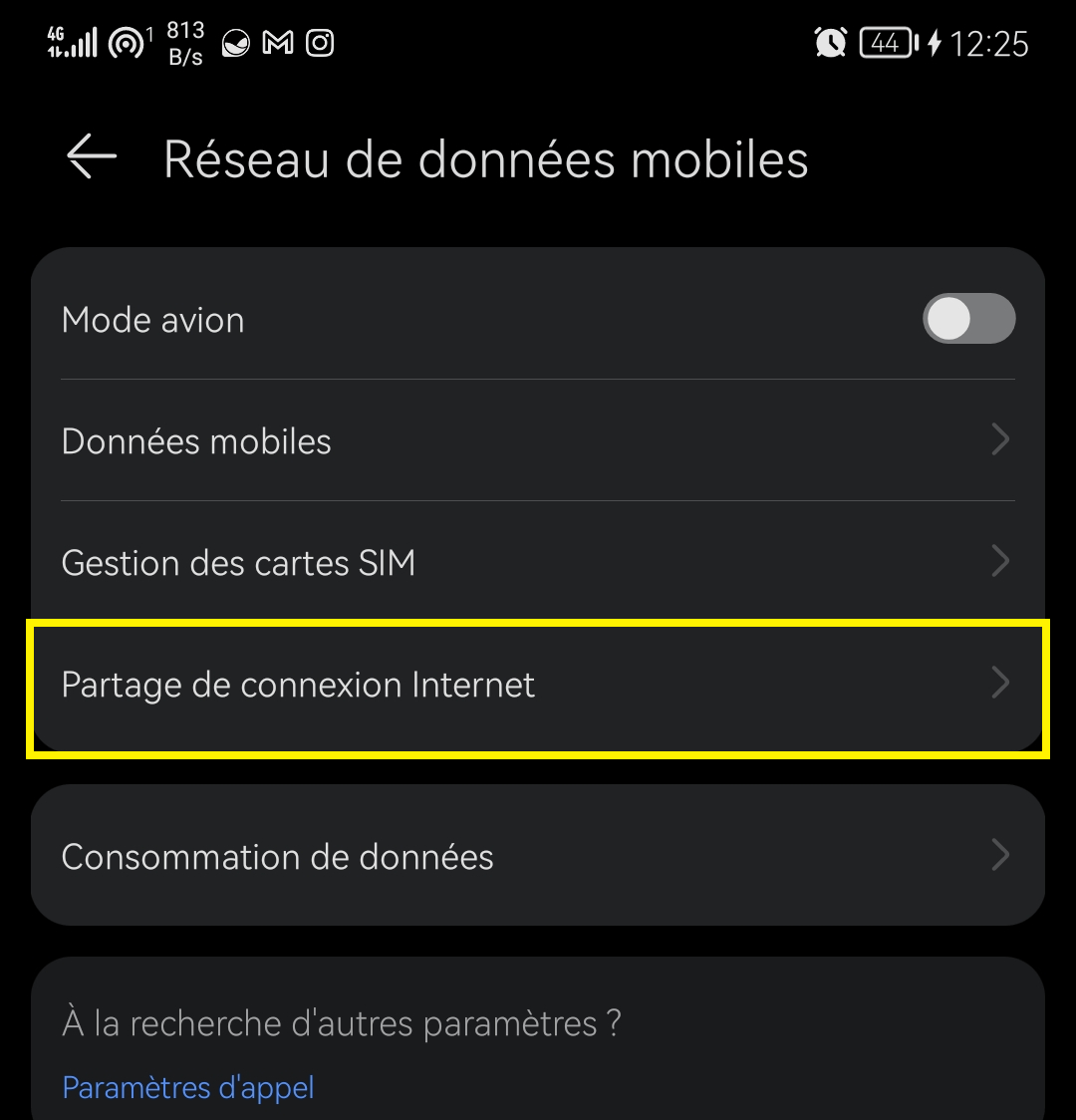
- Activate the “Mobile Hotspot” or “Wi-Fi Connection Sharing” option
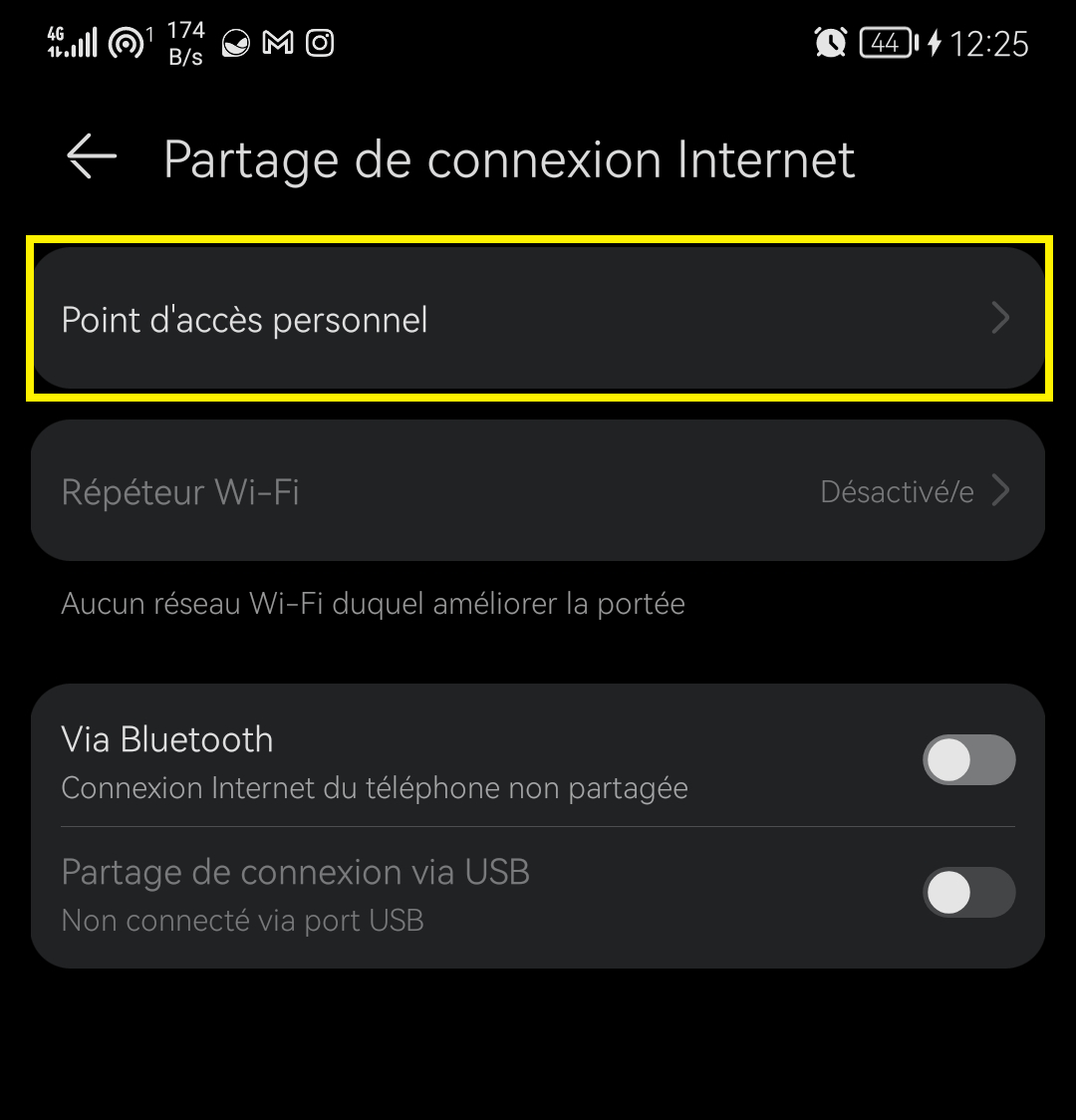
- Give your network a name and choose a password
- On another smartphone or tablet, turn on Wi-Fi and search for the name of the network you just created
- Connect to the network by entering the password
- On this second smartphone or tablet, open the Google Home app
- Select the Chromecast you want to use
- Click on “Edit” and choose the name of the network you just created
- Click on “Save”
You have now connected your Chromecast to the internet via your smartphone's mobile hotspot. You can now access all Chromecast-compatible apps, such as Netflix, YouTube, and Spotify. Be aware that this method uses a lot of mobile data, especially if you are streaming high-definition content. Make sure you have a suitable data plan and monitor your usage.
A travel router
One final solution for using Chromecast without Wi-Fi is to use a travel router. This is a small device that allows you to create a Wi-Fi network from a wired or wireless internet source. You can then connect your Chromecast to the internet via an Ethernet port, a SIM card, or a public Wi-Fi hotspot. To use a travel router, you must:
- Buy a Chromecast-compatible travel router, such as the TP-Link TL-WR902AC or the RAVPower FileHub
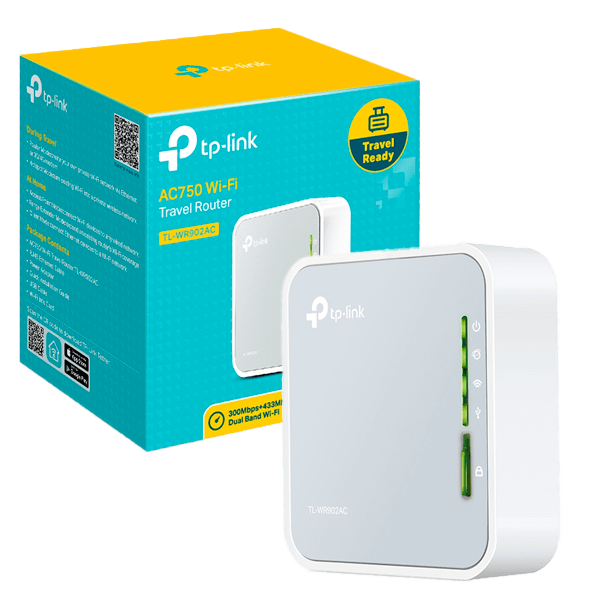
- Connect the travel router to an internet source, such as an Ethernet port, a SIM card slot, or a public Wi-Fi hotspot
- Turn on the travel router and wait for it to create a Wi-Fi network
- On your smartphone or tablet, activate Wi-Fi and search for the network name created by the travel router
- Connect to the network by entering the password displayed on the travel router
- Open the Google Home app
- Select the Chromecast you want to use
- Click on “Edit” and choose the network name created by the travel router
- Click on “Save”
You have now connected your Chromecast to the internet via the travel router. This allows you to enjoy Chromecast without Wi-Fi wherever you are, provided you have access to a wired or wireless internet connection.
FAQ
What is Chromecast?
Chromecast is a device that plugs into your TV's HDMI port and lets you stream media from your smartphone, tablet, or computer. You can watch movies, TV shows, videos, photos, or music on your TV using Chromecast-compatible apps like Netflix , YouTube, or Spotify. To use Chromecast, you need to connect it to your Wi-Fi network and the Google Home app on your mobile device or Chrome browser.
How do I set up Chromecast?
To set up Chromecast, you need to follow these steps:
- Plug the Chromecast into your TV's HDMI port and into a power outlet
- Turn on your TV and select the HDMI source that corresponds to the Chromecast
- Download the Google Home app on your smartphone or tablet
- Open the Google Home app and tap the “+” button in the top left corner
- Select “Set up a new device”
- Follow the on-screen instructions to connect the Chromecast to your Wi-Fi network and your Google account
- Give your Chromecast a name and choose the settings you want
- It's done! You can now stream content to your Chromecast by tapping the streaming icon in compatible apps
Which apps are compatible with Chromecast?
There are hundreds of Chromecast-compatible apps that let you stream media to your TV. Here are a few examples:
- Netflix : for watching movies and series via streaming
- YouTube : for watching online videos
- Spotify : for streaming music
- Google Photos : to display your photos and videos on your TV
- Google Play Movies : to rent or buy movies and TV series
- Molotov : to watch live or replay television
- MyCanal : to access the channels and programs of the Canal+ group
- Arte : for watching documentaries, magazines and films
- Twitch : for watching live video game streams
- Deezer : for listening to streaming music
- France.tv : to watch the channels and programs of the France Télévisions group
- OCS : to access the channels and programs of the Orange Cinema Series package
- Prime Video : for watching movies and series via streaming
- Disney+ : to watch movies and series from Disney, Pixar, Marvel, Star Wars and National Geographic
And many more! You can find the full list of Chromecast-compatible apps on Google's official website.
Conclusion
Chromecast is a device that lets you stream media to your TV from your smartphone, tablet, or computer. There are several Chromecast models, the most recent being Chromecast on Google TV , which features a customizable interface and a remote control with Google Assistant. Chromecast typically requires a dedicated Wi-Fi connection to work. However, there are several ways to use Chromecast without Wi-Fi, such as:
- Chromecast Guest Mode allows your friends and family to stream content to your Chromecast without connecting to your Wi-Fi network
- A local network without internet access, which allows you to connect your Chromecast to your devices without going through a router or modem
- A mobile hotspot, which allows you to share your smartphone's 3G, 4G, or 5G connection with your Chromecast
- A travel router that allows you to create a Wi-Fi network from a wired or wireless internet source
These solutions allow you to enjoy Chromecast without Wi-Fi at home or on the go, depending on your needs and resources. We hope this article has been helpful and that you've learned how to use Chromecast without Wi-Fi. If you have any questions or comments, please feel free to leave them below.


