

Samsung A12 smartphone and want to know how to take a screenshot ? We'll explain how to take a screenshot on your smartphone using different methods!
Here are the two simplest methods in this video tutorial!
Method 1: Use the phone buttons
The simplest and most common method to take a screenshot on your Samsung A12 is to use the buttons located on the right side of your device. Here are the steps to follow:
- Open the application or screen you want to capture.
- Volume Down button and the Power simultaneously for a few seconds.
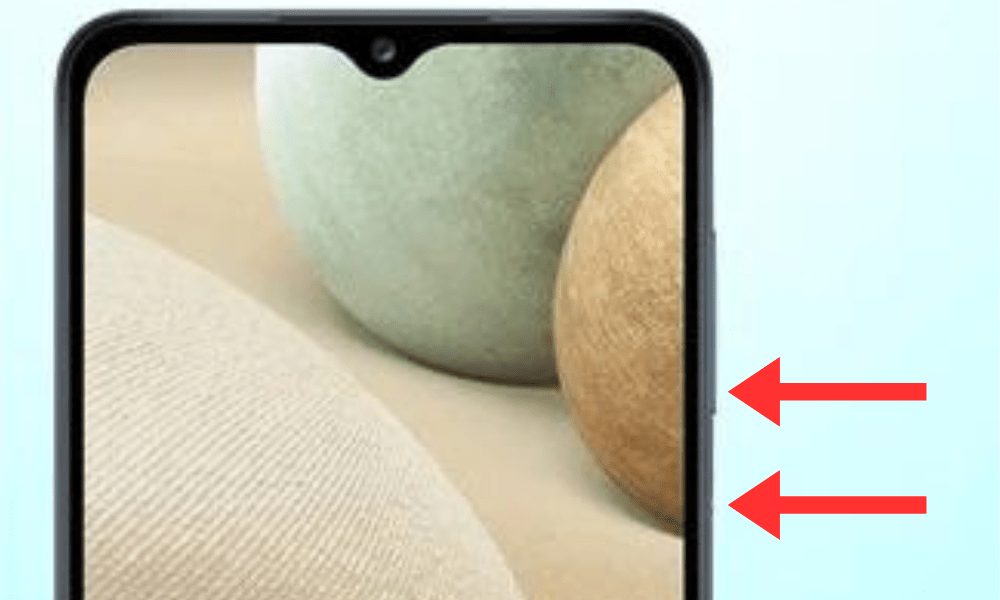
- You will see a white flash and a sound indicating that the screenshot has been taken.
- You can access your screenshot in your phone's gallery, in the Screenshots .
Method 2: Use the sweeping motion
Another way to take a screenshot on your Samsung A12 is to use the swipe gesture with your hand. This feature must be enabled beforehand in your phone's settings. Here's how:
- Go to your phone's Settings Advanced features .
- Palm swipe screenshot option .
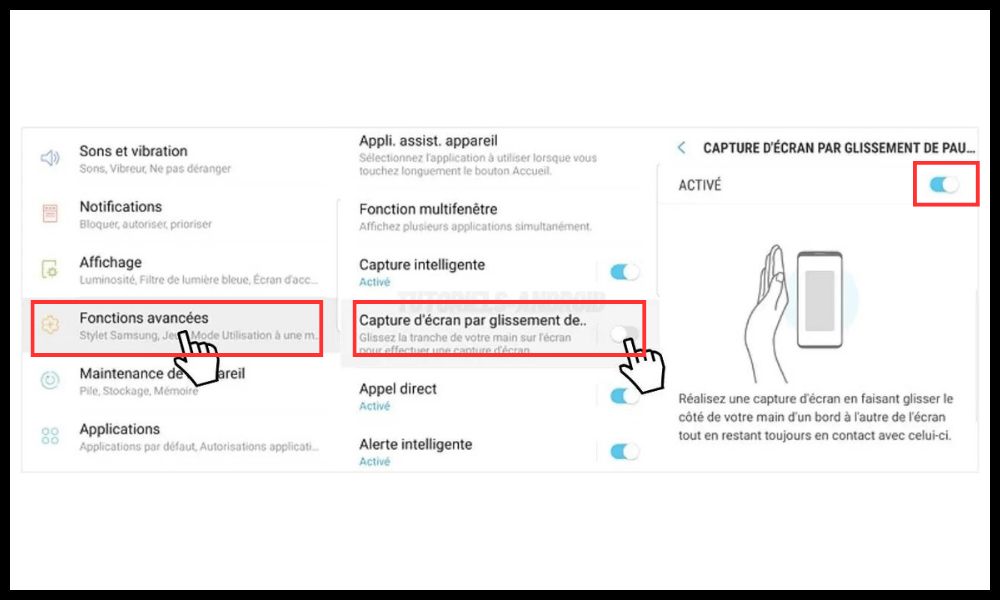
- Open the application or screen you want to capture.
- Place your hand on the right side of your screen, then slide it to the left while keeping it flat.
- You will see a white flash and a sound indicating that the screenshot has been taken.
- You can access your screenshot in your phone's gallery, in the Screenshots .
Good to know: These two methods are also explained on the official Samsung website
Method 3: Use the Bixby voice assistant
If you don't want to use the buttons or the swipe gesture, you can also take a screenshot on your Samsung A12 using the Bixby voice assistant . Bixby is an intelligent assistant that can execute voice commands on your phone . Here's how to use it to take a screenshot:
- Open the application or screen you want to capture.
- Press the Bixby located below the Volume Down button, or say “Hey Bixby” if you have voice control enabled.
- Say “Take a screenshot”.
- You will see a white flash and a sound indicating that the screenshot has been taken.
- You can access your screenshot in your phone's gallery, in the Screenshots .
How do I edit and share my screenshots?
Once you've taken a screenshot on your Samsung A12, you can edit and share it as you wish. To do so, simply follow these steps:
- Access your screenshot in your phone's gallery Screenshots .
- Tap the screenshot you want to edit or share.

- You will see icons appear at the bottom of the screen that allow you to perform different actions:
- The Pencil allows you to edit your screenshot by adding text, drawings, stickers, or filters.
- The Crop allows you to crop your screenshot by adjusting the edges as needed.
- The Share allows you to share your screenshot with your contacts or favorite apps, such as WhatsApp, Facebook, Instagram, or Gmail.
- The Delete allows you to delete your screenshot if you no longer need it.
FAQ
What is a screenshot?
A screenshot is an image that captures what is displayed on your smartphone screen. You can take a screenshot to save a message, a document, a game, an app, or anything else you want.
What is the purpose of a screenshot?
A screenshot can be useful for several things, such as:
- Share information, a tip, a tutorial or a funny moment with your friends or colleagues.
- Save important content, such as a booking confirmation, payment receipt, or discount code.
- Report a problem , error or bug on your smartphone or application.
- To provide proof , a demonstration, or a testimony of something.
Where are the screenshots stored?
Screenshots are stored in your phone's gallery Screenshots . You can access them at any time and organize, edit, or delete them as you wish.
How do I take a partial screenshot?
If you don't want to capture the entire screen of your Samsung A12, but only a portion, you can use the Smart Capture . This feature must be enabled beforehand in your phone's settings. Here's how:
- Take a normal screenshot using one of the methods described in the article.
- You will see icons appear at the bottom of the screen that allow you to perform different actions. Tap the Smart Capture .
- You will see blue borders appear around your screenshot . You can adjust them by dragging them with your fingers to select the area you want to capture.
- Press the Done to confirm your partial screenshot.
How do I take a long screenshot?
If you want to capture more than one screen, such as a web page or a scrolling conversation, you can use the Scrolling Capture . This feature must be enabled beforehand in your phone's settings. Here's how:
- Take a normal screenshot using one of the methods described in the article.
- You will see icons appear at the bottom of the screen that allow you to perform different actions. Tap the Scrolling Capture .
- Your screen will automatically scroll down and capture the additional content. You can stop the scrolling at any time by tapping the screen.
- Press the Done to confirm your long screenshot.
How do I take an animated screenshot?
If you want to capture a video or animated GIF displayed on your screen, you can use the Screen Recorder . This feature must be enabled beforehand in your phone's settings. Here's how:
- Go to your phone's Settings Advanced features , then Screen recorder .
- Show floating button option .
- Open the application or screen you want to capture.
- A floating camera-shaped button will appear on your screen. Tap it to start recording.
- You will see a counter and options at the top of the screen that allow you to control the recording. You can:
- Press the Pause to pause the recording.
- Press the Microphone to turn the sound on or off.
- Press the Brush to draw on the screen while recording.
- Press the Stop to stop recording.
- You can access your animated screenshot in your phone's gallery, in the Screen Recordings .
Conclusion
There you have it! Now you know how to take a screenshot on your Samsung A12 using different methods. Feel free to try the one that works best for you and share your screenshots with your friends or colleagues. If you have any questions or comments, please leave them below.


