
Have you bought new headphones, earbuds, or a wireless speaker and want to connect them to your Android smartphone ? Don't worry, it's very simple! Just follow the steps in pairing mode, which allows you to establish a wireless connection between two Bluetooth devices. In this article, we'll explain how to pair a Bluetooth device with an Android smartphone in just a few minutes.
What is pairing mode?
Pairing mode is a feature that allows two Bluetooth devices to recognize and connect to each other . Pairing mode is usually activated by a button or switch on the Bluetooth device you want to connect to your smartphone . When pairing mode is enabled, the Bluetooth device emits a signal that can be detected by other nearby devices.
How do I activate pairing mode on my Bluetooth device?
To activate pairing mode on your Bluetooth device, you must consult the user manual that came with it. The procedure may vary depending on the model and brand. Here are some examples of how to activate pairing mode on different types of Bluetooth devices:
- On wireless headphones or earphones, you usually just need to buttonpower supply or the Bluetooth button for a few seconds until a light flashes or a beep sounds.
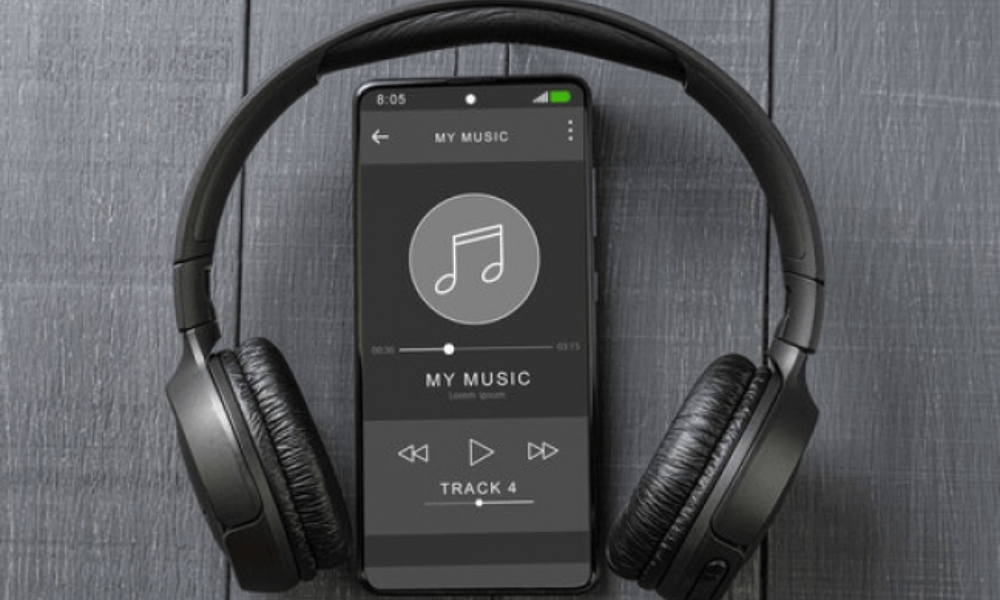
- On a wireless speaker, you often have to press a specific button bearing the Bluetooth symbol or the name “Pairing” until the speaker beeps or the light changes color.
- On a smartwatch, you usually need to access the watch settings and select the “Bluetooth” or “Paired devices” option, then choose the “Pair a new device” or “Search for devices” option.
How do I activate Bluetooth on my Android smartphone?
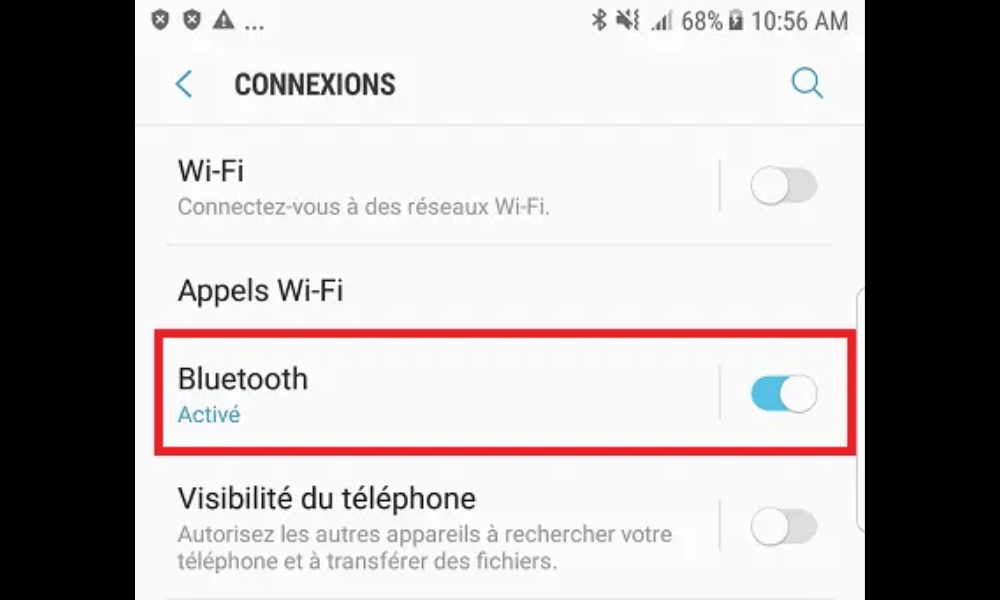
To activate Bluetooth on your Android smartphone, you must follow these steps:
- Swipe down from the top of the screen to display the notification panel.
- Tap the Bluetooth icon to turn it on. If the icon doesn't appear, tap the pencil icon to edit the shortcuts and add Bluetooth.
- Press and hold your finger on the Bluetooth icon to access advanced settings.
- Check that your smartphone is visible to other devices by enabling the “Phone visibility” option.
How do I pair my Bluetooth device with my Android smartphone?
Once you have enabled pairing mode on your Bluetooth device and Bluetooth on your Android smartphone, you can proceed with pairing by following these steps:
- In your smartphone's Bluetooth settings, you should see a list of available devices nearby.
- Select the name of your Bluetooth device from the list and tap it to start the connection.
- If a window appears with a PIN code or access key, check that it matches the one displayed on your Bluetooth device and confirm the pairing by pressing “OK” or “Pair”.
- If no window appears, pairinghappens automatically without a PIN code.
- Once pairing is successful, you should see the status of your Bluetooth device change from “Available” to “Connected” in your smartphone’s Bluetooth settings.
- You can now enjoy your Bluetooth device with your Android smartphone !
How do I disconnect or unpair my Bluetooth device from my Android smartphone?
If you wish to disconnect or unpair your Bluetooth device from your Android smartphone, you can do so in two ways:
- To temporarily disconnect your Bluetooth device, simply turn it off or move it out of range of your smartphone. You can easily reconnect it by turning it back on or moving it closer to your smartphone.
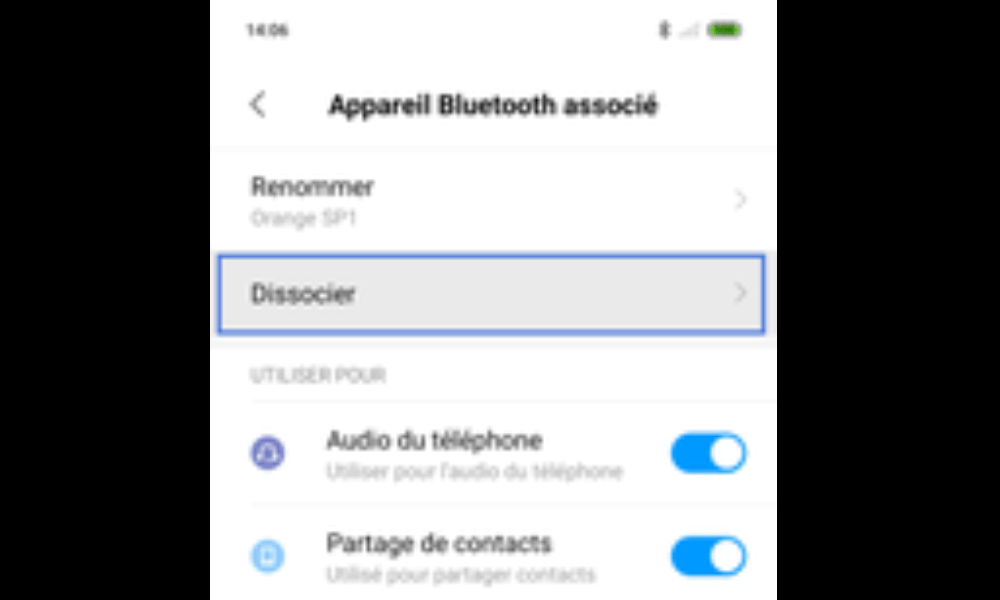
- To permanently unpair your Bluetooth device, go to your smartphone's Bluetooth settings, tap the device name, and then tap the gear icon. Next, tap the "Forget" or "Unpair" option to remove the device from the list of paired devices.
FAQ
Here are some frequently asked questions about pairing mode and Bluetooth:
How do I know if my device is compatible with Bluetooth?
To find out if your device is Bluetooth compatible, check for the Bluetooth logo or see if it's mentioned in the user manual. You can also consult the list of Bluetooth-certified devices on the official website: https://www.bluetooth.com/bluetooth-products/. If your device is compatible, you can choose Bluetooth headphones that suit your needs and preferences. To do this, you should consider the selection criteria for your Bluetooth headphones, such as sound quality,battery life, comfort, design, additional features, etc.
How to resolve Bluetooth connection problems?
If you are experiencing Bluetooth connection problems, you can try the following solutions:
- Check that Bluetooth is enabled on both devices
- move the devices closer together, restart the devices,
- update the device software,
- unpair and re-pair the devices.
These solutions may help you fix the JBL Bluetooth headphone connection problem with Windows 10, a common Bluetooth malfunction. If none of these solutions work, you can contact JBL or Microsoft customer support for assistance.
How to improve Bluetooth sound quality
To improve Bluetooth sound quality, you can check that the device battery is sufficiently charged, avoid interference with other wireless devices, choose a suitable audio codec in the Bluetooth settings, and use an audio equalizer on your smartphone or music app.
How to share a mobile connection via Bluetooth?
To share a mobile connection via Bluetooth, you must enable tethering on your Android smartphone by going to Settings, then to “Network & Internet”, and then to the “Mobile Hotspot & Tethering” option. Next, enable Bluetooth tethering and pair your smartphone with the device you want to share the connection with.
How to transfer files via Bluetooth?
To transfer files via Bluetooth, you must pair the two devices, then open the app containing the files you want to send (for example, the gallery for photos or the file manager for documents). Next, select the files you want to send and tap the share icon. Choose the “Bluetooth” option and select the recipient device. Accept the transfer request on the other device and wait for the transfer to complete.


