
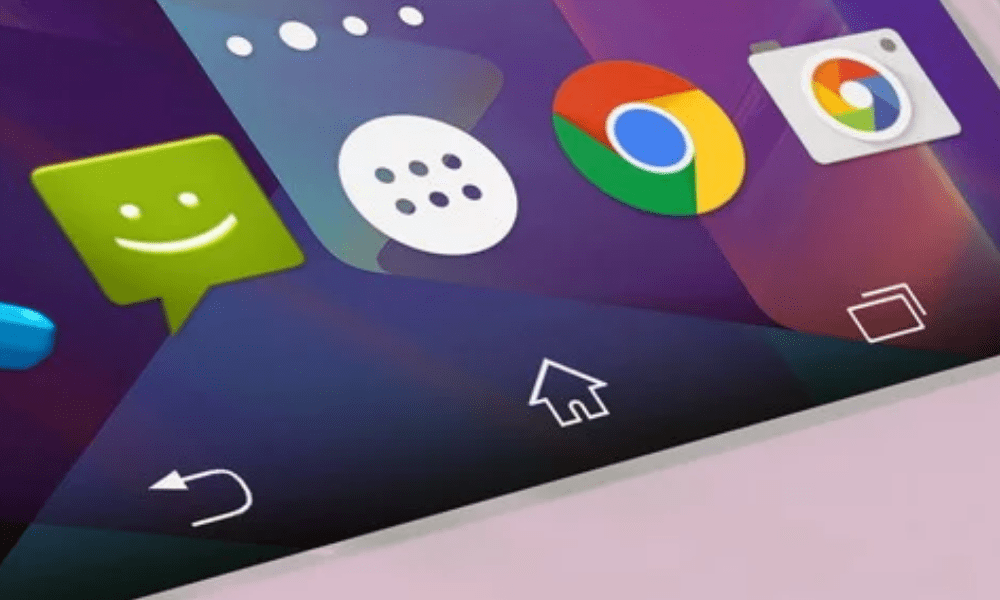
The back button is one of the most frequently used features on Android devices. It allows you to return to the previous screen, close an application, or exit a menu.
But did you know that you can reverse the function of the back button to suit your preferences?
Here's how to reverse the back button on Android for three popular smartphone brands: Samsung, Huawei, and Xiaomi.
Why reverse the back button on Android?
There are several reasons why you might want to reverse the back button on Android. For example:
- You are used to a different layout of the back button on another device or operating system.
- You find that the back button is too far from your thumb or hand and you want to move it closer.
- You want to try an alternative and more intuitive user experience.
Whatever your reason, reversing the back button on Android is an option that has existed for a long time on some devices, but it's not always easy to find or activate. That's why we're going to guide you step by step on how to reverse the back button on Android for Samsung, Huawei, and Xiaomi.
How do I reverse the back button on Android for Samsung?
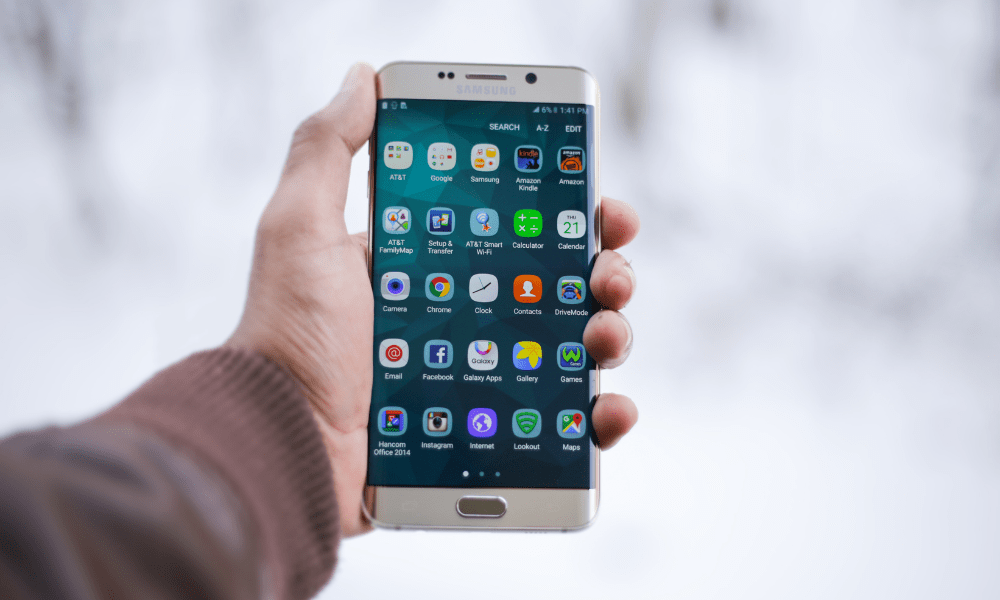
Samsung is one of the most popular Android smartphone brands. If you own a Samsung device, here's how to reverse the back button on Android:
- Open the settings on your Samsung device.
- Press "View".
- Tap on "Navigation bar".
- Press on "Key layout".
- Choose the "Switch" option to place the back button on the left and the recent apps button on the right.
You have now reversed the back button on your Samsung device. You can test the result by navigating through apps and menus. If you want to revert to the original layout, simply repeat the same steps and select the "Standard" option.
How to reverse the back button on Android for Huawei?

Huawei is another brand highly regarded by Android users. If you have a Huawei smartphone, here's how to reverse the back button on Android:
- Open the settings on your Huawei device.
- Tap on "Accessibility".
- Tap on "Navigation button layout".
- Choose the "Swap Back Button" option to swap the positions of the back button and the home button.
You have now reversed the back button on Android for your Huawei device. You can verify the change by using the back button to go back or to access the home screen. If you want to undo the change, simply repeat the same steps and disable the "Invert back button" option.
How to reverse the back button on Android for Xiaomi?
Xiaomi is a brand that's rapidly gaining ground in the Android smartphone market. If you own a Xiaomi phone, here's how to reverse the back button on Android:
- Open the settings on your Xiaomi device.
- Tap on "Additional settings".
- Tap on "Developer options".
- If you do not see this option, tap "About phone" and tap "MIUI version" several times until a message tells you that developer options are enabled.
- Go back to the additional settings and tap on "Developer options".
- Scroll down and tap "Back Key Invert" to reverse the function of the back button.
You have now reversed the back button on Android for your Xiaomi device. You can notice the difference by using the back button to navigate through apps or return to the previous screen. If you want to restore the original configuration, simply repeat the same steps and disable the "Invert Back Button" option.


