

Are you having trouble with your Android keyboard? Is it no longer displaying, has it changed appearance, or is it not working properly? Don't panic, there are simple solutions to restore the normal keyboard on your smartphone. In this article, we'll explain how to display, modify, or reactivate the keyboard on Android in just a few steps.
Why might the normal keyboard disappear or change?
The normal keyboard layout may disappear or change due to:
- A key or icon pressed by mistake.
- A third-party keyboard application installed, such as SwiftKey or Gboard .
- Keyboard settings have been modified, such as language, input method, or layout.
How do I make the normal keyboard reappear?
If the normal keyboard does not appear when you type in a text field, such as in a messaging or search application, there are several possible solutions:
Check that the keyboard is properly activated
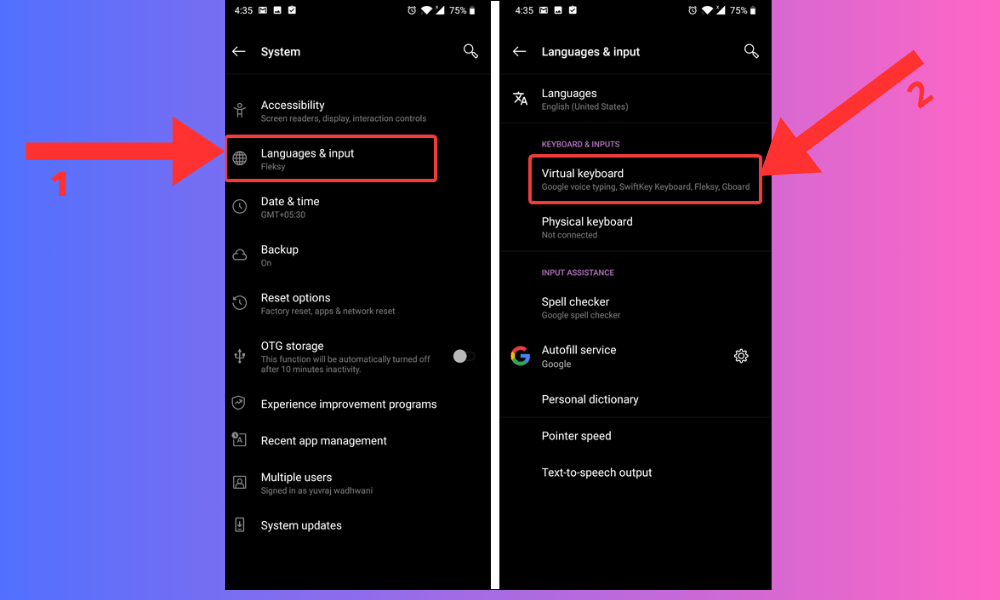
To do this, swipe down the notification bar at the top of your screen and look for the keyboard icon. If it's there, tap it to bring up the keyboard. If it's not there, go to your device's settings, then to " System ," " Languages & input, " and " Virtual keyboard ." Make sure the keyboard you want to use is selected.

Change your keyboard if the one that is displayed is not suitable for you
To do this, tap the keyboard icon in the bottom right corner of the current keyboard and choose your preferred keyboard from the list that appears. If you don't see the keyboard icon, press and hold the space bar or the comma key to bring up the keyboard menu .

Restart your device if the problem persists
How do I restore the normal keyboard settings?
If the standard keyboard is displayed but doesn't meet your preferences or needs, you can change its settings in your device's settings. Here's how:
- Go to your device settings, then to “ System ”, “Languages and input” and “ Virtual keyboard ”
- Tap the name of the keyboard you are currently using, for example “ Android Keyboard (AOSP) ” or Gboard.
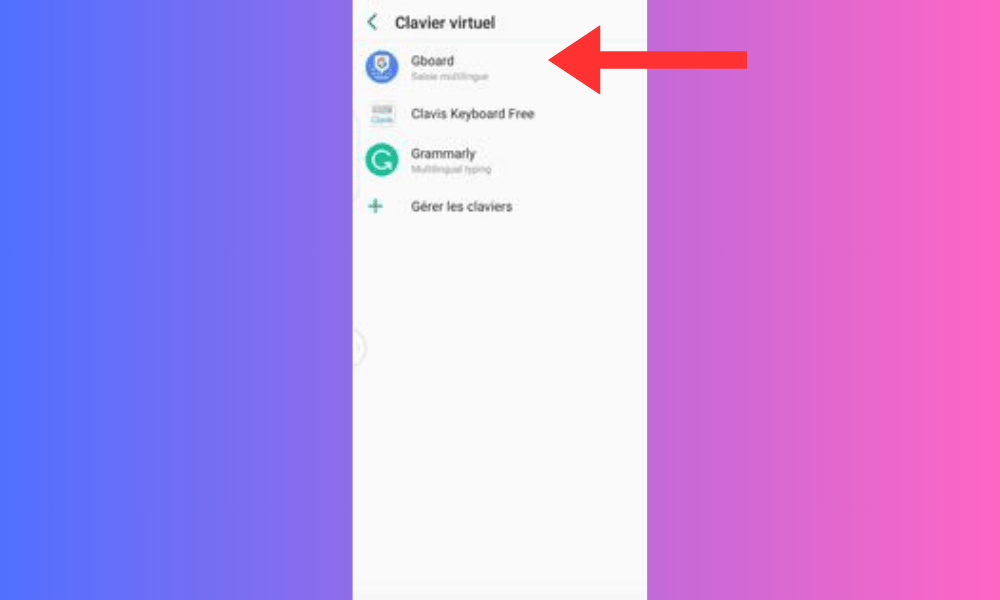
- Tap on “ Settings ” or the gear icon.
- You can then access the various keyboard options, such as language, input method, keyboard layout, autocorrect, word suggestions, emojis, etc. Modify the settings according to your preferences.
- If you want to return to the default settings, tap the menu in the top right corner of the screen and choose “ Reset settings ” or “ Restore default settings ”.
FAQ
How do I change the keyboard on Android?
If you wish to use a different keyboard than the one you have chosen by default, you can easily switch keyboards by following these steps:
- Open an application that requires text input, such as your email or web browser.
- Type in a text field to bring up the virtual keyboard.
- Look at the bottom right of the screen. If there is a keyboard icon, tap it to display the list of available keyboards.
- Select the keyboard you want to use. You can also tap Keyboard settings to access customization options for your chosen keyboard.
How do I reset the keyboard on Android?
If you want to restore your Android phone's keyboard to its original settings, you can reset the keyboard. To do this, follow these steps:
- Access your Android phone's settings as previously described.
- Tap on “ Applications ” or “ Application Manager ”.
- Scroll down the screen and tap on the name of the keyboard you are currently using.
- Tap on “ Clear cache ” and “ Clear data ”.

- Restart your phone.
Warning: This operation will erase all your personal keyboard data, such as dictionary entries, shortcuts, and preferences. You will therefore need to reconfigure the keyboard to suit your needs. For your information, restarting your phone may also resolve some bugs you may encounter, such as when your smartphone opens apps on its own .
How to solve keyboard problems on Android?
If you are experiencing keyboard-related problems on Android, such as bugs, crashes, slowness, or errors, you can try the following solutions:
- Restart your device. This may resolve temporary issues or conflicts between applications.
- Uninstall and reinstall the keyboard. This can fix persistent problems or keyboard incompatibilities. To do this, open the Google Play Store , search for the name of the keyboard you're using, and tap Uninstall . Then, tap Install to download it again.
How do I add or change the language on the Android keyboard?
If you want to type in a language other than the default one set on your Android device, you can add or change the keyboard language. To do this, you need to access the settings of the keyboard you are using. For example, if you are using the Google keyboard ( Gboard ), you can follow these steps:
- Open an application that requires text input, such as your email or web browser.
- Type in a text field to bring up the virtual keyboard.
- Tap the gear icon in the bottom left corner of the keyboard to access Gboard settings .
- Tap Languages and select the languages you want to add. You can also tap Add a new keyboard to search for other languages in the Google Play Store .
- To change the language, simply swipe the space bar left or right to switch between languages.
How do I remove keyboard languages on Android?
If you want to remove languages you don't use, you can change this setting in the keyboard configuration options. To do so, follow these steps:
- Display the keyboard as explained previously.
- Tap the keyboard icon in the bottom right corner of the screen to access keyboard configuration options.
- Languages ” or “ Languages and types option . Tap on it and uncheck the languages you want to add or remove.
- Press the back button to save your changes.
How to customize the keyboard on Android?
You can customize the keyboard on Android by changing its size, color, theme, key tone, vibration, and more. To do this, you need to access the settings of the keyboard you're using. For example, if you're using the Google keyboard (Gboard), you can follow these steps:
- Open an application that requires text input, such as your email or web browser.
- Type in a text field to bring up the virtual keyboard.
- Tap the gear icon in the bottom left corner of the keyboard to access Gboard settings.
- Tap Preferences or Theme to customize the keyboard to your liking.

Depending on the type of operating system on your smartphone , you will be able to access different keyboard customization options, such as size, theme, layout or languages.
There you have it, you now know how to switch back to the normal keyboard on Android. We hope this article was helpful and that you can fully enjoy your virtual keyboard. If you have any questions or comments, please feel free to let us know.


