
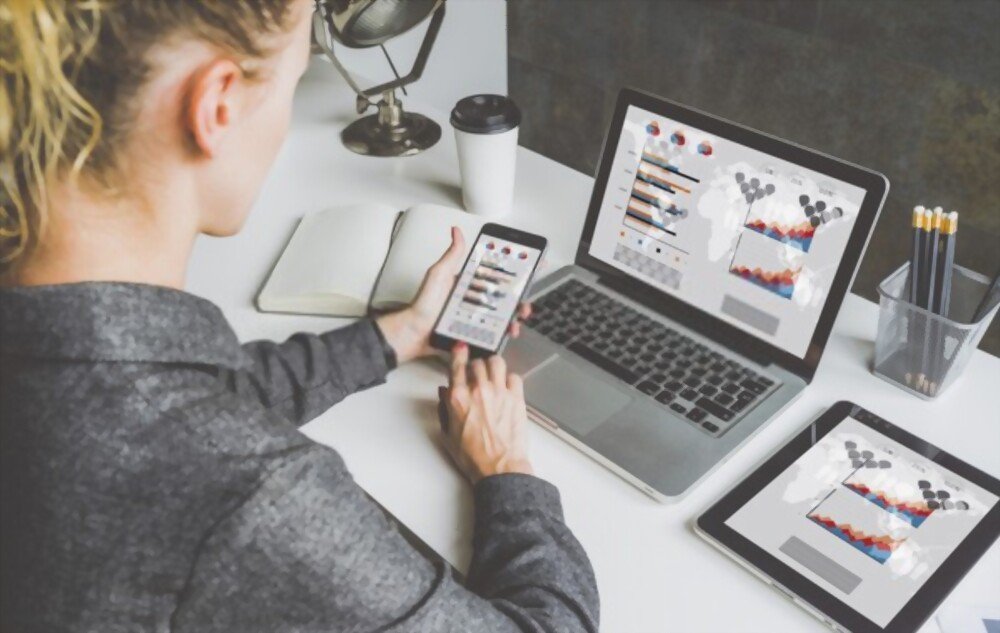
Want to project your smartphone screen onto your PCbut don't know how? Whether you want to watch a video or play a game on a larger screen, mirroring your Android screen is one of the most effective solutions. This article will show you how to display an Android screen on your PC via USB.
Good to know : Screen mirroring is a way to duplicate your smartphone screen on your PC. In other words, you can control or mirror your Android screen on your computer!
Method 1: Use the Phone Mirror app to display your Android screen on your PC
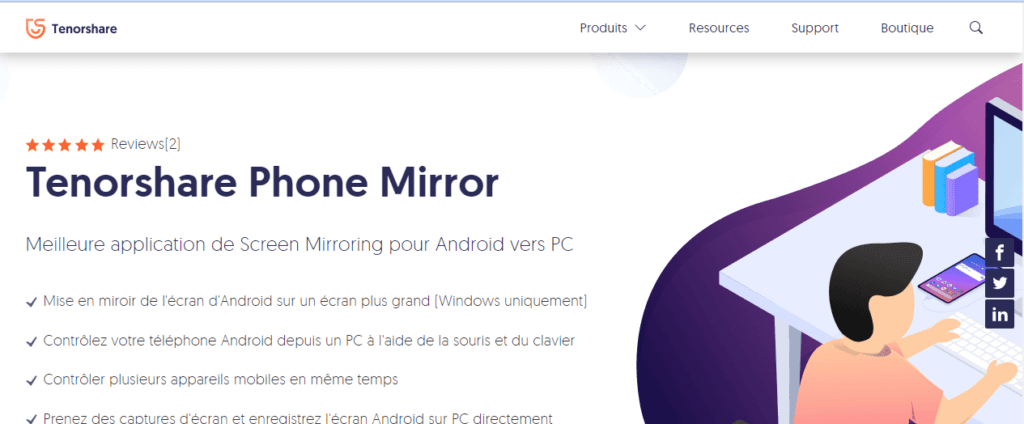
Tenorshare Phone Mirror is one of the best screen mirroring apps currently available. It allows you to:
- Duplicate the screen of an Android device on Windows
- Control your smartphone using your computer's keyboard and mouse
- Manage multiple mobile devices at the same time
- Take screenshots directly on your computer, etc.
Follow these three steps to project your Android screen onto your PC via USB using Phone Mirror:
Step 1: Download, install, and then launch the Tenorshare Phone Mirror only on your Windows. You should not install any other application on your smartphone.
Step 2: Connect your Android mobile device to your PC using a USB cable. A new window will appear. Follow the instructions to enable USB debugging on your Android device.
Step 3: Press the Mirror button that will appear on your computer screen to start Screen Mirroring.
It's done! Your Android device's screen will instantly appear on your computer after the operation.
Method 2: Use the ApowerMirror app to mirror your Android screen to your PC

ApowerMirror is another professional application with the same basic screen mirroring functions. It has almost the same features as the Tenorshare Phone Mirror application and is also very easy to use.
Here is the process for mirroring your Android screen to your computer via USB using ApowerMirror:
Step 1: Download the ApowerMirror application to your computer. Install it and then open it!
Step 2: Check that USB debugging is enabled on your smartphone. If it isn't, enable it!
To do this,
- Access your smartphone settings.
- Look for the " About phone " option and click on " Software information ".
- Tap repeatedly on " Version number " or " Build number " until the message " Developer mode has been enabled " appears.
- Next, go back to your phone's general settings and then tap on " Developer options ".
- Scroll down, then select the " USB Debugging " option and click on it to enable it.
Step 3: Once debugging mode is enabled, connect your smartphone to your computer via a USB cable.
Step 4: Select the ' 'Don't show again ' and ' 'Start' options to proceed with Screen Mirroring activation.
Important : If you don't have a USB cable, we suggest using your Wi-Fi network to mirror your smartphone's screen on your PC. Keep in mind that for this to work, both the mobile device and the computer must be connected to the same network!
You can also do it another way by buying a new USB cable directly from Amazon. Not sure which one to choose? Here are the best models we recommend:
string(249) "[403] Client error: `POST https://webservices.amazon.fr/paapi5/getitems` resulted in a `403 Forbidden` response: {"__type":"com.amazon.paapi5#AssociateEligibilityException","Errors":[{"Code":"AssociateNotEligible","Message":"Your acc (truncated...) "
![INIU USB-C Fast Charging Cable 3.1A, [2m+2m+0.5m/3-Pack] USB to USB-C Cable, Nylon Charger...](https://tt-hardware.com/wp-content/plugins/aawp/public/assets/img/thumb-spacer.png)
Method 3: Project your smartphone screen onto a computer using a smartphone screen magnifier
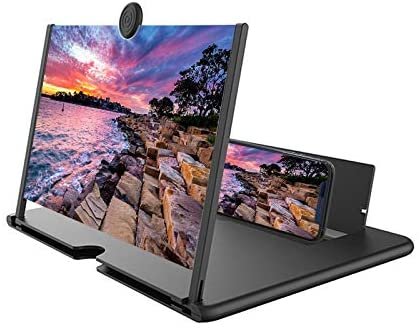
If you want to project your smartphone screen onto your PC via USB, it's certainly because you want a more immersive experience and not miss any details.
Therefore, if you do not want to install third-party applications on your mobile device or computer, we advise you to buy a smartphone screen magnifier with a very high resolution.
To learn more about this type of device, we invite you to read our article which presents the best screen magnifiers for smartphones !
In conclusion, if you'd like our opinion on the best way to display your Android screen on a PC via USB, we recommend the first two methods, as they are versatile and very easy to use. The last method, on the other hand, will save you from having to carry around a USB cable or install third-party applications, while still delivering excellent results! Now it's YOUR TURN! 👊
Don't forget to leave a comment with your preferred method and your opinion on any of the applications you've already tested!


