
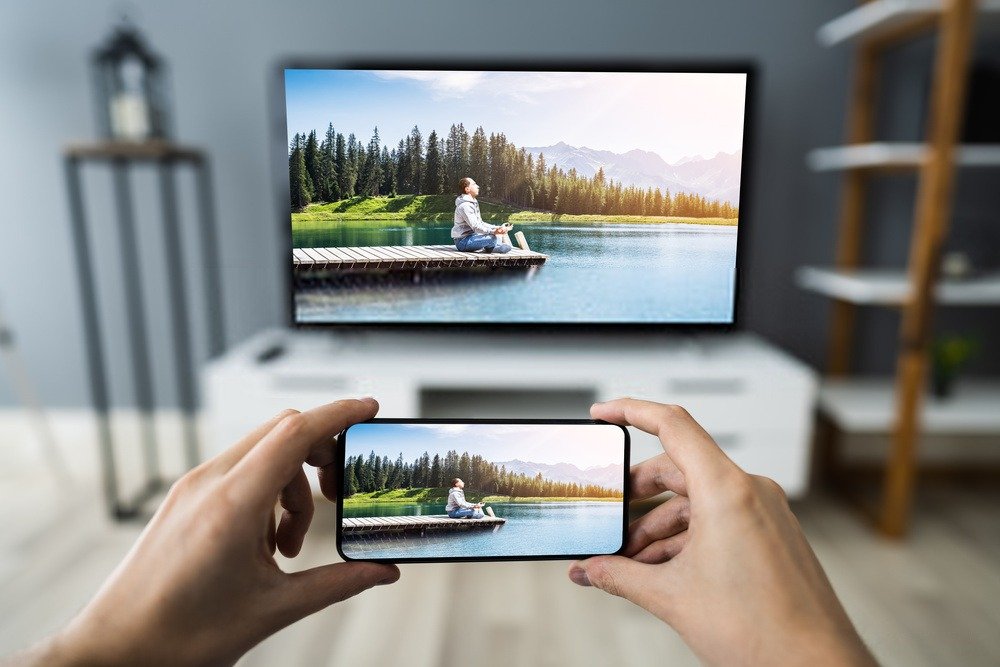
In France, one in three smartphones is a Samsung! Founded in 1938, the Samsung brand began as a trading company specializing in local grocery stores, sugar, and wool. A far cry from smartphones, then! But today, it is one of the world's leading companies in the electronics and digital technology market.
Indeed, its smartphones and televisions boast impressive sales results. Are you a Samsung user looking to connect your phone to your TV? This article is for you!
Share your phone screen on the TV!
Connecting your smartphone to your television is like sharing your phone's screen on your TV: this is called screen mirroring . It allows you to share content on the big screen: photos, videos, movies, series, and even video games.
Perfect for great family evenings and Sundays with friends. The first thing to know if you want to screen mirror your phone to your Samsung TV is whether your TV is a smart TV. A "smart TV" is a connected TV or Smart TV.
This means it's capable of connecting to your Wi-Fi. These TVs were released after 2011. Once you have this information, four scenarios are possible:
Good to know: If you want to screen mirror your iPhone to your TV, we invite you to read our article: How to use Miracast on iPhone?
1. You have a Samsung smart TV manufactured before 2016.
To connect your phone to your Samsung TV, you will need to use SmartView . SmartView is a Samsung application that allows you to view multimedia content from your smartphone (photos, videos, downloaded music albums) on your television screen.
The TV is then controlled by your phone. Goodbye old remote! For SmartView to work, your phone and TV must be connected to the same Wi-Fi network. Next, activate the SmartView app on your phone. If you haven't already installed it, it's available on Samsung Galaxy Apps (and Google Play or the App Store).
Once the application is launched, you will be asked to exchange PIN codes between your television and your phone to ensure secure pairing. Once connected to your smartphone, your TV will display your smartphone in the external device manager.
Note that for greater speed, once the application is installed on your phone, Smartview is accessible directly from the quick command panel of your smartphone, just like activating Bluetooth or Wifi.
Once SmartView is activated, several features become available: you can project your photos and your own videos directly from the gallery; you can also use the Cast app to watch movies and series on your TV; and even create playlists.
2. You have a Samsung smart TV manufactured after 2016 and before 2020.
If your television is from after 2016 but before 2020, you will then be able to connect your phone to your TV using SmartThings .
SmartThings is Samsung's next-generation app that enables screen mirroring . But more than that, this app allows you to control all your connected devices at home, whether you're there or away, something SmartView didn't allow.
The devices are connected to each other via the app itself, not via the Wi-Fi network. Unlike SmartView, your phone can therefore remain connected to 4G while your television is on Wi-Fi, and your screen mirroring will work without any problems.
To do this, you must first configure your SmartThings space in the application on your phone by connecting to your Samsung account.
If the SmartView app isn't already pre-installed on your smartphone, it's available on Samsung Galaxy Apps (and Google Play or the App Store). Once you're signed in to your Samsung account, select your TV, which will be detected automatically. As soon as screen mirroring is set up, you can share your entire phone screen on your TV and use your smartphone as a remote control.
3. You have a Samsung smart TV manufactured after 2020.
This is by far the simplest scenario! Just tap your smartphone on your TV to activate screen mirroring. It will then appear as if by magic!
4. Your television is from before 2011.
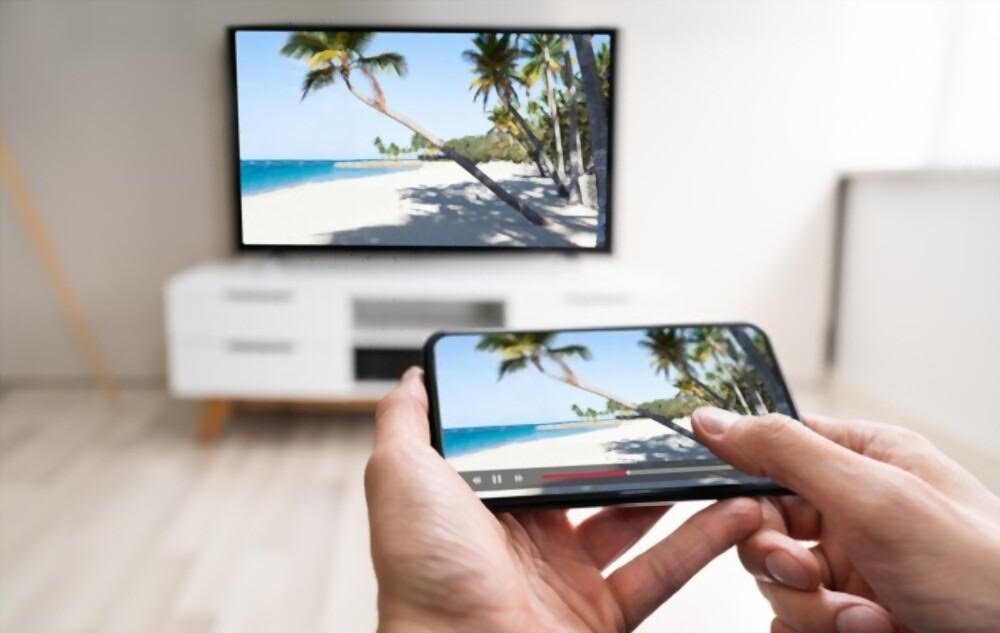
If your television isn't connected, meaning it's not a Smart TV, you can use streaming devices that connect to your TV via HDMI or USB
The Samsung Allshare Cast Dongle performs this task perfectly: once the device is connected to your screen via HDMI, select Allshare Cast in your Samsung smartphone's settings. Once your phone is paired with the Samsung Allshare Cast Dongle, screen mirroring is enabled.
If your phone isn't a Samsung, you can opt for the Google Chromecast . Its 2020 version, the Google Chromecast with Google TV, includes a remote control in addition to the USB dongle. Once the dongle (the device) is plugged in, download Google Home on your smartphone.
The Chromecast will be automatically detected after connecting to Wi-Fi and your Google account. Its advantage: it offers a wide range of content with Google TV. Finally, the Fire TV Stick is the streaming device offered by Amazon. The 2021 version of the Fire TV Stick offers ultra-fast streaming in full HD.
Its principle is simple: once the device is plugged into your TV's USB port, you use the remote control or your voice to operate your television. Thanks to Alexa voice control, you can ask to share content from your phone on your big screen, or even ask it to search for content on the internet, all simply by speaking to it.


