

KakaoTalk is a very popular instant messaging application in South Korea, boasting over 50 million monthly active users. It allows users to communicate with friends, family, and colleagues by sending text messages, images, videos, stickers, making voice and video calls, and much more. It also offers numerous additional features, such as online shopping, games, news channels, mobile payments, and more.
If you use KakaoTalk, you may know that there are several ways to log in to your account on different devices. One of these is QR code login, which allows you to scan a barcode with your smartphone to access KakaoTalk on a tablet, iPad, computer, or another smartphone. This method is convenient, fast, and secure, as it doesn't require you to enter your email address or password.
In this article, we'll explain how to connect to KakaoTalk using QR codes, detailing three different methods depending on the type of device you want to use. We'll also answer the most frequently asked questions on this topic.
Method 1: Connect to KakaoTalk on a tablet or iPad by scanning the QR code from your smartphone

If you have a tablet or iPad and want to use KakaoTalk on it, you can do so by scanning the QR code with your smartphone. Here are the steps to follow:
- On your tablet or iPad, download and install the KakaoTalk app from the App Store or Google Play Store.
- Open the application and tap “Log in”.
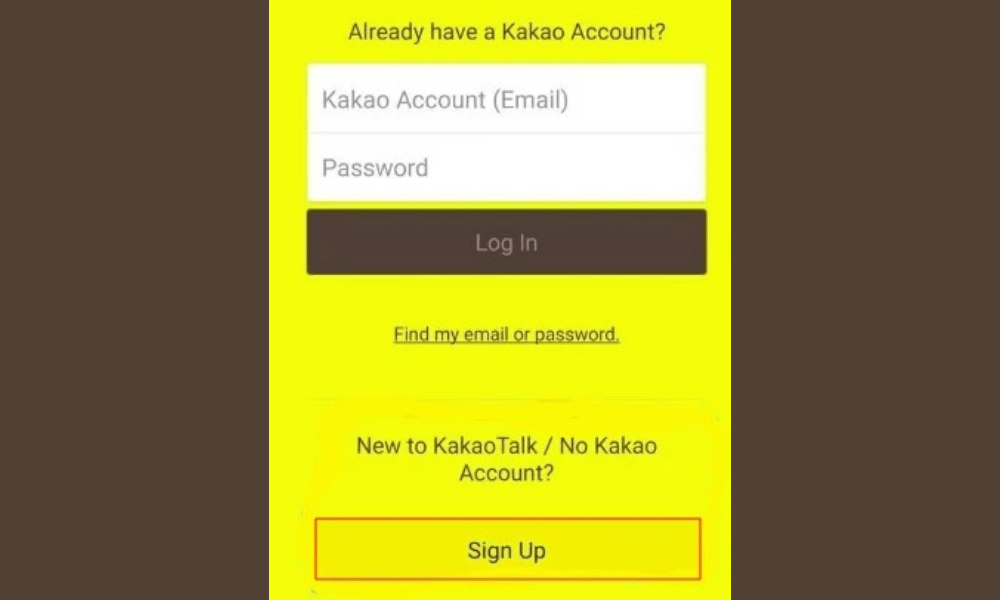
- On your smartphone, open the KakaoTalk app and tap the gear icon in the top right corner to access the settings.
- Tap on “Privacy” then on “Kakao Account”.
- Tap on “ Connection Management ” and then enable the “ Connect with QR code ” option .
- Enter your password and press “Confirm”.
- On your tablet or iPad, tap “Scan QR code” and scan the code that appears on your smartphone.

- You are now connected to KakaoTalk on your tablet or iPad.
Method 2: Connect to KakaoTalk on a computer by scanning the QR code with your smartphone
If you have a computer and want to use KakaoTalk on it, you can do so by scanning the QR code with your smartphone. Here are the steps to follow:
- On your computer, download and install the KakaoTalk application for PC from the official website here.
- Open the application and click on “Log in”.
- On your smartphone, open the KakaoTalk app and tap the gear icon in the top right corner to access the settings.
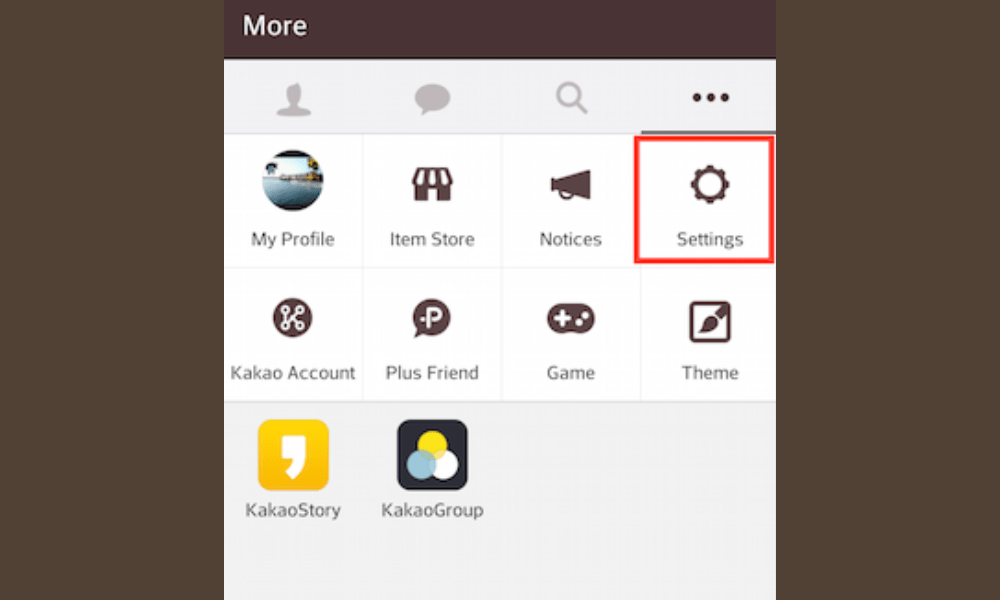
- Tap on “Privacy” then on “Kakao Account”.
- Tap on “ Connection Management ” and then enable the “ Connect with QR code ” option .
- Enter your password and press “Confirm”.
- On your computer, click on “Scan QR code” and scan the code that appears on your smartphone.
- You are now connected to KakaoTalk on your computer.
Method 3: Connect to KakaoTalk on another smartphone by scanning the QR code from your main smartphone
If you have another smartphone and want to use KakaoTalk on it, you can do so by scanning the QR code from your main smartphone. Here are the steps to follow:
- On your other smartphone, download and install the KakaoTalk app from the App Store or Google Play Store.
- Open the application and tap “Connect”.
- On your main smartphone, open the KakaoTalk app and tap the gear icon in the top right corner to access the settings.
- Tap on “Privacy” then on “Kakao Account”.
- Tap on “Connection Management” and then enable the “Connect with QR code” option.
- Enter your password and press “Confirm”.
- On your other smartphone, tap “Scan QR code” and scan the code that appears on your main smartphone.
- You are now connected to KakaoTalk on your other smartphone.
FAQs about KakaoTalk and QR codes
What is a QR code?
A QR code is a type of two-dimensional barcode that can store information such as text, links, contacts, etc. It can be read by a camera or scanner.
How do I create a QR code?
There are many websites and apps that allow you to create custom QR codes for free. For example, you can use this site to generate a QR code with the text or link of your choice.
How do I scan a QR code?
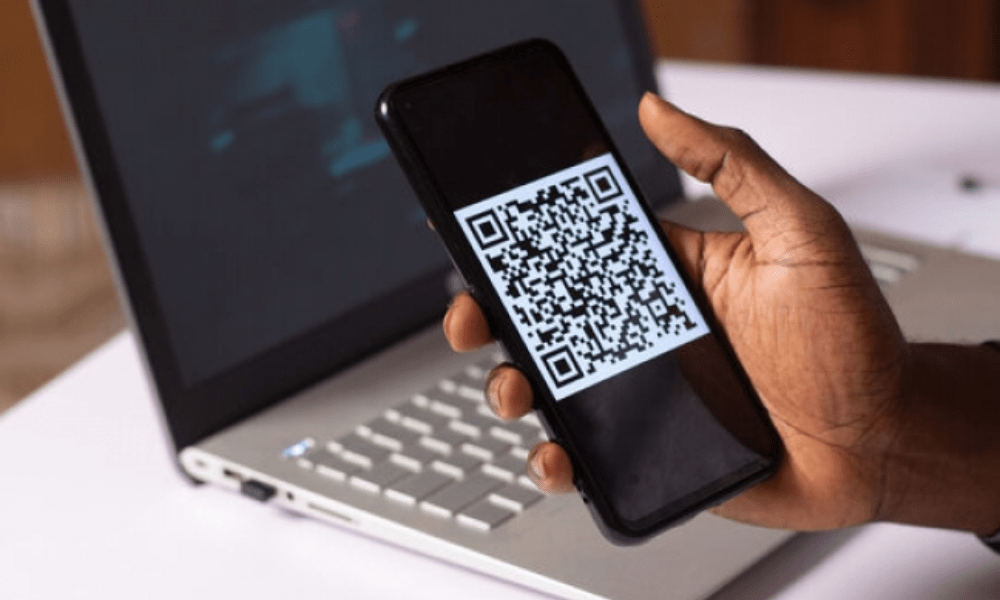
To scan a QR code, you need a device equipped with a camera or scanner. You can use your device's built-in app, such as the camera or barcode scanner, or download a dedicated app.
What is the difference between a QR code and a barcode?
A barcode is a type of one-dimensional barcode that can store information such as numbers or letters. It can be read by an optical reader or scanner. A QR code is a type of two-dimensional barcode that can store more information than a standard barcode. It can be read by a camera or scanner and can contain text, links, contact information, images, and more.
What are the advantages of KakaoTalk compared to other messaging applications?

KakaoTalk offers several advantages over other messaging applications, such as:
- It is free and ad-free.
- It is very popular in South Korea, which makes it easy to communicate with people who live there or are interested in it.
- It offers many integrated services, such as shopping, games, news channels, mobile payments, etc.
- It allows you to personalize your profile, emoticons, stickers, themes, etc.
- It guarantees the security and confidentiality of user data.
How do I log out of KakaoTalk?
To log out of KakaoTalk, you must follow these steps:
- Tap the gear icon in the top right corner of the app's main screen to access settings.
- Tap on “Privacy” then on “Kakao Account”.
- Press “Log out” and then confirm your choice.
- You are disconnected from KakaoTalk.
How do I delete my KakaoTalk account?
To delete your KakaoTalk account, you must follow these steps:
- Tap the gear icon in the top right corner of the app's main screen to access settings.
- Tap on “Privacy” then on “Kakao Account”.
- Tap “Delete account” and then confirm your choice.
- Your KakaoTalk account has been deleted.
Conclusion: The advantages of QR code login and tips for securing your KakaoTalk account

You've seen how to connect to KakaoTalk using QR codes, using three different methods depending on the type of device you want to use. This method has several advantages:
- It is convenient because it saves you from having to enter your email address or password every time you want to use KakaoTalk on another device.
- It is fast, because it allows you to connect in seconds by simply scanning a barcode with your smartphone.
- It is secure because it reduces the risk of hacking or theft of your personal data.
To fully benefit from QR code login, here are some tips to secure your KakaoTalk account :
- Choose a strong and unique password for your Kakao account, and change it regularly.
- Enable two-step verification to strengthen the protection of your Kakao account.
- Log out of KakaoTalk when you are not using the device on which you logged in via QR code.
- Do not share your QR code with unauthorized individuals or suspicious websites.
We hope this article was helpful and that you learned how to connect to KakaoTalk using QR codes. If you have any questions or comments, please leave them below. We'll get back to you as soon as possible.


