Google is the world's most popular search engine, but also an ecosystem of services and apps that let you get the most out of your Android smartphone. Whether you're browsing the web, using Google Assistant, managing your contacts, payments, subscriptions, or ads, you can customize Google to suit your needs and preferences.
In this guide, we'll explain how to access Google settings on your Android smartphone and how to modify them to personalize your experience. This guide is for beginners who want to learn how to better use Google services on their phone.
Why use the Google Settings app?
The Google Settings app is an application that allows you to manage your Google apps and services from your Android smartphone . For example, you can change your Google account settings, your data and personalization, your security, your contacts and sharing, your payments and subscriptions, as well as the Google services you use on your device, such as ads, autofill, backup, or parental controls.
The Google Settings app is useful for customizing and adjusting many settings that affect your phone's usage and performance. This allows you to fully enjoy Google services and optimize your experience with your Android smartphone.
Where can I find the Google Settings app?
The Google Settings app is usually pre-installed on Android phones . Simply look for the Settings icon on your phone, which often resembles a small gear or cog. If you can't find the Google Settings app on your phone, you can download it for free from the Play Store.

To access Google settings on your Android smartphone, you have two options:
- Settings app , then tap Google . You will then see a list of services and options that you can manage from your Google account.
- Google Settings app directly , if you have it installed on your phone.
Manage your Google account

Once you have accessed your Google settings, you can manage your Google account by tapping on Manage your Google account . You will then access a page with several tabs:
- Home : You can view a summary of your account, such as your used storage space, active subscriptions, recent notifications, or personalized tips.

- Personal information : You can update general information in your Google account, such as your name, profile picture, date of birth, gender, email address, or phone number. You can also change your Google account name and other information.

- Data and privacy : You can view your data and activity on Google services and set your preferences to get the most out of them. For example, you can manage the activities recorded in your account, such as your search, browsing, and location history. You can also choose the types of data you want to share with Google to personalize your services.

- Security : You can use settings and recommendations to secure your account. For example, you can check the devices connected to your account, enable two-step verification, change your password, or view security alerts.

- Contacts and sharing : You can manage your interactions and the information that appears on Google services. For example, you can choose which contacts you want to share your photos, videos, or documents with. You can also manage the visibility settings of your Google profile.

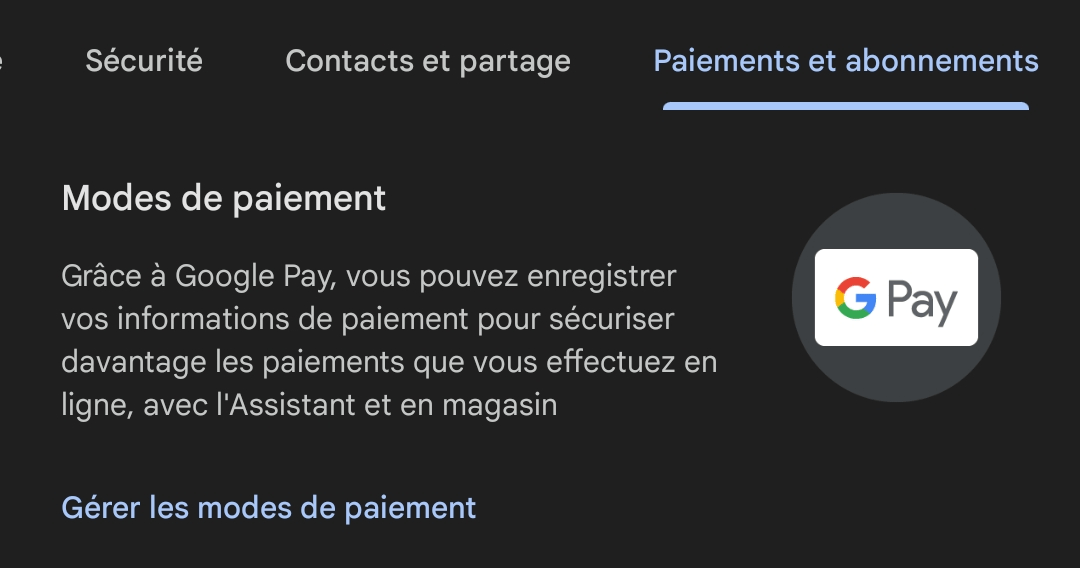
- Payments and subscriptions : You can find your payment methods, transactions, recurring payments, prepaid plans, and reservations. You can also manage your purchases on the Play Store or YouTube.
Manage Google services
In addition to managing your Google account, you can also manage the Google services you use on your Android smartphone. Under the Services , you'll see a list of services on this device that you can modify as needed. Here are a few examples:
- Ads : You can disable ad personalization or reset your advertising ID. This will allow you to see ads less relevant to your interests. You can also view ads you have hidden or reported.
- Autofill : You can manage the information Google uses to automatically fill in forms with your personal details, such as your address, payment method, or passwords. You can also enable or disable autofill for specific services, such as Chrome or Maps.
- Backup : You can manage storage space and manually back up your device. You can also choose which types of data you want to back up, such as your contacts, messages, photos, or apps.
- Locate my device : You can remotely manage the location settings and data erasure of a lost phone. You can also check your device's last known location, make it ring, lock it, or erase its data.
- Gaming Dashboard : You can manage the settings and notifications of the Gaming Dashboard during your games. For example, you can enable or disable Do Not Disturb mode, Performance mode, screenshots, or video recording.
- Parental controls : You can set up and manage parental controls on your device. For example, you can limit screen time, block certain apps or websites, or monitor your child's activity. You can also manage your child's Google account with Family Link.
Change the settings of the Google app
The Google app is the application that lets you search the web, use Google Assistant, check the news or weather forecast, and much more. You can change your Google app settings by following these steps:
- Open the Google app on your Android smartphone.
- Tap on your profile picture in the top right corner of the screen.
- Tap on Settings .

- Choose the category of settings you want to change. For example:
- General : You can change the general settings of the Google app, such as language, region, theme, or offline mode.

- Voice : You can change the voice search settings, such as language, triggering, or sensitivity.

- Previous searches : You can view or delete your previous searches on the Google app.
- SafeSearch : You can enable or disable the SafeSearch filter, which blocks explicit content in search results.

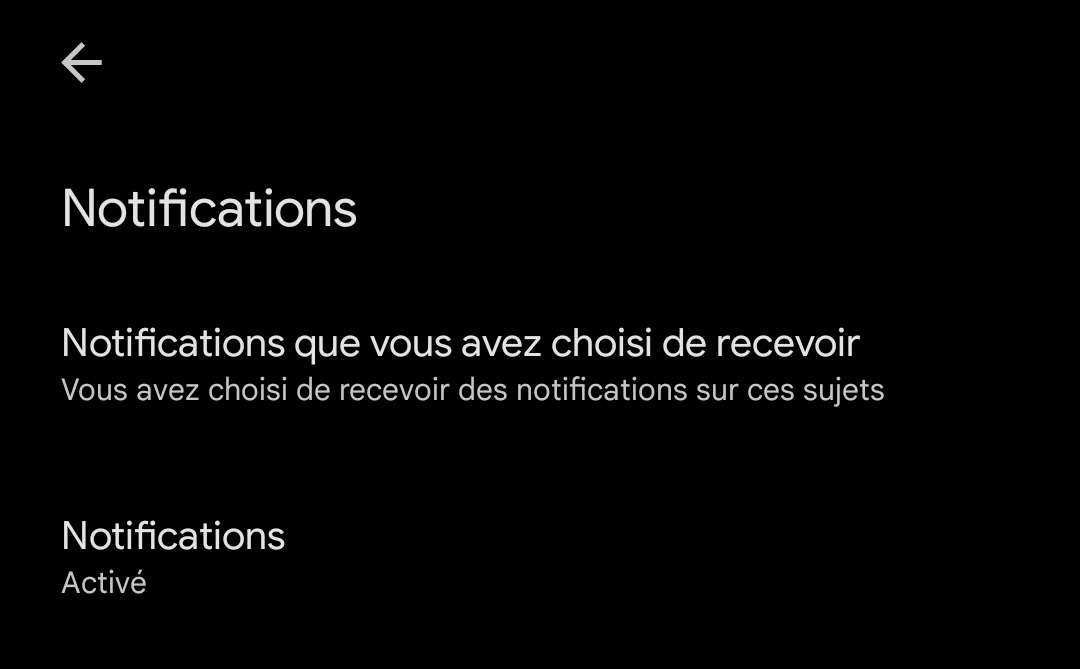
- Notifications : You can enable or disable notifications from the Google app, such as weather alerts, news, or reminders.
- General : You can change the general settings of the Google app, such as language, region, theme, or offline mode.
FAQ
How do I enable or disable ad personalization?
Ad personalization is a service that allows you to see ads more relevant to your interests on websites and apps that use Google services. If you prefer not to use this service, you can disable it in your Android smartphone's Google settings. Here's how:
- Access Google settings on your Android smartphone.
- Tap Manage your Google account .
- Tap the Data and Personalization .
- Under “Activity Controls”, tap Ad Settings .
- Ad Personalization option .
You can also reset your advertising ID, which is a unique identifier used by Google and its partners to deliver personalized ads. To do this, tap Reset advertising ID.
How do I manage autofill on my Android smartphone?
Autofill is a feature that lets you automatically fill in forms with your personal information, such as your address, payment method, or passwords. You can manage autofill in your Android smartphone's Google settings. Here's how:
- Access Google settings on your Android smartphone.
- Tap Manage your Google account .
- Click on the Services .
- Under “Services on this device”, tap Auto-enter .
- You can then enable or disable autofill for certain services, such as Chrome or Maps. You can also edit or delete the information saved in autofill.
How do I back up my Android smartphone with Google?
You can back up your Android smartphone with Google to keep your data safe in case of loss, theft, or when you switch devices. You can manage backups in your Android smartphone's Google settings. Here's how:
- Access Google settings on your Android smartphone.
- Tap Manage your Google account .
- Click on the Services .
- Under “Services on this device”, tap Backup .
- You can then choose the types of data you want to back up, such as your contacts, messages, photos, or apps. You can also check the available storage space and manually back up your device.
How can I locate my lost Android smartphone using Google?
If you've misplaced your Android smartphone, you can locate it using Google if you've previously enabled the Find My Device feature. You can manage this feature in your Android smartphone's Google settings. Here's how:
- Access Google settings on your Android smartphone.
- Tap Manage your Google account .
- Click on the Services .
- Under “Services on this device”, tap Locate my device .
- You can then enable or disable the Find My Device feature. If it is enabled, you can check your device's last known location, make it ring, lock it, or remotely erase its data.
How do I manage parental controls on my Android smartphone with Google?
A: If you have a child who uses an Android smartphone, you can manage parental controls with Google to limit screen time, block certain apps or websites, or monitor your child's activity. You can manage parental controls in your Android smartphone's Google settings. Here's how:
First, you'll need to create a Google account for your child if they don't already have one. Then, you'll need to install the Family Link app on both your device and your child's device. Finally, you'll need to link the two devices and choose the settings you want to apply to your child's account.
You can change the settings you've chosen for your child's account from the Family Link app on your device. For example, you can:
- Limit your child's screen time by setting a daily limit or a bedtime.
- Block certain applications or websites that you deem inappropriate for your child.
- Monitor your child's activity by checking their browsing history, the applications they use, or their geographical location.
- Approve or deny your child's requests to download apps, games, or movies from the Play Store.
Conversely, if you wish to remove Family Link, we recommend reading our article: How to disable Family Link without deleting your Google account?
How do I change the settings of the Google app on my Android smartphone?
The Google app is the application that lets you search the web, use Google Assistant, check the news or weather forecast, and much more. You can change the settings of the Google app on your Android smartphone. Here's how:
- Open the Google app on your Android smartphone.
- Tap on your profile picture in the top right corner of the screen.
- Tap on Settings .
- Choose the category of settings you want to change. For example:
- General : You can change the general settings of the Google app, such as language, region, theme, or offline mode.
- Voice : You can change the voice search settings, such as language, triggering, or sensitivity.
- Previous searches : You can view or delete your previous searches on the Google app.
- SafeSearch : You can enable or disable the SafeSearch filter, which blocks explicit content in search results.
- Notifications : You can enable or disable notifications from the Google app, such as weather alerts, news, or reminders.
How do I enable or disable Google Assistant on my Android smartphone?
Google Assistant is a virtual assistant that helps you find information and accomplish a multitude of tasks. You can turn Google Assistant on or off on your Android smartphone. Here's how:
- Open the Google app on your Android smartphone.
- Tap on your profile picture in the top right corner of the screen.
- Tap on Settings .
- Tap on Google Assistant .
- Under “All settings”, tap General .
- Enable or disable the Google Assistant .
How do I change the keyword “Hey Google” to activate Google Assistant on my Android smartphone?
A: The keyword “Hey Google” is the keyword you can say to activate the Google Assistant on your Android smartphone. You can change this keyword to choose a different word or phrase to trigger the Assistant. Here's how:
- Open the Google app on your Android smartphone.
- Tap on your profile picture in the top right corner of the screen.
- Tap on Settings .
- Tap on Google Assistant .
- Under “All settings”, tap Voice .
- Tap on the Hey Google voice model .
This article may interest you: OK Google, configure my device
Conclusion
You now know how to configure Google settings on your Android smartphone. This allows you to personalize your experience and get the most out of Google services and apps on your phone. Feel free to explore the different settings and modify them according to your needs and preferences. Happy browsing!