

Yahoo Mail is a free and secure email service that lets you easily manage your emails from any device. Whether you have a Yahoo , Gmail , Outlook, AOL, or AT&T , you can access your Yahoo Mail in just a few clicks. In this article, we'll explain how to log in to your Yahoo Mail account and how to download the Yahoo Mail app from the App Store .
How do I log in to my Yahoo email account?
To log in to your Yahoo email account , you need your Yahoo username and password. If you don't already have a Yahoo account, you can create one for free by following the instructions on this page .
Here are the steps to follow to log in to your Yahoo email account from a computer:
First of all,
- Click on the “Login” button in the top right corner of the page.
- Enter your Yahoo ID in the “Username, email or phone” field and click “Next”.

- Enter your Yahoo password in the “Password” field and click “Login”.
- If the information entered is correct, you will be redirected to your Yahoo mailbox.
You can also access your Yahoo Mail inbox using the Yahoo Mail mobile app, available on iOS and Android. Here's how:
- Download the Yahoo Mail app from the App Store or Google Play Store depending on your operating system.
- Open the application and tap the “Log in” button.
- Enter your Yahoo username and password and press “Next”.
- If the information entered is correct, you will access your Yahoo mailbox.
How do I download the Yahoo Mail app from the App Store?
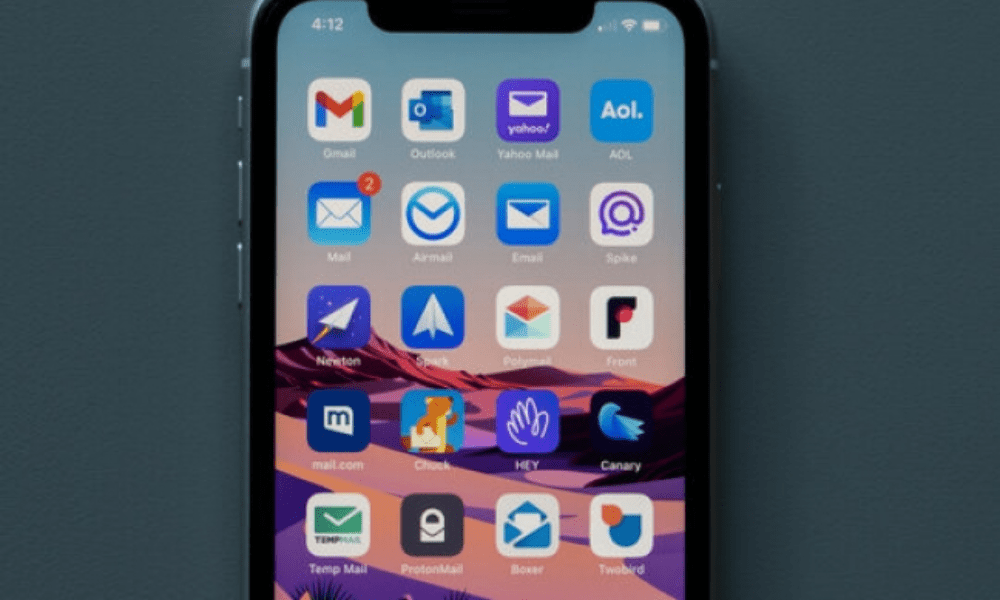
To download the Yahoo Mail app from the App Store, you must have a device compatible with iOS 12.0 or later. Here are the steps to follow:
- Open the App Store on your iOS device.
- Type “Yahoo Mail” in the search bar and press the magnifying glass.
- Select the application “Yahoo Mail: your email inbox” from the results.
- Press the “Get” button to install the application.
- Once the installation is complete, press the “Open” button to launch the application.
You can now log in to your Yahoo Mail account or create a new one if you don't already have one.
The Yahoo Mail app is a free application that lets you manage your emails from your iPhone, iPad, or iPod touch. It offers many convenient features, such as:
- The ability to manage multiple email accounts (Yahoo, Gmail, Outlook, AOL, AT&T) from a single interface.
- The ability to customize the app's appearance with themes and colors.
- The ability to send and receive GIFs, photos, documents, and large files.
- The ability to sort your emails by category (Social networks, Travel, Promotions, etc.) and delete them in one step.
- The ability to access other Yahoo services, such as news, weather, sports, or finance.
See also: Zimbra free
FAQ
Here are some frequently asked questions from Yahoo Mail users:
How do I recover my Yahoo password?

If you have forgotten your Yahoo password , there are several ways to recover it and regain access to your account. Here are the different methods available:
- Use the Sign-In Assistant, Yahoo's password reset and account recovery toolTo do this, you must have access to a backup phone number or email address that you registered when creating your Yahoo account. Here are the steps to follow:
- Go to https://login.yahoo.com/forgot in a web browser.
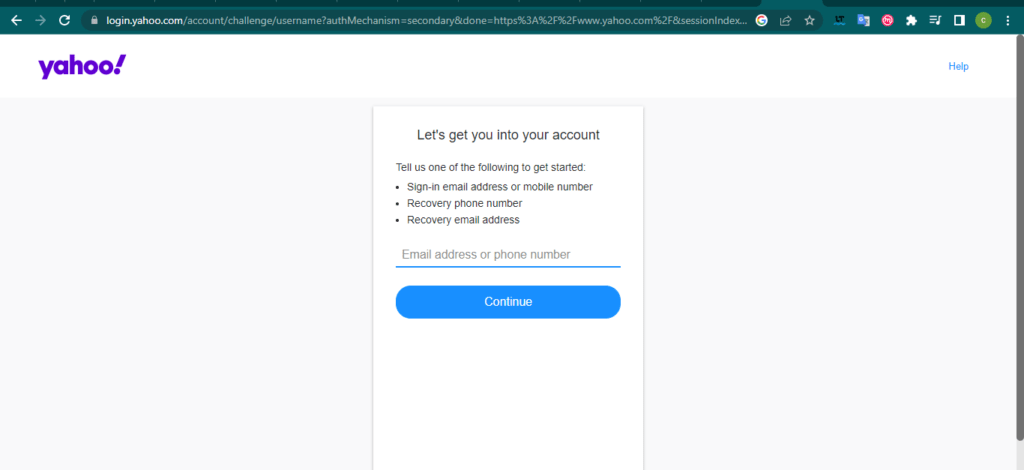
- Enter your Yahoo email address and then click Continue.
- Check your address or emergency number and choose the option that suits you (Send a text message, Send an email or Call me).
- Find the verification code in the Yahoo message and enter it in the field provided for this purpose.
- Click Continue. That's it, you've recovered your account.
- Select Create a new password and follow the on-screen instructions.
- Use the security questions you set when you created your Yahoo account. This option is only available if you haven't activated Account Key or Two-Step Verification. Here are the steps to follow:
- Go to https://login.yahoo.com/forgot in a web browser.
- Enter your Yahoo email address and then click Continue.
- Click on Use my secret questions.
- Answer the two secret questions you set up when you registered and click Next.
- Type your new password twice and then click Next.
- Contact Yahoo customer support if none of the previous methods work. You will need to provide personal information and proof of identity to verify that you are the account owner. You can reach customer support by phone at 0805 540 969 or by email at fr-support@yahoo-inc.com .
How do I change my Yahoo password?
If you know your current password but want to change it for security or convenience, you can easily do so from your Yahoo account settings. Here are the steps:
- Log in to the Yahoo Account security page.
- Click on Change Password.
- Enter a new password and confirm it, then click Continue.
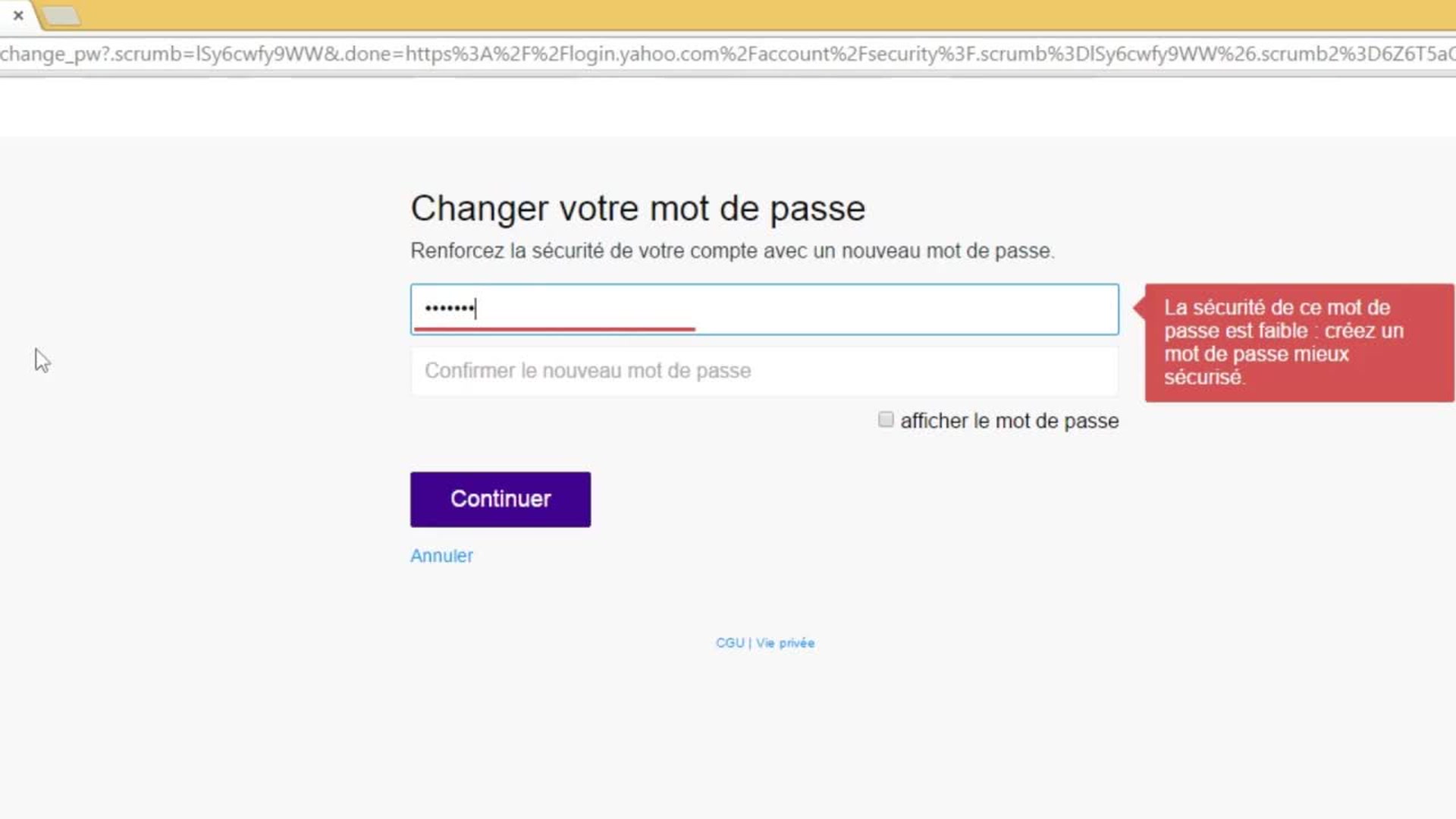
You can also change your password from the Yahoo Mail mobile app , available on iOS and Android. Here's how:
- Open the application and tap the menu icon.
- If you are using the Yahoo Mail app, tap Manage Accounts.
- Tap on " Account Info " then on " Security Settings ".
- Enter your security code.
- Tap Change password and then I prefer to change my password.
- Enter the new password and confirm it, then press Continue.
How do I delete my Yahoo account?
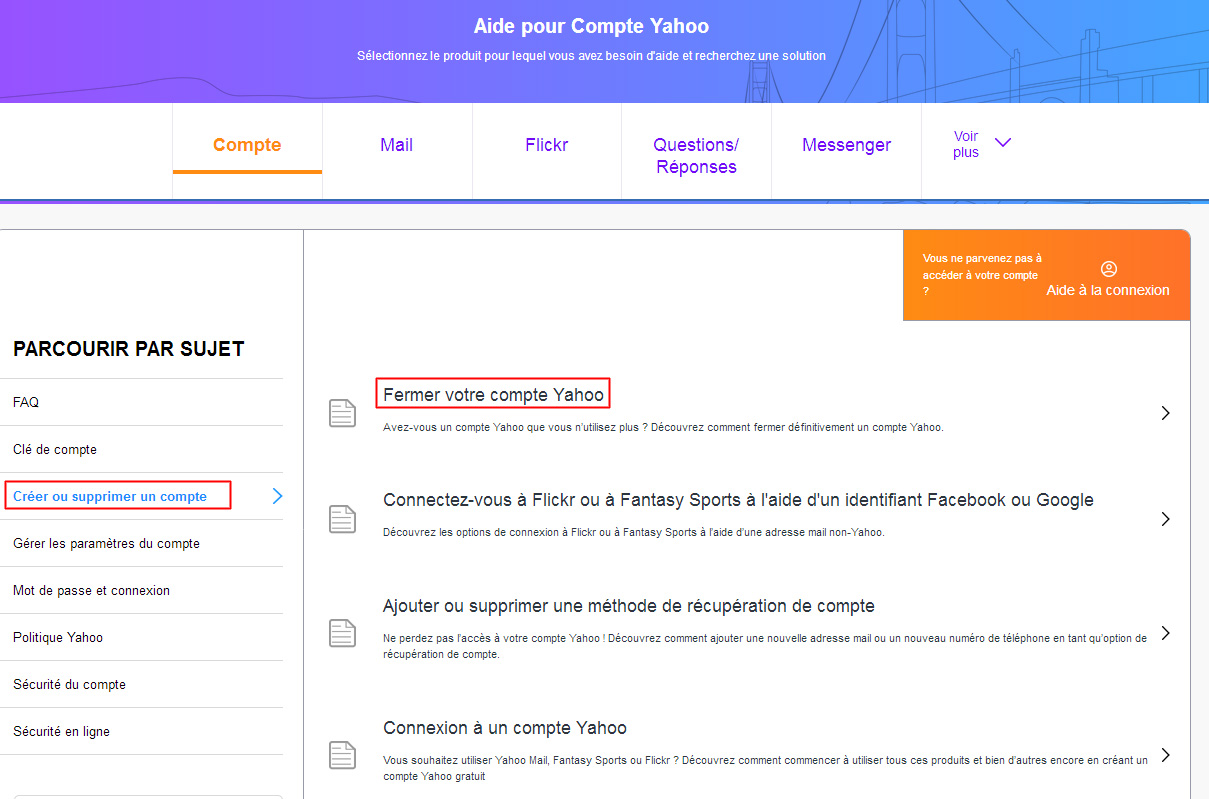
If you no longer wish to use your Yahoo account , you can permanently delete it. Please note that this action will result in the loss of all data and content associated with your account, including your emails, contacts, Flickr photos, paid subscriptions, and Yahoo Finance wallets. Additionally, your Yahoo ID will be available for reuse by other users after a certain period.
Before deleting your Yahoo account , make sure to:
- Back up the data you wish to keep, either by downloading it from your privacy dashboard or by transferring it to another account.
- Cancel paid services and settle any outstanding account balances by visiting My Subscriptions.
- Inform your contacts of your new email address if you change email providers.
- Check that you are not using your Yahoo account to log in to other online services, such as Facebook , Twitter or Amazon .
Once you are ready to delete your Yahoo account , here are the steps to follow:
- Log in to the Yahoo account cancellation page.
- Read the information regarding the closure of your account and the resulting consequences.
- Enter your password and the CAPTCHA code to confirm your identity.
- Click on Continue deleting my account.
- Click on Yes, close this account to confirm your choice.
Your Yahoo account will then be deactivated and scheduled to be deleted. You have 30 days to change your mind and reactivate your account by signing in again. This period is 90 days for accounts registered in Australia or New Zealand, and 180 days for those registered in Brazil, Hong Kong, Taiwan, or India.
If you are having trouble deleting your Yahoo account or need further assistance, you can contact Yahoo customer support by phone at 0805 540 969 or by email at fr-support@yahoo-inc.com.
How do I create a Yahoo account?
If you want to take advantage of Yahoo's free services, such as Yahoo Mail , Yahoo Finance, Yahoo News, or Flickr, you need to create a Yahoo account. It's quick and easy; you just need to provide some personal information, like your name, date of birth, phone number, and password. You can also use an existing email address from any email provider to create your Yahoo account.
Here are the steps to follow to create a Yahoo account from a computer:
- Go to the Yahoo account opening page.

- Enter your information in the required fields: first name, last name, desired email address (or existing one if you choose the My email address option), password, phone number and date of birth.
- Click Continue and follow the on-screen instructions to confirm your mobile phone number. You will receive a verification code via SMS or call, which you will need to enter in the designated field.
- Click Continue. Congratulations, you have created your Yahoo account.
You can also create a Yahoo account from the Yahoo Mail mobile app, available on iOS and Android. Here's how:
- Download the Yahoo Mail app from the App Store or Google Play Store depending on your operating system.
- Open the application and tap Sign up.
- Enter your information in the required fields: first name, last name, desired email address (or existing one if you choose the My email address option), password, phone number and date of birth.
- Tap Continue and follow the on-screen instructions to confirm your mobile phone number. You will receive a verification code via SMS or call, which you will need to enter in the designated field.
- Tap Continue. Congratulations, you have created your Yahoo account.
Once you've created your Yahoo account , you can access all the Yahoo services you want using your username and password. You can also personalize your account by adding a profile picture, changing your preferences, or managing your personal information.
How do I log out of Yahoo Mail?
If you use Yahoo Mail on a shared computer or device, it's recommended that you sign out of your account at the end of your session to protect your personal data and prevent others from accessing your mailbox. Here's how:
- From a computer, go to the website https://fr.mail.yahoo.com/ and log in to your account if you haven't already done so.
- Click on your avatar in the top right corner of the page.
- Click on Sign out. You will be redirected to the Yahoo homepage.
- From the Yahoo Mail mobile app, open the app and tap the menu icon.
- If you are using the Yahoo Mail app, tap Manage Accounts.
- Tap on Account Info and then on Log Out.
- Confirm your choice by pressing Logout.
You can also sign out of all devices connected to your Yahoo account using your account's security settings. Here's how:
- Log in to the Yahoo Account security page.
- Click on Manage devices and sessions.
- Click Sign out next to the device or session you want to close. You can also click Sign out of all devices to sign out all at once.
How do I configure Yahoo Mail on Outlook?

If you want to access your Yahoo emails from Outlook, Microsoft's email client, you need to configure your Yahoo Mail account in Outlook using IMAP or POP server settings. These protocols allow you to synchronize your emails between Yahoo's server and your email client.
Before setting up your Yahoo Mail account on Outlook , you must:
- Enable IMAP or POP access in your Yahoo Mail account settings. To do this, log in to your Yahoo Mail account, click the settings icon in the top right corner, and then click More settings. In the left-hand menu, click Email accounts, and then click your Yahoo account. Under Account access, enable the option Allow apps that use a less secure password.
- Generate an app password for Outlook . This password is different from your regular Yahoo Mail password and is required to use two-factor authentication. To generate it, sign in to your Yahoo Mail account, click the settings icon in the top right corner, and then click Account Info. In the left-hand menu, click Account Security, and then click Manage App Passwords. Select Outlook from the drop-down list, and then click Generate. Copy the app password and keep it for future reference.
Once you have enabled IMAP or POP access and generated an application password for Outlook, you can configure your Yahoo Mail account in Outlook by following these steps:
- Open Outlook and click on the File tab.
- Click on Add an account.
- Enter your Yahoo email address and click on Advanced Options.
- Check the box "Configure my account manually" and click on "Login".
- Choose the type of account you wish to use: IMAP or POP. We recommend using IMAP as it allows bidirectional synchronization between the server and the client.

- Enter the IMAP or POP server settings, depending on your preference. Here are the settings to use:
- For IMAP :
- Incoming server: imap.mail.yahoo.com
- Incoming port: 993
- Encoding type: SSL/TLS
- Outgoing server: smtp.mail.yahoo.com
- Outgoing port: 465 or 587
- Encoding type: SSL/TLS
- For POP :
- Incoming server: pop.mail.yahoo.com
- Incoming port: 995
- Encoding type: SSL/TLS
- Outgoing server: smtp.mail.yahoo.com
- Outgoing port: 465 or 587
- Encoding type: SSL/TLS
- For IMAP :
- Click Next.
- Enter the application password you generated earlier and click Login.
Your Yahoo Mail account is now configured on Outlook and you can send and receive emails from the software.
Conclusion
Yahoo Mail is a free and secure email service that lets you easily manage your emails from any device. You can access your Yahoo Mail inbox by signing in with your Yahoo username and password, or by using the Yahoo Mail mobile app . You can also set up your Yahoo Mail account in Outlook to check your emails from within Microsoft's software . If you don't already have a Yahoo account, you can create one for free by providing some personal information. If you wish to delete your Yahoo account , you can do so by following the instructions in this article, but be aware that this action will result in the loss of all your data and content associated with your account, including your emails, contacts, Flickr photos, paid subscriptions, and Yahoo Finance wallets . Furthermore, your Yahoo username will be available for reuse by other users after a certain period. We therefore advise you to think carefully before making this decision and to back up any data you wish to keep.


