

VNC is a protocol that allows you to remotely control a computer through a graphical interface . It's very useful for troubleshooting, administering, or accessing files on another PC without having to physically go there . In this article, we'll explain how to open and use a VNC port to control a computer remotely .
What is a VNC port?

VNC stands for Virtual Network Computing . It is a set of free software that uses the RFB ( Remote Frame Buffer ) protocol to transmit images, mouse movements, and keyboard input between two computers connected to a network.
A VNC port is the number that identifies the communication channel between the VNC server and the VNC client . The VNC server is the program that runs on the remote computer and shares its screen and input devices. For the VNC server to function correctly, it is sometimes necessary to disable programs that start automatically Windows which can interfere with the connection. The VNC client is the program that runs on the local computer and displays the VNC server screen and sends mouse and keyboard commands.
The default VNC port is TCP 5900, but this can be changed as needed. For example, if you want to control multiple remote computers with different VNC ports , you can use TCP 5901 for the first, TCP 5902 for the second, and so on. You also need to open TCP port 5800 if you want to use the VNC client's web interface.
How to use a VNC port to control a computer remotely?

To use a VNC port to control a remote computer, you need to install the VNC client software on the local computer and connect to the VNC server by providing its IP address or domain name and VNC password.
Several VNC client software programs are also available, such as RealVNC, TightVNC, and UltraVNC. Their installation and use vary depending on the operating system and version. Therefore, you should refer to the documentation provided with your chosen software.
For example, to use RealVNC on Windows 10, you need to follow these steps:
Step 1 : Download and run the RealVNC installation file from the official website
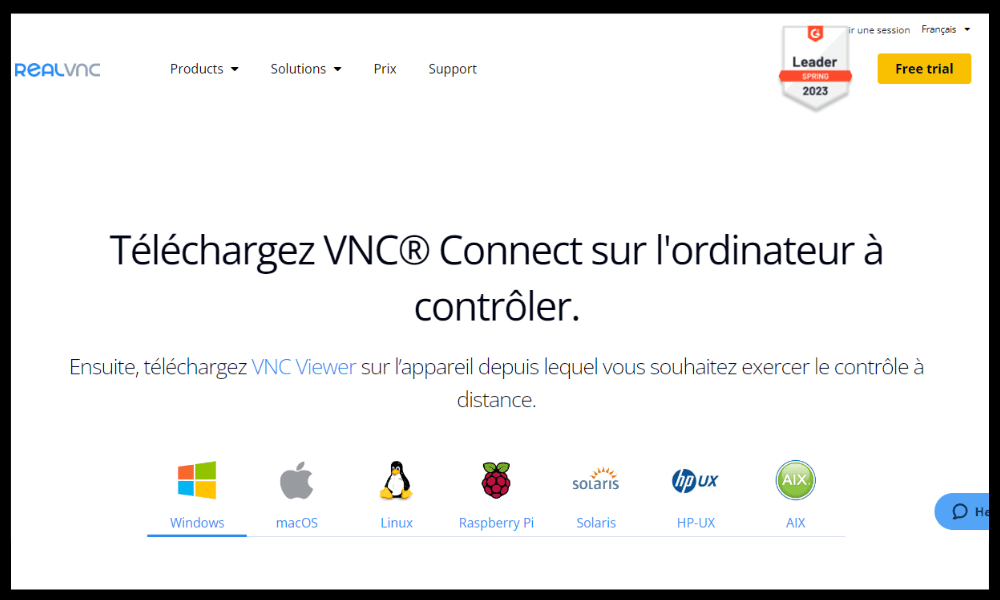
Step 2 : Choose the "Viewer" option when selecting the components to install.
Step 3 : Accept the terms of use, click "Install" and press "Finish" once the installation is complete.
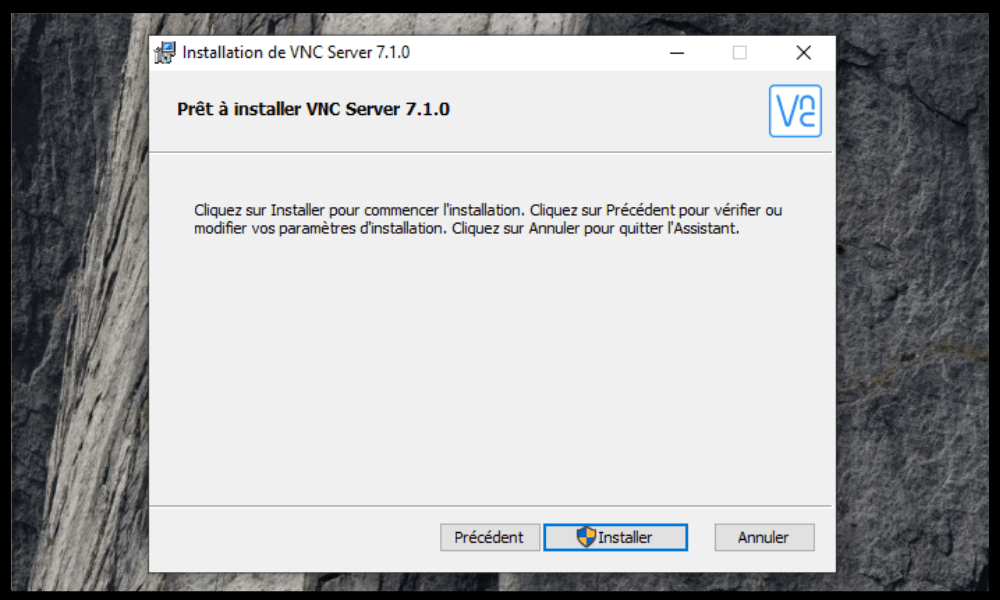
Step 4 : Open the RealVNC Viewer program from the Start menu
Step 5 : Enter the IP address or domain name of the VNC server in the address bar and press Enter
Step 6 : Enter the VNC server password when prompted

Step 7 : Click "OK" to establish the connection
Once the connection is established, you can view and control the VNC server's screen as if you were sitting in front of it. You can also use the VNC client's toolbar to access additional options , such as changing the display mode, sending special key combinations , or transferring files .
How do I configure a VNC port on a remote computer?

To configure a VNC port on a remote computer, you need to install the VNC server software and assign a VNC password on that computer. You also need to ensure that the chosen VNC port is open on the VNC server's firewall.
Several VNC server software options exist, such as RealVNC, TightVNC, and UltraVNC. Their installation and configuration vary depending on the operating system and version. Therefore, you should refer to the documentation provided with your chosen software.
For example, to install RealVNC on Windows 10, you need to follow these steps:
- Download and run the RealVNC installation file from the official website
- Select the "Server" option when choosing the components to install
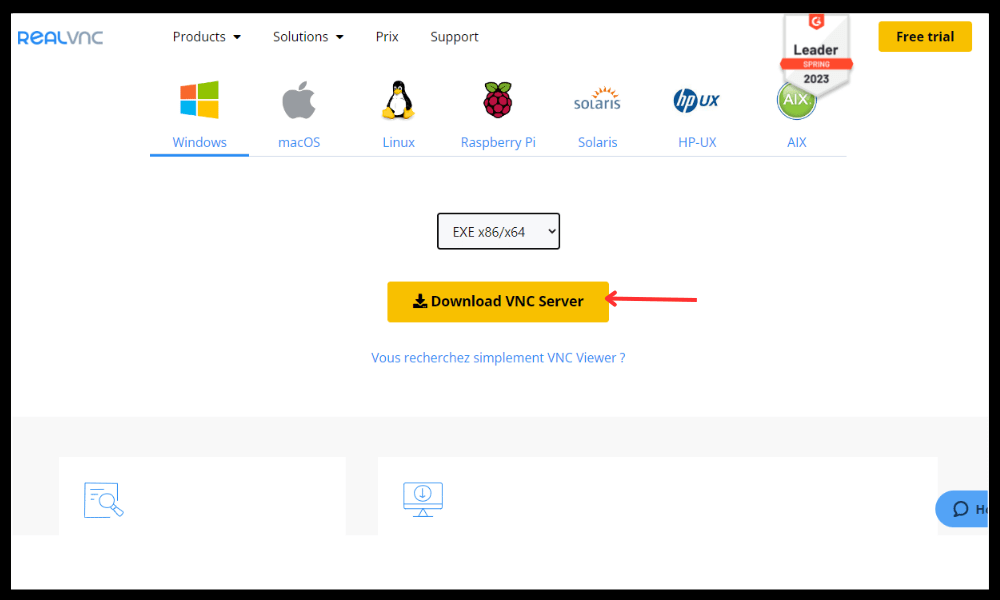
- Accept the terms of use and click "Install"
- Enter a VNC password when prompted
- Click on "Finish"
- Open the RealVNC icon in the taskbar and click on "Options"
- Go to the "Connections" tab and verify that TCP port 5900 is correctly entered in the "Primary Port" field
- Go to the "Security" tab and check the "Require system authentication" box if you want to restrict access to the VNC server to local users
- Click "OK" to save the changes
To open TCP port 5900 on the Windows 10 firewall, follow these steps:
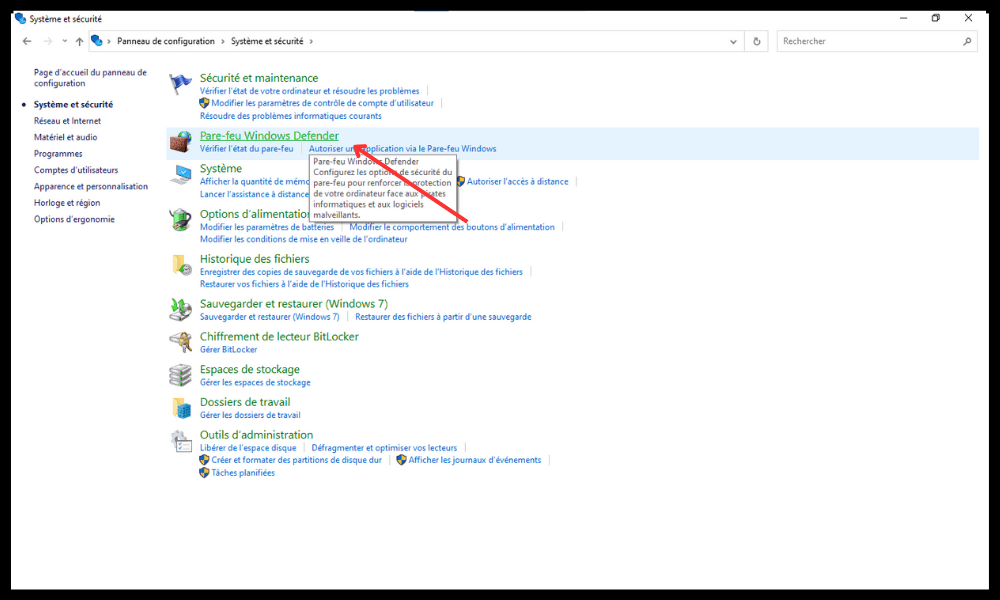
- Open the Control Panel and click on "System and Security"
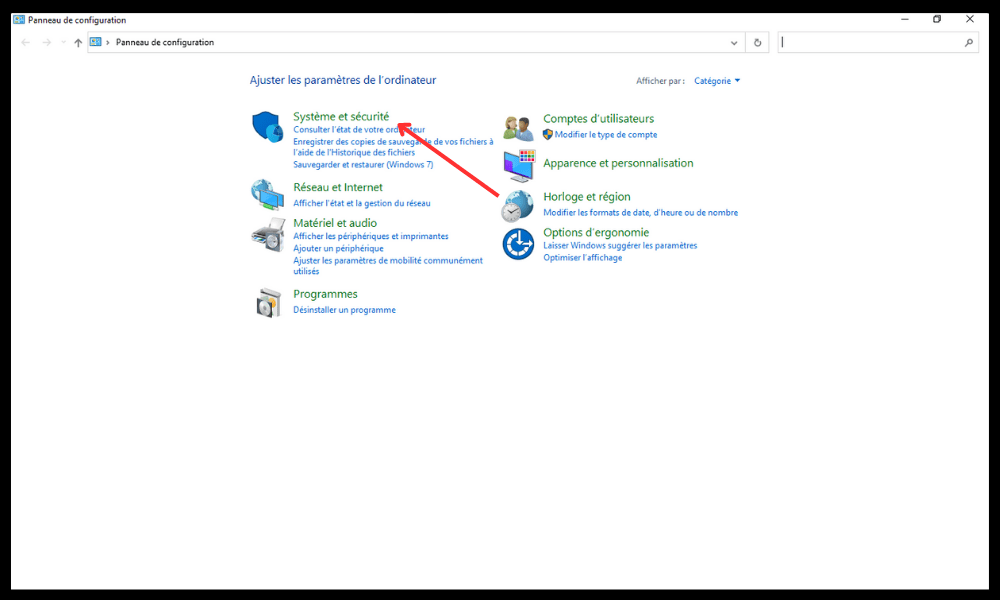
- Click on " Windows Defender Firewall"
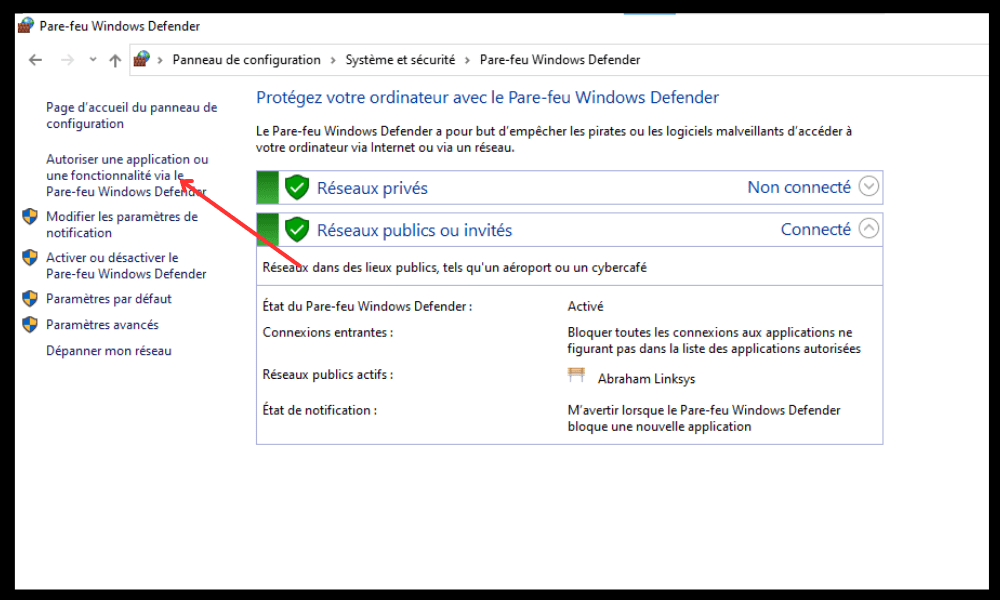
- Click on "Allow an app or feature through Windows Defender Firewall" in the left-hand menu
- Click on "Edit settings" and enter the administrator password if necessary
- Check the "VNC Server" box in the list of allowed applications

- Click "OK" to confirm the changes
VNC port FAQ

Here are some frequently asked questions about the VNC port:
What is the difference between VNC and RDP?
RDP stands for Remote Desktop Protocol . It is a proprietary protocol developed by Microsoft that allows you to Windows computer remotely Windows operating system and does not require the installation of third-party software. It offers better performance and security than VNC, but it is less compatible with other operating systems.
VNC, on the other hand, is an open-source protocol that allows you to control any computer remotely, regardless of its operating system. It requires the installation of server and client software on both computers. It offers greater flexibility and compatibility than RDP, but it is less performant and less secure.
How do I change the VNC port on an existing computer?
To change the VNC port on an existing computer , you must modify the corresponding setting in the VNC server software and restart the service. You must also modify the VNC server's firewall to allow the new port. Finally, you must specify the new port in the VNC client software when connecting.
For example, to change the VNC port from 5900 to 5901 with RealVNC on Windows 10, you need to follow these steps:
- Open the RealVNC icon in the taskbar and click on "Options"
- Go to the "Connections" tab and enter 5901 in the "Primary Port" field
- Click "OK" to save the changes
- Open Task Manager and stop the "vncserver.exe" process
- Open the Control Panel and click on "System and Security"
- Click on " Windows Defender Firewall"
- Click on "Allow an app or feature through Windows Defender Firewall" in the left-hand menu
- Click on "Edit settings" and enter the administrator password if necessary
- Uncheck the "VNC Server" box in the list of allowed applications
- Check the "VNC Server (User Mode)" box in the list of allowed applications
- Click "OK" to confirm the changes
How to secure a VNC port?
To secure a VNC port , you must use a strong VNC password that is different from the password of a local user or the Remote Desktop administrator. You must also encrypt network data between the VNC server and the VNC client, for example, using an SSH tunnel or a VPN. Finally, you must restrict access to the VNC server to only authorized users , for example, using system authentication or an IP address whitelist.
For example, to encrypt network data with RealVNC on Windows 10, you need to follow these steps:
- Open the RealVNC icon in the taskbar and click on "Options"
- Go to the "Security" tab and check the box "Encrypt all network data"
- Click "OK" to save the changes
What are the advantages and disadvantages of the VNC port?
The advantages of the VNC port are:
- It allows you to control a computer remotely without having to travel
- It is compatible with all operating systems
- It is easy to install and configure
- It is free and open source
The disadvantages of the VNC port are:
- It consumes a lot of bandwidth and system resources
- It is less efficient and less secure than other remote control protocols
- It may be blocked by some firewalls or routers
How to choose the best VNC software?
To choose the best VNC software , several criteria must be taken into account, such as:
- Compatibility with the operating systems of the computers to be controlled
- The features offered include file transfer, chat, full-screen mode, etc.
- Ease of use and configuration
- The level of data security and encryption
- The cost and license of the software
There are many VNC software options on the market, such as RealVNC, TightVNC, UltraVNC, TigerVNC, etc. It is therefore necessary to compare the advantages and disadvantages of each and choose the one that best suits your needs and budget.
Conclusion
VNC is a protocol that allows you to control a computer remotely via a graphical interface . It's very useful for troubleshooting, administering, or accessing files on another PC without having to travel there . To use a VNC port, you need to install VNC server software on the remote computer and VNC client software on the local computer. You also need to configure and secure the chosen VNC port on both computers. Several VNC software programs are available, such as RealVNC , TightVNC , and UltraVNC . Therefore, you should choose the best VNC software based on your needs and budget.
We hope this article has been helpful in understanding and using the VNC port. If you have any questions or comments, please feel free to leave them below.


