

WinVNC is software that allows you to remotely control a Windows from another device using the VNC ( Virtual Network Computing ) protocol. It acts as a VNC server , making the Windows accessible through a VNC client, such as VNC Viewer. In this article, we'll explain what WinVNC is, how to use it, and how to remove it if you no longer need it.
What is WinVNC?

WinVNC is a free and open-source software that allows you to share the screen of a Windows with another device , whether it's running Windows , macOS, Linux, iOS, or Android. It's a VNC server that must be installed on the computer to be controlled, and which communicates with a VNC client installed on the controlling device. For communication to work, the VNC port must be configured on both the server and the client, usually port 5900 by default.
WinVNC works on Windows 95, Windows NT 4.0, and all later versions of Windows . It does not require replacing system files or running operating system-specific versions of the program. It is a standard application that can be launched from the Start and closed just as easily.
WinVNC allows you to remotely control your existing Windows without creating a separate desktop environment. This means that only one graphical user can be connected to the remote computer at a time. If you want to create independent virtual desktops , you can use other solutions such as TightVNC or UltraVNC .
How do I use WinVNC?
To use WinVNC, you must follow these steps:
- Download and install WinVNC on the computer you want to control remotely. You can download it MIT website
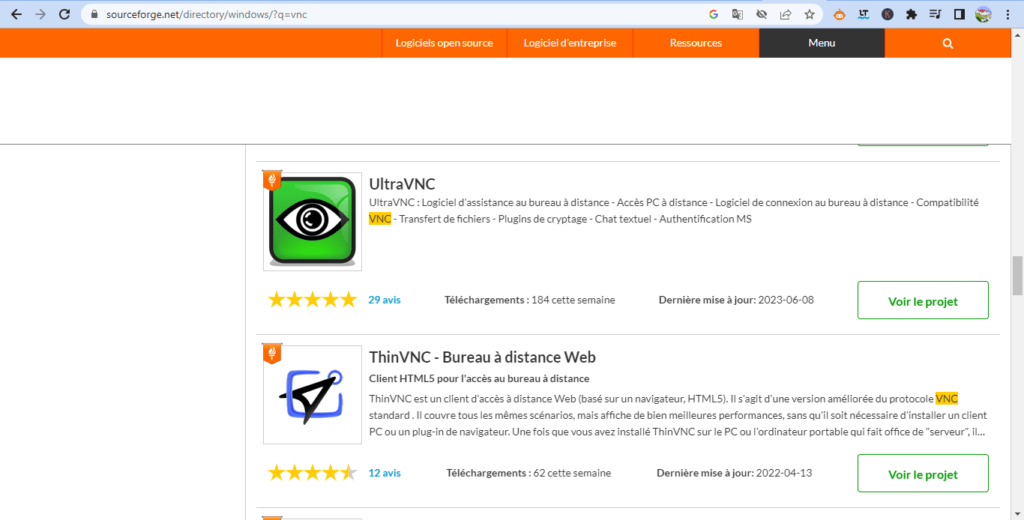
- Launch WinVNC Start menu or the taskbar. You will see an eye-shaped icon in the notification area.
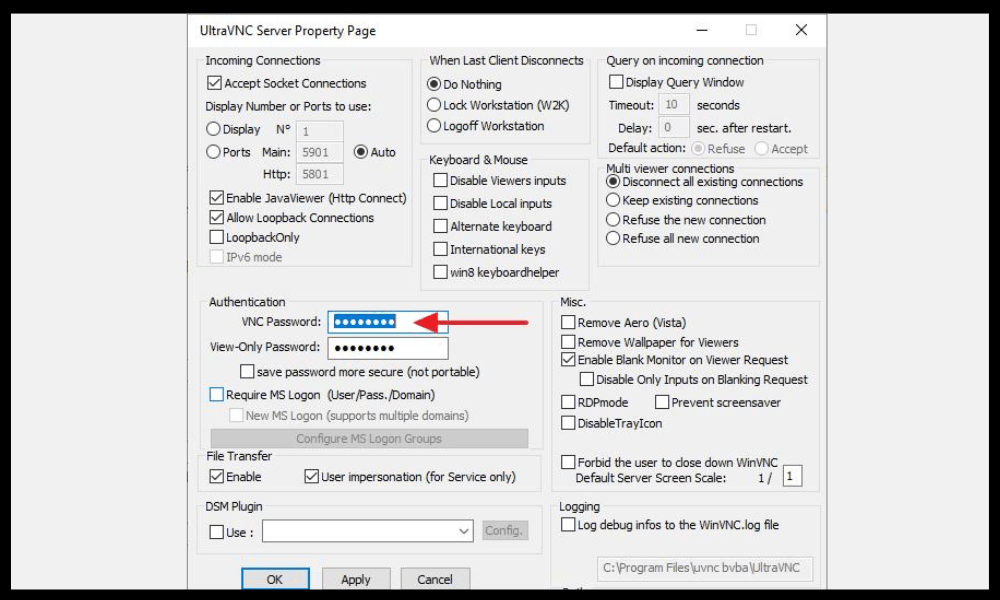
- Right-click on the WinVNC icon and choose Properties . You can then configure the VNC server options, such as the password, port, image quality, etc.

- Download and install a VNC client on the device from which you want to control the remote computer. You can use VNC Viewer , which is compatible with WinVNC, or any other VNC client of your choice.

- Launch the VNC client and enter the IP address or hostname of the remote computer, followed by the port number if necessary. For example, if the IP address is 192.168.1.10 and the port is 5900, enter 192.168.1.10:5900. If you don't know the IP address or hostname of the remote computer, you can try to find it using the ping or nslookup command in the command prompt. If you are unable to find it, you may be experiencing a network connection or DNS configuration . In this case, you may see the following error message: The server's IP address could not be found .
- Enter the password you set in the WinVNC properties and click OK . You should then see the remote computer's Windows
- Use your keyboard and mouse to control the remote computer as if you were sitting in front of it. You can also use touch gestures if you are using a mobile device.
How do I uninstall WinVNC?
If you no longer need WinVNC, you can easily remove it from your computer. To do so, simply:
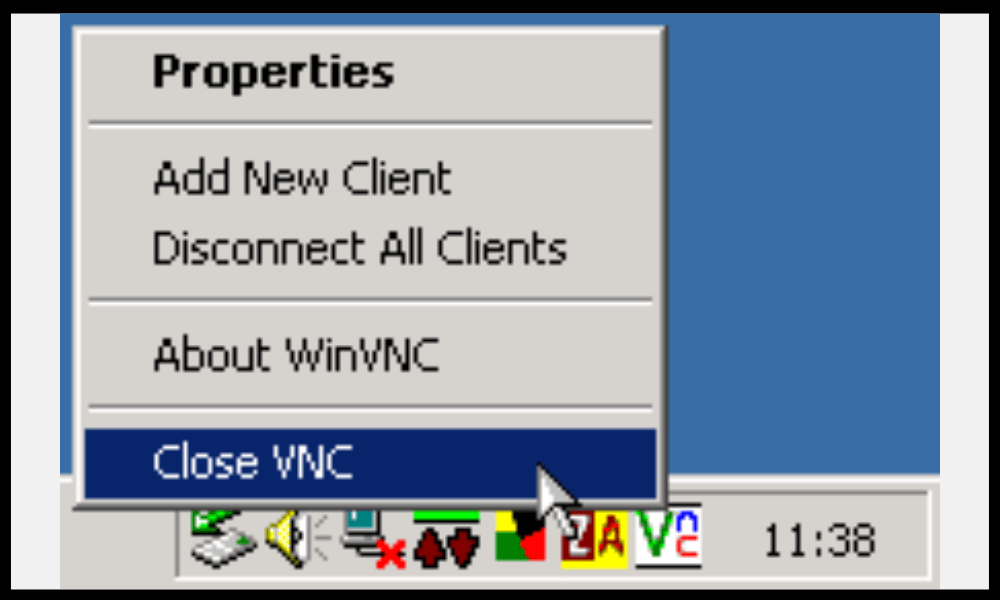
- Close WinVNC by right-clicking on its icon in the notification area and choosing Close .
- Windows WinVNC using the Windows control panel or by running the uninstall.exe program in the WinVNC installation folder.
- Optionally delete any residual files in the installation folder or in the registry.
WinVNC FAQ
To complement this article, here is a list of frequently asked questions about WinVNC, with their answers:
Is WinVNC secure?
WinVNC uses 8-bit encryption to protect the data exchanged between the server and the client. This is not sufficient to guarantee optimal security, especially if you are using WinVNC over the internet . We therefore recommend using a VPN or an SSH tunnel to strengthen the security of your connection .
Is WinVNC compatible with other VNC servers or clients?

WinVNC is compatible with most VNC clients , such as VNC Viewer, TightVNC Viewer, and UltraVNC Viewer. It can also be controlled by other VNC servers, such as RealVNC Server or TigerVNC Server . However, some advanced features may not be supported depending on the version and protocols used.
How to access multiple computers with WinVNC?
If you want to control multiple computers with WinVNC , you need to install and configure the VNC server on each computer, using different ports. For example, you could use port 5900 for the first computer, port 5901 for the second, and so on. Then, you need to enter the corresponding IP address and port number into the VNC client to access each computer.
How to change the resolution or color of the remote screen with WinVNC?
You can change the resolution or color of the remote screen with WinVNC by modifying the VNC server options in WinVNC's properties. You can choose between several color modes, ranging from black and white to 32-bit. You can also adjust the resolution according to your screen size or bandwidth .
How to transfer files between the local computer and the remote computer using WinVNC?

WinVNC does not allow file transfers between the local computer and the remote computer. If you wish to perform this operation, you must use other software, such as FTP , SMB , or Dropbox . You can also use a VNC client that includes a file transfer function, such as TightVNC Viewer or UltraVNC Viewer .
How to print from a remote computer using WinVNC?
WinVNC does not allow printing from the remote computer . If you wish to do this, you must use other software, such as Google Cloud Print or Remote Print . You can also use a VNC client that includes a remote printing function, such as RealVNC Viewer or UltraVNC Viewer.
How to use the sound from the remote computer with WinVNC?
WinVNC does not allow the use of audio from the remote computer . If you wish to do this, you must use other software, such as TeamViewer or AnyDesk. You can also use a VNC client that includes a remote audio function, such as RealVNC Viewer or UltraVNC Viewer .
How to use the remote computer's clipboard with WinVNC?
WinVNC allows you to use the clipboard of the remote computer, meaning you can copy and paste text between the two devices. To do this, simply use the usual keyboard shortcuts ( Ctrl+C and Ctrl+V ) or the context menus ( Copy and Paste ). However, this function does not always work correctly depending on the version and applications used.
There you have it, you now know everything about WinVNC: what it is, how to use it, and how to remove it. We hope this article was helpful and that you were able to successfully Windows computer remotely . If you have any questions or comments, please feel free to let us know.


