
Vertical Sync , or VSync , is a feature that synchronizes the frame rate of your game or application with your monitor's refresh rate. Its purpose is to prevent screen tearing , a phenomenon that occurs when frames are misaligned, giving the impression that the image is horizontally split. Vertical Sync can improve the visual quality of your games and applications, but it can also have drawbacks, such as reduced performance or stuttering. In this article, we'll explain how to enable and disable Vertical Sync according to your needs and preferences.
What is vertical synchronization?

Vertical synchronization (VSync) is a technique that limits the frame rate of your game or application to your monitor's refresh rate. For example, if your monitor has a 60Hz refresh rate, VSync will prevent your game or application from exceeding 60 frames per second (FPS). This ensures that each frame is displayed as the monitor refreshes, preventing screen tearing.
There are several ways to reduce CPU temperature during a stress test, such as:
- Use liquid cooling or a more powerful fan to dissipate the heat.
- Monitor the CPU temperature with dedicated software and stop the stress test if it exceeds a critical threshold.
- Reduce the CPU frequency or voltage to decrease its energy consumption and heat production.
- Activate and use Windows Boot Manager to choose the operating system best suited to your hardware configuration and usage.
Screen tearing occurs when your game or application's frame rate exceeds your monitor's refresh rate. In this case, the screen displays part of one frame and part of another simultaneously, creating a horizontal line that splits the image into two offset sections. Screen tearing can negatively impact the immersion and visual appeal of your games and applications.
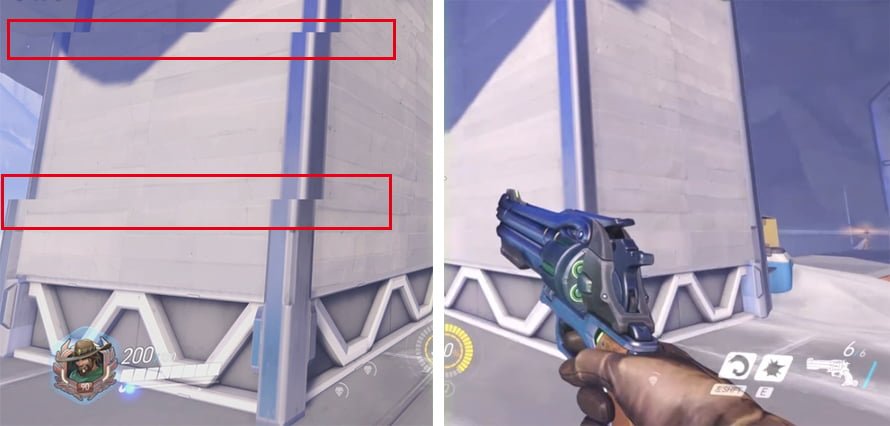
Vertical synchronization can therefore be useful to avoid image tearing and enjoy a smoother, more stable picture. However, it also has drawbacks:
- It reduces the performance of your game or application because it limits the frame rate to that of your monitor. If your game or application can achieve higher frame rates without vertical sync, you'll experience a loss of smoothness and responsiveness.
- It causes stuttering or skipping when the frame rate of your game or application drops below your monitor's refresh rate. For example, if your monitor has a 60Hz refresh rate and your game or application drops to 50 FPS, V-Sync will display some frames twice to compensate for the lower frame rate. This creates a stuttering effect that can be unpleasant and distracting.
Vertical synchronization is therefore not a perfect solution for every situation. You need to know when to enable and when to disable it, depending on your needs and preferences.
How do I enable and disable vertical sync?
There are several ways to enable and disable vertical sync on your PC. You can do this in the settings of the game or application you are using, in the control panel of the graphics driver you have installed, or in the advanced display settings of Windows.
Change settings in games or applications
Most modern games and apps offer an option to enable or disable vertical sync in their settings. You can usually find it in the graphics or video options within the game or app's menu. For example, in Fortnite, you can access the graphics settings by clicking the gear icon in the upper right corner of the screen and then selecting the Video tab. You will then see a Vertical Sync option that you can enable or disable as desired.
Modifying settings within games or applications allows you to manage vertical sync individually and in a personalized way. This means you can choose to enable vertical sync for certain games or applications that tend to cause screen tearing, and disable it for others that require more performance or don't have screen tearing issues.
Change the settings in the graphics driver
If you have installed a specific graphics driver for your graphics card, you can also access a control panel that allows you to modify the vertical sync settings for all the games and applications you use. The graphics driver may be from Intel, NVIDIA, or AMD, depending on your graphics card model.

To access the graphics driver control panel, right-click on the Windows desktop and select the corresponding option. For example, if you have an NVIDIA graphics card, click NVIDIA Control Panel. A window with several options will then appear. On the left, you can access Manage 3D settings > Vertical Sync. You can then choose between several modes:
- Controlled by the application: vertical sync is enabled or disabled depending on the settings of the game or application you are using.
- Enabled: Vertical sync is enabled for all games and applications you use.
- Disabled: Vertical sync is disabled for all games and applications you use.
- Adaptive: Vertical sync is enabled when the frame rate is equal to or greater than the screen refresh rate, and disabled when the frame rate is lower than the screen refresh rate. This mode helps prevent stuttering while maintaining performance.
Modifying the settings in your graphics driver allows you to manage vertical sync globally and automatically. You don't need to change the settings in every game or application you use. However, this method may conflict with the game or application's settings if you choose a different mode.
Modify the settings in the advanced display settings options
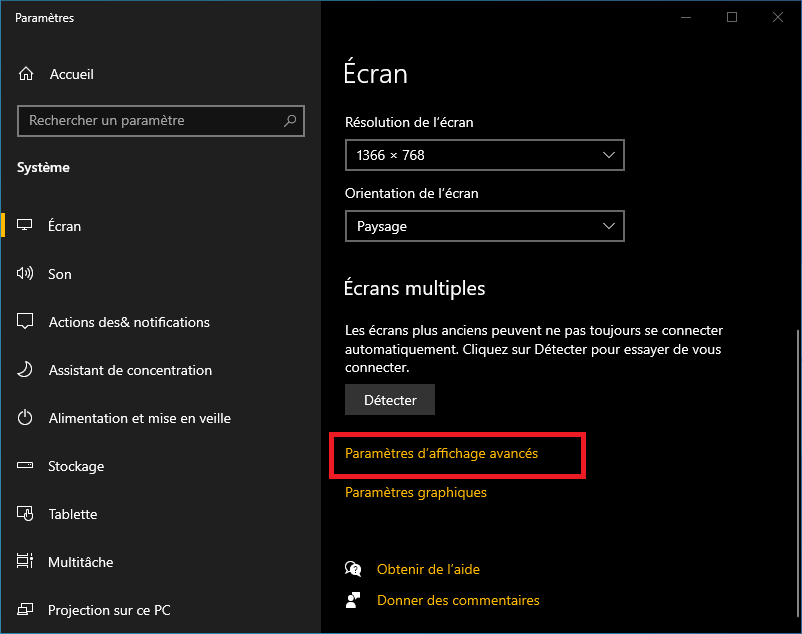
Finally, you can also modify the vertical synchronization settings in the advanced display settings of Windows. To access them, right-click on the Windows desktop and select Display settings. A window with several options will appear. At the bottom, click on Advanced graphics settings. A new window will then appear with a Synchronous flipping option (or Vertical synchronization for newer versions). You can then enable or disable this option as desired.
Modifying the settings in the advanced display options allows you to manage vertical synchronization at the system level. However, this method may be less effective than the previous two, as it doesn't take into account the specifics of the games and applications you use.
Other methods to avoid image tearing
If you're not satisfied with vertical sync, there are other ways to avoid screen tearing without sacrificing performance or smoothness. These methods are based on technologies developed by AMD and NVIDIA, namely FreeSync and G-Sync.
FreeSync and G-Sync
FreeSync and G-Sync are technologies that dynamically adapt the monitor's refresh rate to the graphics card's frame rate. This eliminates screen tearing and stuttering, even if the frame rate fluctuates depending on the scene being displayed. These technologies therefore offer superior visual quality and smoother gameplay compared to vertical synchronization.

FreeSync is a technology developed by AMD that uses the Adaptive Sync standard of DisplayPort. It is compatible with AMD Radeon graphics cards and monitors that support FreeSync. It does not require any additional hardware modules, which reduces the cost of FreeSync monitors.

G-Sync is a technology developed by NVIDIA that uses a proprietary hardware module integrated into monitors. It is compatible with NVIDIA GeForce graphics cards and monitors that support G-Sync. It offers better quality and stability than FreeSync, but it is more expensive.
To take advantage of FreeSync or G-Sync, you need a graphics card and monitor compatible with the same technology. You also need to use a DisplayPort cable to connect the two devices. Then, you need to enable the feature in the graphics driver's control panel.
We hope this article has helped you better understand how vertical synchronization and similar technologies work and their benefits. If you have any questions or comments, please feel free to share them in the section below.
FAQ
What is image tearing?
Screen tearing is a phenomenon that occurs when the frame rate of your game or application is higher than your monitor's refresh rate. In this case, the screen displays part of one frame and part of another frame simultaneously, creating a horizontal line that splits the image into two offset parts.
What is frame rate?
Frame rate, or FPS (frames per second), is the number of images your graphics card can generate and display per second. The higher the frame rate, the smoother and more responsive your game or application will be.
What is the refresh rate?
The refresh rate, or Hz (hertz), is the number of times your screen refreshes per second. The higher the refresh rate, the smoother and more lag-free your screen will be able to display images.
What is the difference between FreeSync and G-Sync?
FreeSync and G-Sync are technologies that dynamically adapt the monitor's refresh rate to the graphics card's frame rate. This prevents screen tearing and stuttering. FreeSync is a technology developed by AMD, which uses the Adaptive Sync standard of DisplayPort. G-Sync is a technology developed by NVIDIA, which uses a proprietary hardware module integrated into monitors.
How can I tell if my monitor supports FreeSync or G-Sync?
You can check if your monitor supports FreeSync or G-Sync by consulting the manufacturer's technical specifications or by using an online tool such as https://www.amd.com/en/products/freesync-monitors or https://www.nvidia.com/en-us/geforce/products/g-sync-monitors/specs/.
Conclusion
Vertical Sync (VSync) is a feature that prevents screen tearing by synchronizing the frame rate of your game or application with your monitor's refresh rate. It can improve the visual quality of your games and applications, but it can also reduce performance or cause stuttering. Therefore, it's important to know when to enable and when to disable it, depending on your needs and preferences.
You can enable and disable vertical sync (V-Sync) in the settings of the game or application you're using, in the control panel of your installed graphics driver, or in the advanced display settings in Windows .
However, be careful with this feature, as it can sometimes cause unexpected problems, such as the appearance of a pink screen of death . This is a bug where the screen turns entirely pink and the system freezes. This phenomenon can be caused by a conflict between V-Sync and the monitor's HDR (High Dynamic Range) mode, an incompatibility between the graphics driver and the game or application, or an overheating GPU (Graphics Processing Unit). If you encounter this problem, try disabling V-Sync, updating your graphics driver, or checking your GPU temperature.


