

If you own an ASUS computer , you may have noticed a program called ASUS Live Update . This utility automatically updates your device's drivers, software, and firmware. But how exactly does it work? Is it essential? What are its advantages and disadvantages? In this article, we'll explain everything you need to know about ASUS Live Update.
What is ASUS Live Update?
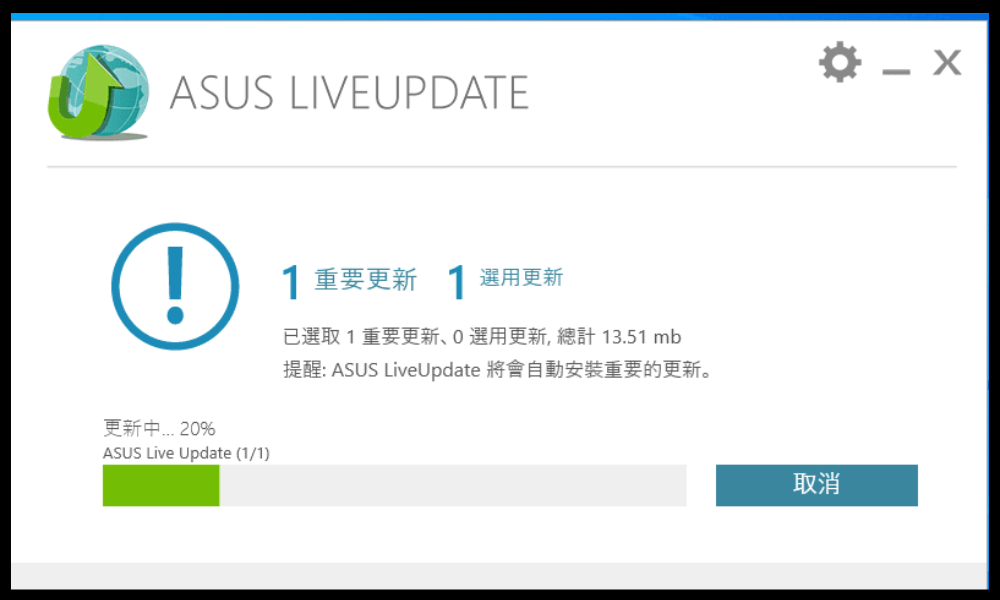
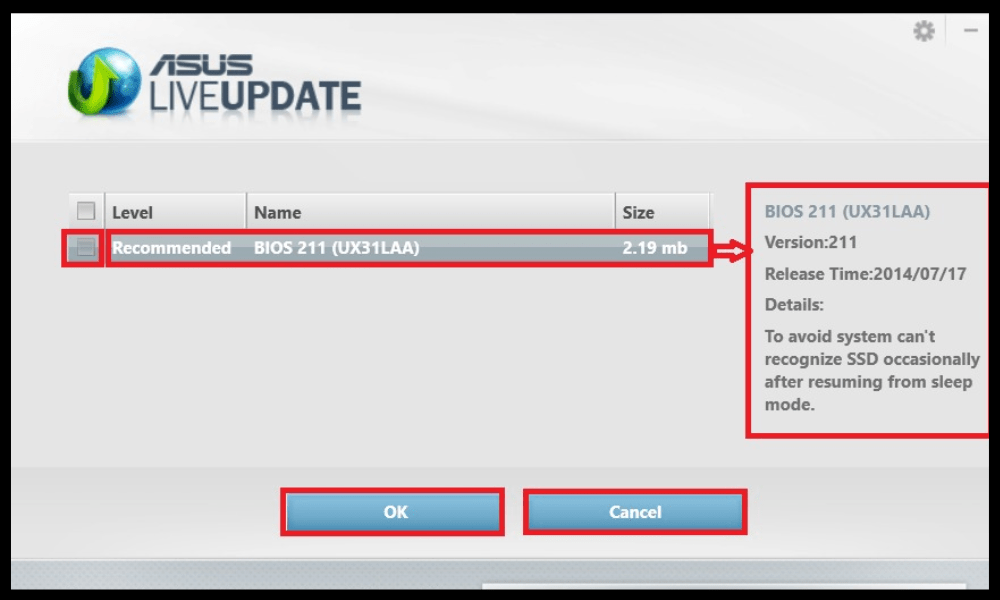
ASUS Live Update is an application that connects to the internet to check for available updates for your ASUS computer. These updates may include BIOS updates , device driver , updates to pre-installed software, or updates to the operating system . These updates are important to ensure the proper functioning, security, and performance of your device.
ASUS Live Update starts automatically when Windows and sits in the taskbar. It regularly checks for available updates and notifies you. You can then choose to install the updates immediately or postpone them. You can also access ASUS Live Update settings to change the check frequency, download method, or language. If you don't want ASUS Live Update to run automatically when you turn on your computer, you can disable this startup program Run at startup box in the software settings.
How do I check the ASUS Live Update version?
To find out which version of ASUS Live Update you have on your computer, there are two methods:
- Right-click the ASUS Live Update icon in the lower right corner, then click “ About ” to view software version information.
- Access the Control Panel, then open “ Programs and Features ” and check the ASUS Live Update software version.
The latest version of ASUS Live Update is V3.6.8. It is recommended to update the application if you have an earlier version, as it may contain security vulnerabilities or bugs.
How do I update ASUS Live Update?
There are two ways to update ASUS Live Update:
- Using the application itself: click the ASUS Live Update icon in the taskbar, then click “ Check for updates now ”. ASUS Live Update will then automatically search for the latest software version and offer to install it.
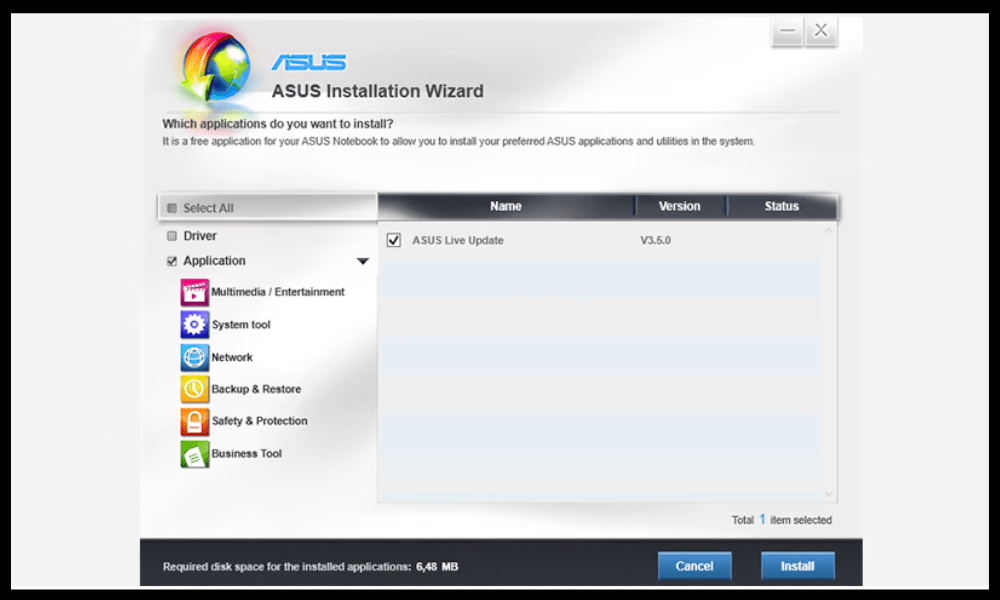
- By downloading the latest version from the official ASUS website: go to https://www.asus.com/fr/support/Download-Center/ and enter your computer model name in the search bar.

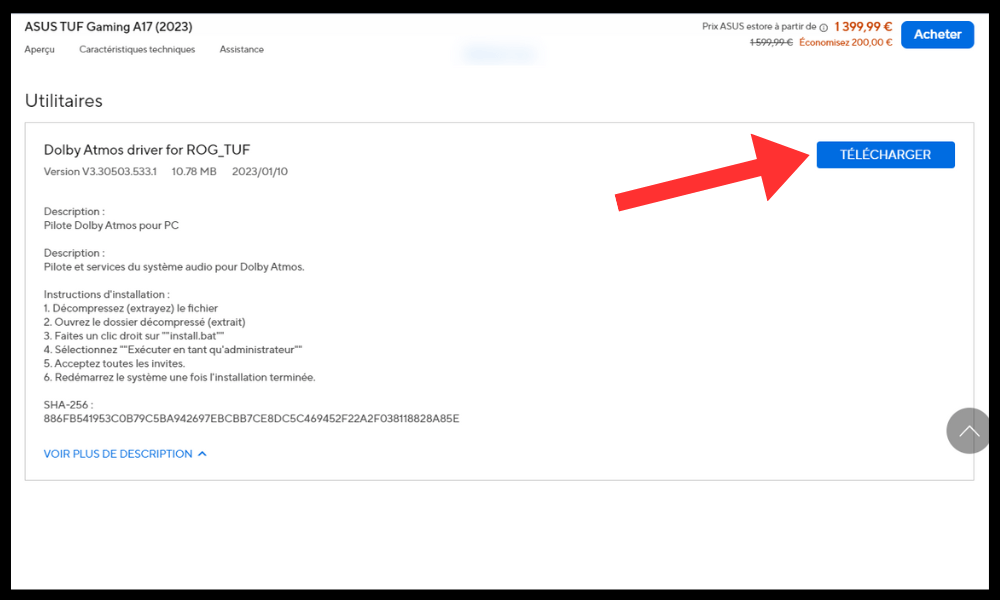
- Next, click on “Drivers and Tools”, choose “ Windows 64-bit ” as the operating system, and then search for “ ASUS Live Update ” in the “ Utilities ” category. Click “Download” and install the file once the download is complete.
What are the advantages and disadvantages of ASUS Live Update?
ASUS Live Update has advantages and disadvantages that you should be aware of before using it. Here is a summary of the main pros and cons:
Benefits
- ASUS Live Update lets you benefit from the latest manufacturer improvements to your computer, both hardware and software. This can help you optimize the performance , compatibility , and stability of your device.
- ASUS Live Update also allows you to enhance your computer's security by installing necessary patches to prevent malicious attacks or security vulnerabilities. This can protect you from problems such as data theft, hacking, or ransomware.
- ASUS Live Update offers a simple and convenient way to update your computer without having to manually search for updates on the manufacturer's website or other sources. This saves you time and effort.
Disadvantages
- ASUS Live Update can sometimes slow down your computer's startup , as it launches automatically every time you turn on your device. It can also consume resources in the background, which may affect your system's performance.
- ASUS Live Update may occasionally install unnecessary or unwanted updates , such as adware, pre-installed applications, or BIOS changes. These updates can clutter your hard drive , alter your settings , or cause malfunctions on your computer.
- ASUS Live Update may sometimes fail to install updates due to a poor internet connection, compatibility issues, or software errors. These failures can damage your computer , causing blue screens, unexpected restarts, or data loss.
How do I disable or uninstall ASUS Live Update?

If you do not wish to use ASUS Live Update, you can disable or uninstall it from your computer. Here's how:
- To disable it: go to ASUS Live Update settings, then uncheck the “ Run at startup ” box. You can also choose “Manual” mode to check for updates only when you want.
- To uninstall it: Go to Control Panel, then open “ Programs and Features ”. Select ASUS Live Update from the list of programs, then click “ Uninstall ”. Follow the on-screen instructions to remove the software from your computer.
FAQ
Here are some frequently asked questions about ASUS Live Update:
Is ASUS Live Update a virus?
No, ASUS Live Update is not a virus. It is official software provided by ASUS to update its computers. However, it can be vulnerable to hacker attacks that could be used to infiltrate your system. That's why it's important to always have the latest version of ASUS Live Update and to verify the source of any updates offered.
How do I know if an update is available?
ASUS Live Update notifies you when updates are available for your computer. You can also click the ASUS Live Update icon in the taskbar and then click “ Check for updates now ” to start a manual search.
What are the alternatives to ASUS Live Update?
If you don't want to use ASUS Live Update , you can update your computer manually by downloading drivers, software, and firmware from the official ASUS website. You can also use other software that can detect and install updates for your computer, such as Driver Booster, Driver Easy, or SlimDrivers.
How to resolve issues related to ASUS Live Update?
If you experience problems with ASUS Live Update , such as installation failures, download errors, or conflicts with other programs, you can try the following solutions:
- Restart your computer and try the installation again.
- Check that your internet connection is stable and that you do not have a firewall or antivirus software blocking the download.
- Uninstall and reinstall the latest version of ASUS Live Update.
- Restore your system to a date prior to the installation of the problematic update.
- Contact ASUS customer support if you are unable to resolve the issue.
Conclusion
ASUS Live Update is software that allows you to easily update your ASUS computer. It offers advantages such as performance optimization , compatibility, and device security. However, it also has drawbacks, including slower startup times, the installation of unnecessary or unwanted updates, and installation failures. Sometimes, you might even encounter Windows Update error 0x80244022 , which prevents your system from updating correctly. You can choose to disable or uninstall ASUS Live Update if you don't want to use it. You can also opt for other solutions to update your computer manually or with other software. We hope this article has been helpful and that you've learned something about ASUS Live Update . If you have any questions or comments, please feel free to let us know.


