

LEDKeeper2.exe is an executable file that is part of the MSI SDK, also known as MSI Center SDK or Dragon Center developed by Micro-Star Int'l Co., a manufacturer of computer hardware, including motherboards, graphics cards, and laptops. This software allows control of the colors and effects of RGB LEDs connected to the motherboard, using the Mystic Light.
Is LEDKeeper2.exe dangerous?

operating system Windows and generally does not cause problems. It is located in a subfolder of “C:\Program Files (x86)” (usually C:\Program Files (x86)\MSI\One Dragon Center\Mystic_Light\ or C:\Program Files (x86)\MSI\MSI Center\Mystic Light\). Known file sizes on Windows 10/11/7 are 1,634,824 bytes (7% of occurrences), 1,775,440 bytes, and 54 additional variants.
The LEDKeeper2.exe file is certified by a trusted company. The program has no visible window. The program listens for or sends data on open ports of the local network or the internet. The Windows starts this process at a specific time. LEDKeeper2.exe is capable of recording keyboard and mouse input. Therefore, the technical security level is 51% dangerous, but you should also compare this rating with user reviews.
It's possible that LEDKeeper2.exe is malware hiding behind that name, especially if it's located in the C:\Windows or C:\Windows\System32. Therefore, it's recommended to check the LEDKeeper2.exe process on your PC to see if it poses a threat. You can use a security tool like Security Task Manager to check your computer's security.
How do I uninstall LEDKeeper2.exe?
If you are experiencing problems with LEDKeeper2.exe or if you are not using the MSI SDK , MSI Center SDK , or Dragon Center, you can uninstall it from your computer by following these steps:
- Access the Control Panel ;
- Click on the option: " Uninstall a program ";
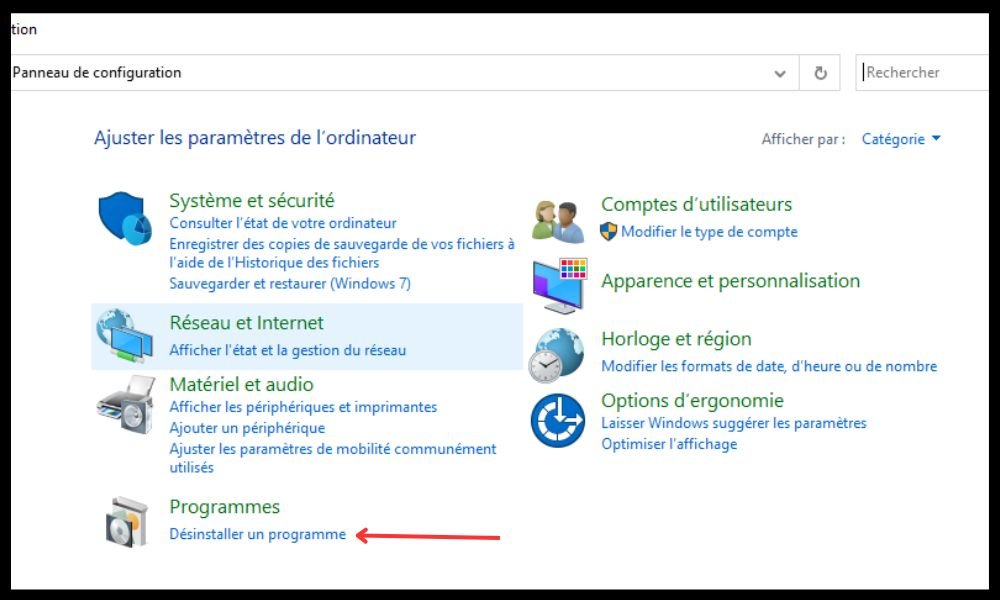
- In the list that appears, select the software to uninstall, then click on " Uninstall " or " Uninstall/Modify ".
You can also use a specialized utility like Revo Uninstaller, which removes all software remnants, including associated folders and information in the Windowsregistry.
FAQ
Here are some frequently asked questions about LEDKeeper2.exe:
What is the function of LEDKeeper2.exe?
LEDKeeper2.exe is an executable file that is part of the MSI SDK or MSI Center SDK or Dragon Center software, which allows control of the colors and effects of RGB LEDs connected to the motherboard.
How can I tell if LEDKeeper2.exe is a virus?

You can check the LEDKeeper2.exe process on your PC to see if it's a threat. You can use a security tool like Security Task Manager to check your computer's security.
How do I stop LEDKeeper2.exe?
Task Manager Windows. You can access it by pressing Ctrl + Alt + Delete, then clicking Task Manager. In the Processes tab, locate LEDKeeper2.exe, right-click it, and then select End task.
How to prevent LEDKeeper2.exe from launching at startup?
If you want to prevent LEDKeeper2.exe or certain other programs from launching at startup, you can disable them using the Windows. You can access it by pressing the Windows + R, then typing taskschd.msc in the Run dialog box. In the window that opens, click Task Scheduler Library, then locate the task related to LEDKeeper2.exe. Right-click it, and then choose Disable.
How to repair LEDKeeper2.exe if it is not working correctly?
You can try repairing LEDKeeper2.exe if it's not working correctly by using the program's installation and uninstallation troubleshooter. You can download it from the Microsoft website. Then follow the on-screen instructions.
How can I tell if LEDKeeper2.exe is compatible with my hardware?

You can check if LEDKeeper2.exe is compatible with your hardware by consulting the list of compatible products on the MSI website. You can also check your motherboard or laptop's user manual to see if it supports RGB LEDs.
How to completely remove LEDKeeper2.exe and all its remnants?
You can permanently remove LEDKeeper2.exe and all its remnants using a specialized utility like Revo Uninstaller, which removes all files, folders and registry entries related to the software.
How do I reinstall LEDKeeper2.exe if I accidentally deleted it?
You can reinstall LEDKeeper2.exe if you accidentally deleted it by downloading the MSI SDK, MSI Center SDK, or Dragon Center software again from the MSI website. Then follow the on-screen instructions.
How can I find out which version of LEDKeeper2.exe I have on my PC?
You can find out which version of LEDKeeper2.exe you have on your PC using Windows. You can access it by pressing the key Windows + E, then navigating to the folder where LEDKeeper2.exe is located (usually C:\Program Files (x86)\MSI\One Dragon Center\Mystic_Light\ or C:\Program Files (x86)\MSI\MSI Center\Mystic Light\). Next, right-click on the LEDKeeper2.exe file and select Properties. On the General tab, you will see the file version.
How to optimize the performance of LEDKeeper2.exe?
You can optimize the performance of LEDKeeper2.exe by following these tips:
- Update the MSI SDK or MSI Center SDK or Dragon Center software and the driver for your motherboard or laptop PC;
- Close any unnecessary programs that are consuming system resources;
- Clean your hard drive and Windows with a tool like CCleaner ;

- Defragment your hard drive with a tool like Defraggler;
- Scan your PC with an up-to-date antivirus program to detect and remove any malware;
- Repair system errors with a tool like System File Checker.
- How to resolve compatibility issues between LEDKeeper2.exe and other software?
You can resolve compatibility issues between LEDKeeper2.exe and other software by using Windows. You can access this by right-clicking the LEDKeeper2.exe file and selecting Properties. On the Compatibility tab, you can check the box "Run this program in compatibility mode for" and then choose an earlier version of Windows. You can also check the box next to "Run this program as an administrator" to grant it additional privileges.
How to uninstall LEDKeeper2.exe without uninstalling the MSI SDK, MSI Center SDK, or Dragon Center software?
You cannot uninstall LEDKeeper2.exe without uninstalling the MSI SDK, MSI Center SDK, or Dragon Center software, as it is an integral part of the software. If you want to get rid of LEDKeeper2.exe, you must uninstall the entire MSI SDK, MSI Center SDK, or Dragon Center software.
Conclusion
LEDKeeper2.exe is an executable file that allows you to control the colors and effects of RGB LEDs connected to the motherboardusing the MSI SDK, MSI Center SDK, or Dragon Center software. It is not inherently dangerous, but it can be mistaken for a virus or cause performance or compatibility issues. If you want to uninstall it, you must uninstall all MSI SDK, MSI Center SDK, or Dragon Center software. If you want to keep it, you can update, repair, optimize, configure, or reset it as needed.
We hope this article was helpful and that you found the answers to your questions about LEDKeeper2.exe. If you have any further questions, please feel free to contact us.


