

Javaw.exe Oracle's Java Runtime Environment . It is used to launch Java programs , including JAR files . The javaw.exe command is identical to java.exe, but there is no console window associated with javaw.exe. This means you will not see any error messages or output displayed on the screen when you run a Java program with javaw.exe.
In this article, we'll explain what javaw.exe does, how to update it, download it, and repair it if you encounter any problems. We'll also give you some tips to optimize your computer's performance and avoid javaw.exe-related errors.
What is the function of javaw.exe?
 Javaw.exe is a Java application launcher that allows you to run programs written in the Java programming language. Java is a very popular language used to create cross-platform applications, meaning applications that can run on different operating systems such as Windows, Linux, or macOS. Java is also used to develop web applications, games, desktop software, and mobile applications.
Javaw.exe is responsible for loading the Java Virtual Machine (JVM), which is the component that interprets and executes Java code. Javaw.exe also loads the main class of the Java program you want to run and invokes its main method. The main method is the first method executed in a Java program, and it contains the application's core logic.
Javaw.exe differs from java.exe because it doesn't open a console window when it launches a Java program. A console window is a black window that displays error or program exit messages. For example, if you run a Java program that displays "Hello World" on the screen, you will see this message in the console window if you use java.exe, but not if you use javaw.exe.
The advantage of using javaw.exe is that it allows you to launch Java programs without interfering with your computer's graphical interface. This is especially useful for Java applications that have their own graphical interface, such as games or desktop software. The disadvantage is that you won't see error messages or program exit, which can make debugging more difficult.
How do I update javaw.exe?
To update javaw.exe, you must update the Java Runtime Environment (JRE) on your computer. The JRE contains all the files necessary to run Java programs, including javaw.exe. It is recommended that you update the JRE regularly to benefit from the latest improvements and security fixes.
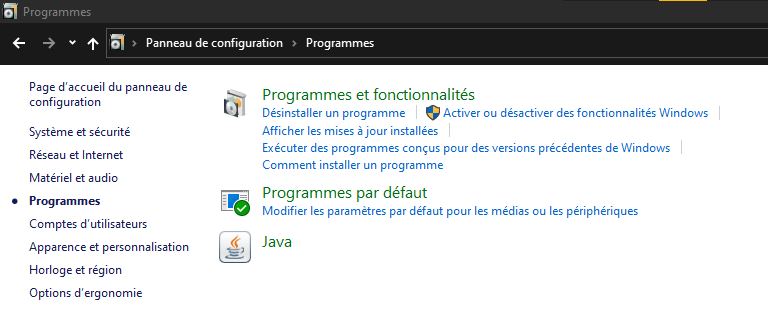
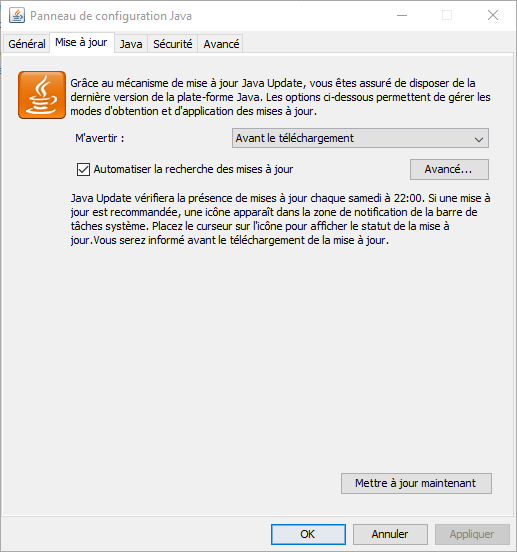
To update the JRE on Windows, you can follow these steps:
- Open the Control Panel and click on Programs.
- Click on Java to open the Java control panel.
- Click on the Update tab and check if an update is available.
- If an update is available, click Update now and follow the on-screen instructions.
To update the JRE on Mac OS, you can follow these steps:
- Open System Preferences and click on Java.
- Click on the Update tab and check if an update is available.
- If an update is available, click Install Update and follow the on-screen instructions.
How do I download javaw.exe?
If you don't have javaw.exe on your computer, you need to download and install the Java Runtime Environment (JRE), which contains this file. You can download the JRE from the official Java website. Choose the version that matches your operating system and architecture (32-bit or 64-bit).
To install the JRE on Windows, you can follow these steps:
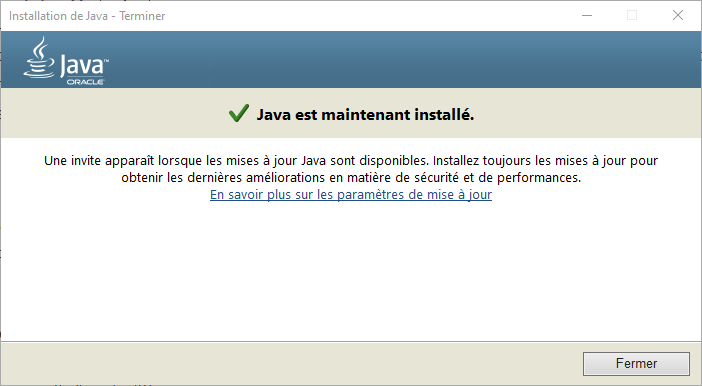
- Run the downloaded file and accept the terms of use.
- Choose the installation directory and click Install.
- Wait for the installation to finish and click Close.
To install the JRE on Mac OS, you can follow these steps:
- Open the downloaded file and double-click the JRE icon.
- Follow the on-screen instructions and accept the terms of use.
- Wait until the installation is complete and close the window.
How do I repair javaw.exe?
If you encounter problems with javaw.exe, such as error messages, slow performance, or excessive memory usage, you can try
The following solutions:
Check if javaw.exe is present on your computer
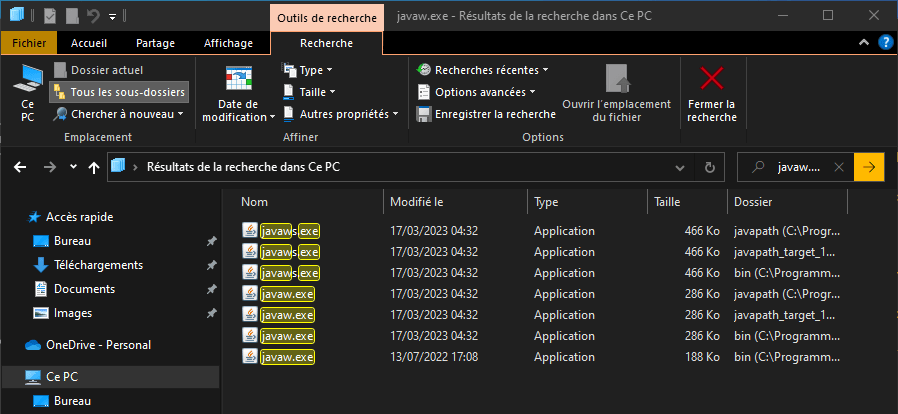
Javaw.exe may be missing or moved from its original location. To check if this is the case, you can search your hard drive. Here's how:
- Open File Explorer and click on This PC.
- In the search box at the top right, type javaw.exe and press Enter.
- Wait until the search is complete and see if you find the javaw.exe file.
- If you find it, note its path. For example, C:\Program Files\Java\jre1.8.0_221\bin\javaw.exe.
- If you cannot find it, you will need to download and install the JRE as explained in the first method.
Add the path to javaw.exe to the environment variable path
If you've found javaw.exe on your computer, but Windows doesn't recognize it, you might need to add its path to the PATH environment variable. This will allow Windows to locate the javaw.exe file when you run a Java program. Here's how:
- Right-click on This PC and choose Properties.
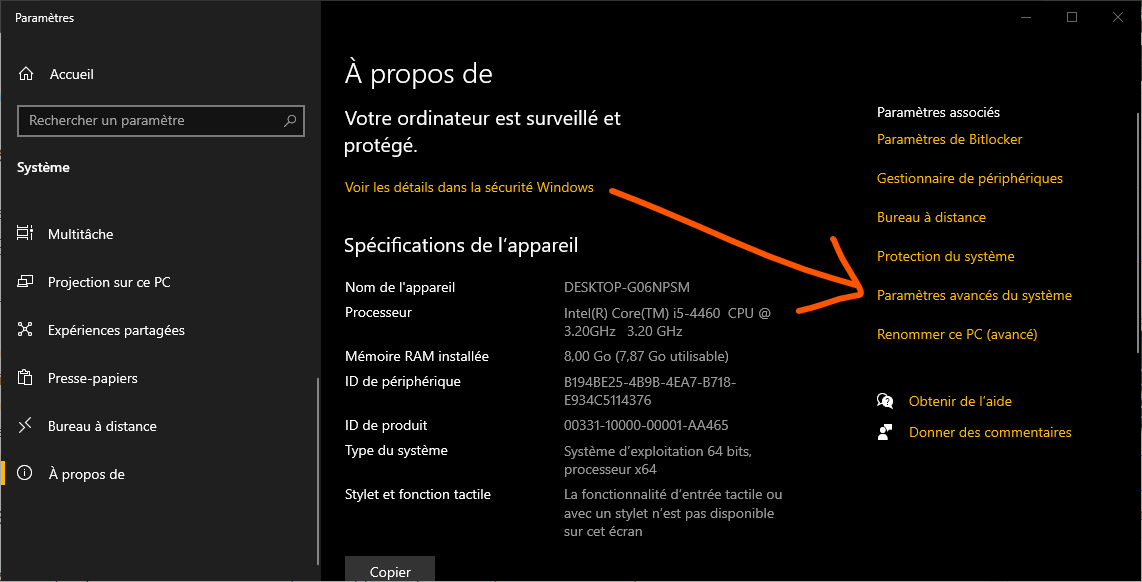
- Click on Advanced system settings and then click on Environment Variables.
- Under System variables, select Path and click Edit.
- Click on New and paste the path to javaw.exe that you noted earlier. For example, C:\Program Files\Java\jre1.8.0_221\bin\javaw.exe.
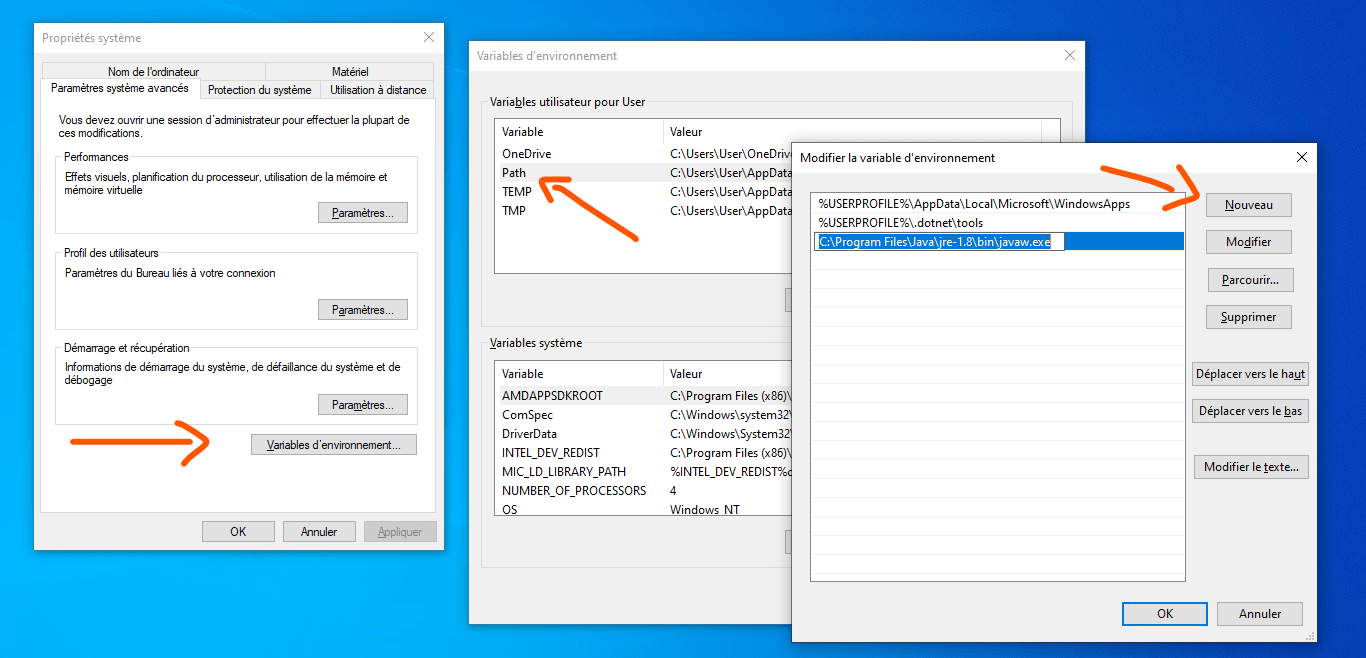
- Click OK to save the changes.
Scan your computer for malware
It's possible that javaw.exe has been damaged or deleted by malware that infected your computer. To rule out this possibility, you should scan your computer with reliable and up-to-date antivirus software . You can use the built-in Windows 10 antivirus, Windows Defender, or another antivirus program of your choice. Here's how to use Windows Defender :
- Open Windows 10 Settings and click on Update & Security.
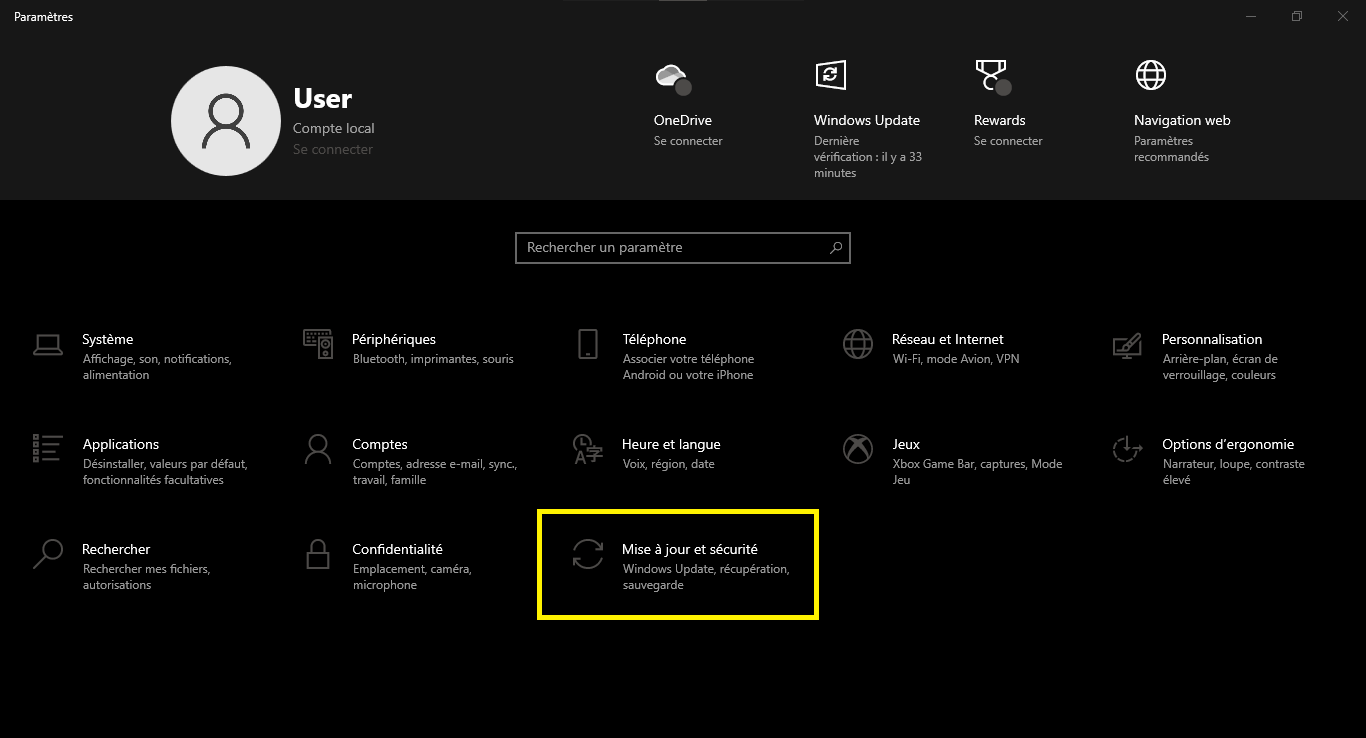
- Click on Windows Security and then click on Virus & threat protection.
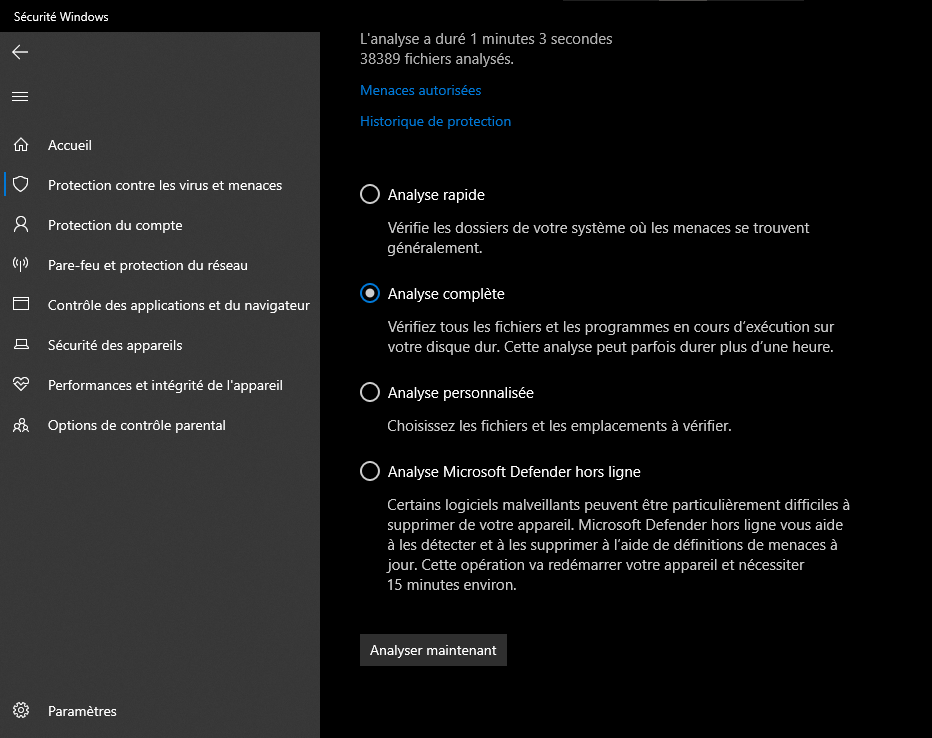
- Click on Analyze options and choose Full analysis.
- Click on Analyze Now and wait for the analysis to complete.
- If Windows Defender detects threats, follow the on-screen instructions to remove them.
How to optimize the performance of javaw.exe?
If you're not getting any errors with javaw.exe, but you notice that this process is consuming a lot of memory or CPU, you can try a few tips to optimize its performance. Here are some suggestions:
Close any unused Java programs that may be running in the background.
You can use Task Manager to see which Java programs are running and close them if necessary. To access Task Manager, you can right-click the taskbar and choose Task Manager, or press Ctrl+Alt+Delete and choose Task Manager. In the Processes tab, you can see a list of running programs and the amount of memory and CPU they are using. If you see a Java program that is consuming a lot of resources and you don't need it, you can select it and click End Task.
Increase the memory allocated to the Java Virtual Machine (JVM).
You can do this by modifying JRE settings or by using command-line arguments when you launch a Java program. For example, you can use -Xms and -Xmx to set the minimum and maximum size of the Java heap. See the JRE documentation for more details.
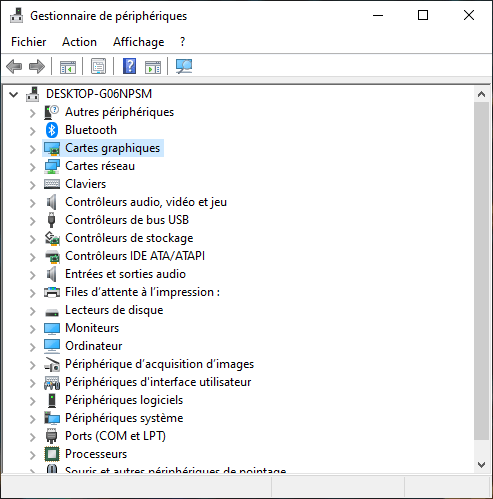
Update your device drivers, especially those related to the graphics card.
Outdated or incompatible drivers can affect the performance of Java applications that use 2D or 3D graphics. You can use Device Manager to check the status of your drivers and update them if necessary.
Clean your Windows registry of invalid or corrupted entries that may cause errors or slowdowns.
You can use registry cleaning software such as CCleaner or WinThruster to perform this operation.
FAQ
What is the difference between javaw.exe and java.exe?
The difference between javaw.exe and java.exe is that javaw.exe does not open a console window when it launches a Java program, while java.exe does. This means that you will not see error or program exit messages with javaw.exe, but you will see them with java.exe. Javaw.exe is generally used for Java applications that have their own graphical user interface, while java.exe is used for Java applications that run in console mode.
Is Javaw.exe a virus?
No, javaw.exe is not a virus. It's a legitimate executable file that's part of Oracle's Java Runtime Environment (JRE). It's used to run Java programs on your computer. However, it's possible for malware to disguise itself as javaw.exe to deceive users or antivirus software. That's why you should always check the location and digital signature of the javaw.exe file before running it. You should also scan your computer with reliable and up-to-date antivirus software.
How do I disable javaw.exe?
If you want to disable javaw.exe, you must uninstall the JRE from your computer. This will prevent any Java program from running on your computer. To uninstall the JRE, you can follow the steps described in the first method of this article. Note that this may affect the functionality of some applications or websites that require Java to function correctly.
How to reduce the memory consumption of javaw.exe?
If you notice that javaw.exe is consuming too much memory on your computer, such as the .NET Runtime Optimization Service , you can try reducing the memory allocated to the Java Virtual Machine (JVM). You can do this by modifying JRE settings or by using command-line arguments when you launch a Java program. For example, you can use -Xms and -Xmx to set the minimum and maximum size of the Java heap. Consult the JRE documentation for more details.
How to fix the “Unable to access the registry system” error with javaw.exe?
If you get the error “Unable to access the registry system” when trying to run a Java program with javaw.exe, it may mean that your Windows registry is corrupted or that you do not have the necessary administrator privileges to access the registry. To resolve this issue, you can try the following solutions:
- Run the Java program as administrator. Right-click on the Java program's executable file or shortcut and choose Run as administrator.
- Clean your Windows registry of invalid or corrupted entries that can cause errors or slowdowns. You can use registry cleaning software like CCleaner or WinThruster to perform this operation.
- Repair your Windows registry using a system repair tool such as SFC (System File Checker) or DISM (Deployment Image Servicing and Management). These tools can scan for and restore corrupted or missing system files, including those related to the registry. See this article for instructions on how to use SFC and DISM.


