

The system , or SYS , is an essential component for cooling your computer and preventing overheating. It's a small fan that attaches to your PC case and draws hot air inside and expels it outside. The SYS fan thus helps maintain optimal temperatures for other components, such as the processor, graphics card, and memory.
But how do you connect the SYS FAN to your motherboard? What's the difference between a SYS FAN and a power supply fan? What criteria should you consider when choosing a good SYS FAN? In this article, we'll answer all these questions and give you practical tips for installing and optimizing your SYS FAN.
How to connect the SYS FAN to the motherboard step by step?
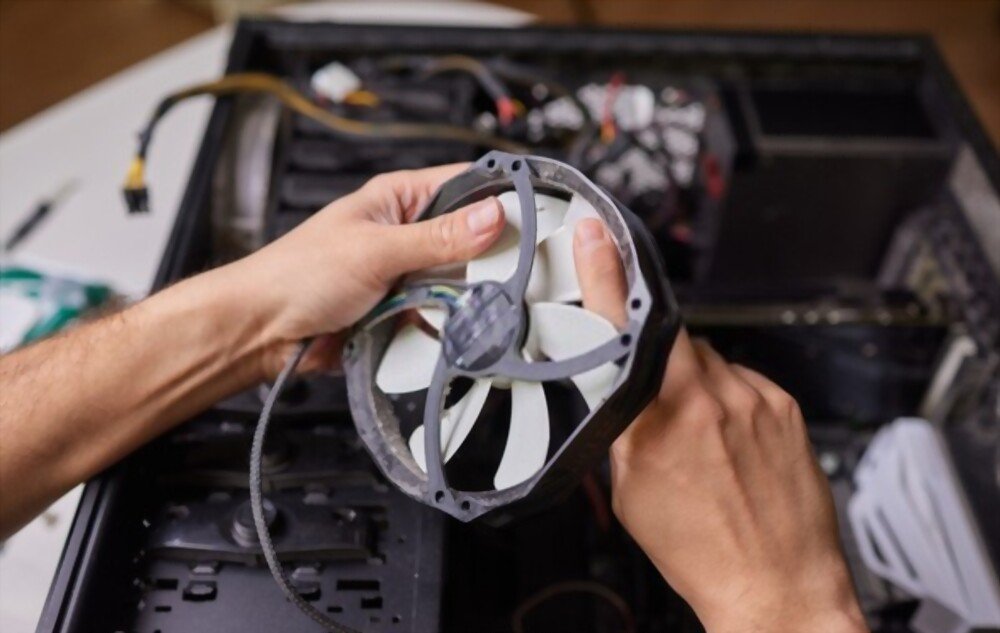
To connect the SYS FAN to the motherboard, you must follow these steps:
- Turn off and unplug your PC.
- Open your PC case and locate the SYS FAN and the motherboard.
- Identify the type of SYS FAN connector: 3-pin or 4-pin.
- Locate the corresponding location on the motherboard: usually indicated by “SYS_FAN” or “CHA_FAN”.

- Connect the SYS FAN connector to the motherboard slot by aligning the pins and snap it into place.
- Close your PC case and plug it back in.
There you go, you've connected the SYS FAN to the motherboard!
How to choose the right connector for your SYS FAN?
Connecting the system fan to the motherboard depends on the type of connector it has. There are two main types of connectors for system fans: the 3-pin connector and the 4-pin connector.

The 3-pin connector is the most common and easiest to use. It plugs into a dedicated slot on the motherboard, usually labeled “SYS_FAN” or “CHA_FAN”. The 3-pin connector supplies 12V to the fan and transmits its rotation speed to the motherboard.
The 4-pin connector is newer and more efficient. It also plugs into a dedicated slot on the motherboard, but it also allows you to control the fan speed based on the case temperature. This type of connector is called PWM, for Pulse Width Modulation, and it allows you to adjust the voltage sent to the fan between 5V and 12V.
If your SYS FAN has a 4-pin connector, you can plug it into a 3-pin slot, but you will lose PWM functionality. If your motherboard has a 4-pin slot, you can plug in a 3-pin SYS FAN, but it will still run at the same speed.
What is the difference between a SYS FAN and a power supply fan?
The SYS FAN isn't the only fan in your PC. There's also the power supply fan, located inside your computer's power supply unit. The power supply fan's role is to cool the power supply unit itself, which converts alternating current (AC) to direct current (DC) and provides the necessary power to the other components.

The power supply fan connects directly to the power supply unit, not the motherboard. Therefore, its speed cannot be controlled or easily replaced. The power supply fan is generally quieter than the SYS FAN because it spins at a lower speed and is isolated by the power supply unit's casing.
The system fan and the power supply fan work together to ensure proper cooling of your PC. It is recommended to have at least one system fan in addition to the power supply fan, or even several depending on the size of your case and the power of your system.
How to choose a good SYS FAN?
To choose a good SYS FAN, several criteria must be taken into account, such as size, noise, airflow or static pressure.
The size of the SYS FAN

The size of the SYS FAN determines its diameter and therefore the space it occupies in your case. The most common sizes are 80 mm, 120 mm, or 140 mm. The larger the SYS FAN, the more air it can move and the quieter it is, because it rotates at a lower speed. However, you must also check that your case has the appropriate mounting locations for the size of the SYS FAN you wish to install.
The noise of the SYS FAN
The noise level of the SYS FAN is measured in decibels (dB) and depends on the fan's rotation speed and blade design. The faster the SYS FAN spins, the louder it is. However, some models are quieter than others thanks to optimized blades or high-quality bearings. The noise level of the SYS FAN is also influenced by the type of connector: a PWM connector allows the fan speed to be reduced when not needed, thus decreasing the noise.
The airflow of the SYS FAN
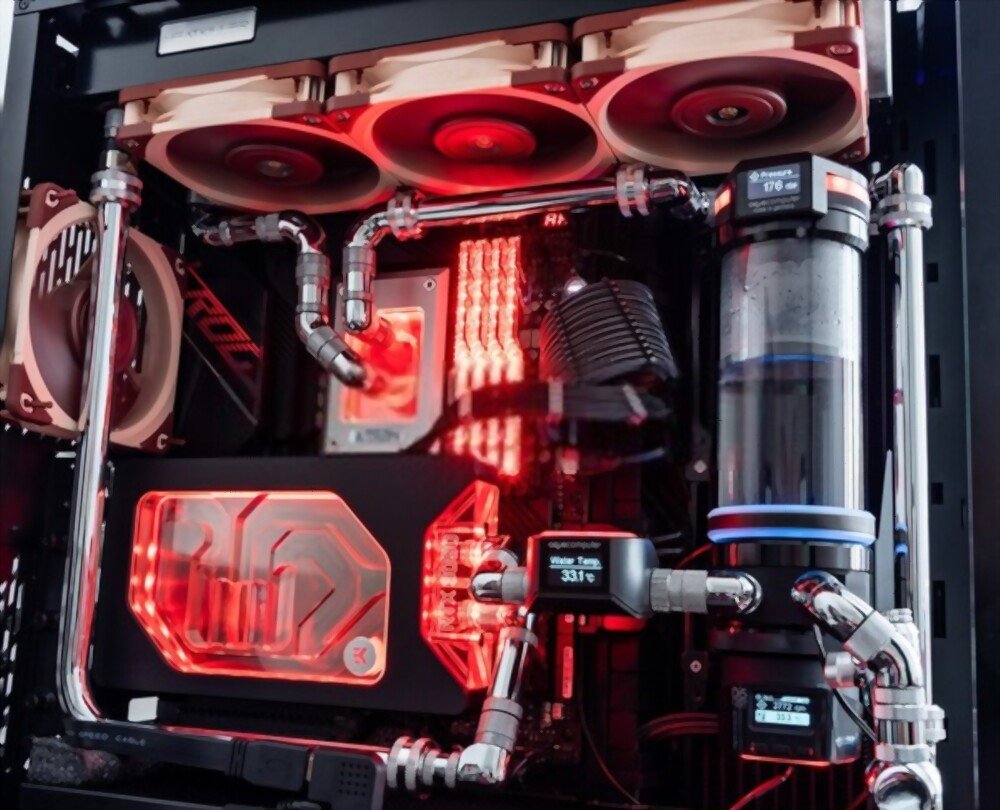
The airflow of a SYS FAN is expressed in cubic meters per hour (m³/h) or cubic feet per minute (CFM) and indicates the amount of air the fan can move. The higher the airflow, the more effective the SYS FAN is at cooling your PC. This is why it's important to choose the best PC coolers , which offer a good balance between performance and quiet operation. Airflow depends on the size, speed, and design of the SYS FAN.
The static pressure of the SYS FAN
The static pressure of the SYS FAN is measured in millimeters of water column (mmH2O) or inches of water column (inH2O) and indicates the force with which the fan can push air through resistance, such as a filter or radiator. The higher the static pressure, the better the SYS FAN is suited for placement in front of an obstacle. The static pressure depends on the shape and number of blades of the SYS FAN.
How to install and optimize your SYS FAN?
To install your SYS FAN, you must first choose its location in your case. There are generally two possibilities: the front or the rear.
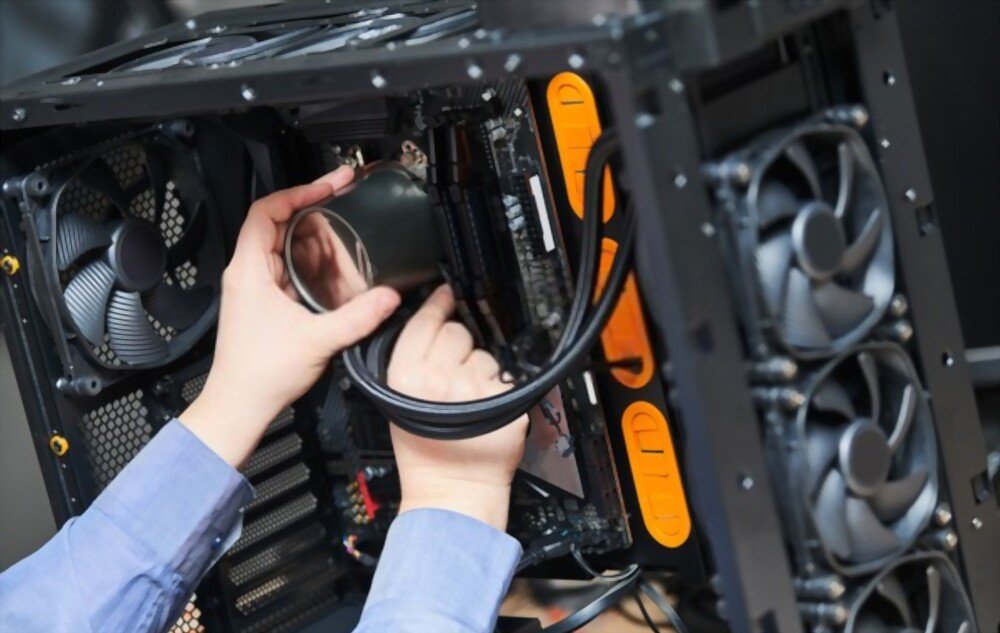
The front fan draws in fresh air from the outside and directs it towards the components, while the rear fan exhausts hot air from the inside to the outside. It is recommended to have at least one SYS fan at the front and one at the rear, or even more if your case allows.
Next, you need to attach your SYS FAN to the case using the screws or clips provided with the fan. Make sure to orient the SYS FAN correctly: the side with the logo or cable should face inwards, while the side with the grille should face outwards. You can check the airflow direction by looking at the small arrows on the edge of the SYS FAN.
Finally, you need to connect your SYS FAN to the motherboard, as explained previously. If you have a PWM connector, you can adjust the SYS FAN speed in your PC's BIOS or with dedicated software. This allows you to create custom fan curves based on the case or CPU temperature.
FAQ
What is a SYS FAN ERROR?
The SYS FAN ERROR is an error message that may appear when you start your PC if your SYS FAN is not detected by the motherboard. This could mean that your SYS FAN is improperly connected, faulty, or missing. To resolve this issue, you can check the connections, replace the fan, or disable SYS FAN detection in the BIOS.
What is the difference between a PWM fan and a DC fan?
A PWM fan is a fan with a 4-pin connector that can be controlled by the motherboard based on temperature. A DC fan is a fan with a 3-pin connector that rotates at a constant speed.
How to clean your SYS FAN?
To clean your SYS fan, first turn off and unplug your PC. Then, open the case and locate the SYS fan. Next, dust it with a soft cloth, a brush, or compressed air. Be careful not to damage the fan blades or introduce moisture into the case. Also, clean the case vents, which may be clogged with dust. Finally, close the case and plug your PC back in.
What is the lifespan of a SYS FAN?
The lifespan of a SYS FAN depends on its quality, use, and maintenance. Generally, a SYS FAN can last between 3 and 5 years, or even longer if it is of good quality and well-maintained. Signs that a SYS FAN is nearing the end of its life include decreased performance, abnormal noise, or excessive vibration.
What are the advantages and disadvantages of a SYS FAN?
The advantages of a SYS FAN are:
- It allows you to efficiently cool your PC and prevent components from overheating.
- It improves the performance and durability of your PC.
- It reduces the noise of the power supply unit by decreasing its thermal load.
The disadvantages of a SYS FAN are:
- It consumes energy and increases the electricity bill.
- It can be noisy if it spins too fast or if it is poorly designed.
- It can be difficult to install or replace depending on the model.
Conclusion
The system fan is essential for the proper functioning of your PC. It cools the case and components by expelling hot air. To choose a good system fan, you must consider its size, noise level, airflow, and static pressure. To reduce the noise of your PC case fans, you can also adjust the fan curve based on the temperature of the processor or graphics card. To connect the system fan, you must use the appropriate connector on the motherboard.
To install the SYS FAN, choose its location in the case and secure it properly. To clean the SYS FAN, regularly dust it with a cloth or compressed air. To optimize the SYS FAN, adjust its speed using a PWM connector or dedicated software.
We hope you found this article helpful and learned something about the SYS FAN. If you have any questions or comments, please feel free to leave them below.


