

VLC is a media player video and audio file formats . It also has many advanced features that allow you to customize your viewing experience. One of these features is the ability to navigate a video frame by frame , meaning you can advance or rewind the video one frame at a time . This option can be useful if you want to analyze a scene in detail, capture a precise snapshot, or simply appreciate the visual details of a video.
 In this article, we'll explain how to navigate a video frame by frame using VLC Media Player with two methods: a keyboard shortcut and an on-screen button . We'll also give you some tips for optimizing your frame-by-frame playback and for taking screenshots with VLC.
Use a keyboard shortcut to navigate a video frame by frame
The easiest and fastest way to navigate a video frame by frame with VLC Media Player is to use a keyboard shortcut. By default, this is the E key , but you can change it in the software's preferences. Here are the steps to follow:
- Launch VLC Media Player on your computer.

- Open the video you wish to view frame by frame by clicking on the "Media" option in the top menu bar, then selecting "Open File".
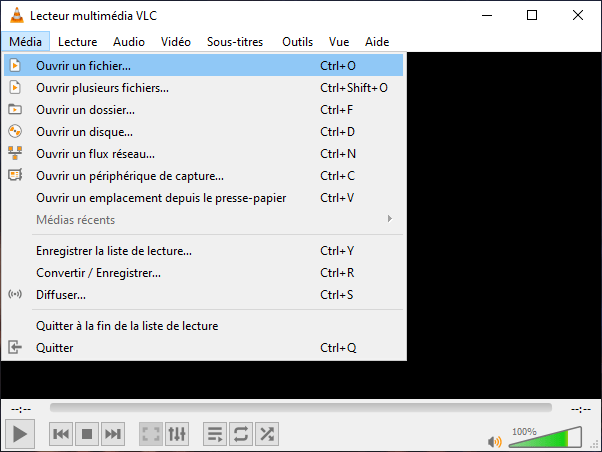
- Click "Play" in the top menu bar, then select "Speed" and finally "Advance Frame by Frame." You can also press the E key on your keyboard. The video will pause.

- From now on, each additional press of the E key will advance the video by one frame. You can also press Shift + E to rewind by one frame.
- To restart the video normally, simply press the space bar on the keyboard.
If you want to change the keyboard shortcut for the frame-by-frame option, here's how:
- Click on Tools > Preferences > Keyboard shortcuts to open a list of keyboard shortcuts.

- Scroll down to "Next Image" and double-click it to open a window.
- Simply press the new keyboard shortcut you want to assign to the frame-by-frame option.
- Click on "Save" in the Simple Preferences window.
You might also like this article: Windows Feedback Hub ?
Use an on-screen button to navigate a video frame by frame
If you prefer to use an on-screen button to navigate a video frame by frame with VLC Media Player, you must first enable it in the software settings. Here's how:
- Click on Tools > Customize Interface to open the "Toolbars Editor" window.
- Scroll through the list of toolbar items until you find the "Frame by Frame" option.
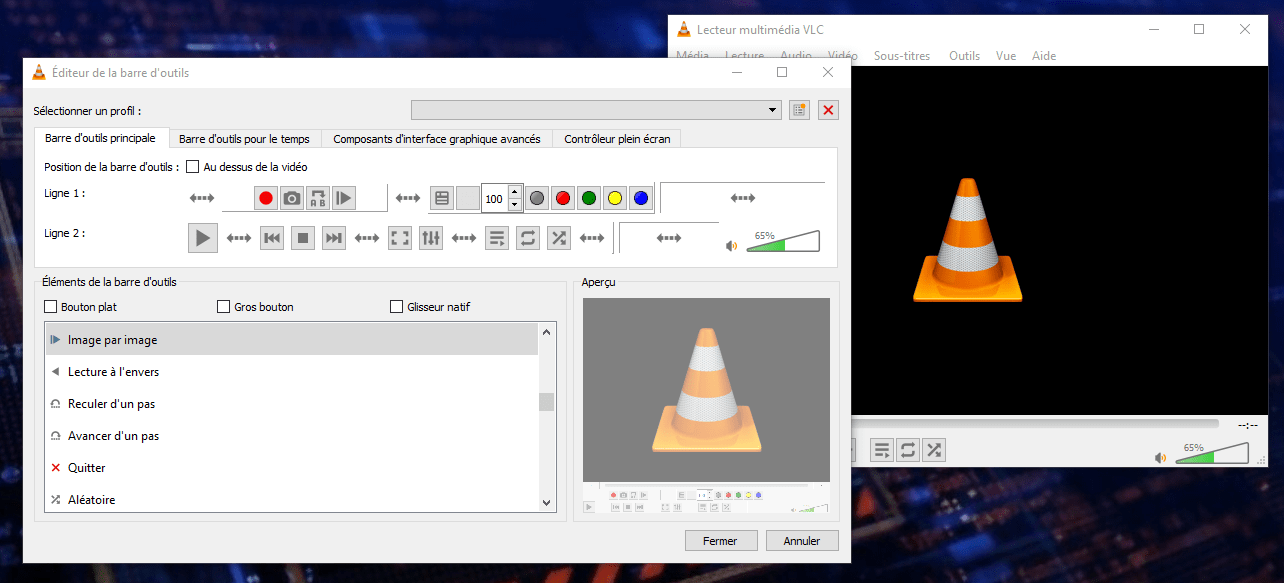
- Drag this button somewhere on Line 1 or Line 2 so that you can select the option in the playback toolbar.
- Click "Close" to confirm the changes.
Once you've added the button to the screen, here's how to use it:
- Launch VLC Media Player on your computer.
- Open the video you wish to view frame by frame by clicking on the "Media" option in the top menu bar, then selecting "Open a file" (Same procedure as before).
- Click the "Frame by Frame" button in the playback toolbar. It looks like a play button with a vertical line next to it. The video will pause.

- Now, each click on the "Frame by Frame" button will advance or rewind the video by one frame. You can also use the left and right arrow keys on your keyboard to do this.
- To restart the video normally, simply press the play button in the toolbar or the space bar on the keyboard.
Also read: How to fix “An administrator has prevented you from running this application” on Windows 10
Some tips to optimize your image-by-image reading
If you want to get the most out of VLC Media Player's frame-by-frame function, here are a few tips that may be helpful:
- To display the current frame number, you can enable the "Show advanced controls" option in the View menu. This will allow you to see a frame counter in the bottom right corner of the VLC interface.

- To adjust the playback speed of your video, you can use the speed slider located next to the "Frame by Frame" button. You can also use the keyboard shortcuts [ and ] to decrease or increase the speed respectively.
- To zoom in on a portion of the image, you can use the "Interactive Zoom" option in the Tools menu. This allows you to select an area to enlarge with your mouse. You can also use the keyboard shortcuts Ctrl + and Ctrl - to zoom in and out, respectively.
- To change the aspect ratio or rotation of your video, you can use the "Aspect Ratio" and "Rotation" options in the Video menu. This will allow you to adapt your video to the screen or correct its orientation.
How to take screenshots with VLC Media Player
If you want to save a specific frame from your video, you can use the "Take a snapshot" option in VLC Media Player. Here's how:
- Launch VLC Media Player on your computer.
- Open the video you want to capture by clicking the "Media" option in the top menu bar, then selecting "Open File".
- Scan the video frame by frame until you find the image you want to capture.
- Click the "Take a Snapshot" button in the playback toolbar. It looks like a camera. You can also press the keyboard shortcut Ctrl + Alt + S to do this.

- VLC will save the image to your computer's Pictures folder. You can change the destination folder in the software's preferences.
FAQ
Here are some frequently asked questions on the subject:
How do I play a slow-motion video with VLC Media Player?
To play a slow-motion video with VLC Media Player, you can use the speed slider located next to the "Frame by Frame" button. You can also use keyboard shortcuts to decrease or increase the speed. Alternatively, you can click on the Playback menu, then Speed, and choose from the options Faster, Fast, Normal, Slow, or Slower.
How do I reverse the playback of a video using VLC Media Player?
To reverse the playback of a video with VLC Media Player, you need to use a video effect called "Transform". Here's how:
- Launch VLC Media Player on your computer.
- Open the video you want to reverse by clicking the "Media" option in the top menu bar, then selecting "Open File".
- Click on the Tools menu, then Effects and Filters to open the "Adjustments and Effects" window.
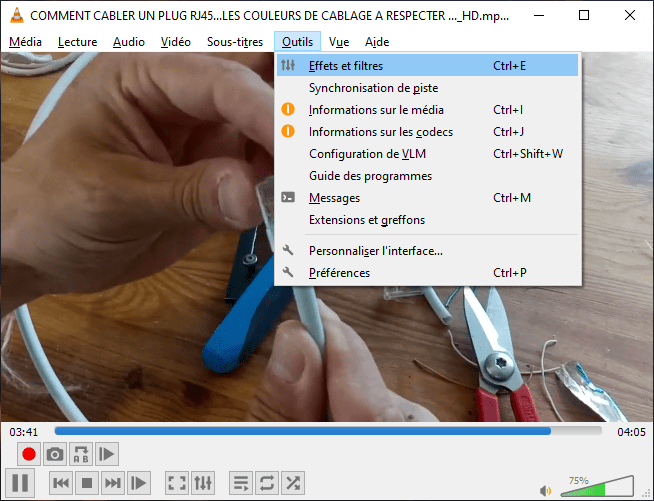
- In the "Adjustments and Effects" window, click on the "Video Effects" tab and then on the "Geometry" sub-tab.
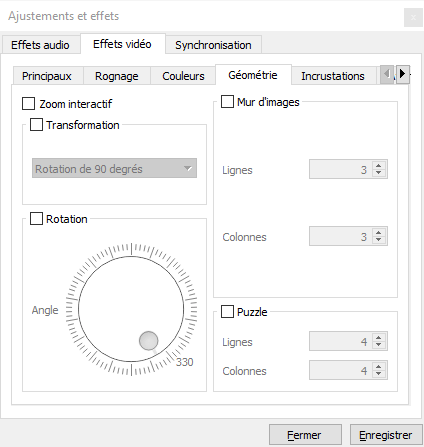
- Check the "Transform" box and choose the "Flip Horizontally" option from the drop-down menu. This will reverse the order of the images in your video.

- Click "Close" to confirm the changes.
Conclusion
VLC Media Player is a free and versatile media player that can play almost all video and audio file formats. It also has many advanced features that allow you to customize your viewing experience. In this article, we've answered some frequently asked questions about using VLC Media Player. We hope you found this article helpful and learned something new. If you have any questions or comments, please feel free to let us know.


