

Have you ever encountered the " VCRUNTIME140.dll not found " error on your computer? Don't worry, you're not alone. In this article, we'll guide you step by step to resolve this annoying problem and get you back to normal computer use.
What is VCRUNTIME140.dll and why does this error occur?

VCRUNTIME140.dll is an important file used by programs developed with the C++ programming language . It is part of the dynamic link libraries (DLLs) of the Microsoft Visual C++ Redistributable . When a program needs this file to function correctly, it looks for it in the operating system. If the VCRUNTIME140.dll file is missing, corrupted, or incompatible, you may encounter the error "VCRUNTIME140.dll not found".
Common causes of the VCRUNTIME140.dll error:
- VCRUNTIME140.dll file missing or corrupted
- Incorrect version of Microsoft Visual C++ Redistributable installed
- Windows registry problems
- Malware interference
How to resolve the VCRUNTIME140.dll not found error?
Here are some methods to correct this error:
Method 1: Reinstall Microsoft Visual C++ Redistributable
One of the simplest solutions is to reinstall Microsoft Visual C++ Redistributable , as the version installed on your computer may be corrupted or incompatible . Follow these steps to reinstall:
- Uninstall the current version of Microsoft Visual C++ Redistributable from Control Panel > Programs and Features.
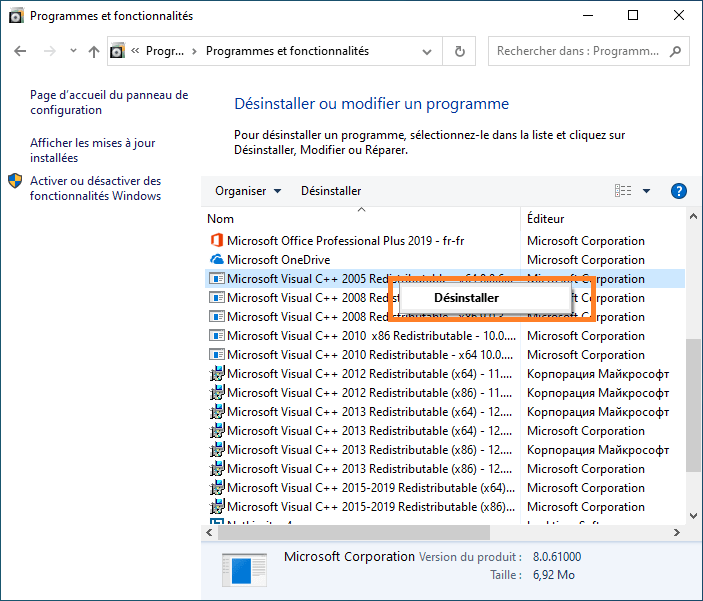
- Restart your computer.
- Download the latest version of Microsoft Visual C++ Redistributable from the official Microsoft website.

- Install the newly downloaded version.
- Restart your computer again and check if the error has been resolved.
You might also like this article: Echo in the CMD: Discover the secrets of this essential Windows
Method 2: Manually copy the VCRUNTIME140.dll file
If reinstalling Microsoft Visual C++ Redistributable did not resolve the issue, you can try manually copying the VCRUNTIME140.dll file from another working computer. Ensure the other computer is running the same version of Windows as yours. Once you have copied the file, paste it into the System32 folder (for 32-bit systems) or SysWOW64 folder (for 64-bit systems) on your computer.
Method 3: Analyze and repair system files
Corrupted system files may be causing the VCRUNTIME140.dll error. You can use the built-in Windowsutility, the System File Checker (SFC) tool, to scan for and repair corrupted system files. Here's how:
- Open the command prompt as an administrator by right-clicking on the Start menu and selecting "Command Prompt (admin)" or " Windows PowerShell (admin)".

- Type the following command and press Enter:
sfc /scannow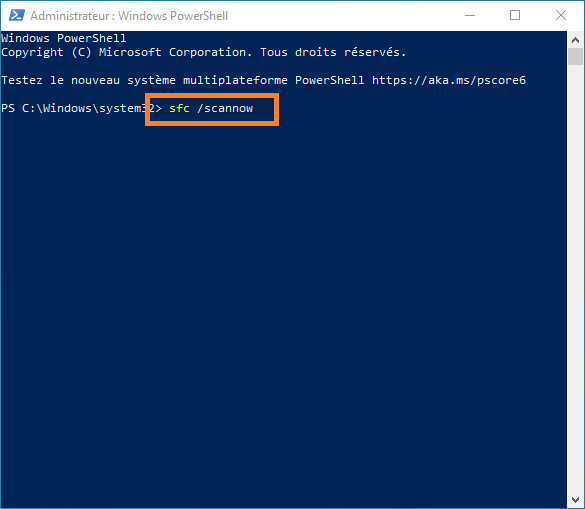
- The SFC tool will begin scanning for and repairing corrupted system files. This may take some time, so please be patient.

- Once the analysis is complete, restart your computer and check if the VCRUNTIME140.dll error has been resolved.
Method 4: Perform an antivirus scan
Malware can sometimes damage or delete important system files, such as VCRUNTIME140.dll. To ensure your computer is free of malware, perform a full antivirus scan using your preferred antivirus software. If malware is detected, follow the instructions provided by your antivirus software to remove it and restart your computer.
Also read: Fixing sound problems on Windows 10 in 5 steps
Comparative table of solutions
To help you choose the best solution to resolve the " VCRUNTIME140.dll not found " error, here is a comparison table that presents the different methods and their advantages/disadvantages:
| Methods | Benefits | Disadvantages |
|---|---|---|
| Reinstall Microsoft Visual C++ Redistributable | Can quickly resolve the problem if the installed version is corrupted or incompatible | May not work if the problem is related to a corrupted system file |
| Manually copy the VCRUNTIME140.dll file | May be effective if the file is missing | Does not resolve system file or malware problems |
| Analyze and repair system files | Can repair corrupted system files | May not work if the problem is related to Microsoft Visual C++ Redistributable |
| Perform an antivirus scan | Remove any malware that might be causing the problem | This may not solve the problem if the files are not damaged by malware |
After following these steps, the VCRUNTIME140.dll not found error should be resolved. Remember to keep your operating system and software up to date to avoid similar problems in the future. If you are still encountering errors, create a bulleted list (without HTML tags). Insert the following special character (uppercase): "N with a tilde" at the beginning of your text. Insert the following special character (uppercase): "N with a tilde" at the end of your text
FAQ
What is the missing VCRUNTIME140_1.dll error and how do I fix it?
The missing VCRUNTIME140_1.dll error is similar to the VCRUNTIME140.dll not found error. It means that the VCRUNTIME140_1.dll file, which is also part of the Microsoft Visual C++ Redistributable dynamic link libraries, is missing or corrupted. To resolve this error, you can follow the same steps described in the article for the VCRUNTIME140.dll error, including:
- Reinstall Microsoft Visual C++ Redistributable
- Manually copy the VCRUNTIME140_1.dll file
- Analyze and repair system files
- Perform an antivirus scan
How can I tell if my operating system is 32-bit or 64-bit?
To determine if your Windows operating system is 32-bit or 64-bit, follow these steps:
- Right-click on the "This PC" or "Computer" icon on the desktop or in Windows Explorer and select "Properties".
- In the "System Properties" window that opens, look for the "System Type" section under "System".
- The mention "32-bit operating system" or "64-bit operating system" will tell you the version of your operating system.
Are there any other DLL files commonly associated with errors similar to VCRUNTIME140.dll?
Yes, there are other DLL files that can be linked to errors similar to VCRUNTIME140.dll. Here are some examples of DLL files commonly associated with errors:
- MSVCP140.dll
- MSVCR100.dll
- MSVCR110.dll
- xinput1_3.dll
- d3dx9_43.dll
The solutions to resolve these errors are generally similar to those described for the VCRUNTIME140.dll error.
How can I avoid missing or corrupted DLL file errors in the future?
To avoid missing or corrupted DLL file errors in the future, you can take certain precautions, such as:
- Keep your operating system up to date by regularly installing updates offered by Microsoft.
- Install the latest versions of software and drivers to ensure compatibility with the required DLL files.
- Perform regular antivirus scans to protect your computer from malware that could damage or delete DLL files.
- Avoid downloading and installing software from untrusted sources, as this could lead to compatibility issues or malware infections.
- Create regular backups of your system so you can restore files and settings in case of a problem.
Is it safe to download DLL files from third-party websites?
It is generally not recommended to download DLL files from third-party websites, as this can pose security risks to your computer. DLL files downloaded from untrusted sources may contain malware or be incompatible with your system, which could lead to other problems. It is best to obtain missing or corrupted DLL files directly from official sources, such as the Microsoft website or the developer of the software in question.
Are there any automated tools to repair errors related to missing or corrupted DLL files?
Yes, there are automated tools that can help you repair missing or corrupted DLL files. Some registry repair and system optimization software includes features to detect and fix DLL file errors. However, it's important to choose reliable and reputable DLL file repair software to avoid making the problem worse. Be sure to read user reviews and look for recommendations before downloading and using any DLL file repair tool.
How can I check if I have the latest version of Microsoft Visual C++ Redistributable installed on my computer?
To check if you have the latest version of Microsoft Visual C++ Redistributable installed on your computer, follow these steps:
- Open the Control Panel by right-clicking on the Start menu and selecting "Control Panel".
- Click on "Programs and Features" or "Uninstall a program".
- Look for entries beginning with "Microsoft Visual C++" in the list of installed programs.
- Check the dates and versions of your various Microsoft Visual C++ Redistributable installations to ensure you have the latest version. You can also visit the Microsoft website to check for the latest available versions.
Conclusion
DLL file errors, such as the VCRUNTIME140.dll not found error, can be frustrating and complicated to resolve. Fortunately, there are several methods to fix these errors, such as reinstalling Microsoft Visual C++ Redistributable, manually copying the affected DLL file, repairing system files, and running an antivirus scan. By following the tips and solutions presented in this article and FAQ, you should be able to resolve the VCRUNTIME140.dll not found error and other similar DLL file errors. Remember that regular maintenance of your computer and keeping your software and drivers up to date are essential to avoid these types of problems in the future. Stay vigilant and ensure your system is always up to date for a worry-free computing experience.


