You may have noticed a process called unsecapp.exe running on your computer . You're wondering what it is and what it does. Is it an important file for your system or a dangerous virus? Should you disable it or leave it alone? In this article, we'll explain everything you need to know about unsecapp.exe and give you tips on how to handle it properly. Read on to find the answers to these questions and much more.
What is UNSECAPP.EXE?

Windows operating system . It is related to Windows Management Instrumentation ( WMI ), a set of extensions that manage operations and data on your computer. Unsecapp.exe stands for " Sink to receive asynchronous callbacks for WMI client application ," meaning it acts as a bridge between applications that use WMI programming and remote servers. It receives and transmits requests and commands associated with WMI. Therefore, it is necessary for your system to function correctly.
Should unsecapp.exe be disabled?
It is not recommended to disable unsecapp.exe , as it is essential for accessing WMI . If you disable it, your system will be unable to communicate with WMI, which could lead to malfunctions or errors. Unsecapp.exe is a Microsoft located in a subdirectory of C:\ Windows \System32 . It does not consume many system resources and does not affect your computer's performance.
Is “unsecapp.exe” a virus?

No, unsecapp.exe is not a virus, but a safe Windows . However, it is possible for malware to disguise itself as unsecapp.exe to evade antivirus detection. To verify the file's authenticity, you can check its location, size, and digital signature. If the file is located in a directory other than C:\ Windows \System32, if its size is unusually large or small, or if it is not signed by Microsoft, it is likely a virus.
How do I remove unsecapp.exe in Windows ?
Step 1 Windows Task Manager by pressing Ctrl + Alt + Delete and selecting “Task Manager”.
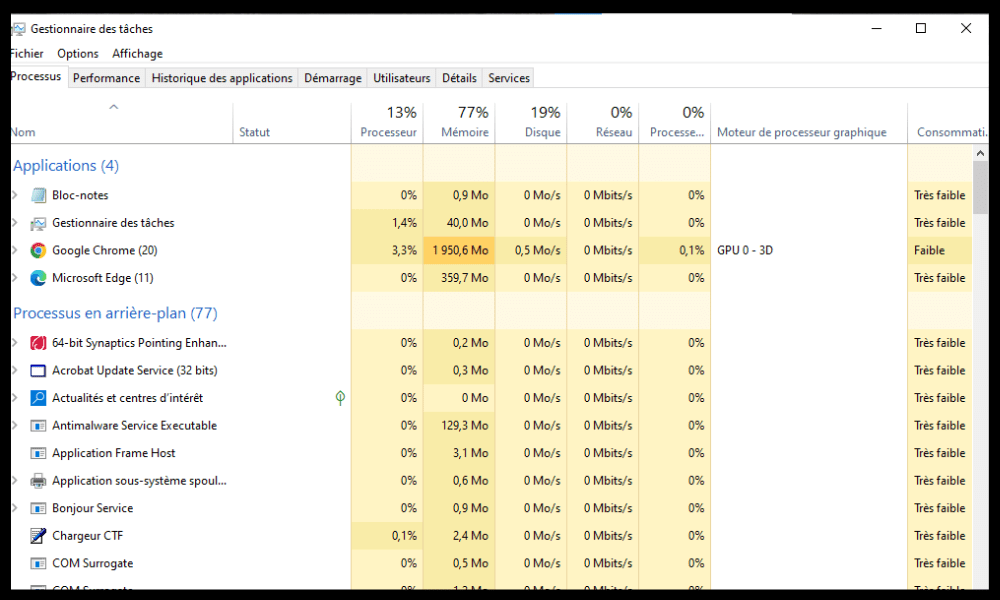
Step 2 : Click on the “Processes” tab and look for unsecapp.exe in the list. If you find it, right-click on it and choose “End task”.
Step 3 Windows File Explorer and navigate to the directory C:\ Windows \System32. Locate the unsecapp.exe file and delete it.
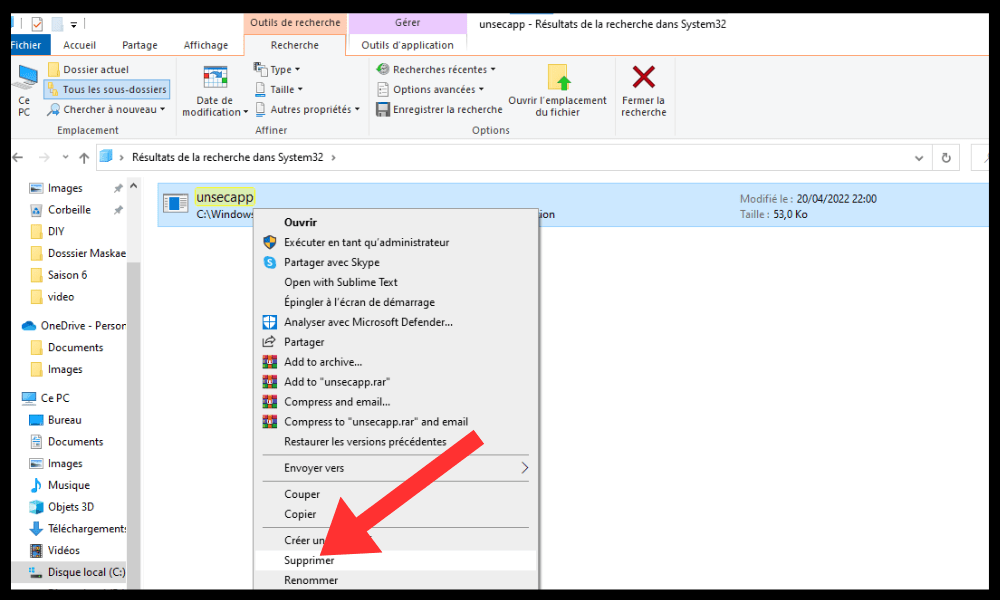
Step 4 : Empty the Windows to permanently delete the file.
Step 5 : Restart your computer for the changes to take effect.

Warning : We strongly advise against deleting unsecapp.exe, as it is essential for your system to function correctly. Deleting it may cause problems or errors on your computer. Unsecapp.exe is a Microsoft-signed file and is required for accessing WMI .
If you are certain that the unsecapp.exe file is infected with a virus, you should remove it immediately using up-to-date antivirus software . You can also use the Windows repair tool to find and fix errors related to unsecapp.exe . If the problem persists, you can try restoring your system to a previous date or reinstalling Windows .
Is it possible that unsecapp.exe is causing high CPU, RAM, or other system resource usage?
Normally, unsecapp.exe doesn't cause high CPU usage like the NET Runtime Optimization Service , nor does it consume much RAM or other system resources. It runs in the background and uses very little memory . However, it's possible that malware is hiding behind unsecapp.exe and using your resources without your knowledge. In this case, you should scan your computer with a reliable antivirus program and remove the virus as soon as possible.
Summary table
| File name | Location | Size | Signature |
| Genuine Unsecapp.exe | C:\Windows\System32 | 16,896 bytes (40%) or 38,912 bytes (60%) | Microsoft |
| Unsecapp.exe infected | Other directory | Variable | None |
FAQs
What is WMI?
WMI stands for Windows Management Instrumentation. It's a technology that manages operations and data on your computer. It provides information about your system's hardware, software, configuration, security, and performance.
What is unsecapp.exe used for?

Unsecapp.exe is used to establish communication between applications that use WMI programming and remote servers. It allows you to receive and transmit WMI-related requests and commands. It is therefore essential for the proper functioning of your system.
How can I tell if unsecapp.exe is running?
You can check if unsecapp.exe is running by opening the Windows Task Manager . To do this, press Ctrl + Alt + Delete and select " Task Manager ". Then, click the " Processes " tab and look for unsecapp.exe in the list. If you find it, it means it's running. If not, it's not.
How do I stop unsecapp.exe?
You can stop unsecapp.exe by right-clicking it in Task Manager and selecting " End task ." However, we advise against doing this, as it could cause problems for your system. Unsecapp.exe is an important Windows and needs to remain running.
Conclusion
Windows operating system . It is related to Windows Management Instrumentation (WMI), a set of extensions that manage operations and data on your computer. Unsecapp.exe acts as a bridge between applications that use WMI programming and remote servers. It receives and transmits requests and commands associated with WMI. Therefore, it is necessary for your system to function correctly.
Unsecapp.exe is not a virus, but a safe Windows . It is signed by Microsoft and is hidden in a subdirectory of C:\ Windows \System32. It does not consume many system resources and does not affect your computer's performance.
It is not recommended to disable or delete unsecapp.exe , as it is essential for accessing WMI. Disabling it will prevent your system from communicating with WMI, which could lead to malfunctions or errors, such as system error 5, which indicates a permissions problem. If you suspect the file is infected with a virus, you should scan it with antivirus software and delete it immediately.