When you write or revise a Word document , you can add comments to annotate or explain parts of the text. Comments are useful for communicating with others working on the same document or for remembering changes to make later. However, when you want to print your document , you might prefer not to include the comments in the printed version. How do you print a Word document without comments ? That's what we'll cover in this article.
How do I hide comments before printing a Word document?
Here are the steps to follow:
- Open your Word document and go to the Review tab.
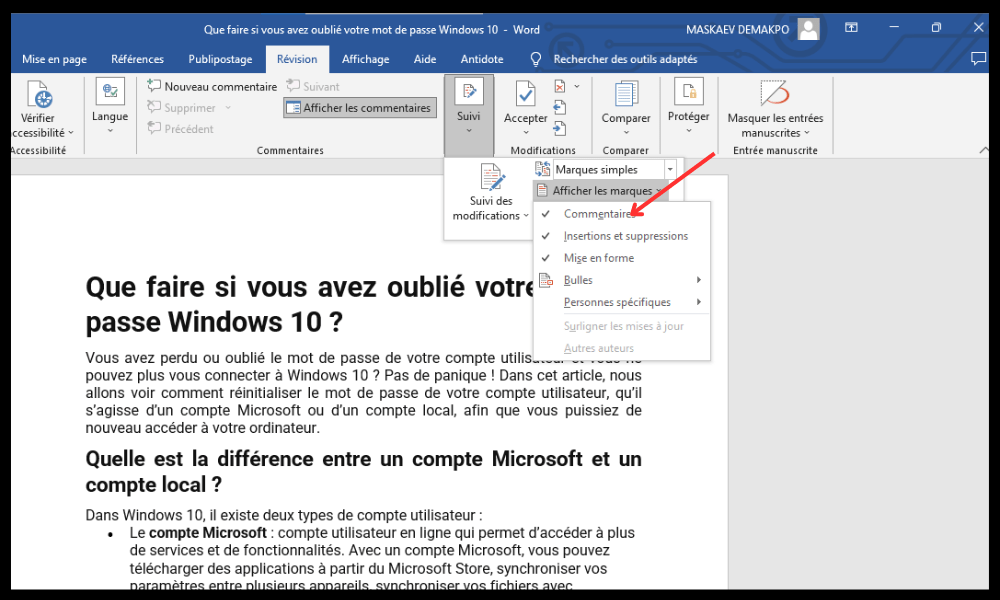
- Click on Tagging Options in the Tracking group and uncheck the Comments box.
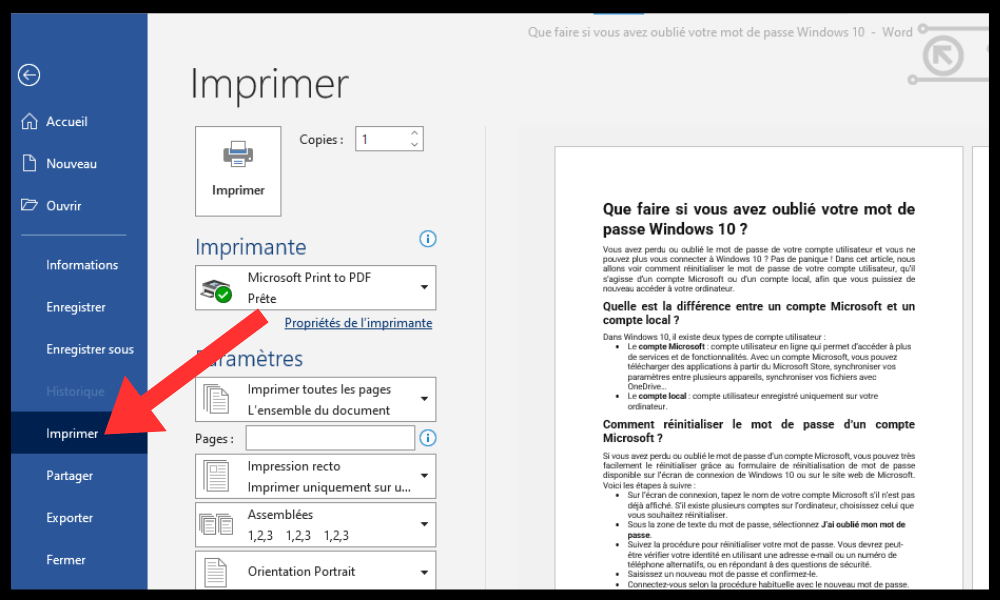
- Go to the File tab and click Print .
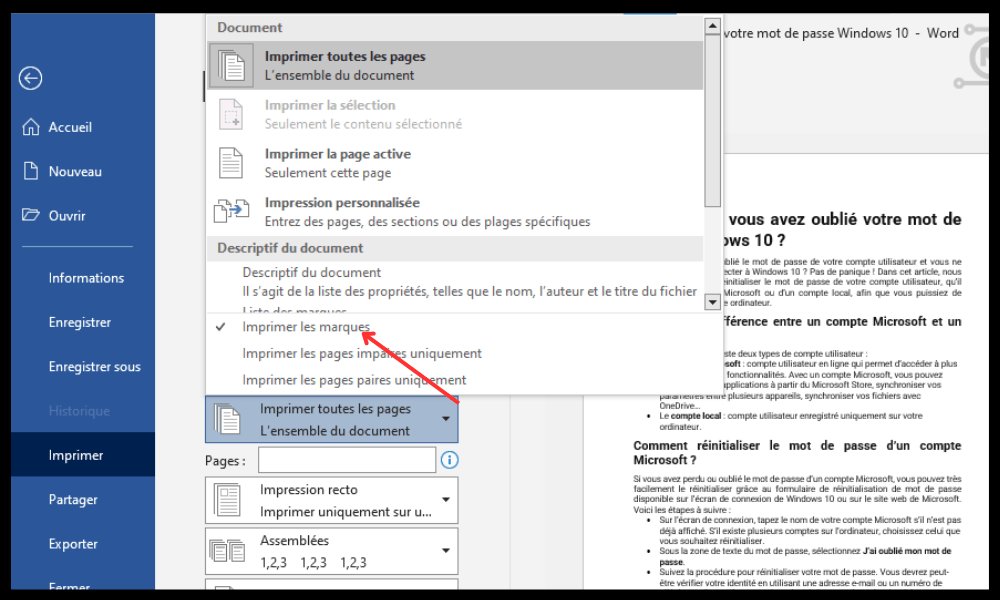
- Under Settings, click the arrow next to Print all pages and uncheck Print marks .
- Click on Print.
If you have hidden comments in your Word document , they will not print either. But if you want to print your document without changing how the comments are displayed on the screen , you can follow these steps:
- Go to the File tab and click Print.
- In the Settings section, click the drop-down list under Print all documents and choose Print current page .
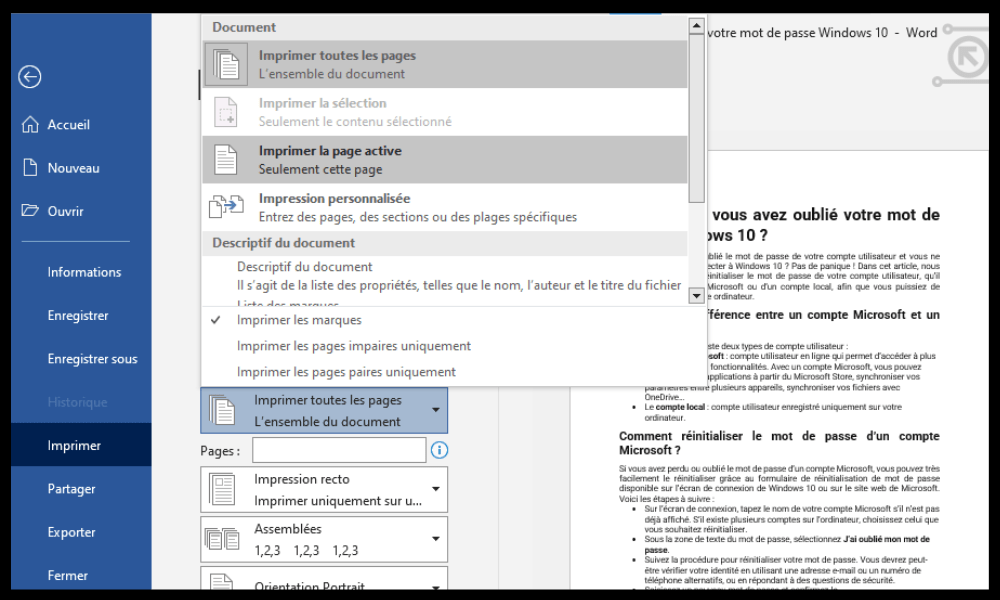
- Check that the Print markup box is not checked under Document information.
- Click Print to start printing.
You can also access the same options by clicking the Office button (in Word 2007) or the Quick Printer icon (in Word 2010 or 2016) in the Quick Access Toolbar.
How do I hide comments in Word?
If you don't want to see comments in your Word document, you can temporarily hide them without deleting them. There are several ways to do this:
- Go to the Review tab and click Show Markup in the Tracking group. Uncheck the Comments box to hide comments.
- Go to the Review tab and click on All Markup in the Tracking group. Change All Markup to No Markup to hide all review items, including comments.
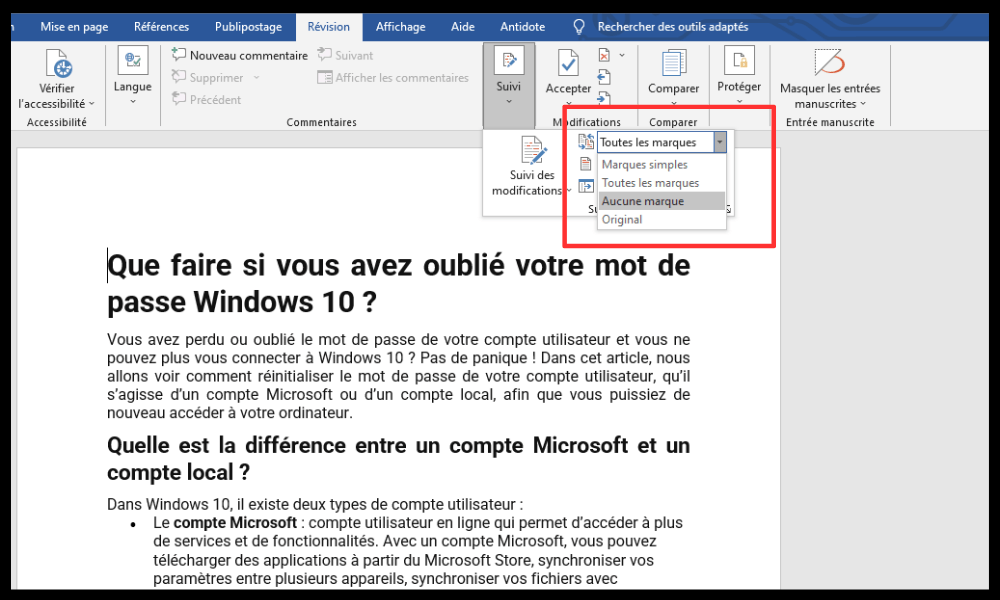
- Go to the File tab and click Options. In the Word Options dialog box, go to the View category and uncheck the Show comments or annotations box under Document display options.
Comparative table of the different versions of Word and how to proceed
| Version | Hide comments | Print without comments |
| Word 2007 | Uncheck Comments or choose No Markup in Show Markup (Review tab) | Select Document and uncheck Print markup (Office button > Print) |
| Word 2010 | Uncheck Comments or choose No Markup in Show Markup (Review tab) | Select Document and uncheck Print markup (File tab > Print or Quick Printer icon) |
| Word 2016 | Uncheck Comments or choose No Markup in Show Markup (Review tab) | Select Document and uncheck Print markup (File tab > Print or Quick Printer icon) |
FAQs
What is a comment in Word?
A comment in Word is a note or remark that you can insert in the margin of a document , next to the text it relates to. A comment appears as a small bubble with your name and the comment's content. You can also view all comments in a separate pane on the right side of the document.
To insert a comment in Word, you can:
- Select the text to which you want to add a comment .
- Go to the Review tab and click on New Comment in the Comments group.
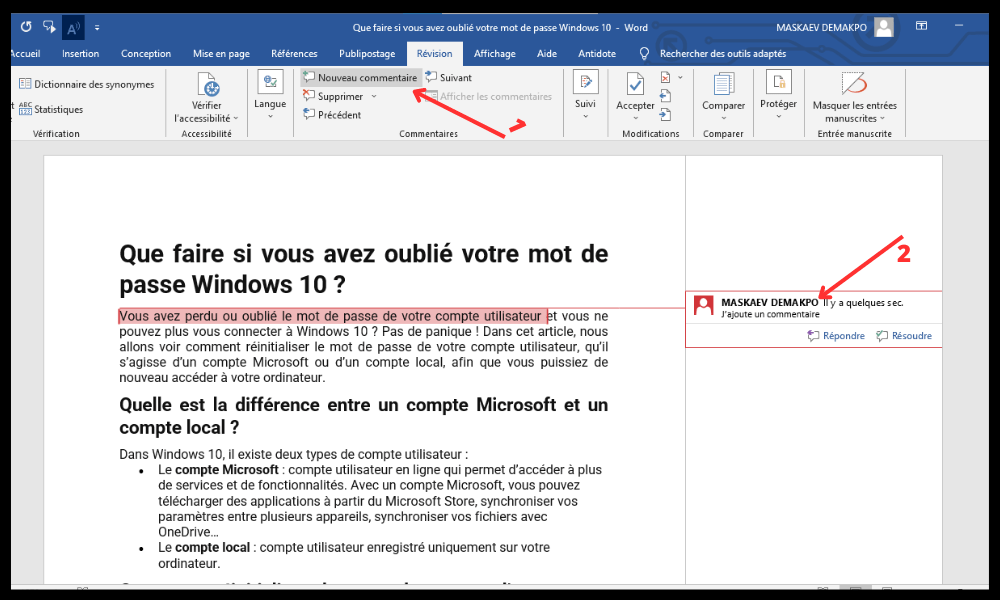
- Type your comment in the bubble that appears.
You can also insert a comment by right-clicking on the selected text and choosing New Comment from the context menu.
How do I permanently delete comments from a Word document?
If you want to permanently remove comments from a Word document, you can:
- Go to the Review tab and click Delete in the Comments .
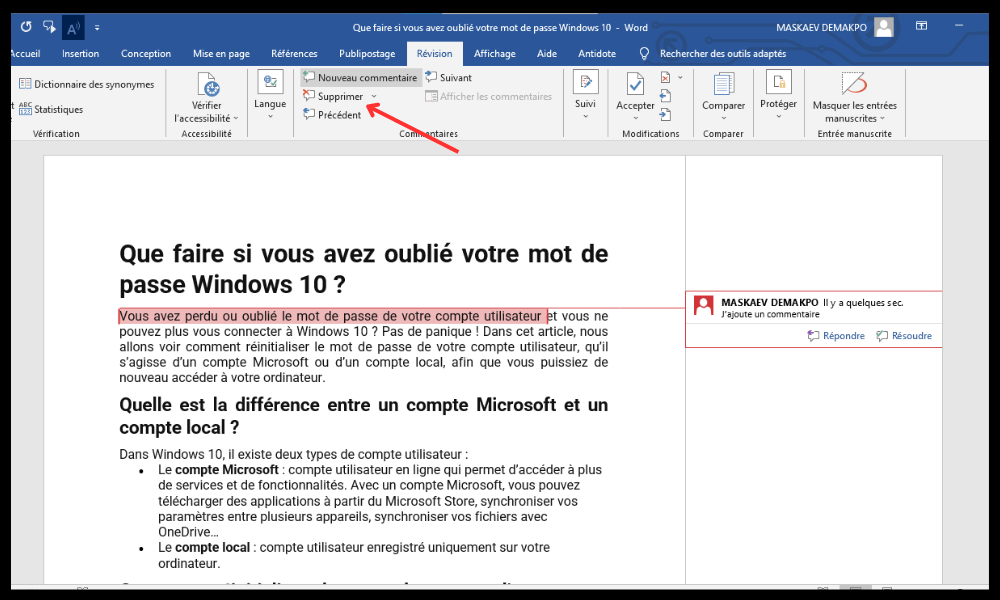
- Choose Delete all comments from the document to delete all comments at once.
- Or choose Delete or Next or Previous to delete comments one by one.
How do I reply to a comment in Word?
If you want to reply to a comment in Word , you can:
- Select the comment you want to reply to.
- Go to the Review tab and click on Reply in the Comments group.

- Type your answer in the bubble that appears below the original comment.
You can also reply to a comment by right-clicking on it and choosing Reply to comment from the context menu.
How do I edit or resolve a comment in Word?
If you want to edit or resolve a comment in Word , you can:
- Select the comment you want to edit or resolve .
- Go to the Review tab and click Edit or Resolve in the Comments group.
- Make the desired changes to the comment content or check the Resolved box to mark the comment as completed.
You can also edit or resolve a comment by right-clicking on it and choosing Edit or Resolve Comment from the context menu.
How can I display all comments in a separate panel?
If you want to display all comments in a separate pane to the right of the document, you can:
- Go to the Review and click on Review Pane in the Tracking group.
- Choose Vertical Pane – Document Revisions to display all comments in a separate pane to the right of the document.
- Choose Horizontal pane – Document revisions to display all comments in a separate pane at the bottom of the document.
How do I print a Word document with comments?
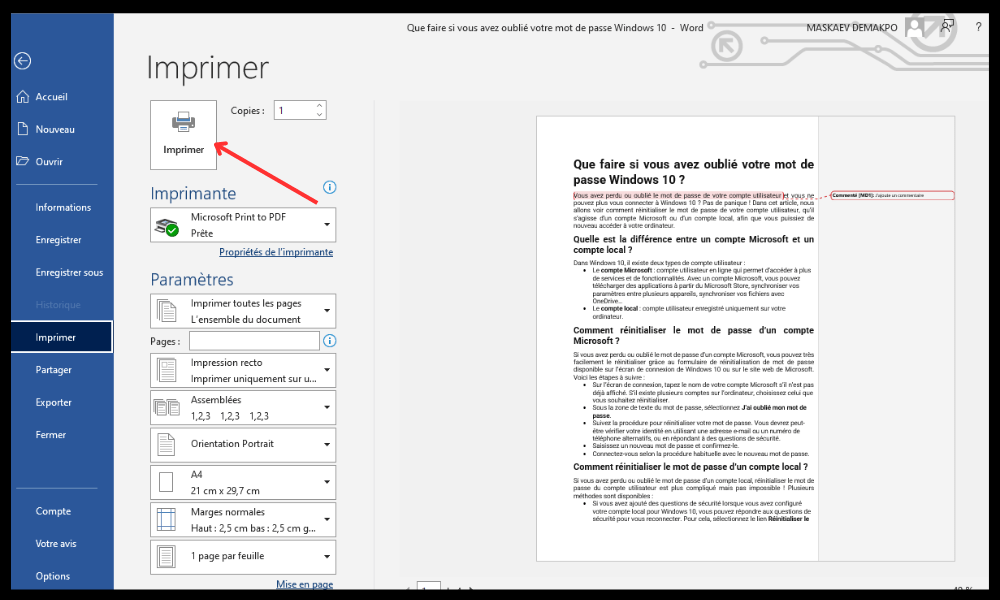
If you want to print a Word document with comments, you can follow these steps:
- Go to the File tab and click Print.
- In the Settings section, click the drop-down list under Print all documents and choose Document showing markup.
- Check the "Print markup" box under Document Information.
- Click Print to start printing.
You can also access the same options by clicking the Office button (in Word 2007) or the Quick Printer icon (in Word 2010 or 2016) in the Quick Access Toolbar.
If you do not have Word installed on your computer, you can also print using WordPad , a simple and free word processing software.
Conclusion
Comments are useful tools for annotating or explaining a Word document. They can be hidden or displayed on screen as needed. They can also be printed with the document or not, depending on your preference. To manage comments in Word, you can use the commands available in the Review tab or the File menu. You can also use the Review pane to view all comments in a separate pane. We hope this article has been helpful in learning how to print a Word document without comments. If you want to create an attractive and original document, you can also learn how to make a flyer in Word with our tips and tricks .