
You have a Logitech device connected to your PC, such as a mouse , keyboard , or webcam . You're happy with how it works, but you're annoyed by a program that launches every time you start Windows Logitech Download Assistant : What is it? What is it used for? And most importantly, how do you get rid of it?
What is Logitech Download Assistant and what is it used for?
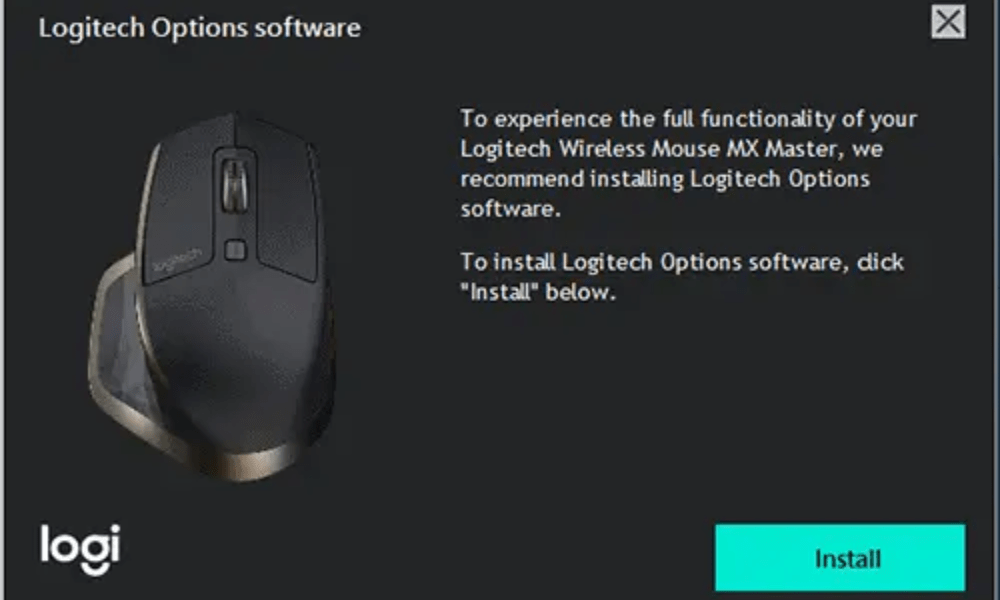
Logitech Download Assistant is a program that detects Logitech devices connected to your PC and checks if their drivers are up to date. If not, it offers to download and install them automatically. It may also suggest other optional or related Logitech software to enhance your user experience.
Logitech Download Assistant is supposed to make your life easier by saving you the trouble of manually searching for the latest drivers for your Logitech devices. However, it can also have drawbacks, such as:
- It consumes system resources and slows down Windows startup , which can lead to error code 0xc0000185 on your computer.
- It can conflict with other programs or create errors in the registry .
- It can send you untimely or unwanted notifications.
- It can install software that you don't need or don't want.
If you encounter any of these problems or simply want to get rid of Logitech Download Assistant, you can disable or remove it from your PC.
How do I disable Logitech Download Assistant at startup?
The easiest and fastest way to disable Logitech Download Assistant at startup is through the Task Manager. Here's how:
- Press Ctrl + Shift + Esc to open the task manager.
- Click on the Startup .
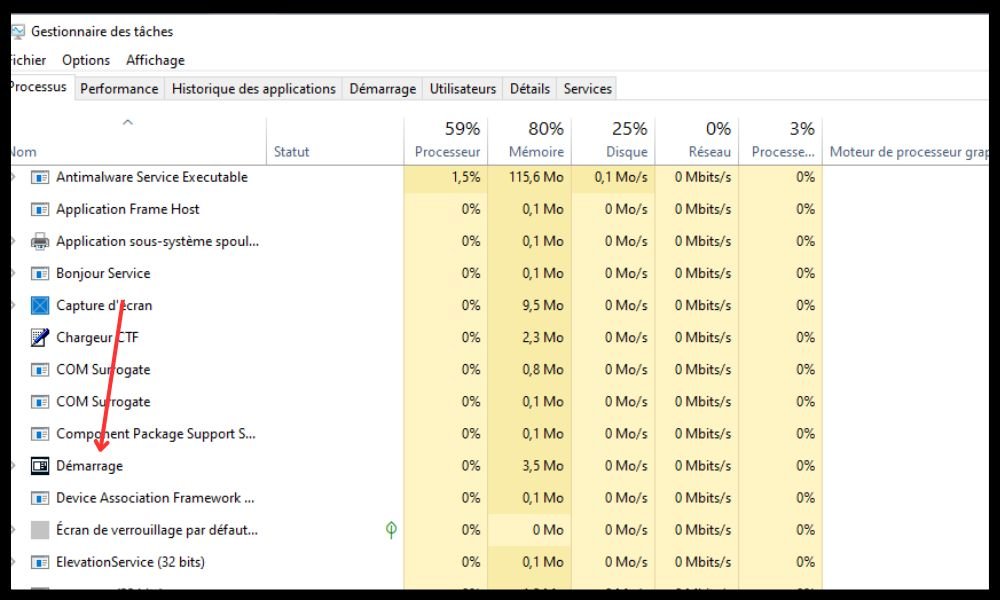
- Right-click on Logitech Download Assistant and choose Disable .
- Restart your PC and check if LDA no longer appears when Windowsstarts.
This method prevents Logitech Download Assistant from launching automatically, but it doesn't remove it from your PC. If you want to remove it completely, follow the next method.
How do I remove Logitech Download Assistant from my PC?
The most effective way to remove Logitech Download Assistant from your PC is through the Control Panel. Here's how:
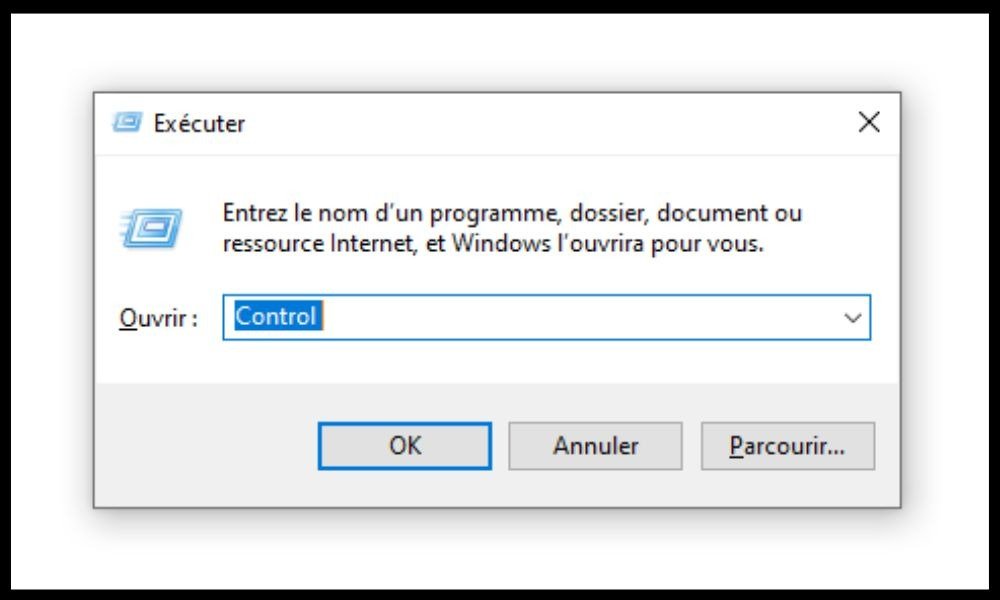
- Open the control panel by pressing the Windows + R and typing control in the Run dialog box.
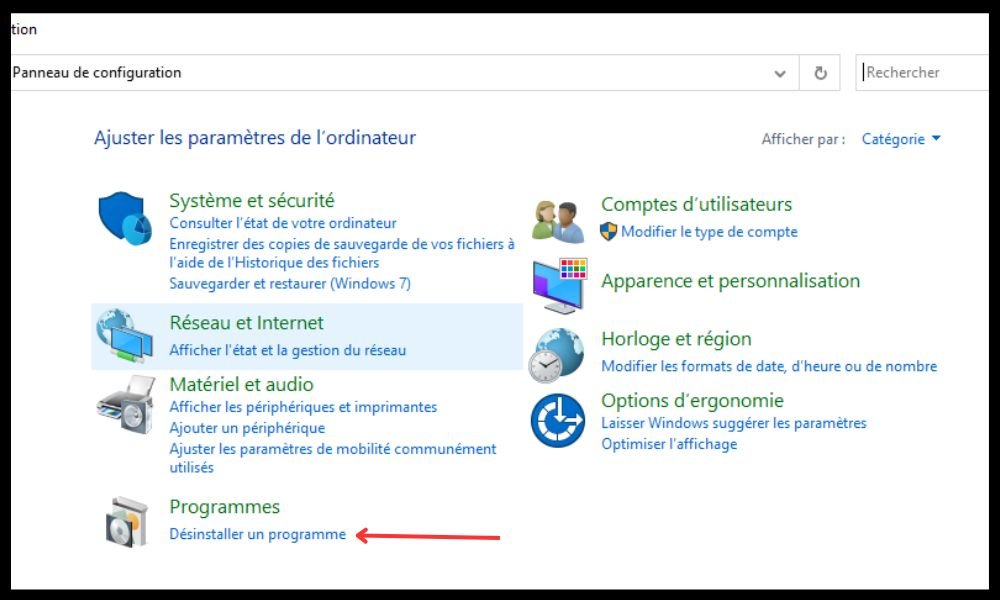
- Click on Uninstall a program Programs category .
- Locate Logitech Download Assistant in the list of installed programs and click on it.
- Click Uninstall and follow the on-screen instructions to complete the uninstallation.
- Restart your PC and check if LDA has been removed from your PC.
This method removes Logitech Download Assistant from your PC , but traces may remain in the registry or the System32 folder. If you want to remove them, follow the next method.
How do I clean up Logitech Download Assistant residue?
The most thorough method for removing Logitech Download Assistant residue is to use cleaning software like CCleaner. Here's how:
- Download CCleaner, install it and run it.
- Click on Cleaner and check the boxes corresponding to the items you want to clean, including the registry and temporary files.
- Click on Analyze and wait for the scan to complete.
- Click on Clean and confirm your choice.
- Restart your PC and check if LDA has been completely removed from your PC.
This method allows you to clean up Logitech Download Assistant remnants, but also to optimize your PC's performance by removing unnecessary or obsolete files.
FAQ
Here are some frequently asked questions about Logitech Download Assistant:
Is Logitech Download Assistant a virus?
No, Logitech Download Assistant is not a virus , but a legitimate program from Logitech. However, it may be considered a potentially unwanted program (PUP) if it installs without your consent or if it causes you problems.
Is Logitech Download Assistant necessary?
No, Logitech Download Assistant isn't necessary, but it can be useful if you want to keep your Logitech drivers updated automatically . If you prefer to manage updates yourself or if you don't use Logitech devices, you can disable or remove it without any problems.
How do I reinstall Logitech Download Assistant?
If you have disabled or deleted Logitech Download Assistant and want to reinstall it, you can do so by downloading the driver for your Logitech device from the official Logitech website. During installation, be sure to check the box to install Logitech Download Assistant.
How to prevent Logitech Download Assistant from reinstalling itself?
Windows update , you can prevent this by deleting the LogiLDA.dll file in the System32 folder. To do this, follow these steps:
- Open File Explorer and navigate to the folder C:\Windows\System32.
- Locate the LogiLDA.dll file and right-click on it.
- Select Delete and confirm your choice.
- Restart your PC and check if LDA no longer reinstalls.
How do I disable Logitech Download Assistant notifications?
If you want to keep Logitech Download Assistant but want to disable the notifications it sends you, you can do so by changing your Windowsnotification settings. To do this, follow these steps:
- Windows settings by pressing the Windows + I .
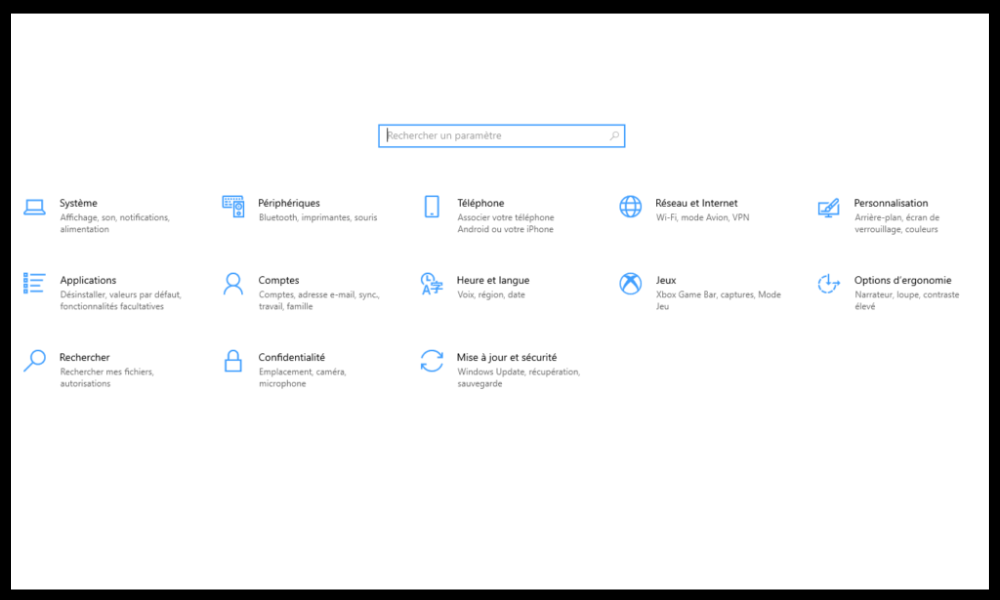
- Click on System , then on Notifications and actions .
- Scroll through the list of applications and search for Logitech Download Assistant .
- Click the button to disable notifications for this application.
Conclusion
Logitech Download Assistant is a program that can help you keep your Logitech drivers up to date, but it can also cause problems. If you want to get rid of it, you can disable or remove it from your PC by following the methods we've outlined in this article. These methods will also allow you to disable programs that start automatically when your PC boots up , which can improve its performance and speed. We hope this article was helpful and that you were able to resolve your issue with Logitech Download Assistant. If you have any questions or comments, please feel free to leave them below.


