
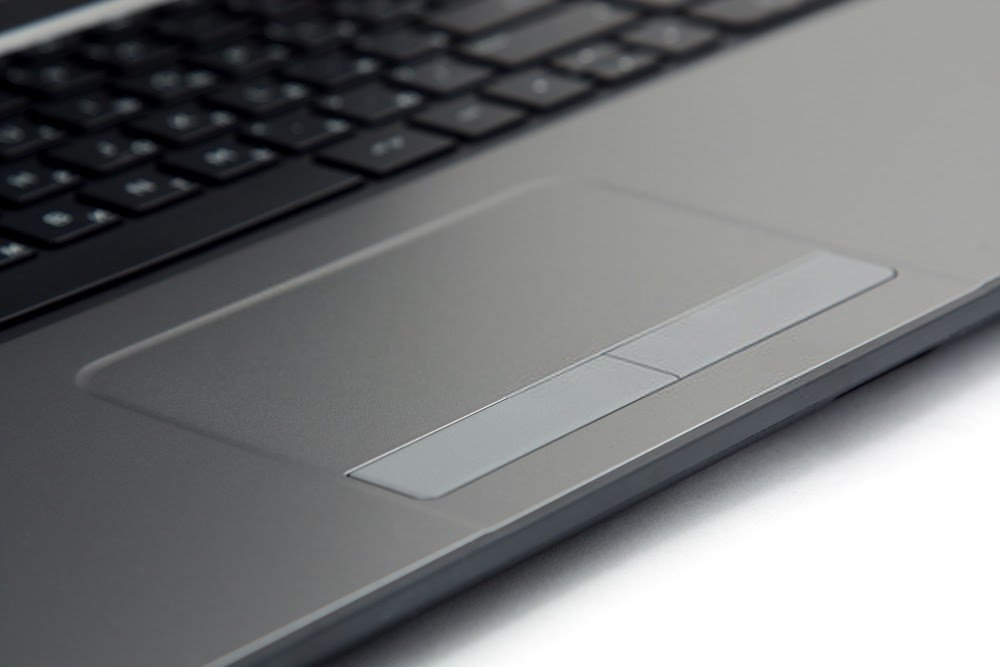
Are you having trouble moving your touchpad cursor? Even after restarting your laptop? To help you resolve the issue of a stuck touchpad , here are a few solutions that might help you get it working again!
What is a computer's touchpad?
The touchpad, also known as a trackpad , is a very smooth control surface used to move the cursor and perform tasks on a computer. Today, almost all modern laptops include a touchpad.
Indeed, thanks to this panel, you can manage everything with your fingers, as it has all the functionalities of a mouse. The trackpad is therefore an "integrated mouse" for a laptop. Furthermore, a computer's touchpad is capable of detecting acceleration and linear movement .
This will allow you to have precise and impeccable control through the movements of your fingers.
Most touchpads have two buttons underneath, corresponding to the " right " and " left " clicks of an external mouse.
multi-touch technology , which is very common in modern laptops.
Why is your computer's touchpad no longer working?

When it stops working on your computer, be aware that there could be several reasons:
Using a faulty external keyboard or a bad connection
When you use an external keyboard that is not working properly, it may impact the operation of your touchpad.
Disabling the integrated trackpad via your laptop's BIOS
Yes, this is indeed possible! BIOS can disable the touchpad when malfunctioning external mice are connected. You could call this an act of self-defense by your computer's Basic Input/Output System.
Problem related to outdated drivers on your laptop
The touchpad, like any computer component, can be subject to partial or total driver malfunction . This could prevent your trackpad from working on your PC.
Incorrect use of the different keys on your keyboard
On most modern laptops, there's a key combination that toggles the touchpad on and off. You've probably pressed this combination without even realizing it.
Good news, no matter the cause of your trackpad problem , there are solutions to quickly unlock your touchpad!
Solutions to fix a stuck touchpad on a Windows laptop
Now that you know the causes of a trackpad malfunction, it's time to take action!
Solution 1: Try the Fn key combination
Using your laptop keyboard, you can manage:
- Screen brightness
- The speaker volume
- The function of the touchpad
- Similar orders

Your keyboard has a function key “ Fn ” which can be used to execute commands on your PC. It can also be used in combination with the FX to manage certain tasks.
We invite you to follow this video to easily enable or disable the Fn key on your laptop .
When you use this key combination, you therefore have the option to lock or unlock your trackpad.
Solution 2: Check if the touchpad is disabled in the BIOS
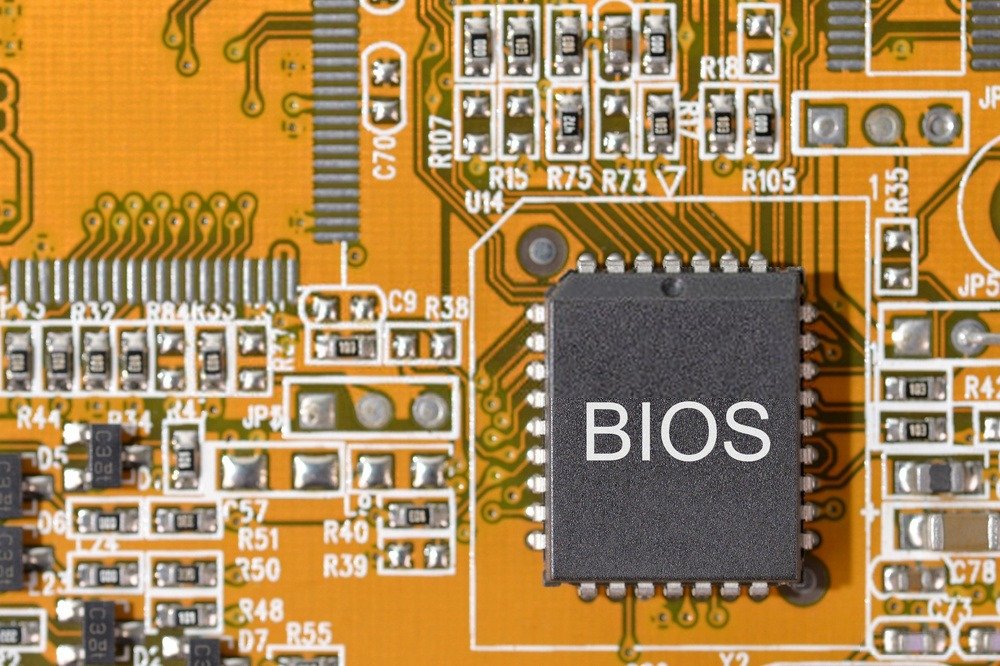
Some BIOS updates can disable the trackpad on a laptop. This bug can be fixed quickly! Simply enable the settings and resolve the issue from within the BIOS.
Step 1: Depending on your PC brand, press one of the specific keys after starting your computer.
- ASRock: F2 or SUPR.
- ASUS: F2 for all PCs, F2 or SUPR for motherboards.
- Acer: F2 or SUPR.
- Dell: F2 or F12
- ECS: SUPR
- Gigabyte / Aorus: F2 or SUPR.
- HP: F10
- Lenovo: F2 or Fn + F2 on laptops, F1 on their desktop PCs, and Enter
- MSI: SUPR
- Microsoft Surface tablets: Press and hold the volume up button.
- PC Origin: F2
- Samsung: F2
- Toshiba: F2
- Zotac: SUPR
Step 2: Once in the BIOS, go directly to the " Device Configuration " or " Advanced " section. Then locate the option called "Internal Pointing Device" or something similar to your touchpad. All you have to do is press " Enter " to change the value and set it to " Enable ".
When you restart your Windows, you will find that the touchpad malfunction error will be resolved!
Solution 3: Restore the driver!
If the solutions above don't work, we recommend restoring your drivers! It's simple, you'll see, just watch the video below:
What if the solutions presented above do not work?
If you try one of the solutions presented in this article and find that your trackpad is still stuck, we recommend that you get a wireless mouse .
![Uineer Rechargeable Wireless Mouse, [Upgraded] Battery Indicator, 2.4G USB Ergonomic Mouse...](https://tt-hardware.com/wp-content/plugins/aawp/public/assets/img/thumb-spacer.png)


