
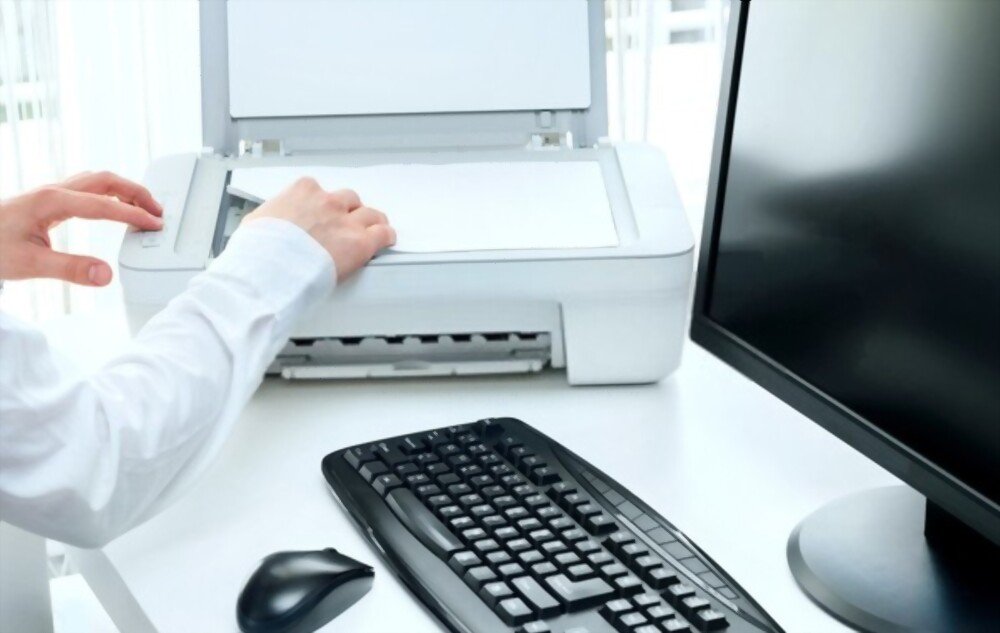
Do you have an HP printer that works perfectly for printing documents, but refuses to scan anything? You're not alone in this problem, which can be caused by several factors. In this article, we'll explain why you can print but not scan on an HP printer running windows 11 and how to fix it.
What are the possible causes of the HP scanner problem windows 11?
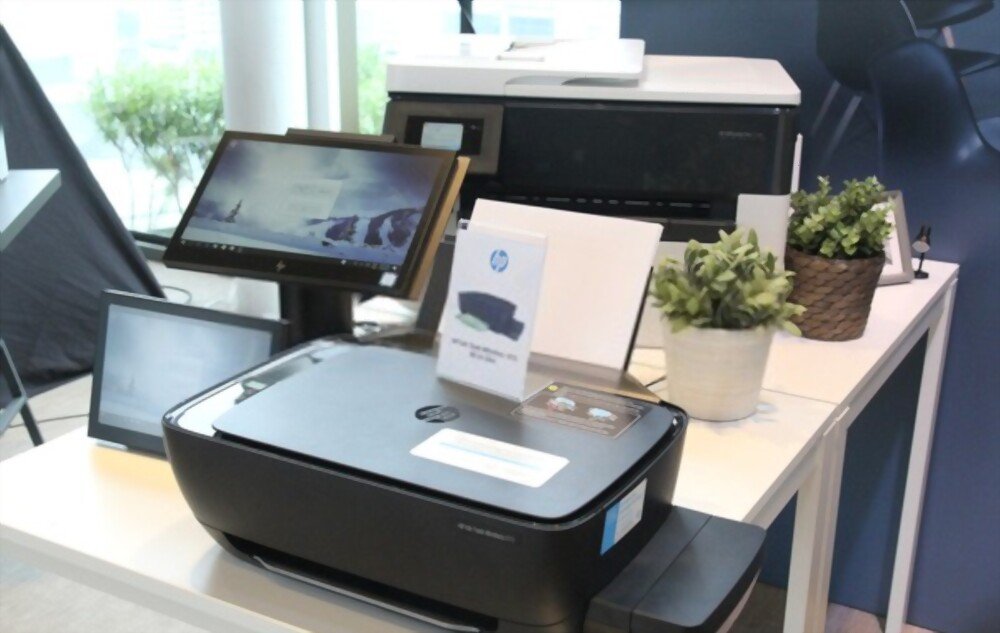
There are several reasons why your HP printer might not scan correctly under Windows 11. Some of the most common include:
- An outdated scanner driver or one incompatible with Windows 11.
- A connection problem between the printer and the computer, whether via USB cable or Wi-Fi.
- A problem with the scanner or scanning software configuration.
- A problem with the scanner or printer.
How to solve the HP scanner problem windows 11?
To resolve the HP scanner problem windows 11, you can try the following methods:
Method 1: Update the scanner driver
The scanner driver is the software that allows your HP printer to communicate with your computer and scan your documents. If the driver is outdated or incompatible with Windows 11, it can cause malfunctions or errors. To update the scanner driver, follow these steps:
- Open Device Manager by right-clicking the Start and choosing Device Manager .
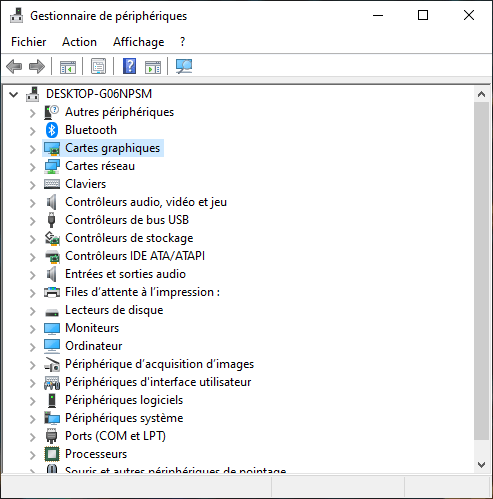
- Printers category and right-click on your HP printer. Choose Update driver .
- Click on Automatically search for an updated driver and follow the on-screen instructions.
- If Windows cannot find an updated driver, you can visit your HP printer manufacturer's website and download the driver that corresponds to your model and version of Windows 11.
- Install the downloaded driver following the manufacturer's instructions.
Method 2: Check the connection between the printer and the computer
A connection problem between the printer and the computer can also prevent the scanner from working correctly. To check the connection, follow these steps:
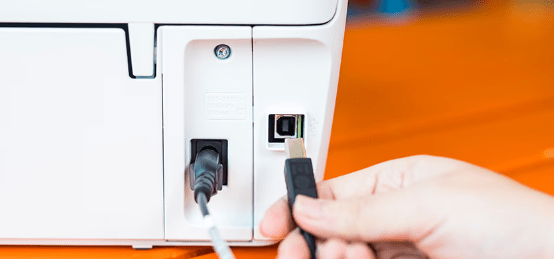
- If you are using a USB cable to connect your printer to your computer, make sure it is securely plugged in at both ends and is not damaged. If necessary, try a different USB port or cable.
- If you are using a Wi-Fi connection to connect your printer to your computer, make sure that both devices are connected to the same wireless network and that the signal is strong enough. You may also want to try restarting your router or internet box.
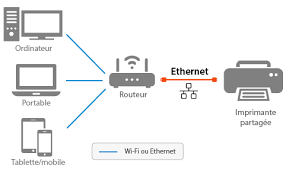
- If you are using a Bluetooth connection to connect your printer to your computer, make sure that both devices are paired and that Bluetooth is enabled on both devices. If necessary, try removing and re-adding the printer in your Bluetooth settings.
Method 3: Configure the scanner or scanning software
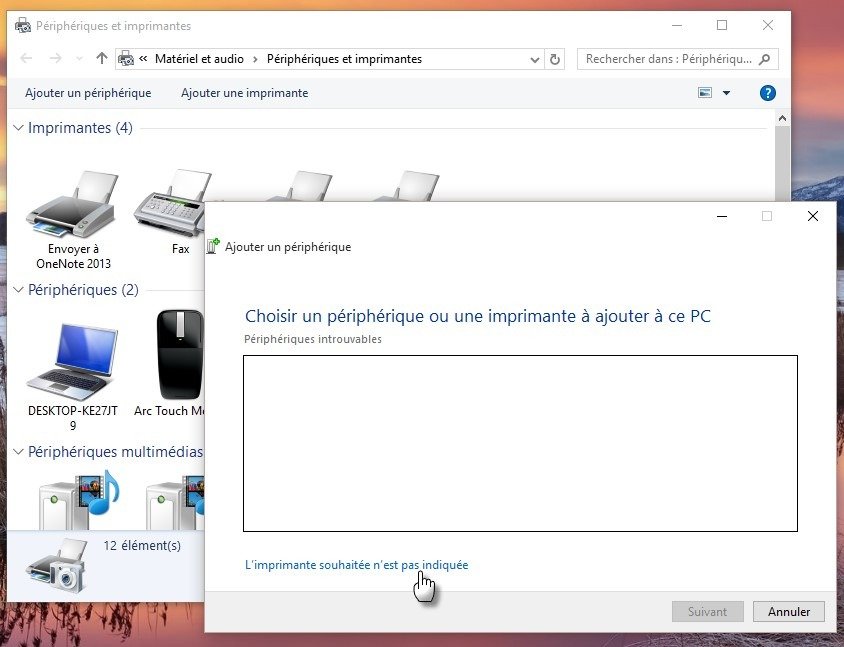
A problem with the scanner or scanning software configuration could also be the cause. To configure the scanner or scanning software, follow these steps:
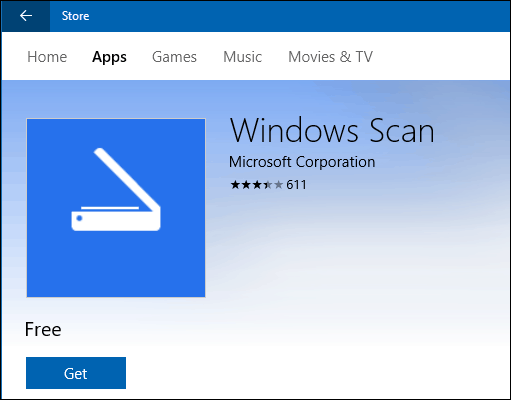
- Open the scanning software you use, such as HP Scan, HP Smart, or Windows Scan. You can find them by searching in the Start or the Microsoft Store.
- Select your HP printer from the list of available devices. If you don't see it, click Add a device and follow the on-screen instructions.
- Choose the type of scan you want to perform, for example Document or Photo .
- Choose the scanning settings you want to use, for example resolution, format, color, or contrast.
- Click Scan and wait for the process to complete.
- Save or share the scanned file as needed.
Method 4: Troubleshooting the scanner or printer
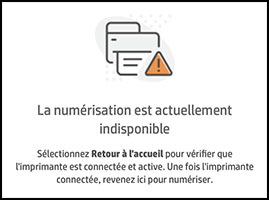
If the previous methods did not resolve the issue, the scanner or printer may be faulty or malfunctioning. To troubleshoot the scanner or printer, follow these steps:
- Check that the printer is powered on and that it displays an error message or a flashing light. If so, consult your HP printer's user manual or the manufacturer's website to find out what the message or light means and how to resolve it.
- Check that the scanner is clean and that there is no dust, dirt, or paper stuck on the glass or under the cover. If there is, clean the scanner with a soft, damp cloth and carefully remove any foreign objects.
- Check that the ink cartridges are sufficiently filled and correctly installed. If not, replace any empty or incorrectly positioned cartridges with new ones compatible with your HP printer.
- Check that the paper is of good quality and correctly loaded in the power supply tray. If not, replace any wrinkled, damp, or damaged paper with new paper suitable for your HP printer.
FAQ
Here are some frequently asked questions about HP scanner problems windows 11:
How can I tell if my HP printer is compatible with Windows 11?
To find out if your HP printer is compatible with Windows 11, you can consult the list of HP printers compatible with Windows 11 on the manufacturer's website. You can also use the HP Print and Scan Doctor tool to check your HP printer's compatibility with Windows 11.
How to scan a document with Windows 11 without software?
To scan a document with Windows 11 without additional software, you can use the Windows Scan app, which is integrated into the operating system. To do this, follow these steps:
- Connect your HP printer to your computer via USB cable or Wi-Fi.
- Windows app by searching for it in the Start or the Microsoft Store.
- Select your HP printer from the list of available devices.
- Choose the type of scan you want to perform, for example Document or Photo .
- Choose the scanning settings you want to use, for example resolution, format, color, or contrast.
- Click Scan and wait for the process to complete.
- Save or share the scanned file as needed.
How to scan multiple pages into a single file with Windows 11?
To scan multiple pages into a single file with Windows 11, you can use the Add Pages in the Windows Scan app. To do this, follow these steps:
To scan multiple pages into a single file with Windows 11, you can use the Add Pages in the Windows Scan app. To do this, follow these steps:
- Connect your HP printer to your computer via USB cable or Wi-Fi.
- Windows app by searching for it in the Start or the Microsoft Store.
- Select your HP printer from the list of available devices.
- Choose the type of scan you want to perform, for example Document .
- Choose the scanning settings you want to use, for example resolution, PDF format, color, or contrast.
- Click Scan and wait for the process to complete.
- If you want to add another page to the same file, place the next page on the scanner and click Add Pages . Repeat this process until you have scanned all the desired pages.
- Save or share the scanned file as needed.
How do I scan a double-sided document with Windows 11?
To scan a double-sided document with Windows 11, you need an HP printer with an automatic document feeder (ADF) that can scan both sides of a sheet of paper. If so, follow these steps:
- Connect your HP printer to your computer via USB cable or Wi-Fi.
- Open the scanning software you use, such as HP Scan, HP Smart, or Windows Scan. You can find them by searching in the Start or the Microsoft Store.
- Select your HP printer from the list of available devices.
- Choose the type of scan you want to perform, for example Document .
- Choose the scanning settings you want to use, for example resolution, format, color, or contrast.
- Under Source , choose Automatic Document Feeder (duplex) . If you don't see this option, it means your printer cannot automatically scan both sides of a sheet of paper.
- Place the documents to be scanned in the automatic document feeder following the manufacturer's instructions.
- Click Scan and wait for the process to complete.
- Save or share the scanned file as needed.
How do I scan a document with Windows 11 and send it by email?
To scan a document with Windows 11 and send it by email, you can use the Share in the Windows Scan app. To do this, follow these steps:
- Connect your HP printer to your computer via USB cable or Wi-Fi.
- Windows app by searching for it in the Start or the Microsoft Store.
- Select your HP printer from the list of available devices.
- Choose the type of scan you want to perform, for example Document or Photo .
- Choose the scanning settings you want to use, for example resolution, format, color, or contrast.
- Click Scan and wait for the process to complete.
- Click the Share in the top right corner of the screen and select the Mail . If you don't see this option, it means you haven't set up the Mail app on your computer. You can also choose another email app if you have one installed on your computer, such as Outlook or Gmail.
- Compose your email, including the recipient's name, subject, and message. The scanned file will be automatically attached to your email.
- Click Send to send your email with the scanned document.
Is it possible that the ink cartridge is responsible for a printing failure?
In the world of printers, the central role played by ink cartridges is undeniable. They are the beating heart of the device, ensuring the faithful transfer of our digital documents to paper. But what happens when printing problems occur? Is it plausible that the ink cartridge is the culprit?
While a printer is indeed a complex assembly of electronic and mechanical components, ink cartridges, despite their apparent simplicity, can be the source of numerous malfunctions. The first obvious sign of a faulty or empty HP 364 ink cartridge is incomplete printing, with missing areas or inaccurate colors. In such situations, checking the cartridge's capacity and expiration date is crucial.
Ink cartridges also contain electronic chips that communicate with the printer. A malfunction of this chip can lead to read errors, making printing impossible. Technology, however small , is a crucial part of the process.
Sometimes, improper storage of cartridges, such as exposure to extreme temperatures, can compromise ink quality. The ink can coagulate, clogging the printer nozzles and causing streaked or uneven prints. In other cases, using incompatible or counterfeit cartridges can not only affect print quality but also damage the printer itself.
It is therefore clear that ink cartridges, despite their small size, can be the source of various printing problems. However, often, careful inspection, regular cleaning, and the use of genuine products can prevent these issues.
Consider buying quality ink cartridges
The adage "you get what you pay for" is particularly true when it comes to ink cartridges. While the market is full of budget-friendly options, it's essential not to sacrifice quality for the sake of saving money.
- Buying quality ink cartridges not only guarantees flawless printing, but also protects your equipment.
- Inferior quality inks, often acidic, can corrode printer components.
- Similarly, poorly designed cartridges are likely to leak, causing damage that is sometimes irreversible.
Premium ink cartridges are designed to deliver consistent, even printing. Their finely formulated ink ensures faithful color reproduction, sharp details, and increased print longevity. Sharpness and brightness are often the first visible signs of using high-quality ink.
Conclusion
The HP scanner problem windows 11 is an issue that can prevent you from scanning documents with your HP printer running Windows 11. There are several possible causes for this problem, as well as several solutions. We hope this article has helped you understand why you can print but not scan with your HP printer windows 11 and how to resolve this issue. If you still have questions or comments, please let us know in the section below.


