

Lenovo is a brand renowned for its high-performance and ergonomic laptops. But did you know you can optimize your user experience with Lenovo Hotkeys ? These are key combinations that give you quick access to certain features of your device, such as volume, brightness, airplane mode, or the touchpad. In this article, we'll explain what Lenovo Hotkeys are, how to use them, and how to update them.

What is Lenovo Hotkeys?
Lenovo Hotkeys is an application that supports the keyboard shortcut function on Lenovo laptops by providing an on-screen display (OSD) to show the current status of the shortcuts. In addition, the user interface is improved, and an introduction to keyboard shortcuts and a user guide are provided for ease of use.
Lenovo Hotkeys is an enhanced version of Lenovo Utility, which was replaced by Lenovo Hotkeys starting with version 3.0.0.242. You can download Lenovo Hotkeys from the Microsoft Store by clicking the install button and following the instructions on the website.
How do I use Lenovo Hotkeys?
There are two types of special function keys on Lenovo laptops: FN keys and keyboard shortcuts .
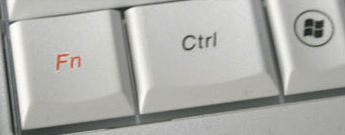
The FN keys are located at the bottom of the keyboard, usually next to the CTRL key. They are marked with a blue or orange FN symbol. To activate a special function, press the FN key and another key marked with a symbol corresponding to the desired function simultaneously. For example, to turn the sound on or off, press FN + F1.

Keyboard shortcuts are keys located at the top of the keyboard, usually labeled F1 through F12. They allow you to directly access certain functions without having to press the FN key. For example, to close the currently active window, simply press F4. But did you know that you can also insert special characters using keyboard shortcuts ? These are symbols or letters that are not present on the keyboard, such as the heart ♥, the euro symbol €, or the acute accented e é. To insert them, simply press the Alt key and a numeric code corresponding to the desired character. For example, to insert the heart ♥, press Alt + 3.
Here are some examples of function key combinations and keyboard shortcuts on Lenovo laptops:
- Fn + PrtSc (ideapad 100-15IBY): Activates the system query.
- Fn + Pause: Activates the pause function.
- Fn + Delete (ideapad 100-14IBY): Fn + Insert (ideapad 100-15IBY): Toggles scroll lock on/off.
- Fn + Delete (ideapad 100-15IBY): Enables/disables the numeric keypad.
- F1: Turns the sound on/off.
- F2: Decreases the volume level.
- F3: Increases the volume level.
- F4: Closes the currently active window.
- F5: Refreshes the desktop or the currently active window.
- F6: Toggles the touchpad on/off.
- F7: Toggles Airplane mode on/off.
- F8: Displays all currently active applications.
- F9: Turns the LCD screen backlight on/off.
- F10: Switches the display between the computer and an external device.
- F11: Decreases display brightness.
How do I update Lenovo Hotkeys?
To fully benefit from Lenovo Hotkeys, it is recommended to update them regularly. To do so, you can follow these steps:

- Open the Microsoft Store and search for Lenovo Hotkeys.
- Click the Get or Install button to download and install the application.
- Once the installation is complete, restart your computer for the changes to take effect.
- You can now use Lenovo Hotkeys on your Lenovo laptop.
FAQ
Here are some frequently asked questions about Lenovo Hotkeys:
How do I enable or disable the FN key?
Depending on your Lenovo laptop model, you can enable or disable the FN key by pressing Fn + Esc, or by accessing the BIOS and changing the Action Keys Mode setting.
What is the hotkey.exe file?
The hotkey.exe file is a startup program that enables keyboard shortcut combinations. An internal version referencing the Lenovo Black Silk USB keyboard installs in "C:\Program Files\jmesoft".
How do I uninstall Lenovo Hotkeys?
To uninstall Lenovo Hotkeys, you can follow these steps:
- Open the Start menu and click on Settings.
- Click on Apps and features.
- Find Lenovo Hotkeys in the list of installed applications and click on it.
- Click the Uninstall button and follow the on-screen instructions.
How do I customize Lenovo Hotkeys?
To customize Lenovo Hotkeys, you can use the Lenovo Vantage application, which allows you to modify your Lenovo laptop's settings. To do this, you can follow these steps:
- Open the Microsoft Store and search for Lenovo Vantage.
- Click the Get or Install button to download and install the application.
- Open the Lenovo Vantage application and click on Hardware.
- Click on Input settings and choose the options you want to change
What are the advantages of Lenovo Hotkeys?
Lenovo Hotkeys offer numerous advantages:
- They allow you to quickly access certain features of your Lenovo laptop without having to go through the Start menu or the Control Panel.
- They offer you a better user experience by providing an on-screen display (OSD) to show the current status of keyboard shortcuts.
- They make it easier for you to navigate between open applications or external devices connected to your Lenovo laptop.
Conclusion
Lenovo Hotkeys are key combinations that allow you to quickly access certain features on your Lenovo laptop, such as volume, brightness, airplane mode, or the touchpad. They are supported by the Lenovo Hotkeys app, which you can download from the Microsoft Store. To use Lenovo Hotkeys, simply press the FN key or the keyboard shortcuts corresponding to the desired function. Remember to regularly update the Lenovo Hotkeys app to benefit from the latest improvements. However, if you encounter a problem with a stuck keyboard , you can try the following solutions:
- Check that Caps Lock, Scroll Lock, or Num Lock is not enabled.
- Restart your computer and test your keyboard again.
- Uninstall and reinstall the keyboard driver from Device Manager.
- Scan your computer for viruses or malware.
- Contact Lenovo customer service if none of the previous solutions work.


