

The DISM Host Servicing Process , or DismHost.exe, is a Microsoft program that is part of the core Windows . It is used to prepare the pre-installation environment ( Windows PE) Windows image , to add or remove drivers, to enumerate packages, or to enable or disable certain Windows .
This program is generally useful and doesn't cause problems if DISM.exe is correct and up-to-date. However, it can sometimes cause errors such as high disk, CPU, or memory usage. It can also slow down your system or continue running in the background after being closed from the taskbar. In some cases, it may even be malware that compromises your PC's security.
How can you tell if the DISM Host Servicing Process is malware? How do you fix the problem of the DISM Host Servicing Process consuming too much CPU? What are some effective methods for optimizing your system's performance? We'll answer all these questions in this article.
How to detect if the DISM Host Servicing Process is malware?

The DISM Host Servicing Process is a legitimate program that is normally located in the folder C:\ Windows \System32\Dism\DismHost.exe. If you find it in another location, such as the folder C:\ Windows \Temp or the folder \Users\
You can also use Windows Defender or an antivirus tool to scan your PC for malware. If you find that DISM Host Servicing Process is malware, you should remove it from your system immediately.
How to resolve the problem of DISM Host Servicing Process consuming too much CPU?
If the DISM Host Servicing Process isn't malware but is consuming too much CPU, there are several ways to resolve this issue. Here are some of the most common solutions:
Method 1: Run DISM and SFC scans
DISM ) and System File Checker ( SFC scans Windows problems . They can restore missing or corrupted system files that may be affecting the operation of the DISM Host Servicing Process.
To run these analyses, you must open the command prompt as an administrator and type the following commands:
- For DISM analysis: DISM /Online /Cleanup-Image /RestoreHealth

- For SFC analysis: sfc /scannow
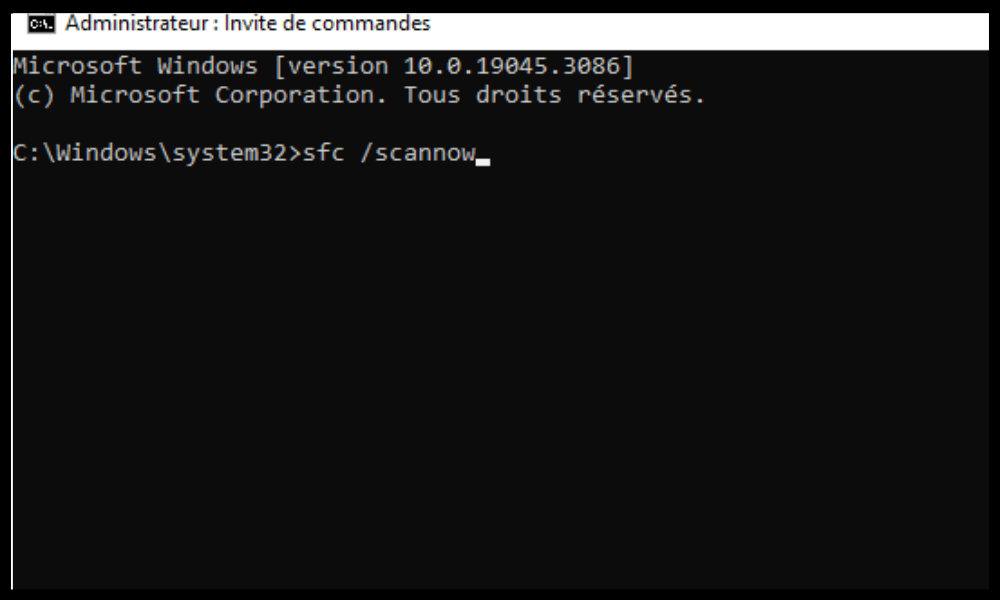
Wait for the scans to finish and restart your PC. Check if the DISM Host Servicing Process issue consuming too much CPU is resolved.
Method 2: Disable the Superfetch or Sysmain service
The Superfetch service is a Windows that aims to improve system performance by preloading frequently used applications into memory. However, it can sometimes conflict with the DISM Host Servicing Process and cause high CPU usage.
To disable the Superfetch service , you need to open the services manager Windows search bar and pressing Enter .
Find the Superfetch service in the list, right-click on it and choose “ Properties ”.
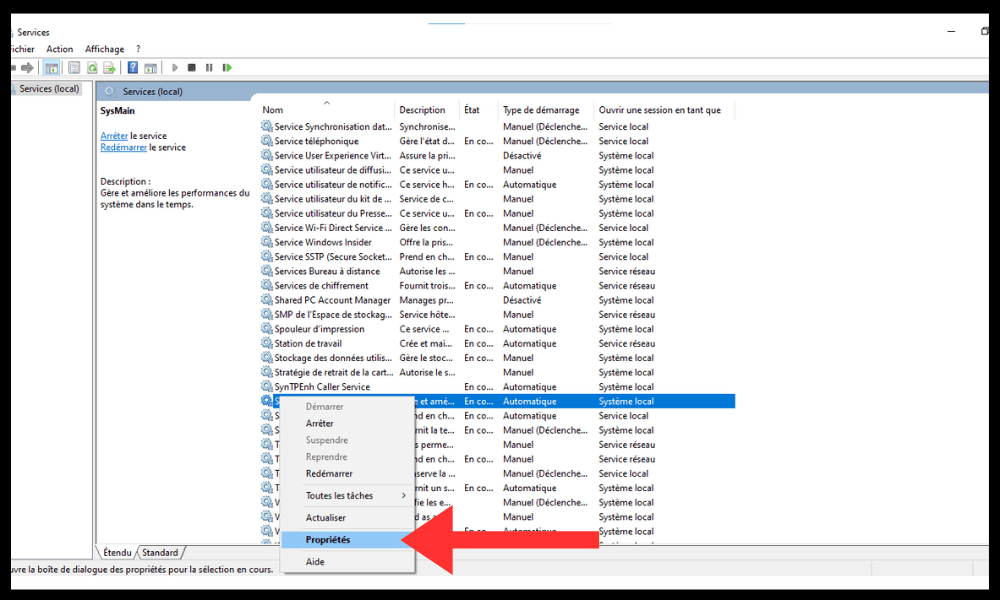
In the “ General ” tab, change the startup type to “ Disabled ” and click “ Stop ” to stop the service.

Click “ OK ” to confirm the changes.
Restart your PC and check if the DISM Host Servicing Process issue consuming too much CPU is resolved.
Method 3: Disable the Background Intelligent Transfer Service (BIT)
The Background Intelligent Transfer Service ( BIT ) is a Windows that allows file transfers using available network bandwidth. It is used by Windows Update and other applications to download updates or data. It can also conflict with the DISM Host Servicing Process and cause high CPU .
To disable the BIT service, follow the same steps as for the Superfetch service, but locate the Background Intelligent Transfer Service in the list. Change its startup type to " Disabled " and stop it.
Restart your PC and check if the DISM Host Servicing Process issue consuming too much CPU is resolved.
Method 4: Delete the temporary files of the DISM Host Servicing Process
The DISM Host Servicing Process creates numerous copies of itself in temporary folders, which can lead to high disk and CPU usage . You can delete these temporary files to free up space and optimize your system's performance.
To delete temporary files from the DISM Host Servicing Process, you need to open File Explorer and navigate to the following folders:
- C:\Windows\Temp
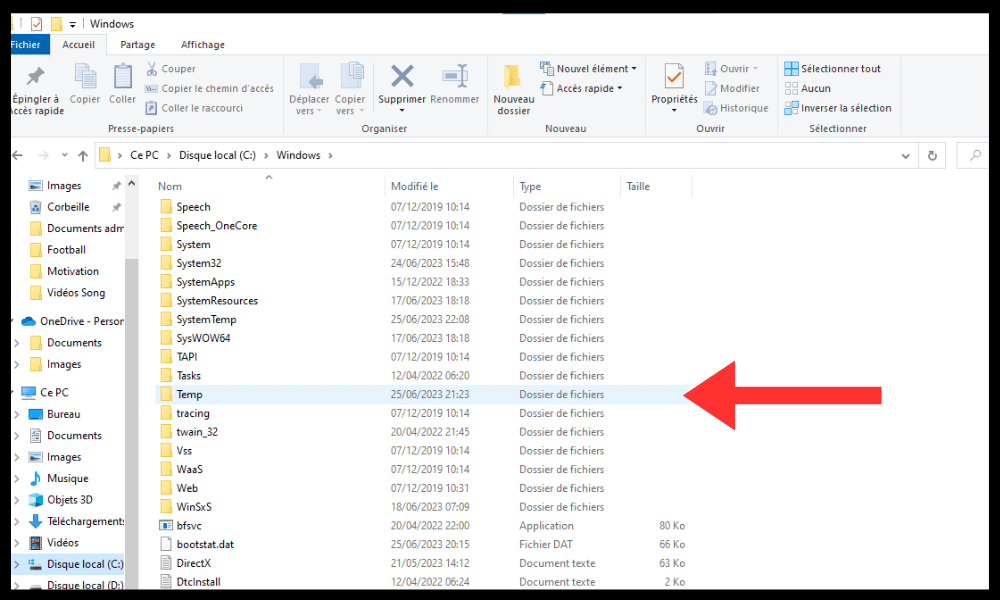
- \Users\<UserName> \appdata\local\temp
Select all files that begin with DismHost and delete them. You can also use a cleaning tool like CCleaner to remove temporary files.
Restart your PC and check if the DISM Host Servicing Process issue consuming too much CPU is resolved.
FAQ
Here are some frequently asked questions about the DISM Host Servicing Process and its CPU usage:
What is the difference between DISM and SFC?
DISM and SFC are two tools that can repair damaged or missing system files. The difference is that DISM uses a Windows as a source of healthy files, while SFC uses the system file cache as its source. It is recommended to run DISM first and then SFC for optimal repair .
What is Windows PE?
The Windows PE, or Windows Preinstallation Environment , is a minimal environment that allows you to install, deploy, or repair Windows Windows images or to restore a system in case of failure.
How do I update the DISM Host Servicing Process?
The DISM Host Servicing Process updates automatically with Windows updates . You can check if you have the latest version of the program by opening a command prompt as an administrator and typing the following command:
DISM /Online /Get-PackageInfo
You will then see the version of the DISM package installed on your PC. If you want to force an update of the program, you can use the following command:
DISM /Online /Cleanup-Image /StartComponentCleanup
This command removes outdated versions of system components and frees up disk space.
How do I uninstall the DISM Host Servicing Process?

The DISM Host Servicing Process Windows ' core services Windows registry , which can be dangerous if you don't know what you're doing. Therefore, we advise against uninstalling the DISM Host Servicing Process unless you're certain it's malware.
What are the advantages of the DISM Host Servicing Process?
The DISM Host Servicing Process has several advantages for your system. It allows you to:
- Prepare the pre-installation environment or Windows to install or deploy Windows on a PC.
- Add or remove drivers, packages, or Windows as needed.
- Repair damaged or missing system files that may affect the operation of Windows .
- Optimize your system's performance by removing outdated versions of system components.
Conclusion
The DISM Host Servicing Process is a Microsoft program that is part of the core Windows Windows image , add or remove drivers, enumerate packages, and enable or disable certain Windows features . It is also known as the sysmain service host because it manages Superfetch technology, which optimizes system performance by preloading frequently used applications into memory.
It can sometimes cause errors such as high disk , CPU, or memory usage. It can also slow down your system or continue running in the background after being closed from the taskbar. In some cases, it may even be malware that compromises your PC's security.
To resolve the issue of DISM Host Servicing Process consuming too much CPU, you can use several methods:
- Run DISM and SFC scans to restore missing or corrupted system files.
- Disable the Superfetch service or the BIT service to avoid conflicts with the DISM Host Servicing Process.
- Delete temporary files from the DISM Host Servicing Process to free up space and optimize your system's performance.
We hope this article was helpful and that you were able to resolve the issue of DISM Host Servicing Process consuming too much CPU . If you still have any questions or comments, please feel free to let us know.


