For your first scan on a Mac, it's perfectly normal not to know exactly how to proceed. Luckily for you, the process is simple, and we'll show you step by step how to successfully scan your file. Eager to find out how? Let's go!
Step 1 : Connect the scanner and the computer

To begin, you need to connect your computer and the scanner. This will be done in two phases: the connections and the configuration.
First, you should know that with your Mac, there's no need to download any specific connection software. It has built-in image transfer software that allows you to perfectly control any type of scanner. Setup takes only a few seconds.
- In the search bar, type " image transfer ". The software will appear under a camera icon.
- Right-click on the icon and click the " Open scanner " button.
That's it, you've just connected your scanner to your Mac.
See also : Printing via Wi-Fi! How to connect your printer?
Step 2 : Digitizing the document
After connecting, you must choose the scanning mode appropriate for your device. Accuracy is essential for the next steps because the method varies depending on the type of scanner you have.
With a flatbed scanner

In 3 sub-steps, you will be able to scan different images at the same time with a flatbed scanner.
Step 1: Place the documents to be scanned on the tray
Here, you must place the document(s) to be scanned face down on the scanner's glass surface. They must remain perfectly still throughout the entire operation.
Step 2: Check the connectivity
Double-check that the computer and scanner are properly connected. You can always repeat the connection process to be sure.
Step 3: Choose the flatbed scanner option
You will see a box where the option to scan with an automatic tray is available. If you have a flatbed scanner, simply uncheck the box before continuing.
With a scanner that has a power supply tray
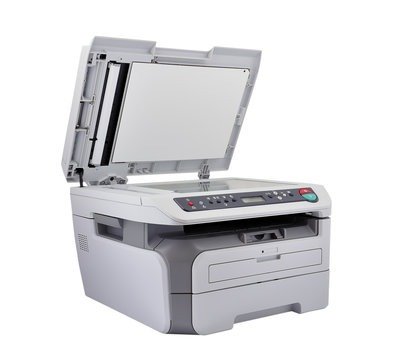
This device offers the advantage of being able to scan many pages at once. A single setting is required and will be applied to all pages. Arrange the documents to be scanned in order in the tray.
Step 1: Sort through your documents
However, only group documents with the same characteristics together. Because of the single setting, you cannot have both color and black and white scans at the same time. Therefore, be careful when sorting to avoid having to rescan certain documents.
Step 2: Check the connection between the computer and the device to be scanned
This step occupies the same place and has the same importance, regardless of the digitization method chosen.
Step 3: Choose the automatic bin option
Here, you must keep the "Scan with automatic tray" option checked. If it is empty, then check it to tell the computer the desired scanning mode.
You might like this article : Portable printer or Polaroid? Which to choose!
Step 3 : Make the necessary adjustments

Regardless of the scanner you use, the process after the scanning mode is the same. This step involves refining the expected digitized shape as much as possible.
- The type of image
You will see a " Local Type " option . You must specify the type of document you want. If you want a black and white output, choose " text ". The option is also available for colored images.
- The resolution
This refers to the file size that the digital version of the document should have. Choose a value between 200 and 300 dpi.
- The size
For A4 paper scans, disable this option to maintain a good size.
- The overview
Here, you have the opportunity to right a document that has been placed upside down.
- The location
Your computer allows you to choose a specific location for the digital version of your document.
- The name
With this option, you can assign a name to each document so you can find them quickly.
- The format
For handwritten documents, choose the " PDF " format and for photos, choose the "JPEG" format.
- The correction
This last option offers you various possibilities for modifying the original document.