
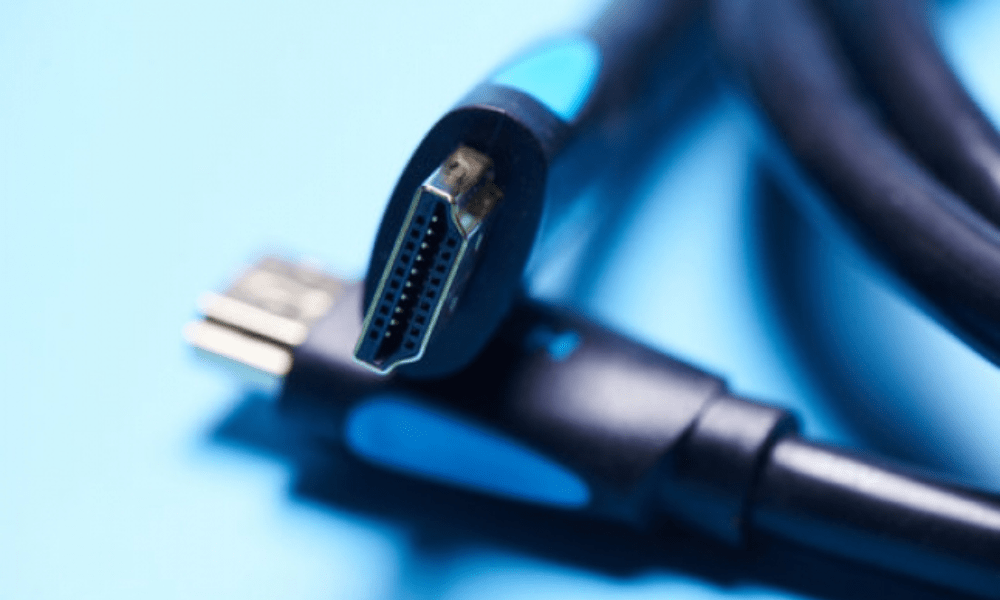
You've connected your HDMI cable between your TV and your device, but you don't see a picture or hear any sound ? Are you experiencing interference, flickering, or washed-out colors on your screen? Your HDMI cable may be faulty .
In this article, we will explain how to detect and resolve faulty HDMI cable problems , so you can fully enjoy your multimedia content.
What are some common problems associated with a faulty HDMI cable?
An HDMI cable can be faulty for several reasons, such as physical damage, wear and tear, incompatibility, or incorrect configuration. Here are some common problems associated with a faulty HDMI cable:
- An image that jumps, freezes, or disappears
- A sound that crackles, cuts out, or is absent
- An error message appears on your screen
- An inability to recognize or detect your source device
How to detect an HDMI cable problem
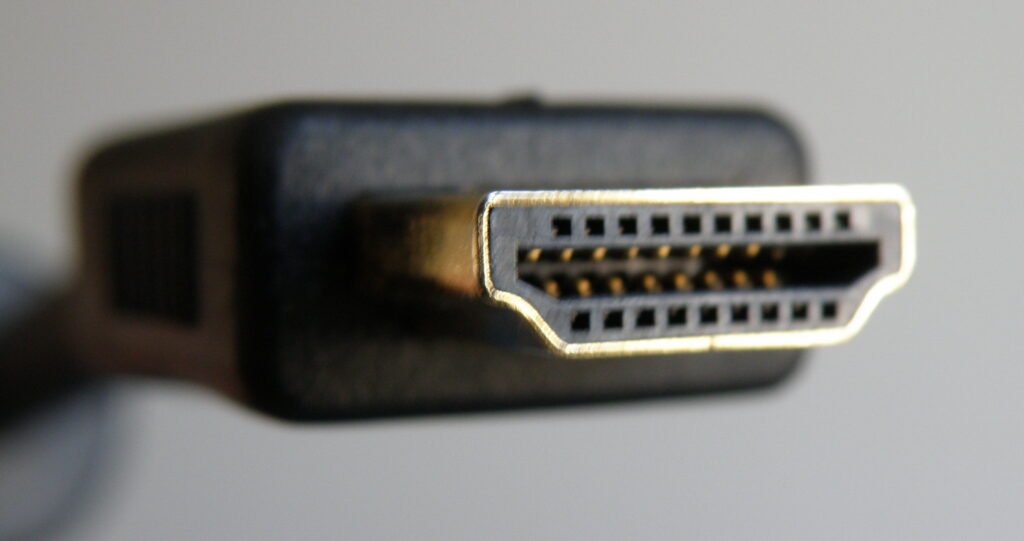
If you encounter a problem with your HDMI cable , it's important to be able to correctly identify it in order to resolve it. Here are some points to consider:
- First, check that your HDMI cable is properly connected at both ends . Also, make sure that your devices are turned on and connected.
- If you have multiple HDMI cables, try swapping them to see if the problem persists.
- If you have multiple HDMI ports on your TV or device, try plugging the cable into a different port to see if the problem disappears.
- If possible, try plugging the HDMI cable into another TV or device to see if the problem is with the cable or the device.
How to fix faulty HDMI cable problems?
Once you've identified the problem, it's time to fix it. Here are some solutions for common problems related to a faulty HDMI cable:
Check the condition of the HDMI cable
The first thing to do is check the condition of the HDMI cable. It may be damaged, broken, or corroded, which can affect the signal quality . To do this, you can:
- Visually inspect the HDMI cable and its ends. Look for signs of wear, cuts, twists, or corrosion. If you find any damage, replace the cable with a new one.
- Test the HDMI cable with another device . If the problem persists with a different device, the cable is faulty. If the problem disappears with a new device, the issue lies with the HDMI port or the source device settings.

- Try a different HDMI port on either the source or target device. One of the ports may be damaged or blocked by dust. If the problem persists with a different port, the cable is faulty. If the problem disappears with a different port, the original port is faulty.
Check the HDMI cable connection
The second thing to do is check the HDMI cable connection to the device ports. It may be faulty, which can lead to signal loss or interference . To do this, you can:
- Unplug and replug the HDMI cable into the device ports. Make sure the connectors are fully inserted and aligned. Avoid forcing or twisting the cable.
- Use an adapter or converter if necessary. The HDMI standards of the devices may not be compatible, which can prevent device recognition or detection . For example, if you have a source device with an HDMI 2.0 output and a target device with an HDMI 1.4 input, you will need an adapter or converter to ensure compatibility.
- Avoid using HDMI extension cables or splitters if possible. They may reduce signal quality or cause interference with other devices. Opt for a , short HDMI cable
Check the device settings
The third thing to do is check the device settings. They may be incorrectly configured, which can affect the image or sound quality. To do this, you can:
- Select the correct input source on the target device. For example, if you have plugged your HDMI cable into HDMI port 1 on your TV, you must select HDMI 1 mode on your remote control.
- Adjust the resolution and image format on the source device. For example, if you have a source device with a 4K output and a target device with a 1080p input , you must reduce the resolution of the source device to avoid display problems.
- Adjust the sound mode and format on the source device. For example, if you have a source device with a Dolby Digital output and a target device with a stereo input, you need to change the sound mode of the source device to avoid sound problems.
See also : HDMI 2.1 bug affects Xbox Series X and Nvidia GPUs
How to clean a dirty HDMI port?
If the HDMI port on your TV or device is clogged with dust or dirt, it can affect signal quality or prevent the connection. To clean a clogged HDMI port, you can follow these steps:
- Turn off your TV and device and unplug the HDMI cable from the port.
- Use a soft, dry cloth to gently wipe the HDMI port and remove any visible dust or dirt.
- Use a cotton swab lightly moistened with 70% alcohol to thoroughly clean the HDMI port pins and remove any residue.
- Allow the HDMI port to dry for a few minutes before reconnecting the HDMI cable.
How to test an HDMI cable with a multimeter?

If you have a multimeter, you can test an HDMI cable with it to check for damage. To test an HDMI cable with a multimeter , follow these steps:
- Set your multimeter to continuity measurement mode, which indicates whether an electric current can flow between two points.
- Unplug the HDMI cable from the devices and place the two ends of the cable close to each other.
- Place the multimeter probes on the corresponding pins of the HDMI cable, following the diagram below:
| Pin | Function |
|---|---|
| 1 | TMDS Data2+ |
| 2 | TMDS Data2 Shield |
| 3 | TMDS Data2- |
| 4 | TMDS Data1+ |
| 5 | TMDS Data1 Shield |
| 6 | TMDS Data1- |
| 7 | TMDS Data0+ |
| 8 | TMDS Data0 Shield |
| 9 | TMDS Data0- |
| 10 | TMDS Clock+ |
| 11 | TMDS Clock Shield |
| 12 | TMDS Clock- |
| 13 | CEC |
| 14 | Reserved (NC on device) |
| 15 | SCL |
| 16 | SDA |
| 17 | DDC/CEC Ground |
| 18 | +5V Power |
| 19 | Hot Plug Detect |
- If the multimeter beeps or displays a value close to zero , it means the tested pin is in good condition and current can flow. If the multimeter does not beep or displays a high value, it means the tested pin is damaged or broken and current cannot flow.
- Test all the pins of the HDMI cable in the same way , noting which ones are defective.
- If you find that one or more pins are damaged, you will need to replace the HDMI cable with a new one.
How to choose the right HDMI cable for your device?
To choose the right HDMI cable for your device, you need to consider several criteria, such as:
- The device's video resolution : you must choose an HDMI cable that supports the device's maximum video resolution to avoid loss of quality or incompatibility. For example, if the device has a 4K video resolution, you must choose a high-speed or ultra-high-speed HDMI cable.
- The device's audio format : you must choose an HDMI cable that supports the device's audio format to avoid loss of quality or incompatibility. For example, if the device has a Dolby Atmos , you must choose a high-speed or ultra-high-speed HDMI cable.
- Cable length : Choose an HDMI cable of the appropriate length for your needs to avoid signal loss or interference. Generally, the longer the cable, the greater the risk of signal degradation. It is recommended not to exceed 10 meters for a standard HDMI cable and 5 meters for a high-speed or ultra-high-speed HDMI cable.
- Cable quality : Choose a well-made HDMI cable to avoid premature wear or breakage. It's advisable to check that the HDMI cable is certified to the relevant standard (standard, high-speed, or ultra-high-speed ) and that it offers good protection against electromagnetic interference.
Conclusion
A faulty HDMI cable can negatively impact your multimedia experience, altering image and sound quality, especially if you try to connect your PS4 to your laptop with the same HDMI cable .
To avoid this problem, it's important to identify and resolve any issues with faulty HDMI cables by following the advice we've provided in this article. Feel free to share your comments or questions in the section below.


